> For the complete documentation index, see [llms.txt](https://help.connected.illumina.com/llms.txt). Markdown versions of documentation pages are available by appending `.md` to page URLs; this page is available as [Markdown](https://help.connected.illumina.com/clarity-lims/instruments-and-integrations/miseq-i100/miseqi100/miseqi100-v1.0.0/miseqi100-v1.0.0-configuration.md).
# Configuration
This integration supports the integration of Clarity LIMS to Illumina MiSeq i100 series instruments.
{% hint style="danger" %}
The configuration provided in this integration has been established to support MiSeq i100 Series lab processes. Any configuration changes to protocols or workflows (including renaming protocols, steps, and fields) could break the integration.
{% endhint %}
## Prerequisites and Assumptions
{% hint style="danger" %}
The MiSeq i100 Series Integration v1.0.0 requires a valid BaseSpace Sequence Hub account with BaseSpace Sequence Hub Professional/Enterprise for customers with existing subscription or Illumina BioInsight Platform for customers with new subscription.
{% endhint %}
### Analysis Configuration Template
The MiSeq i100 Series Sequencing v1.0 workflow uses analysis configuration templates (ACTs), created on BaseSpace Sequence Hub, to configure secondary analysis for planned runs.
The index adapter kit configured in the ACT must be created as label group in Clarity LIMS and used in the library preparation step for indexing the samples.
For more information, refer to [MiSeq i100 Series Integration v1.0.0 User Interaction, Validation and Troubleshooting](/clarity-lims/instruments-and-integrations/miseq-i100/miseqi100/miseqi100-v1.0.0/miseqi100-v1.0.0-user-interaction-validation-and-troubleshooting.md).
{% hint style="danger" %}
ACT names created in BaseSpace Sequence Hub must not have leading or trailing spaces.
{% endhint %}
### Samples
Samples must go through the library preparation and quantification process before they enter the MiSeq i100 Series Sequencing v1.0 workflow. It is assumed that the following steps have completed before samples are assigned to the workflow:
* Samples have been accessioned into Clarity LIMS.
* Samples have been run through QC and library prep.
* Samples have the Molarity (nM) global field set to a value.
This value is required for the Calculate Volumes automation in the Make Bulk Pool step.
{% hint style="danger" %}
Sample and library names must use only alphanumeric, dash, or underscore characters.
{% endhint %}
For more information on sample accessioning, refer to Sample Accessioning and Upload and Modify Samples in the Getting Started section of the [Clarity LIMS (Clarity & LabLink Reference Guide) documentation](/clarity-lims/clarity-lims/clarity-and-lablink.md).
You can assign samples to workflows automatically, using a routing script, or manually—from the Projects & Samples dashboard. Refer to Assign and Process Samples in the [Clarity LIMS (Clarity & LabLink Reference Guide) documentation](/clarity-lims/clarity-lims/clarity-and-lablink.md).
## Workflows, Protocols, and Steps
The MiSeq i100 Series Integration Package v1.0.0 includes the following workflows:
* MiSeq i100 Series Sequencing v1.0
* Library Prep Validation v2.3.5 (optional, but recommended for validation purposes)
The following describes the protocols and steps included in these workflows.
### Library Prep Validation v2.3.5 Workflow
Protocol 1: Library Prep Validation v2.3.5
**Purpose**:
* Included for validation purposes only, this protocol models the library prep steps required to advance samples to the MiSeq i100 Series Sequencing v1.0 workflow.
> ⚠ The label group (index adapter kit) used for library preparation must be the same as the index adapter kit specified in the ACT that is being used. For more information, refer to [MiSeq i100 Series Integration v1.0.0 User Interaction, Validation and Troubleshooting](/clarity-lims/instruments-and-integrations/miseq-i100/miseqi100/miseqi100-v1.0.0/miseqi100-v1.0.0-user-interaction-validation-and-troubleshooting.md).
* The protocol contains a single step - Library Prep Validation v2.3.5. After this step, a routing script sends the samples to the first step of the MiSeq i100 Series Sequencing v1.0 workflow (Assign Analysis Configuration Template (MiSeq i100 Series Sequencing v1.0)).
**Steps**:
1. Library Prep Validation v2.3.5
### MiSeq i100 Series Sequencing v1.0 Workflow
Protocol 1: MiSeq i100 Series Sequencing v1.0
**Purpose**:
* This protocol models the lab processes of run setup for starting a MiSeq i100 Series sequencing and secondary analysis run.
**Steps**:
1. Assign Analysis Configuration Template (MiSeq i100 Series Sequencing v1.0)
* The secondary analysis of samples is configured using the ACT.
* The labels applied to the samples are validated against the selected ACT.
2. Make Bulk Pool (MiSeq i100 Series Sequencing v1.0)
* The Calculate Volume script assists with pooling samples and adding resuspension buffers and reagents.
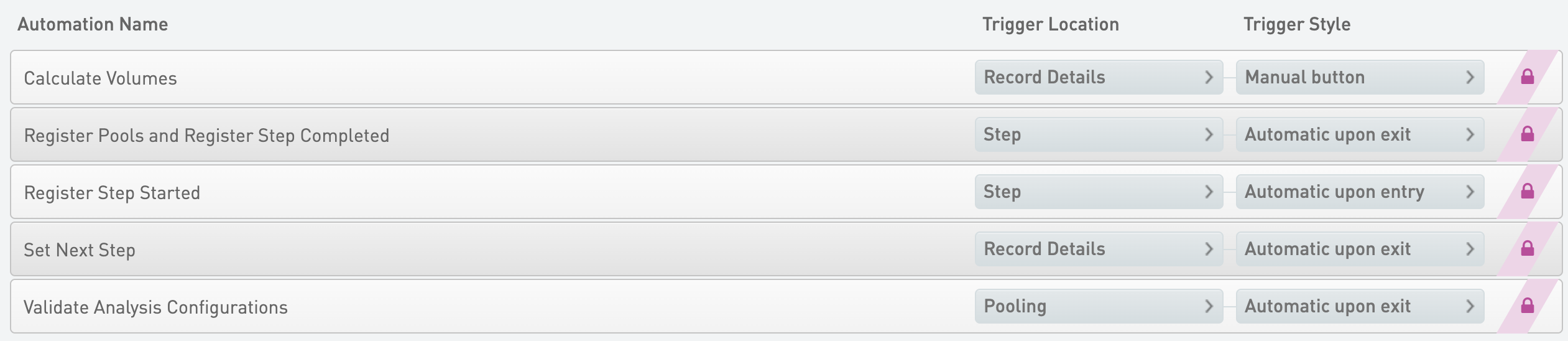
* The Validate Analysis Configurations automation validates the ACT of pooled samples to make sure that the secondary analysis configurations remain valid after pooling.
3. Load To Dry Cartridge (MiSeq i100 Series Sequencing v1.0)
* The library pool from step 2 is ready to be loaded to the MiSeq i100 Series dry cartridge.
* Validates run and analysis configuration.
* Generates the sample sheet and creates the planned run, depending on the run mode.
4. AUTOMATED - Sequencing Run (MiSeq i100 Series Sequencing v1.0)
* The step is fully automated and starts and completes automatically after the sequencing run is started and completed in BaseSpace Sequence Hub.
* The sequencing run metadata (e.g., run configuration, primary run metrics, etc.) are recorded automatically.
5. AUTOMATED - Analysis Run (MiSeq i100 Series Sequencing v1.0)
* The step is fully automated and starts and completes automatically after the analysis run is started and completed in ICA.
* The analysis run metadata (e.g., status and demultiplexing stats file) are recorded automatically.
## Validation Workflow
The Library Prep Validation v2.3.5 workflow allows for validation of the system after installation is complete. This workflow can be replaced by other custom library preparation workflows.
Configure a custom library preparation workflow as follows.
1. Select **Configuration**, then select **Lab Work**.
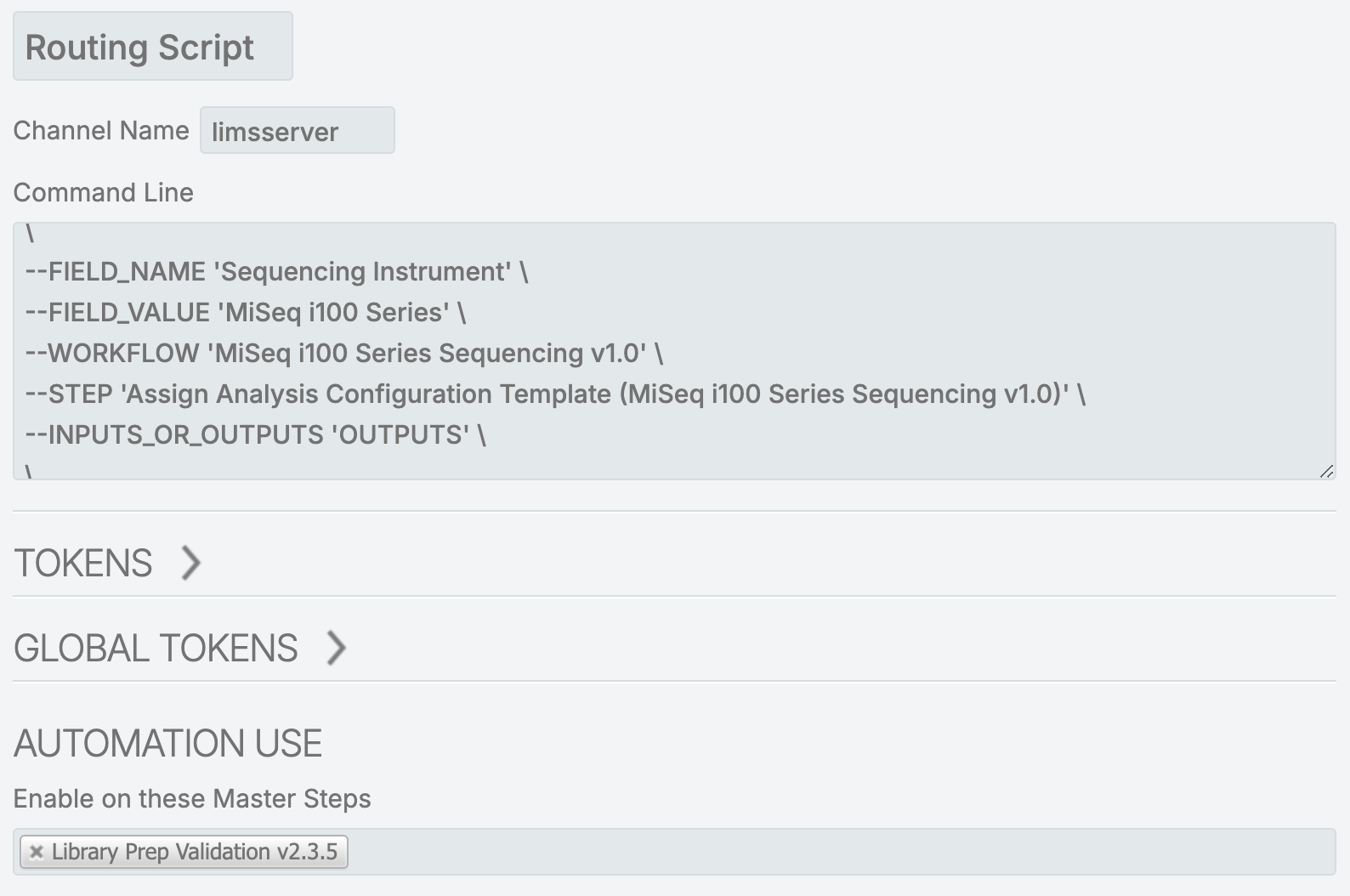
2. Add a Routing Script automation to the last Master Step of the library preparation workflow.
3. Select **Configuration**, then select **Automation**.
4. Create a new Routing Script automation and update it as follows.
1. For Channel Name, enter limsserver.
2. For Command Line, enter the following script:
3. For Automation Use, select the custom library preparation workflow.
## Step 1: Assign Analysis Configuration Template (MiSeq i100 Series Sequencing v1.0)
This step uses ACTs to configure secondary analysis for samples. Each ACT contains details related to the secondary analysis (e.g., index adapter kit to use, reference genome setting, and so on). You can select an ACT from a list and assign samples to it.
Validate Sample Names and Retrieve Analysis Configuration Template List and Register Step Started Automation¹
Automatically triggered on entry to the step, this automation completes the following actions:
* Checks that submitted sample names contain only alphanumeric, dash, and underscore characters.
/opt/gls/clarity/bin/java -jar /opt/gls/clarity/extensions/ngs-common/v5/EPP/ngs-extensions.jar -i {stepURI:v2} -u {username} -p {password} script:evaluateDynamicExpression -exp 'submittedSamples.each { sample -> if ( !sample.name.matches( ::[A-Za-z0-9_-]+:: ) ) { fail ( ::Submitted sample :: + sample.name + :: should only have alphanumeric, dash, and underscore characters. Please rename and try again.:: ) } }' -log {compoundOutputFileLuid1}
* Retrieves the list of ACTs that were created in BaseSpace Sequence Hub.
Retrieve ACT Information Automation
Triggered when you select **Retrieve ACT Information** on the Record Details screen, this automation completes the following actions:
* Retrieves the details of the selected ACT and populates the step custom fields (e.g., Analysis Version, Library Prep Kit, and so on).
* Saves the details into a file that is available to download. This file is stored in the Analysis Configuration Metadata file placeholder.
Validate Reagent Labels and Apply Selected ACT to Samples and Set Next Step Automation
Automatically triggered on exit of the Record Details screen, this automation completes the following actions:
* Checks that the molarity of all samples is specified.
* Checks that all samples are indexed and for invalid indexes. The indexes applied are the same as the selected ACT.
* Assigns the selected ACT to all samples in the step.
* Sets the next step for samples to ADVANCE, which advances them to the next step in the protocol (Make Bulk Pool (MiSeq i100 Series Sequencing v1.0)).
Register Step Completed Automation²
Automatically triggered on exit of the step, this automation registers completion time of the step by publishing messages to CLPA through ICA.
{% code overflow="wrap" %}
```markup
/opt/gls/clarity/bin/java -jar /opt/gls/clarity/extensions/unified-product-analytics/automation/unified-product-analytics-automation.jar script:executeUPAAutomationScript -i {stepURI:v2} -u {username} -p {password} -s 'com/illumina/upa/scripts/common/step_completed.groovy'
```
{% endcode %}
¹ These automations are required for the MiSeq i100 Series Sequencing v1.0 workflows and contain additional logic needed for CLPA support. If you would like to remove support for CLPA, contact Illumina Support.
² These automations are required for CLPA support only.
### Master Step Fields
The following table lists the configuration details for fields that are defined on the Assign Analysis Configuration Template (MiSeq i100 Series Sequencing v1.0) step.
| **Field Name** | **Field Type** | **Options** |
| ------------------------------- | -------------- | -------------------------------------------------------- |
| Analysis Configuration Template | Text Dropdown |
Required Field
Custom Entries¹
|
| Application | Text |
Read Only
|
| Application Version | Text |
Read Only
|
| Index Adapter Kit | Text |
Read Only
|
| Library Prep Kit | Text |
Read Only
|
| Reference Genome | Text |
Read Only
|
| Secondary Analysis Mode | Text |
Read Only
|
¹ The ACT entered must correspond to a valid ACT in BaseSpace Sequence Hub.
### Global Fields
The following table lists the global custom fields that are configured to display on the Assign Analysis Configuration Template (MiSeq i100 Series Sequencing v1.0) step.
*Global Field Configuration (Derived Sample)*
| **Field Name** | **Field Type** | **Options** | **Additional Options and Dropdown Items** |
| -------------- | -------------- | ----------- | ----------------------------------------- |
| Molarity (nM) | Numeric | | Decimal places displayed = 2 |
| ACT Name | Text | Read Only | |
## Step 2: Make Bulk Pool (MiSeq i100 Series Sequencing v1.0)
Samples are pooled in the Make Bulk Pool (MiSeq i100 Series Sequencing v1.0) step. You can manually create working pools based on the final loading concentration required.
Register Step Started Automation¹
Automatically triggered on entry to the step, this automation registers the start time of the step. This automation completes this action by publishing messages to CLPA through ICA.
{% code overflow="wrap" %}
```markup
/opt/gls/clarity/bin/java -jar /opt/gls/clarity/extensions/unified-product-analytics/automation/unified-product-analytics-automation.jar script:executeUPAAutomationScript -i {stepURI:v2} -u {username} -p {password} -l {compoundOutputFileLuid1} -s 'com/illumina/upa/scripts/common/step_started.groovy'
```
{% endcode %}
Validate Analysis Configurations Automation
Automatically triggered on exit of the Pooling screen, this automation performs analysis configuration validity and checks each pool for the following characteristics:
* Pooled samples are within the maximum configuration limit.
* Pooled samples have the same type of analysis (e.g., Cloud or Local).
* Pooled samples assigned with the same secondary analysis application must have the same analysis version (e.g. v3.8.4) and settings (e.g. Map/Align Output Format = CRAM).
{% code overflow="wrap" %}
```markup
/opt/gls/clarity/bin/java -jar /opt/gls/clarity/extensions/SIS/SISServices/extensions/automation/miseqi100series-automation.jar -i {stepURI:v2} -u {username} -p {password} -l {compoundOutputFileLuid1} -m PerPool script:validate_analysis_config script:validate_physical_logical_configurations
```
{% endcode %}
Calculate Volumes Automation
Automatically triggered when you select Calculate Volumes on the Record Details screen, this automation completes the following actions:
* Proceeds if the sample has molarity values.
if (!input.hasValue(::Molarity (nM)::)) { return; };
* Computes the number of samples in pool.
* Uses the Final Loading Concentration (pM) and Final Loading Volume (ul) to calculate the required volumes for the 4 nM intermediate library pools.
* Copies the Final Loading Concentration (pM) and Flowcell Type from the step inputs to the step outputs.
script:evaluateDynamicExpression \
  -exp 'if (!input.hasValue(::Molarity (nM)::)) { return; }; if (output.hasValue(::Number of Samples in Pool::)) { output.::Number of Samples in Pool:: = output.::Number of Samples in Pool:: + 1; } else { output.::Number of Samples in Pool:: = 1; };' -t true \
  script:evaluateDynamicExpression \
  -exp 'output.::Required Bulk Pool Volume (ul):: = (step.::Final Loading Concentration (pM):: / 1000) * step.::Final Loading Volume (ul):: / 4 ;
  output.::MiSeq i100 Series Flowcell Type:: = step.::Flowcell Type::
* Calculates the per sample volume required for each library to make a 4 nM intermediate library pool
* Copies the Bulk Pool Volume (ul) from the step input to the step output.
* Sets the total sample volume to zero.
script:evaluateDynamicExpression \
  -exp 'input.::Per Sample Volume (ul):: = 4 * step.::Bulk Pool Volume (ul):: / input.::Molarity (nM):: / output.::Number of Samples in Pool::; output.::Bulk Pool Volume (ul):: = step.::Bulk Pool Volume (ul)::; output.::Total Sample Volume (ul):: = 0;' -t true \
* Computes the PhiX (100 pM) Spike-In required based on the the percentage specified. The PhiX Volume is saved to the file in the Calculation File placeholder in the Files section.
* Uses the Total Sample Volume (ul), Bulk Pool Volume (ul) and Required Bulk Pool Volume (ul) to calculate the RSB volume (ul) required to top up the pools that are needed to create the intermediate library pools. Computes the KLD volume required. The RSB and KLD volumes are saved to the file in the Calculation File placeholder in the Files section.
* Uses the *MiSeqi100Series\_Bulk\_Pool1.csv*, *MiSeqi100Series\_Bulk\_Pool2* and *MiSeqi100Series\_Bulk\_Pool3.csv* template files to generate a single CSV file. This file contains information about the pools and the samples that they contain. The generated file is stored in the Calculation File placeholder in the Files section.
* Resets the Number of Samples in Pool before exiting the step.
script:evaluateDynamicExpression \
  -exp 'output.::Number of Samples in Pool:: = ::::;' -t true \
Set Next Step Automation
Automatically triggered on exit of the Record Details screen, this automation completes the following actions:
* Proceeds only if the sample has a molarity value.
* Copies the Run Mode from input to output.
* Sets the next step for samples to ADVANCE, which advances them to the Load to Dry Cartridge (MiSeq i100 Series Sequencing v1.0) step.
{% code overflow="wrap" %}
```markup
/opt/gls/clarity/bin/java -jar /opt/gls/clarity/extensions/ngs-common/v5/EPP/ngs-extensions.jar -i {stepURI:v2} -u {username} -p {password} -log {compoundOutputFileLuid1} \
script:evaluateDynamicExpression -exp 'if (!input.hasValue(::Molarity (nM)::)){ return; }; output.::Run Mode:: = input.::Run Mode::; nextStep = ::ADVANCE::;'"
```
{% endcode %}
Register Pools and Register Step Completed Automation¹
Automatically triggered on exit of the step, this automation completes the following actions:
* Registers the pool and library information used by the Clarity LIMS workflow. Samples in the pool are assumed to have gone through library preparation.
* Registers the completion time of the step.
{% code overflow="wrap" %}
```markup
/opt/gls/clarity/bin/java -jar /opt/gls/clarity/extensions/unified-product-analytics/automation/unified-product-analytics-automation.jar script:executeUPAAutomationScript -i {stepURI:v2} -u {username} -p {password} -s 'com/illumina/upa/scripts/common/pooling.groovy' && /opt/gls/clarity/bin/java -jar /opt/gls/clarity/extensions/unified-product-analytics/automation/unified-product-analytics-automation.jar script:executeUPAAutomationScript -i {stepURI:v2} -u {username} -p {password} -s 'com/illumina/upa/scripts/common/step_completed.groovy'
```
{% endcode %}
This automation completes this action by publishing messages to CLPA through ICA.
¹These automations are required for CLPA support only.
All remaining automations are required for the MiSeq i100 Series Sequencing v1.0 workflows.
### Master Step Fields
The following table lists configuration details for the fields that are defined on the Make Bulk Pool (MiSeq i100 Series Sequencing v1.0) step.
*Make Bulk Pool (MiSeq i100 Series Sequencing v1.0) Master Step Field Configuration*
| **Field Name** | **Field Type** | **Options** | **Additional Options and Dropdown Items** |
| -------------------------------- | ---------------- | ------------------------------------------------------- | -------------------------------------------------------------------------------------------------------------------------------------------------------------------------------------------------------- |
| % PhiX (100pM) Spike-In | Numeric | |
Range from 0 to 100
Decimal places displayed: 0
|
| Bulk Pool Volume (ul) | Numeric |
Required Field
|
Decimal places displayed: 1
|
| Final Loading Concentration (pM) | Numeric Dropdown |
Required Field
Custom Entries
|
Dropdown Items
60
70
80
90
100
110
120
130
140
150
160
170
180
|
| Final Loading Volume (ul) | Numeric |
Required Field
|
Default = 250
Decimal places displayed: 2
|
| Flowcell Type | Text Dropdown |
Required Field
|
Dropdown Items
5M
25M
|
| Minimum Per Sample Volume (ul) | Numeric |
Required Field
|
Decimal places displayed: 2
Default: 2
|
### Global Fields
The following table lists the global custom fields that are configured to display on the Make Bulk Pool (MiSeq i100 Series Sequencing v1.0) step.
*Global Custom Fields Configuration (Derived Sample)*
| **Field Name** | **Field Type** | **Options** | **Additional Options and Dropdown Items** |
| ------------------------------------- | ---------------- | ------------------------------------------------------- | ------------------------------------------------------------------------------------------------------------ |
| Final Loading Concentration (pM) | Numeric Dropdown |
Required Field
Custom Entries
|
Decimal places displayed: 0
Dropdown Items
225
400
|
| KLD Volume (ul) | Numeric |
Read Only
|
Decimal places displayed: 1
|
| MiSeq i100 Series Flowcell Type | Text Dropdown |
Required Field
Read Only
|
Dropdown Items
5M
25M
|
| RSB Volume for Intermediate Pool (ul) | Numeric |
Read Only
|
Decimal places displayed: 1
|
| RSB Volume (ul) | Numeric |
Read Only
|
Decimal places displayed: 2
|
## Step 3: Load to Dry Cartridge (MiSeq i100 Series Sequencing v1.0)
The Load to Dry Cartridge (MiSeq i100 Series Sequencing v1.0) step requires you to enter or scan in the dry cartridge barcode into Clarity LIMS. Then, you can place the working pool into the dry cartridge used in the MiSeq i100 Series run. This step also does the following actions:
* Validates the run setup and analysis information.
* Generates the sample sheet file.
* Creates a planned run.
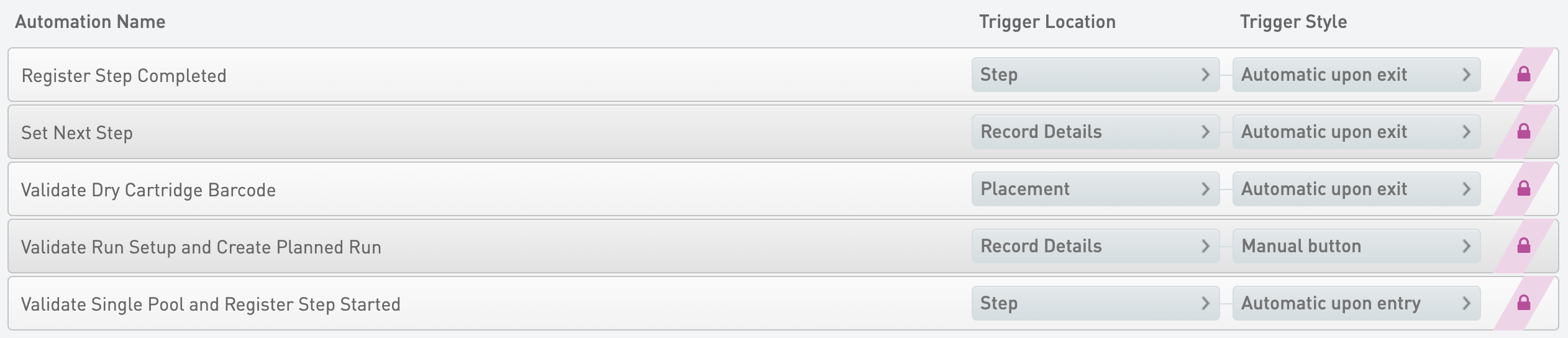
Validate Single Pool and Register Step Started Automation¹
Automatically triggered on entry to the step, this automation completes the following actions:
* Checks that the input is a single pool.
Validate Dry Cartridge Barcode Automation
Automatically triggered on the Placement screen, this automation validates the dry cartridge barcode to make sure that it conforms to the barcode mask SC\[0-9]{7}-SC3.
{% code overflow="wrap" %}
```markup
/opt/gls/clarity/bin/java -jar /opt/gls/clarity/extensions/ngs-common/v5/EPP/ngs-extensions.jar -i {stepURI:v2} -u {username} -p {password} script:validate_output_containers -l {compoundOutputFileLuid1} -r 'MiSeq i100 Series Dry Cartridge:SC[0-9]{7}-SC3' -min 1 -max 1
```
{% endcode %}
Validate Run Setup and Create Planned Run Automation
Automatically triggered when you select Validate Run Setup and Create Planned Run on the Record Details screen, this automation completes the following actions:
* Validates the parameters entered on the Record Details screen. These parameters are used to set up the run, generate the sample sheet file, and create the planned run in ICA, depending on the run mode.
* Run Name can only contain alphanumeric, dash, underscore, or period characters. Do not use spaces.
if (!step.::Run Name::.matches(::[a-zA-Z0-9-_]+[a-zA-Z0-9-_. ]*::)) { fail(::Run Name contains prohibited characters. Please check to make sure Run Name only contains alphanumeric characters, spaces, dashes and underscores. Run Name must start with alphanumeric, a dash or an underscore::);}
* Run Name cannot exceed 255 characters.
if (step.::Run Name::.length() > 255) { fail(::Run Name shall not exceed 255 characters.::); };
* Checks the Index 1 Cycles and Index 2 Cycles field values. If Index 2 Cycles is greater than 0, the Index 1 Cycles value must be greater than 0 or an error can occur.
if (step.::Index 2 Cycles:: > 0 && step.::Index 1 Cycles:: == 0) { fail(::Index 1 Cycles cannot be zero if Index 2 Cycles is non-zero::); };
* Generates the sample sheet and creates the planned run in ICA. The sample sheet is attached to the step.
There is a backend validation of the sample sheet content in ICA. This validation makes sure that the sample sheet is valid to set up a Cloud or Hybrid mode run and that it is ready for use with DRAGEN applications.
Set Next Step Automation
Automatically triggered on exit of the Record Details screen, this automation completes the following actions:
* Copies the Run Mode from input to output.
* Sets the next step for samples to ADVANCE, advancing them to the AUTOMATED - Sequencing Run (MiSeq i100 Series Sequencing v1.0) step.
{% code overflow="wrap" %}
```markup
output.::Run Mode:: = input.::Run Mode::; nextStep = ::ADVANCE::
```
{% endcode %}
Register Step Completed Automation²
Automatically triggered on exit of the step, this automation registers the completion time of the step by publishing messages to CLPA through ICA.
{% code overflow="wrap" %}
```markup
/opt/gls/clarity/bin/java -jar /opt/gls/clarity/extensions/unified-product-analytics/automation/unified-product-analytics-automation.jar script:executeUPAAutomationScript -i {stepURI:v2} -u {username} -p {password} -s 'com/illumina/upa/scripts/common/step_completed.groovy'
```
{% endcode %}
¹ These automations are required for the MiSeq i100 Series Sequencing v1.0 workflows and contain additional logic needed for CLPA support. If you would like to remove support for CLPA, contact Illumina Support.
² These automations are required for CLPA support only.
All remaining automations are required for the MiSeq i100 Series Sequencing v1.0 workflows.
### Master Step Fields
The following table shows the master step fields that are configured on the Load to Dry Cartridge (MiSeq i100 Series Sequencing v1.0) step. These fields are required for sample sheet generation and planned run creation in ICA.
*Load to Dry Cartridge (MiSeq i100 Series Sequencing v1.0) Master Step Field Configuration*
| **Field Name** | **Field Type** | **Options** | **Additional Options and Dropdown Items** |
| -------------- | ---------------- | ------------------------------------------------------- | --------------------------------------------------------------------------------------------------- |
| Planned Run ID | Text |
Read Only
|
Hidden
ℹ Used for storing the planned run ID.
|
| Index 1 Cycles | Numeric Dropdown |
Required Field
Custom Entries
|
Range = 0–18
Presets
0
6
8
|
| Index 2 Cycles | Numeric Dropdown |
Required Field
Custom Entries
|
Range = 0–18
Presets
0
6
8
|
| Read 1 Cycles | Numeric Dropdown |
Required Field
Custom Entries
|
Range = 1–301
Presets
101
151
301
|
| Read 2 Cycles | Numeric Dropdown |
Required Field
Custom Entries
|
Range = 0–301
Presets
101
151
301
|
| Run Mode | Text Dropdown |
Required Field
|
Presets
Cloud
Hybrid
|
| Run Name | Text |
Required Field
| |
## Step 4: AUTOMATED - Sequencing Run (MiSeq i100 Series Sequencing v1.0)
The AUTOMATED - Sequencing Run (MiSeq i100 Series Sequencing v1.0) step is fully automated. The integration starts the step, adds samples to the Ice Bucket, and completes the step. Data from the run is parsed back to Clarity LIMS. In this step, pooled samples in the dry cartridge are sequenced on the MiSeq i100 Series instrument.
{% hint style="danger" %}
Do not add samples to the Ice Bucket or start and complete the AUTOMATED - Sequencing Run (MiSeq i100 Series Sequencing v1.0) step. The integration does this automatically.
{% endhint %}
Register Step Started and Register MiSeq i100 Series Run and Register MiSeq i100 Series Run Association and Register MiSeq i100 Series RunStarted Automation¹
Automatically triggered at the beginning of the step, this automation completes the following actions:
* Registers the start time of the step.
* Registers the MiSeq i100 Series sequencing run configuration.
* Registers the association of the sequencing run with the samples by linking the Instrument Run ID with the sample ID.
* Registers the time that the sequencing run started.
This automation completes these actions by publishing messages to CLPA through ICA.
{% code overflow="wrap" %}
```markup
/opt/gls/clarity/bin/java -jar /opt/gls/clarity/extensions/unified-product-analytics/automation/unified-product-analytics-automation.jar script:executeUPAAutomationScript -i {stepURI:v2} -u {username} -p {password} -s 'com/illumina/upa/scripts/common/step_started.groovy' && /opt/gls/clarity/bin/java -jar /opt/gls/clarity/extensions/unified-product-analytics/automation/unified-product-analytics-automation.jar script:executeUPAAutomationScript -i {stepURI:v2} -u {username} -p {password} -s 'com/illumina/upa/scripts/miseqi100series/register_miseqi100series_run.groovy' && /opt/gls/clarity/bin/java -jar /opt/gls/clarity/extensions/unified-product-analytics/automation/unified-product-analytics-automation.jar script:executeUPAAutomationScript -i {stepURI:v2} -u {username} -p {password} -s 'com/illumina/upa/scripts/miseqi100series/miseqi100series_associate_seqrun.groovy' && /opt/gls/clarity/bin/java -jar /opt/gls/clarity/extensions/unified-product-analytics/automation/unified-product-analytics-automation.jar script:executeUPAAutomationScript -i {stepURI:v2} -u {username} -p {password} -s 'com/illumina/upa/scripts/miseqi100series/miseqi100series_seqrun_started.groovy'
```
{% endcode %}
Register MiSeq i100 Series RunCompleted and Register Step Completed Automation¹
Automatically triggered on exit of the step, this automation completes the following actions:
* Registers the sequencing run completion time, run status, and run metrics. This script requires the Planned Run ID custom field from the Load to Dry Cartridge (MiSeq i100 Series Sequencing v1.0) step.
* Registers the completion time of the step.
This automation completes these actions by publishing messages to CLPA through ICA.
{% code overflow="wrap" %}
```markup
/opt/gls/clarity/bin/java -jar /opt/gls/clarity/extensions/unified-product-analytics/automation/unified-product-analytics-automation.jar script:executeUPAAutomationScript -i {stepURI:v2} -u {username} -p {password} -s 'com/illumina/upa/scripts/miseqi100series/miseqi100series_seqrun_completed.groovy' && /opt/gls/clarity/bin/java -jar /opt/gls/clarity/extensions/unified-product-analytics/automation/unified-product-analytics-automation.jar script:executeUPAAutomationScript -i {stepURI:v2} -u {username} -p {password} -s 'com/illumina/upa/scripts/common/step_completed.groovy'
```
{% endcode %}
¹ These automations are required for CLPA support only.
### Master Step Fields
The following tables show the master step fields that are configured on the AUTOMATED - Sequencing Run (MiSeq i100 Series Sequencing v1.0) step. These fields are updated by the integration service.
| **Field Name** | **Description** |
| ----------------------------------- | ----------------------------------------------------- |
| Current Cycle | Completed cycles of current run. |
| Current Read | Completed reads of current run. |
| Flow Cell ID | ID of the flow cell. |
| Flow Cell Type | Type of flow cell. |
| Instrument Control Software Version | Control software version installed on the instrument. |
| Instrument Type | Instrument type. |
| Output Folder | Output folder containing the run data. |
| Run End Time | Run completion time. |
| Run Name | Name of the current run. |
| Dry Cartridge Barcode Serial Number | Serial number of the dry cartridge. |
| Dry Cartridge Expiration Date | Expiration date of the dry cartridge. |
| Wet Cartridge Expiration Date | Expiration date of the wet cartridge. |
| Wet Cartridge Serial Number | Serial number of the wet cartridge. |
| Run Status | Status of the run. |
| Sequencing Log | Log of the sequencing run. |
| BaseSpace Run ID | ID of the run in BaseSpace Sequence Hub. |
| ICA Project ID | ID of the project in Illumina Connected Analytics. |
| Instrument Run ID | ID of the run on the instrument. |
| Cloud Run ID | ID of the run in Illumina Connected Analytics. |
| Run Start Time | Run start time. |
### Global Fields
The following global custom fields are used to capture the run metrics in Clarity LIMS:
* % Bases >=Q30 R1
* % Bases >=Q30 R2
* % Error Rate R1
* % Error Rate R2
* Yield (Gb) R1
* Yield (Gb) R2
* Reads PF
* % PF
* % Aligned R1
* % Aligned R2
* % Occupied
* % Phasing R1
* % Phasing R2
* % Prephasing R1
* % Prephasing R2
* Intensity Cycle 1 R1
* Intensity Cycle 1 R2
At the end of the step, the pools of samples automatically advances to the next step when the sequencing run is successfully completed.
## Step 6: AUTOMATED - Analysis Run (MiSeq i100 Series Sequencing v1.0)
The AUTOMATED - Analysis Run (MiSeq i100 Series Sequencing v1.0) step is fully automated. The integration starts and completes the step automatically. In this step, the secondary analysis configured using the Analysis Configuration Template (ACT) is performed in Illumina Connected Analytics (ICA). The local analysis status and results are uploaded to BaseSpace Sequence Hub which in turns passes back the data to Clarity LIMS.
There are no automations associated with this step.
{% hint style="danger" %}
Do not add samples to the Ice Bucket or start and complete the AUTOMATED - Sequencing Run (MiSeq i100 Series Sequencing v1.0) step. The integration does this automatically.
{% endhint %}
### Master Step Fields
The following tables show the master step fields that are configured on the AUTOMATED - Analysis Run (MiSeq i100 Series Sequencing v1.0) step.
{% hint style="danger" %}
Do not modify the names of the master step fields. Modifications cause the integration to break.
{% endhint %}
*AUTOMATED - Analysis Run (MiSeq i100 Series Sequencing v1.0) Master Step Field Information*
| **Field Name** | **Description** |
| ------------------------ | ------------------------------------------------------- |
| Analysis Status | Status of the analysis run. |
| Analysis Result Location | BaseSpace Sequence Hub link to analysis run data. |
| App Session ID | BaseSpace Sequence Hub session ID for the analysis run. |
## How the Integration Works
The following information summarizes how the MiSeq i100 Series integration works.
* After the Validate Run Setup and Create Planned Run automation is triggered on the Load to Dry Cartridge (MiSeq i100 Series Sequencing v1.0) step, validation of the run and analysis configuration occurs. When the validation fails, Clarity LIMS displays an error message. Otherwise, a cloud-planned run is created and available on BaseSpace Sequence Hub. The v2 sample sheet is also generated.
* The planned run contains the run and analysis configuration information required to start the run on the instrument. The sample sheet is generated and stored in Clarity LIMS for reference purposes.
* In Cloud run mode, analysis is performed in Illumina Connected Analytics (ICA). In Hybrid run mode, analysis is performed on-premise.
* When the integration is configured with BaseSpace Sequence Hub storage and monitoring, the integration tracks the sequencing and analysis events. You can view the analysis result files in BaseSpace Sequence Hub.
{% hint style="danger" %}
If a planned run with the same sample name and project name (case-insensitive) has been created previously, the sample sheet generated from the Validate Run Setup and Create Planned Run automation can reflect the original case of the previous sample name. This can cause validation errors for analysis configurations with sample-level settings. To resolve this issue, change the sample name or the project name on Clarity LIMS and run the automation again.
{% endhint %}
## Start a Sequencing Run on MiSeq i100 Series Instrument
The following sections outline the steps to start a Clarity LIMS cloud or hybrid run on the MiSeq i100 Series instrument.
Run Mode Configuration
1. In the MiSeq i100 Series Control Software, log in to the instrument using an account that has permissions for configuring settings.
2. On the menu, select **Settings**, then select **Cloud settings**.
3. In Run Settings, select the **Cloud run storage** checkbox.
4. For Hosting location, select the applicable location from the drop-down options.
5. \[Optional] For Private domain name, enter the domain name according to the workgroup that was configured with the MiSeq i100 Series integration package.
6. Select **Save**.
Start a Planned Run (Cloud Run or Hybrid Run Modes)
Refer to information on [starting a planned run in the Illumina support site.](https://support.illumina.com/training/miseq-i100-instrument/how-to-start-run/how-to-start-a-run.html).
## Enabling Planned Run Generation for Samples Having Duplicate Name with Different Indexes
The library preparation workflow of the samples must be [configured to ensure unique derived sample names](/clarity-lims/instruments-and-integrations/references/configure-support-samples-duplicate-names-different-indexes.md) before routing the samples through the library preparation workflow.
## Components Installed
The following sections describe the components (files, properties, reagent categories / label groups, reagent kits, and containers) that are installed by default as part of this integration.
**Reagent Kits**
* MiSeq i100 Series Dry Cartridge
* MiSeq i100 Series Library Denature (KLD)
* MiSeq i100 Series Wet Cartridge
* Resuspension Buffer (RSB)
**Container Types**
* MiSeq i100 Series Dry Cartridge
* Tube
## Rules and Constraints
* The workflow configuration contains several validation checks. To make sure that the calculations work properly, it is important that you do not disable any of this validation logic. Refer to the individual validation checks for details.
* All submitted samples must have an associated secondary analysis that is configured using the analysis configuration template (ACT). The ACT must be configured on BaseSpace Sequence Hub before starting the Assign Analysis Configuration Template step. The ACT names must be unique.
* The dry cartridge barcode must be unique. There must not be multiple dry cartridges with the same name in the system.
* Reagent labels, or indexes, must be unique.
* Only one library pool can be added to be Load to Dry Cartridge step.
* The AUTOMATED - Sequencing Run (MiSeq i100 Series Sequencing v1.0) and AUTOMATED - Analysis Run (MiSeq i100 Series Sequencing v1.0) steps must not be manually started or completed. These steps are fully automated and the sequencing service does not update samples correctly if they have been manually started.
* For the automated run to start successfully, you must select **Validate Run Setup and Create Planned Run** in the Load to Dry Cartridge step. The Load to Dry Cartridge step must be completed and libraries must be queued to the AUTOMATED - Sequencing Run step.
---
# Agent Instructions
This documentation is published with GitBook. GitBook is the documentation platform designed so that both humans and AI agents can read, navigate, and reason over technical content effectively. Learn more at gitbook.com.
## Querying This Documentation
If you need additional information that is not directly available in this page, you can query the documentation dynamically by asking a question.
Perform an HTTP GET request on the current page URL with the `ask` query parameter, and the optional `goal` query parameter:
```
GET https://help.connected.illumina.com/clarity-lims/instruments-and-integrations/miseq-i100/miseqi100/miseqi100-v1.0.0/miseqi100-v1.0.0-configuration.md?ask=&goal=
```
`ask` is the immediate question: it should be specific, self-contained, and written in natural language.
`goal` is optional and describes the broader end goal you are ultimately trying to accomplish on behalf of the user. GitBook uses it to tailor the answer towards what is most useful for that goal.
The response will contain a direct answer to the question and relevant excerpts and sources from the documentation.
Use this mechanism when the answer is not explicitly present in the current page, you need clarification or additional context, or you want to retrieve related documentation sections.