> For the complete documentation index, see [llms.txt](https://help.connected.illumina.com/llms.txt). Markdown versions of documentation pages are available by appending `.md` to page URLs; this page is available as [Markdown](https://help.connected.illumina.com/clarity-lims/instruments-and-integrations/novaseq6k-file/novaseq6k-file-v2.6.0/novaseq6k-file-v2.6.0-configuration.md).
# Configuration
The Illumina NovaSeq 6000 Integration Package v2.6 supports the integration of Clarity LIMS to NovaSeq 6000 instruments.
This document describes the integration and includes information about the preconfigured protocols, steps, automations, installed components, configuration requirements, rules, and constraints.
For instructions on user interaction for each step, validating and troubleshooting the Illumina NovaSeq 6000 Integration, refer to [NovaSeq 6000 Integration v2.6.0 User Interaction, Validation and Troubleshooting](/clarity-lims/instruments-and-integrations/novaseq6k-file/novaseq6k-file-v2.6.0/novaseq6k-file-v2.6.0-user-interaction-validation-and-troubleshooting.md).
{% hint style="danger" %}
The configuration provided in this integration has been established to support NovaSeq 6000 lab processes. Any configuration changes to protocols or workflows—including renaming protocols, steps, and fields—could break the process.
{% endhint %}
## Prerequisites and Assumptions
It is assumed that samples enter the NovaSeq 6000 v2.3 workflow as normalized libraries. That is, before they are assigned to the workflow the following actions occur:
* Samples have been accessioned into Clarity LIMS.
* Samples have been run through QC and library prep.
* Samples have been normalized, and the value is captured in a field called Normalized Molarity (nM).
For more information on sample accessioning, refer to Sample Accessioning and Upload and Modify Samples in the Getting Started section of the [Clarity LIMS (Clarity & LabLink Reference Guide) documentation](/clarity-lims/clarity-lims/clarity-and-lablink.md).
You can assign samples to workflows automatically, using a routing script, or manually—from the Projects & Samples dashboard. Refer to Assign and Process Samples in the [Clarity LIMS (Clarity & LabLink Reference Guide) documentation](/clarity-lims/clarity-lims/clarity-and-lablink.md).
## Workflows, Protocols, and Steps
The Illumina NovaSeq 6000 Integration Package v2.6.0 includes two workflows:
* NovaSeq Validation Library Prep (NovaSeq 6000 v2.3)
* NovaSeq 6000 v2.3
### NovaSeq Validation Library Prep (NovaSeq 6000 v2.3) Workflow
Protocol: NovaSeq Validation Library Prep (NovaSeq 6000 v2.3)
**Purpose**:
* Included for validation purposes only, this protocol models the library prep steps required to advance samples to the Run Format (NovaSeq 6000 v2.3) protocol.
* The protocol contains a single step: NovaSeq Validation Library Prep (NovaSeq 6000 v2.3). At the end of this step, a routing script sends the samples to the first step of the NovaSeq 6000 v2.3 workflow, which is Define Run Format (NovaSeq 6000 v2.3).
**Steps**:
1. NovaSeq Validation Library Prep (NovaSeq 6000 v2.3)
### NovaSeq 6000 v2.3 Workflow
Protocol 1: Run Format (NovaSeq 6000 v2.3)
**Purpose**:
* Allows for the assignment of per sample values for Loading Workflow Type, Normalized Molarity, Flowcell Type, and Final Loading Concentration (pM).
* Loading Workflow Type: Select from NovaSeq Standard or NovaSeq Xp.
* Normalized Molarity: Enter a value for each sample.
* Flowcell Type: Select from options S1, S2, S4, and SP.
* Final Loading Concentration (pM): Select from the options 225 (PCR-free workflows) or 400 (Nano workflows). Alternatively, enter a different value.
* Compares the Normalized Molarity value of each sample with the Minimum Molarity value.
* Routing script sends samples to the NovaSeq Standard or NovaSeq Xp protocol, according to the selected Loading Workflow Type. Samples with Normalized Molarity less than Minimum Molarity are removed from the workflow.
**Steps**:
1. Define Run Format (NovaSeq 6000 v2.3)
Protocol 2: NovaSeq Standard (NovaSeq 6000 v2.3)
**Purpose**:
* Samples are pooled and added to the library tube in preparation for the NovaSeq run. Sample sheet and run recipe files are generated.
* Routing script sends library tube to the AUTOMATED - NovaSeq Run (NovaSeq 6000 v2.3) protocol.
**Steps**:
1. Make Bulk Pool for NovaSeq Standard (NovaSeq 6000 v2.3)
2. Dilute and Denature (NovaSeq 6000 v2.3)
Protocol 3: NovaSeq Xp (NovaSeq 6000 v2.3)
**Purpose**:
* Samples are pooled and added to lanes on the NovaSeq flow cell. The flow cell type is determined by the option selected in the Define Run Format (NovaSeq 6000 v2.3) step. Sample sheet and run recipe files are generated.
* Samples are queued for the AUTOMATED - NovaSeq Run (NovaSeq 6000 v2.3) protocol.
**Steps**:
1. Make Bulk Pool for NovaSeq Xp (NovaSeq 6000 v2.3)
2. Dilute, Denature & ExAmp (NovaSeq 6000 v2.3)
3. Load to Flowcell (NovaSeq 6000 v2.3)
Protocol 4: AUTOMATED - NovaSeq Run (NovaSeq6000 v2.3)
**Purpose**:
* All samples complete the workflow by going through this protocol.
* This protocol contains one fully automated step.
> ⚠ Do not add samples to the Ice Bucket or start the step. The integration does this action automatically.
**Steps**:
1. AUTOMATED - NovaSeq Run (NovaSeq 6000 v2.3)
### Validation Workflow
The NovaSeq Validation Library Prep (NovaSeq 6000 v2.3) workflow allows for validation of the system after installation is complete. For details, refer to [NovaSeq 6000 Integration v2.6.0 User Interaction, Validation and Troubleshooting](/clarity-lims/instruments-and-integrations/novaseq6k-file/novaseq6k-file-v2.6.0/novaseq6k-file-v2.6.0-user-interaction-validation-and-troubleshooting.md).
## Protocol 1: Run Format (NovaSeq 6000 v2.3)
This protocol sets the Loading Workflow Type and allows you to choose the appropriate Flowcell Type and Final Loading Concentration(pM). At the end of the protocol, a routing script sends the normalized libraries to either the NovaSeq Standard (NovaSeq 6000 v2.3) or the NovaSeq Xp (NovaSeq 6000 v2.3) protocol.
This protocol contains one step: Define Run Format (NovaSeq 6000 v2.3).
### Step 1: Define Run Format (NovaSeq 6000 v2.3)
* Step input: NTP (normalized libraries)
* Step output: None
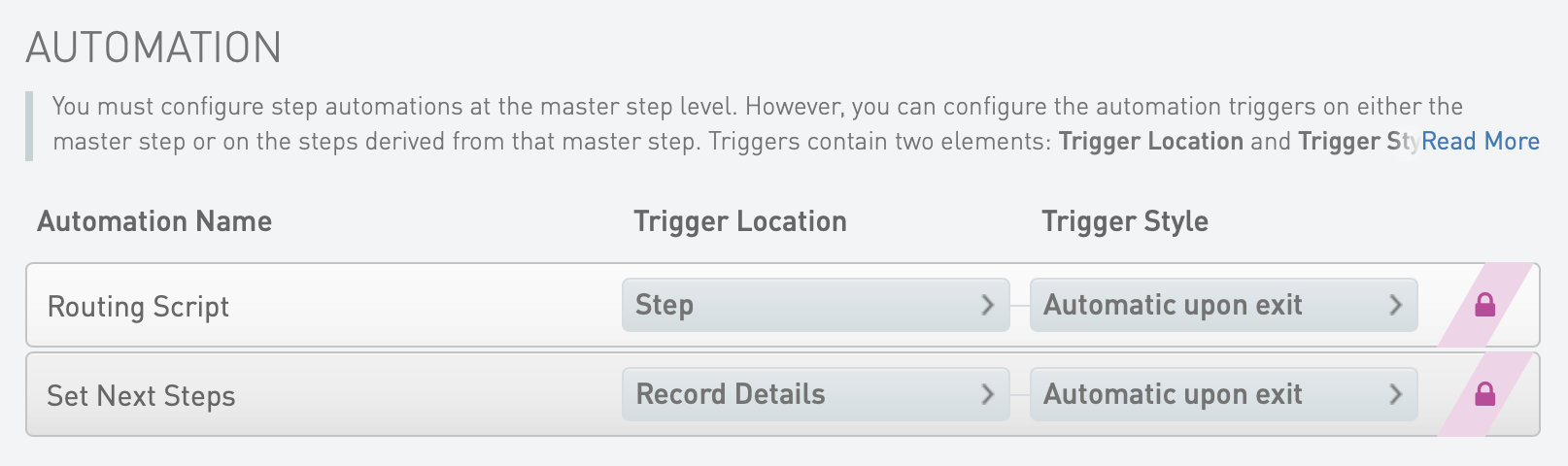
Set Next Steps Automation
Automatically triggered on exit of the Record Details screen, this automation does the following actions:
* Sets the next step for samples to REMOVE with
nextStep = ::REMOVE::
* Calculates the Minimum Molarity using the following formula:
* Checks Normalized Molarity value. For samples with no Normalized Molarity value (e.g., an empty value, not including 0), the automation generates an error message stating that the field cannot be empty:
if (!input.hasValue(::Normalized Molarity (nM)::)) { fail(::The Normalized Molarity cannot be empty.::) ; }
* Compares the Normalized Molarity value of each sample with the Minimum Molarity value. If Normalized Molarity value is lower than the Minimum Molarity value, sets the Loading Workflow Type of the sample to \[Remove from workflow] and records a message in the Warning field:
else if (input.::Normalized Molarity (nM):: < input.::Minimum Molarity (nM)::) { input.::Warning:: = ::The Normalized Molarity is too low.:: ; input.::Loading Workflow Type:: = ::[Remove from workflow]:: ; } else { input.::Warning:: = ::n/a:: }
At this point, there are two options:
* Correct the Normalized Molarity value on the Record Details screen. Also, edit the Loading Workflow Type field and set it to NovaSeq Standard or NovaSeq Xp, as applicable.
* Complete the protocol without correcting the Normalized Molarity value. In this case, those samples are removed from the workflow.
Routing Script Automation
Automatically triggered on exit of the step, this automation invokes the *changeWorkflow* script, which routes step inputs appropriately.
* Samples with Loading Workflow Type field value of NovaSeq Standard are routed to the NovaSeq 6000 v2.3 workflow and queued for the Make Bulk Pool for NovaSeq Standard (NovaSeq 6000 v2.3) step.
* Samples with Loading Workflow Type field value of NovaSeq Xp are routed to the NovaSeq 6000 v2.3 workflow and queued for the Make Bulk Pool for NovaSeq Xp (NovaSeq 6000 v2.3) step.
The default automation command line is as follows.
{% code overflow="wrap" %}
```markup
bash -c "/opt/gls/clarity/bin/java -jar /opt/gls/clarity/extensions/ngs-common/v5/EPP/ngs-extensions.jar
-u {username} -p {password} -i {stepURI:v2} -l {compoundOutputFileLuid0} script:changeWorkflow \
\
--FIELD_NAME 'Loading Workflow Type' \
--FIELD_VALUE 'NovaSeq Standard' \
--WORKFLOW 'NovaSeq 6000 v2.3' \
--STEP 'Make Bulk Pool for NovaSeq Standard (NovaSeq 6000 v2.3)' \
--INPUTS_OR_OUTPUTS 'INPUTS' \
\
--FIELD_NAME 'Loading Workflow Type' \
--FIELD_VALUE 'NovaSeq Xp' \
--WORKFLOW 'NovaSeq 6000 v2.3' \
--STEP 'Make Bulk Pool for NovaSeq Xp (NovaSeq 6000 v2.3)' \
--INPUTS_OR_OUTPUTS 'INPUTS'"
```
{% endcode %}
#### Master Step Fields
The following table provides field configuration details for the fields defined on the Define Run Format (NovaSeq 6000 v2.3) step.
*Define Run Format (NovaSeq 6000 v2.3) Master Step Field Configuration*
| **Field Name** | **Field Type** | **Field Constraints/Options** | **Preset Values/Additional Options and Drop-Down Items** |
| --------------------- | -------------- | ------------------------------------------------------- | ---------------------------------------------------------------------------------------------------------------------------------------------------- |
| Comment | Multiline Text | | None |
| Instruction | Text |
Read Only
|
Default
Add Flowcell Type and Loading Workflow Type below
|
| Flowcell Type | Text Dropdown |
Required Field
Custom Entries
|
ℹ (does not show on Record Details screen)
Presets
S1
S2
S3
S4
|
| Loading Workflow Type | Text Dropdown |
Required Field
|
ℹ Hidden (does not show on Record Details screen)
Presets
NovaSeq Standard
NovaSeq Xp
|
#### Global Fields
The following table lists the global fields that are configured to display on the Define Run Format (NovaSeq 6000 v2.3) step.
*Global Field Configuration (Derived Sample)*
| **Field Name** | **Field Type** | **Options** | **Additional Options and Dropdown Items** |
| -------------------------------- | ---------------- | ------------------------------------------------------- | --------------------------------------------------------------------------------------------------------------------- |
| Adjusted Per Sample Volume (ul) | Numeric |
Read Only
|
Decimal places displayed = 2
|
| Final Loading Concentration (pM) | Numeric Dropdown |
Required Field
Custom Entries
|
Presets
225
400
Decimal places displayed = 0
|
| Flowcell Type | Text Dropdown |
Required Field
|
Presets
S1
S2
S4
SP
|
| Loading Workflow Type | Text Dropdown |
Required Field
|
Presets
NovaSeq Standard
NovaSeq Xp
\[Remove from workflow]
|
| Minimum Molarity (nM) | Numeric | |
Decimal places displayed = 2
|
| Normalized Molarity (nM) | Numeric | |
Decimal places displayed = 2
|
| Per Sample Volume (ul) | Numeric |
Read Only
|
Decimal places displayed = 2
|
| Warning | Text Dropdown |
Read Only
Custom Entries
|
Presets
The Normalized Molarity (nM) is too low.
n/a
|
## Protocol 2: NovaSeq Standard (NovaSeq 6000 v2.3)
Samples are routed to this protocol if the Loading Workflow Type value is set to NovaSeq Standard. Samples are pooled and added to a library tube in preparation for the NovaSeq run.
At the end of this protocol, a routing script sends the library tube to the AUTOMATED - NovaSeq Run (NovaSeq 6000 v2.3) protocol.
This protocol contains two steps:
1. Make Bulk Pool for NovaSeq Standard (NovaSeq 6000 v2.3)
2. Dilute and Denature (NovaSeq 6000 v2.3)
### Step 1: Make Bulk Pool for NovaSeq Standard (NovaSeq 6000 v2.3)
In this step, manually place libraries into a single pool. Resuspension buffer and reagents are added.
{% hint style="danger" %}
Only create one pool per step.
{% endhint %}
* Step input: NTP (normalized libraries)
* Step output: Bulk pool
The following automations are configured on the step (in the order they are triggered at run time).
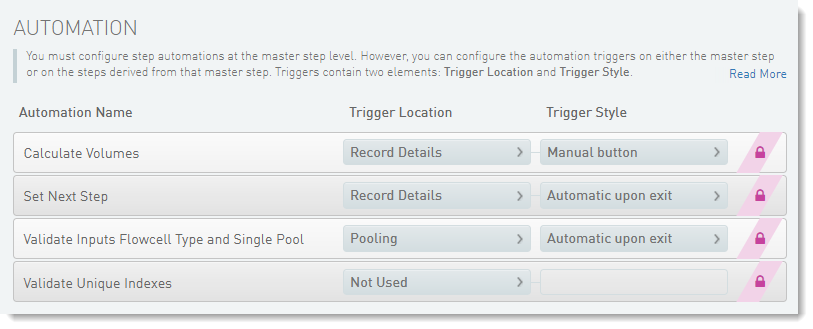
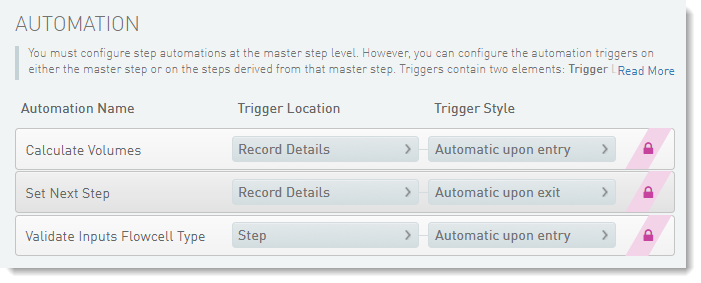
Validate Inputs Flowcell Type and Single Pool Automation
Automatically triggered on exit of the Pooling screen, this automation checks the following information:
* All samples in the pool have the same Flowcell Type assigned to them.
* Only one pool has been created.
{% code overflow="wrap" %}
```markup
/opt/gls/clarity/bin/java -jar /opt/gls/clarity/extensions/novaseq/novaseq-extensions.jar script:validate_flowcell_for_input_pools -i {stepURI:v2} -u {username} -p {password} -l {compoundOutputFileLuid1} -validateSingleOutput true -poolType bulk
```
{% endcode %}
Calculate Volumes Automation
Due to the 4000-character limit, part of the script definition of Calculate Volumes has been moved into the Calculate Volumes Script field. If this part of the script needs to be modified, you can make the changes to the default value of the Calculate Volumes Script field. The parts of the script that were moved into the Calculate Volumes Script field are identified below.
Automatically triggered when the Calculate Volumes button on the Record Details screen is selected, this automation does the following actions:
* Calculates the number of samples in the pool:
step.::Number of Samples in Pool:: = step.::Number of Samples in Pool:: + 1
* Sets the value of the Bulk Pool Volume (ul) and PhiX Volume (ul) fields, based on the selected Flowcell Type. The following part of the automation is found in the Calculate Volumes Script field:
step.::PhiX Volume (ul):: = !step.hasValue(::% PhiX (2.5nM) Spike-In::) ? 0 : step.::% PhiX (2.5nM) Spike-In::;
  if (input.::Flowcell Type:: == ::SP::) {
      step.::Bulk Pool Volume (ul):: = step.::Number of Flowcells to Sequence:: * 100;
      step.::PhiX Volume (ul):: *= 0.6
  };
  if (input.::Flowcell Type:: == ::S1::) {
      step.::Bulk Pool Volume (ul):: = step.::Number of Flowcells to Sequence:: * 100;
      step.::PhiX Volume (ul):: *= 0.6
  };
  if (input.::Flowcell Type:: == ::S2::) {
      step.::Bulk Pool Volume (ul):: = step.::Number of Flowcells to Sequence:: * 150;
      step.::PhiX Volume (ul):: *= 0.9
  };
  if (input.::Flowcell Type:: == ::S4::) {
      step.::Bulk Pool Volume (ul):: = step.::Number of Flowcells to Sequence:: * 310;
      step.::PhiX Volume (ul):: *= 1.9
  };
  if (step.::PhiX Volume (ul):: == 0) {
      step.::PhiX Volume (ul):: = ::::
  };
* Calculates the Per Sample Volume (ul) to be added to the pool. The following part of the automation is found in the Calculate Volumes Script field:
> ℹ To ensure accurate pipetting of each sample in a pool for sequencing, the Per Sample Volume (ul) value must be equal to or higher than the Minimum Per Sample Volume (ul). The default value is set at 5, which can be edited.\
> Assuming the default Minimum Per Sample Volume (ul) value of 5, for a given batch:
>
> 1. If the smallest Per Sample Volume (ul) value is less than 5, Clarity LIMS automatically assigns a value of 5 to the Adjusted Per Sample Volume (ul) field.
> 2. Clarity LIMS then adjusts the Adjusted Per Sample Volume (ul) field value for all other samples in the batch, based on the ratio used to increase the lowest value to 5.
* Calculates the Total Sample Volume (ul) field value:
* Sets the Volume of Pool to Denature (ul) value and calculates NaOH Volume (ul) and Tris-HCl Volume (ul) values, based on the Flowcell Type:
step.::PhiX Volume (ul):: = !step.hasValue('% PhiX (2.5nM) Spike-In') ? 0 : step.'% PhiX (2.5nM) Spike-In';
  if (input.::Flowcell Type:: == ::SP::) {
      output.::Volume of Pool to Denature (ul):: = 100;
      output.::NaOH Volume (ul):: = 25;
      output.::Tris-HCl Volume (ul):: = 25;
  }
  if (input.::Flowcell Type:: == ::S1::) {
      output.::Volume of Pool to Denature (ul):: = 100;
      output.::NaOH Volume (ul):: = 25;
      output.::Tris-HCl Volume (ul):: = 25;
  }
  if (input.::Flowcell Type:: == ::S2::) {
      output.::Volume of Pool to Denature (ul):: = 150;
      output.::NaOH Volume (ul):: = 37;
      output.::Tris-HCl Volume (ul):: = 38;
  }
  if (input.::Flowcell Type:: == ::S4::) {
      output.::Volume of Pool to Denature (ul):: = 310;
      output.::NaOH Volume (ul):: = 77;
      output.::Tris-HCl Volume (ul):: = 78;
  }
* Uses the *NovaSeq\_Standard\_Bulk\_Pool1.csv*, *NovaSeq\_Standard\_Bulk\_Pool2.csv*, and *NovaSeq\_Standard\_Bulk\_Pool3.csv* template files to generate a single CSV file containing information about the pool and the samples it contains. The generated file is available for download on the Step Setup screen of the following step: Dilute and Denature (NovaSeq 6000 v2.3).
* Resets the Total Sample Volume (ul) and Number of Samples in Pool field values so that the automation is idempotent:
step.'Number of Samples in Pool' = step.'Number of Samples in Pool' - 1;
  step.'Total Sample Volume (ul)' = step.'Total Sample Volume (ul)' - input.'Adjusted Per Sample Volume (ul)'
Set Next Step Automation
Automatically triggered on exit of the Record Details screen, the following automation sets the next step for samples to ADVANCE, advancing them to the Dilute and Denature (NovaSeq 6000 v2.3) step in the protocol:
{% code overflow="wrap" %}
```markup
nextStep = ::ADVANCE::
```
{% endcode %}
Validate Unique Indexes Automation
ℹ Not used. This functionality is handled by the Clarity LIMS configuration for pooling
#### Master Step Fields
The following table provides field configuration details for the fields defined on the Make Bulk Pool for NovaSeq Standard (NovaSeq 6000 v2.3) step.
*Make Bulk Pool for NovaSeq Standard (NovaSeq 6000 v2.3) Master Step Field Configuration*
| **Field Name** | **Field Type** | **Options** | **Additional Options and Drop-Down Items** |
| --------------------------------------------------------------------------------------------------------- | -------------- | -------------------------------------------------- | -------------------------------------------------------------------------------------------------------------------------------------------------------------------------------------------------------- |
| % PhiX (2.5nM) Spike-In | Numeric | |
Range = 1–100
Decimal places displayed = 0
|
|
Bulk Pool Volume (ul)
ℹ For calculation purposes, not displayed
| Numeric | |
Decimal places displayed = 2
|
| Minimum Per Sample Volume (uL) | Numeric |
Required Field
|
Default
5
Decimal places displayed = 2
|
| Number of Flowcells to Sequence | Numeric |
Required Field
|
Range = 1–10
Decimal places displayed = 0
|
|
Number of Samples in Pool
ℹ For calculation purposes, not displayed
| Numeric | |
Default
0
Decimal places displayed = 0
|
|
PhiX Volume (ul)
ℹ For calculation purposes, not displayed
| Numeric | |
Decimal places displayed = 2
|
|
Total Sample Volume (ul)
ℹ For calculation purposes, not displayed
| Numeric | |
Default
0
Decimal places displayed = 2
|
| Calculate Volumes Script | Text |
Required Field
Read Only
|
Default value provided in the drop-down section following the table.
⚠ Do not remove this field. It is used by the Calculate Volumes automation script.
|
Calculate Volumes Script
{% code overflow="wrap" %}
```markup
step.::PhiX Volume (ul):: = !step.hasValue(::% PhiX (2.5nM) Spike-In::) ? 0 : step.::% PhiX (2.5nM) Spike-In::; if (input.::Flowcell Type:: == ::SP::) { step.::Bulk Pool Volume (ul):: = step.::Number of Flowcells to Sequence:: * 100; step.::PhiX Volume (ul):: *= 0.6 }; if (input.::Flowcell Type:: == ::S1::) { step.::Bulk Pool Volume (ul):: = step.::Number of Flowcells to Sequence:: * 100; step.::PhiX Volume (ul):: *= 0.6 }; if (input.::Flowcell Type:: == ::S2::) { step.::Bulk Pool Volume (ul):: = step.::Number of Flowcells to Sequence:: * 150; step.::PhiX Volume (ul):: *= 0.9 }; if (input.::Flowcell Type:: == ::S4::) { step.::Bulk Pool Volume (ul):: = step.::Number of Flowcells to Sequence:: * 310; step.::PhiX Volume (ul):: *= 1.9 }; if (step.::PhiX Volume (ul):: == 0) { step.::PhiX Volume (ul):: = :::: }; input.::Per Sample Volume (ul):: = (((input.::Final Loading Concentration (pM):: * 5 / 1000) / input.::Normalized Molarity (nM)::) * step.::Bulk Pool Volume (ul)::) / step.::Number of Samples in Pool::
```
{% endcode %}
#### Global Fields
The following table lists the global fields that are configured to display on the Make Bulk Pool for NovaSeq Standard (NovaSeq 6000 v2.3) step.
*Global Field Configuration (Derived Sample)*
| **Field Name** | **Field Type** | **Options** | **Additional Options and Drop-Down Items** |
| ------------------------------------------------------------------------------------------------------------------------------------------------------------------------------------------------------------------- | -------------- | -------------- | --------------------------------------------------------------------------------------------------- |
| Flowcell Type | Text Dropdown | Required Field |
Presets
S1
S2
S4
SP
|
| Loading Workflow Type | Text Dropdown | Required Field |
ℹ Used in Make Bulk Pool for NovaSeq Standard (NovaSeq 6000 v2.3) step only. Displays on Record Details screen and in the generated CSV file.
| Numeric | Read Only | Decimal places displayed = 0 |
### Step 2: Dilute and Denature (NovaSeq 6000 v2.3)
In this step, pooled samples are denatured and diluted by the addition of NaOH, Tris-HCl, and Resuspension Buffer (RSB). Samples are manually placed into the library tube that is used in the NovaSeq run. In addition, this step generates the sample sheet file and the run recipe (\*json file) needed to start the NovaSeq run. The step input is Bulk pool, and the step output is Library tube.
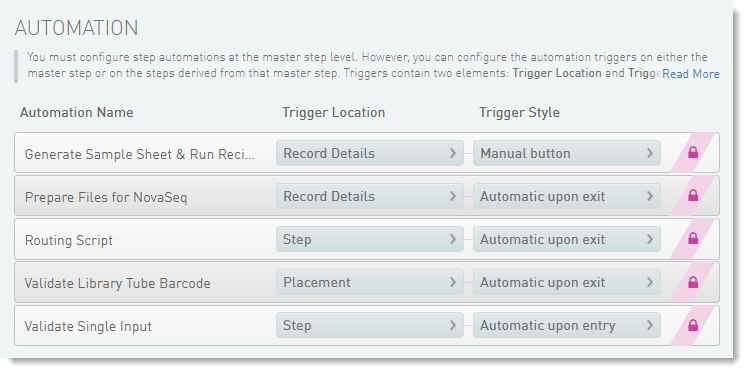
Validate Single Input Automation
Automatically triggered at the beginning of the step, the following automation checks that there is only one container input to the step:
{% code overflow="wrap" %}
```markup
script:validateSampleCount -min 1 -max 1
```
{% endcode %}
Validate Library Tube Barcode Automation
Automatically triggered on exit of the Placement screen, the following automation validates the library tube barcode to make sure it conforms to the barcode mask \[A-Z]{2}\[0-9]{7}-\[A-Z]{3}:
{% code overflow="wrap" %}
```markup
if (!output.container.name.matches(::[A-Z]{2}[0-9]{7}-[A-Z]{3}::)){
fail(::Invalid Library Tube Barcode. Please verify and try again.::)
}
```
{% endcode %}
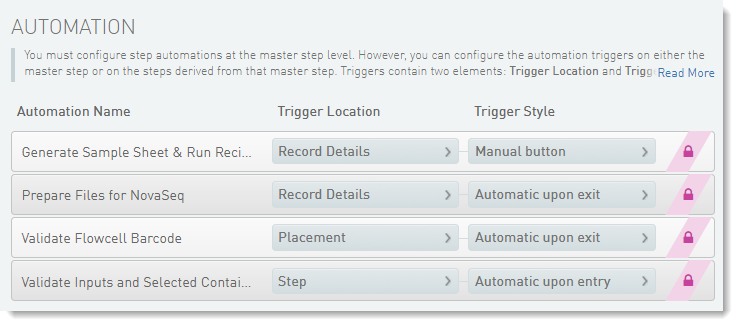
Generate Sample Sheet & Run Recipe Automation
Automatically triggered when a button on the Record Details screen is selected, this automation does the following actions:
* Copies the Flowcell Type from the step input to the step output:
* Validates the parameters entered on the Record Details screen:
* Experiment Name can only contain alphanumeric, dash, or underscore characters. Spaces are not permitted.
* When Workflow Type is No Index, Index Read 1 must be zero. For any other Workflow Type, Index Read 1 must be greater than zero.
if(!step.::Experiment Name::.matches(::[a-zA-Z0-9-_]+::)) {
      fail(::Experiment Name contains prohibited characters. Allowed characters are: a-z, A-Z, 0-9, -, and _::)
  }
  if(step.::Workflow Type::== ::No Index::) {
      if(step.::Index Read 1::!= 0) {
          fail(::Index Read 1 must be 0 if the Workflow Type is No Index.::)
      }
  } else {
      if(step.::Index Read 1::== 0) {
          fail(::Index Read 1 must be greater than 0 if the Workflow Type is ::+ step.::Workflow Type::+ ::.::)
      }
  }
* When Paired End is True, Index Read 1 and Index Read 2 must be greater than zero.
* When Paired End is False, Index Read 2 must be zero, Reverse Complement Workflow must be false, UMI - Read 2 Length must not have a value, and UMI - Read 2 Start from Cycle must not have a value.
if (step.::Paired End::.toBoolean()) {
      if (step.::Read 1 Cycles:: == 0 || step.::Read 2 Cycles:: == 0) {
          fail(::Read 1 Cycles and Read 2 Cycles must be greater than 0 if Paired End is True.::);
      }
  } else {
      if (step.::Read 2 Cycles:: != 0) {
          fail(::Read 2 Cycles must be 0 if Paired End is False.::);
      }
      if (step.hasValue(::UMI - Read 2 Length::) || step.hasValue(::UMI - Read 2 Start From Cycle::)) {
          fail(::UMI - Read 2 Length and UMI - Read 2 Start From Cycle cannot be defined if Paired End is False.::);
      }
  }
* Validates allowed read cycles to be not greater than 151 if the Flowcell Type is not SP.
if (input.::Flowcell Type:: != ::SP:: && step.::Read 1 Cycles:: > 151) {
      fail(::Read 1 Cycles must not be larger than 151 if it is not SPrime Flowcell.::);
  }
  if (input.::Flowcell Type:: != ::SP:: && step.::Read 2 Cycles:: > 151) {
      fail(::Read 2 Cycles must not be larger than 151 if it is not SPrime Flowcell.::);
  }
* Validates allowed value for UMI - Read 1 Length, UMI - Read 2 Length, UMI - Read 1 From Cycle, UMI - Read 2 From Cycle.
if (step.hasValue(::UMI - Read 1 Length::) && !step.hasValue(::UMI - Read 1 Start From Cycle::)) {
      fail(::UMI - Read 1 Start From Cycle must be greater than 0 if UMI - Read 1 Length is greater than 0.::);
  }
  if (!step.hasValue(::UMI - Read 1 Length::) && step.hasValue(::UMI - Read 1 Start From Cycle::)) {
      fail(::UMI - Read 1 Length must be greater than 0 if UMI - Read 1 Start From Cycle is greater than 0.::);
  }
  if (step.hasValue(::UMI - Read 2 Length::) && !step.hasValue(::UMI - Read 2 Start From Cycle::)) {
      fail(::UMI - Read 2 Start From Cycle must be greater than 0 if UMI - Read 2 Length is greater than 0.::);
  }
  if (!step.hasValue(::UMI - Read 2 Length::) && step.hasValue(::UMI - Read 2 Start From Cycle::)) {
      fail(::UMI - Read 2 Length must be greater than 0 if UMI - Read 2 Start From Cycle is greater than 0.::);
  }
  if (!step.hasValue(::UMI - Read 1 Length::) && step.hasValue(::UMI - Read 2 Length::)) {
      fail(::UMI - Read 1 Length must be greater than 0 if UMI - Read 2 Length is greater than 0.::);
  }
  if (!step.hasValue(::UMI - Read 1 Start From Cycle::) && step.hasValue(::UMI - Read 2 Start From Cycle::)) {
      fail(::UMI - Read 1 Start From Cycle must be greater than 0 if UMI - Read 2 Start From Cycle is greater than 0.::);
  }
* Sets the next step for samples to REMOVE.
nextStep = ::REMOVE::
* Generates the sample sheet and the run recipe file and attaches them to the step. For details on how the files are generated and their contents, refer to [Sample Sheet and Run Recipe File Generation](#sample-sheet-and-run-recipe-file-generation).
Prepare Files for NovaSeq Automation
Automatically triggered on exit of the Record Details screen, this automation invokes the *copy\_attachments\_to\_network\_folder* script, which is included in the *novaseq-remote-extensions.jar* file. This script places the generated sample sheet and run recipe (\*json file) into the appropriate folder on the NAS, where the instrument uses them to start the run.
For more information, refer to [Sample Sheet and Run Recipe File Generation](#sample-sheet-and-run-recipe-file-generation).
Routing Script Automation
Automatically triggered on exit of the step, this automation invokes the changeWorkflow script, which routes step outputs to the NovaSeq 6000 v2.3 workflow, and queues them for the AUTOMATED - NovaSeq Run (NovaSeq 6000 v2.3) step.
The default automation command line is as follows.
{% code overflow="wrap" %}
```markup
bash -l -c "/opt/gls/clarity/bin/java -jar /opt/gls/clarity/extensions/ngs-common/v5/EPP/ngs-extensions.jar -u {username} -p {password} -i {stepURI:v2} -l {compoundOutputFileLuid2} script:changeWorkflow \
\
--FIELD_NAME 'N/A' \
--FIELD_VALUE 'N/A' \
--WORKFLOW 'NovaSeq 6000 v2.3' \
--STEP 'AUTOMATED - NovaSeq Run (NovaSeq 6000 v2.3)' \
--INPUTS_OR_OUTPUTS 'OUTPUTS'"
```
{% endcode %}
#### Master Step Fields
The following table provides field configuration details fields defined on the Dilute and Denature (NovaSeq 6000 v2.3) step. These fields are required for sample sheet and JSON file generation.
*Dilute and Denature (NovaSeq 6000 v2.3) Master Step Field Configuration*
| **Field Name** | **Field Type** | **Options** | **Additional Options and Drop-Down Items** |
| -------------------------------------------------------------------------------- | ---------------- | ------------------------------------------------------- | ------------------------------------------------------------------------------------------------------------------------------------------------------------------------------------------------------------------------------------------------------------------------------------------------------- |
| BaseSpace Sequence Hub Configuration | Text Dropdown |
Required Field
|
Presets
Not Used
Run Monitoring Only
Run Monitoring and Storage
|
| Experiment Name | Text |
Required Field
| |
| Index Read 1 | Numeric Dropdown |
Required Field
Custom Entries
|
Range = 0–20
Decimal places displayed = 0
Presets
0
6
8
|
| Index Read 2 | Numeric Dropdown |
Required Field
Custom Entries
|
Range = 0–20
Decimal places displayed = 0
Presets
0
6
8
|
| Paired End | Text Dropdown |
Required Field
|
Presets
True
False
|
| Read 1 Cycles | Numeric Dropdown |
Required Field
Custom Entries
|
Range = 1–251
Decimal places displayed = 0
Presets
251
151
101
51
ℹ The value of 251 is only supported for SP flow cell type. For all other flow cell types, the maximum value is 151.
|
| Read 2 Cycles | Numeric Dropdown |
Required Field
Custom Entries
|
Range = 0–251
Decimal places displayed = 0
Presets
251
151
101
51
ℹ The value of 251 is only supported for SP flow cell type. For all other flow cell types, the maximum value is 151.
|
| Reverse Complement Workflow | Toggle Switch |
Required Field
|
Default
Yes
|
|
Run Mode
ℹ Not displayed in user interface
| Text Dropdown |
Read Only
|
Presets
SP
S1
S2
S4
|
| Sample Sheet Path | Text |
Read Only
| |
| UMI - Read 1 Length | Numeric | |
Range = 1
Decimal places displayed = 0
|
| UMI - Read 1 Start From Cycle | Numeric | |
Range = 1
Decimal places displayed = 0
|
| UMI - Read 2 Length | Numeric | |
Range = 1
Decimal places displayed = 0
|
| UMI - Read 2 Start From Cycle | Numeric | |
Range = 1
Decimal places displayed = 0
|
| Use Custom Index Read 1 Primer | Toggle Switch | |
Default
No
|
| Use Custom Read 1 Primer | Toggle Switch | |
Default
No
|
| Use Custom Read 2 Primer | Toggle Switch | |
Default
No
|
| Workflow | Text |
Read Only
|
Default
GenerateFASTQ
|
| Workflow Type | Text Dropdown |
Required Field
|
Presets
No Index
Single Index
Dual Index
|
#### Global Step Fields
The following table lists the global step fields that are configured to display on the Dilute and Denature (NovaSeq 6000 v2.3) step.
*Global Field Configuration (Derived Sample)*
| **Field Name** | **Field Type** | **Options** | **Additional Options and Drop-Down Items** |
| --------------------- | -------------- | -------------- | --------------------------------------------------------------------------------------------------- |
| Flowcell Type | Text Dropdown | Required Field |
Presets
S1
S2
S4
SP
|
| Loading Workflow Type | Text Dropdown | Required Field |
Presets
NovaSeq Standard
NovaSeq Xp
\[Remove from workflow]
|
## Protocol 3: NovaSeq Xp (NovaSeq 6000 v2.3)
Samples are routed to this protocol if the Loading Workflow Type value is set to NovaSeq Xp.
Samples are pooled and added to lanes on the NovaSeq flow cell type selected in the Define Run Format (NovaSeq 6000 v2.3) step.
At the end of the protocol, a routing script sends the flow cell to the AUTOMATED - NovaSeq Run (NovaSeq 6000 v2.3) protocol.
This protocol contains three steps:
1. Step 1: Make Bulk Pool for NovaSeq Xp (NovaSeq 6000 v2.3)
2. Step 2: Dilute, Denature & ExAmp (NovaSeq 6000 v2.3)
3. Step 3: Load to Flowcell (NovaSeq 6000 v2.3)
### Step 1: Make Bulk Pool for NovaSeq Xp (NovaSeq 6000 v2.3)
In this step, the libraries are manually placed into a pool. The step input is NTP (normalized libraries) and the step output is Bulk pool.
{% hint style="danger" %}
Only create one pool per step.
{% endhint %}
These automations are described in the order in which they are triggered at run time.
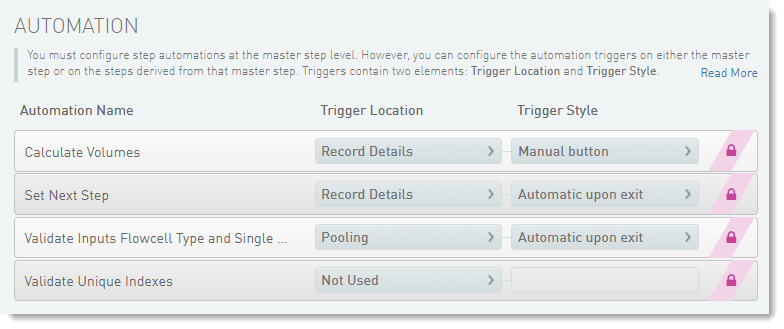
Validate Inputs Flowcell Type and Single Pool Automation
Automatically triggered on exit of the Pooling screen, this automation checks the following information:
* All samples in the pool have the same Flowcell Type assigned to them.
* Only one pool has been created.
{% code overflow="wrap" %}
```markup
/opt/gls/clarity/bin/java -jar /opt/gls/clarity/extensions/novaseq/novaseq-extensions.jar script:validate_flowcell_for_input_pools
-i {stepURI:v2} -u {username} -p {password} -l {compoundOutputFileLuid1} -validateSingleOutput true
```
{% endcode %}
Calculate Volumes Automation
Automatically triggered when the Calculate Volumes button on the Record Details screen is selected, this automation:
* Calculates the number of samples in the pool:
step.::Number of Samples in Pool:: = step.::Number of Samples in Pool:: + 1
* Sets the value of the Bulk Pool Volume (ul) and PhiX Volume (ul) field, based on the selected Flowcell Type:
step.::PhiX Volume (ul):: = !step.hasValue(::% PhiX (0.25nM) Spike-In::) ? 0 : step.::% PhiX (0.25nM) Spike-In::;
  if (input.::Flowcell Type:: == ::SP::) {
      step.::Bulk Pool Volume (ul):: = step.'Number of Lanes to Sequence' * 18;
      step.::PhiX Volume (ul):: *= 0.7;
  }
  if (input.::Flowcell Type:: == ::S1::) {
      step.::Bulk Pool Volume (ul):: = step.'Number of Lanes to Sequence' * 18;
      step.::PhiX Volume (ul):: *= 0.7;
  }
  if (input.::Flowcell Type:: == ::S2::) {
      step.::Bulk Pool Volume (ul):: = step.'Number of Lanes to Sequence' * 22;
      step.::PhiX Volume (ul):: *= 0.8;
  }
  if (input.::Flowcell Type:: == ::S4::) {
      step.::Bulk Pool Volume (ul):: = step.'Number of Lanes to Sequence' * 30;
      step.::PhiX Volume (ul):: *= 1.1;
  }
  if (step.::PhiX Volume (ul):: == 0) {
      step.::PhiX Volume (ul):: = '';
  }
* Calculates the Per Sample Volume (ul) to be added to the pool:
input.::Per Sample Volume (ul)::= (((input.::Final Loading Concentration (pM)::* 5/ 1000) / input.::Normalized Molarity (nM)::) * step.::Bulk Pool Volume (ul)::) / step.::Number of Samples in Pool::
> ℹ To ensure accurate pipetting of each sample in a pool for sequencing, the Per Sample Volume (ul) value must be equal to or higher than the Minimum Per Sample Volume (ul). The default value set at 5 and can be edited.\
> Assuming the default Minimum Per Sample Volume (ul) value of 5, for a given batch:
>
> 1. If the smallest Per Sample Volume (ul) value is less than 5, Clarity LIMS automatically assigns a value of 5 to the sample's Adjusted Per Sample Volume (ul) field.
> 2. Clarity LIMS then adjusts the Adjusted Per Sample Volume (ul) field value for all other samples in the batch, based on the ratio used to increase the lowest value to 5.
* Calculates the Total Sample Volume (ul) field value:
* Uses the *NovaSeq\_Xp\_Bulk\_Pool.csv* and *NovaSeq\_Xp\_Bulk\_Pool2.csv* template files to generate a single CSV file containing information about the bulk pool and the samples it contains. The generated file is available for download on the Step Setup screen of the following step—Dilute, Denature & ExAmp (NovaSeq 6000 v2.3).
* Resets the Total Sample Volume (ul) and Number of Samples in Pool field values so that the automation is idempotent:
step.'Number of Samples in Pool' = step.'Number of Samples in Pool' - 1;
  step.'Total Sample Volume (ul)' = step.'Total Sample Volume (ul)' - input.'Adjusted Per Sample Volume (ul)'
Set Next Step Automation
Automatically triggered on exit of the Record Details screen, this automation does the following actions:
* Copies the Flowcell Type values from the step inputs to the step outputs.
* Sets the next step for samples to ADVANCE, advancing them to the next step in the protocol:
{% code overflow="wrap" %}
```markup
output.::Flowcell Type:: = input.::Flowcell Type:: ; nextStep = ::ADVANCE::
```
{% endcode %}
Validate Unique Indexes Automation
ℹ Not used. This functionality is handled by the Clarity LIMS configuration for pooling.
#### Master Step Fields
The following table provides field configuration details for the fields defined on the Make Bulk Pool for NovaSeq Xp (NovaSeq 6000 v2.3) step.
*Make Bulk Pool for NovaSeq Xp (NovaSeq 6000 v2.3) Master Step Field Configuration*
| **Field Name** | **Field Type** | **Options** | **Additional Options and Drop-Down Items** |
| -------------------------------------------------------------------------------------------------------- | -------------- | -------------- | ---------------------------------------------------------------------------------------- |
| % PhiX (0.25nM) Spike-In | Numeric | |
Range = 0–100
Decimal places displayed = 0
|
|
Bulk Pool Volume (ul)
ℹ For calculation purposes, not displayed
| Numeric | |
Decimal places displayed = 2
|
| Minimum Per Sample Volume (ul) | Numeric | Required Field |
Default
5
Decimal places displayed = 2
|
| Number of Lanes to Sequence | Numeric | Required Field |
Decimal places displayed = 0
|
|
Number of Sample in Pool
ℹ For calculation purposes, not displayed
| Numeric | |
Default
0
Decimal places displayed = 0
|
|
PhiX Volume (ul)
ℹ For calculation purposes, not displayed
| Numeric | |
Decimal places displayed = 2
|
|
Total Sample Volume (ul)
ℹ For calculation purposes, not displayed
| Numeric | |
Default
0
Decimal places displayed = 0
|
#### Global Fields
The following table lists the global fields that are configured to display on the Make Bulk Pool for NovaSeq Xp (NovaSeq 6000 v2.3) step.
*Global Field Configuration (Derived Sample)*
| **Field Name** | **Field Type** | **Field Constraints/Options** | **Preset Values/Additional Options and Drop-Down Items** |
| --------------------- | -------------- | ----------------------------- | --------------------------------------------------------------------------------------------------- |
| RSB Volume (ul) | Numeric | Read Only | Decimal places displayed = 2 |
| Flowcell Type | Text Dropdown | Required Field |
Presets
S1
S2
S4
SP
|
| Loading Workflow Type | Text Dropdown | Required Field |
Presets
NovaSeq Standard
NovaSeq Xp
\[Remove from workflow]
|
### Step 2: Dilute, Denature & ExAmp (NovaSeq 6000 v2.3)
In this step, pooled samples are denatured and diluted by the addition of DPX, NaOH, Tris-HCl, and RSB. Manually create working pools based on the number of lanes you want to sequence. The step input is Bulk pool and the step output is Working pool. Working pool is a variable number for how many working pools need to be created per bulk pool.
These automations are described in the order in which they are triggered at run time.
Validate Inputs Flowcell Type Automation
Automatically triggered at the beginning of the step, this automation invokes the *validate\_flowcell\_for\_input\_pools* script. This script does the following actions:
* Checks the inputs to the step and validates that the Flowcell Type field has been set to a valid value (SP, S1, S2, or S4). The automation also checks that all inputs have the same value.
* Validates that the number of outputs matches the number of lanes on the selected flow cell type. If validation fails, an error message state that the number of working pools does not match the number of lanes available on the flow cell.
{% code overflow="wrap" %}
```markup
bash -l -c "/opt/gls/clarity/bin/java -jar /opt/gls/clarity/extensions/novaseq/novaseq-extensions.jar script:validate_flowcell_for_input_pools -i {stepURI:v2} -u {username} -p {password} -l {compoundOutputFileLuid1}"
```
{% endcode %}
Calculate Volumes Automation
Automatically triggered on entry to of the Record Details screen, this automation sets the value of the following fields, based on the Flowcell Type:
* BP Aliquot Volume (ul)
* NaOH Volume (ul)
* Tris-HCl Volume (ul)
* DPX1 Volume (ul)
* DPX2 Volume (ul)
* DPX3 Volume (ul)
* Mastermix per Lane (ul)
{% code overflow="wrap" %}
```markup
if (input.::Flowcell Type:: == ::SP::) {
output.::BP Aliquot Volume (ul):: = 18;
output.::NaOH Volume (ul):: = 4;
output.::Tris-HCl Volume (ul):: = 5;
step.::DPX1 Volume (ul):: = 126;
step.::DPX2 Volume (ul):: = 18;
step.::DPX3 Volume (ul):: = 66;
output.::Mastermix per Lane (ul):: = 63
};
if (input.::Flowcell Type:: == ::S1::) {
output.::bp Aliquot Volume (ul):: = 18;
output.::NaOH Volume (ul):: = 4;
output.::Tris-HCl Volume (ul):: = 5;
step.::DPX1 Volume (ul):: = 126;
step.::DPX2 Volume (ul):: = 18;
step.::DPX3 Volume (ul):: = 66;
output.::Mastermix per Lane (ul):: = 63
};
if (input.::Flowcell Type:: == ::S2::) {
output.::bp Aliquot Volume (ul):: = 22;
output.::NaOH Volume (ul):: = 5;
output.::Tris-HCl Volume (ul):: = 6;
step.::DPX1 Volume (ul):: = 126;
step.::DPX2 Volume (ul):: = 18;
step.::DPX3 Volume (ul):: = 66;
output.::Mastermix per Lane (ul):: = 77
};
if (input.::Flowcell Type:: == ::S4::) {
output.::bp Aliquot Volume (ul):: = 30;
output.::NaOH Volume (ul):: = 7;
output.::Tris-HCl Volume (ul):: = 8;
step.::DPX1 Volume (ul):: = 315;
step.::DPX2 Volume (ul):: = 45;
step.::DPX3 Volume (ul):: = 165;
output.::Mastermix per Lane (ul):: = 105
};
```
{% endcode %}
* Copies the Flowcell Type and Loading Workflow Type values from the step inputs to the step outputs:
* Uses the *NovaSeq\_Xp\_Working\_Pool.csv* and *NovaSeq\_Xp\_Working\_Pool2.csv* template files to generate a single CSV file containing information about the DPX volume and the volume of BP Aliquot, Mastermix, NaOH, and Tris-HCI to add per working pool. The generated file is available for download on the Step Setup screen of the following step—Load to Flowcell (NovaSeq 6000 v2.3).
Set Next Step Automation
Automatically triggered on exit of the Record Details screen, this automation:
* Copies the Flowcell Type values from the step inputs to the step outputs.
* Sets the next step for samples to ADVANCE, advancing them to the next step in the protocol:
{% code overflow="wrap" %}
```markup
output.::Flowcell Type:: = input.::Flowcell Type:: ; nextStep = ::ADVANCE::
```
{% endcode %}
#### Master Step Fields
The following table provides field configuration details for the fields defined on Dilute, Denature & ExAmp (NovaSeq 6000 v2.3) step. These field values are set by a script and are not editable while running the step.
*Dilute, Denature & ExAmp (NovaSeq 6000 v2.3) Master Step Field Configuration*
| **Field Name** | **Field Type** | **Options** | **Additional Options and Drop-Down Items** |
| ---------------- | -------------- | ----------- | ------------------------------------------ |
| DPX1 Volume (ul) | Numeric | Read Only | Decimal places displayed = 0 |
| DPX2 Volume (ul) | Numeric | Read Only | Decimal places displayed = 0 |
| DPX3 Volume (ul) | Numeric | Read Only | Decimal places displayed = 0 |
#### Global Fields
The following table lists the global fields that are configured to display on the Dilute, Denature & ExAmp (NovaSeq 6000 v2.3) step.
*Global Field Configuration (Derived Sample)*
| **Field Name** | **Field Type** | **Field Constraints/Options** | **Preset Values/Additional Options and Drop-Down Items** |
| ----------------------- | -------------- | ----------------------------- | --------------------------------------------------------------------------------------------------- |
| BP Aliquot Volume (ul) | Numeric | Read Only | Decimal places displayed = 0 |
| Flowcell Type | Text Dropdown | Required Field |
Presets
SP
S1
S2
S4
|
| Loading Workflow Type | Text Dropdown | Required Field |
Presets
NovaSeq Standard
NovaSeq Xp
\[Remove from workflow]
|
| Mastermix per Lane (ul) | Numeric | Read Only | Decimal places displayed = 0 |
| NaOH Volume (ul) | Numeric | Read Only | Decimal places displayed = 2 |
| Tris-HCl Volume (ul) | Numeric | Read Only | Decimal places displayed = 2 |
### Step 3: Load to Flowcell (NovaSeq 6000 v2.3)
In this step, scan the flow cell barcode into Clarity LIMS, then manually place the working pools into the lanes of the flow cell that is used in the NovaSeq run. The step input is Working pool and the step output is Flow cell (output containers: S1 and S2 with 2 lanes, and S4 with 4 lanes).
These automations are described in the order in which they are triggered at run time.
Validate Inputs and Selected Container Automation
Automatically triggered at the beginning of the step, this automation invokes the *validate\_flowcell\_for\_input\_pools* and *validateSelectedContainer* scripts. These scripts validate the step inputs and the container selected, as follows.
* Check that the Flowcell Type field has been set to a valid value (S1, S2, S4, or SP) and that all inputs have the same value.
* Check that the number of outputs matches the number of lanes on the selected flow cell type. If validation fails, an error message states that the number of working pools does not match the number of lanes available on the flow cell.
The following defines the number of samples allowed for different flow cell types:
* SP: 2 working pools
* S1: 2 working pools
* S2: 2 working pools
* S4: 4 working pools
* Check that the container type selected on entry to the Placement screen matches the value in the Flowcell Type field. If validation fails, an error message displays.
Validate Flowcell Barcode Automation
Automatically triggered on exit of the Placement screen, this automation validates the flow cell barcode scanned into Clarity LIMS, using the following logic:
{% code overflow="wrap" %}
```markup
if (input.::Flowcell Type:: == ::SP:: && !output.container.name.matches(::[A-Z0-9]{5}DR[A-Z0-9]{2}::)) {
fail(::Invalid Flowcell Barcode. Please verify and try again.::)
};
if (input.::Flowcell Type:: == ::S1:: && !output.container.name.matches(::[A-Z0-9]{5}DR[A-Z0-9]{2}::)) {
fail(::Invalid Flowcell Barcode. Please verify and try again.::)
};
if (input.::Flowcell Type:: == ::S2:: && !output.container.name.matches(::[A-Z0-9]{5}DM[A-Z0-9]{2}::)) {
fail(::Invalid Flowcell Barcode. Please verify and try again.::)
};
if (input.::Flowcell Type:: == ::S4:: && !output.container.name. matches(::[A-Z0-9]{5}DS[A-Z0-9]{2}::)) {
fail(::Invalid Flowcell Barcode. Please verify and try again.::)
};
```
{% endcode %}
Generate Sample Sheet & Run Recipe Automation
Automatically triggered when a button on the Record Details screen is selected, this automation:
* Copies the Flowcell Type from the step input to the Run Mode field (hidden):
step.::Run Mode:: = input.::Flowcell Type::
* Validates the parameters entered on the Record Details screen:
* Experiment Name can only contain alphanumeric, dash, or underscore characters. Spaces are not permitted.
* When Workflow Type is No Index, Index Read 1 must be zero. For any other Workflow Type, Index Read 1 must be greater than zero.
if(!step.::Experiment Name::.matches(::[a-zA-Z0-9-_]+::)) {
      fail(::Experiment Name contains prohibited characters. Allowed characters are: a-z, A-Z, 0-9, -, and _::)
  };
  if(step.::Workflow Type::== ::No Index::) {
      if(step.::Index Read 1::!= 0) {
          fail(::Index Read 1 must be 0 if the Workflow Type is No Index.::)
      }
  } else{
      if(step.::Index Read 1::== 0) {
          fail(::Index Read 1 must be greater than 0 if the Workflow Type is ::+ step.::Workflow Type::+ ::.::)
      }
  };
* When Paired End is True, Index Read 1 and Index Read 2 must be greater than zero.
* When Paired End = False, Index Read 2 must be zero. Reverse Complement Workflow must be false. UMI - Read 2 Length and UMI - Read 2 Start from Cycle must not have a value.
if (step.::Paired End::.toBoolean()) {if (step.::Read 1 Cycles:: == 0 || step.::Read 2 Cycles:: == 0) {fail(::Read 1 Cycles and Read 2 Cycles must be greater than 0 if Paired End is True.::);}} else {if (step.::Read 2 Cycles:: != 0) {fail(::Read 2 Cycles must be 0 if Paired End is False.::);}
  if (step.hasValue(::UMI - Read 2 Length::) || step.hasValue(::UMI - Read 2 Start From Cycle::)) {fail(::UMI - Read 2 Length and UMI - Read 2 Start From Cycle cannot be defined if Paired End is False.::);}}
* Validates allowed read cycles to be not greater than 151 if the Flowcell Type is not SP.
if (input.::Flowcell Type:: != ::SP:: && step.::Read 1 Cycles:: > 151) {
      fail(::Read 1 Cycles must not be larger than 151 if it is not SPrime Flowcell.::);
  }
  if (input.::Flowcell Type:: != ::SP:: && step.::Read 2 Cycles:: > 151) {
      fail(::Read 2 Cycles must not be larger than 151 if it is not SPrime Flowcell.::);
  }
* Validates allowed value for UMI - Read 1 Length, UMI - Read 2 Length, UMI - Read 1 From Cycle, UMI - Read 2 From Cycle.
if (step.hasValue(::UMI - Read 1 Length::) && !step.hasValue(::UMI - Read 1 Start From Cycle::)) {
      fail(::UMI - Read 1 Start From Cycle must be greater than 0 if UMI - Read 1 Length is greater than 0.::);
  }
  if (!step.hasValue(::UMI - Read 1 Length::) && step.hasValue(::UMI - Read 1 Start From Cycle::)) {
      fail(::UMI - Read 1 Length must be greater than 0 if UMI - Read 1 Start From Cycle is greater than 0.::);
  }
  if (step.hasValue(::UMI - Read 2 Length::) && !step.hasValue(::UMI - Read 2 Start From Cycle::)) {
      fail(::UMI - Read 2 Start From Cycle must be greater than 0 if UMI - Read 2 Length is greater than 0.::);
  }
  if (!step.hasValue(::UMI - Read 2 Length::) && step.hasValue(::UMI - Read 2 Start From Cycle::)) {
      fail(::UMI - Read 2 Length must be greater than 0 if UMI - Read 2 Start From Cycle is greater than 0.::);
  }
  if (!step.hasValue(::UMI - Read 1 Length::) && step.hasValue(::UMI - Read 2 Length::)) {
      fail(::UMI - Read 1 Length must be greater than 0 if UMI - Read 2 Length is greater than 0.::);
  }
  if (!step.hasValue(::UMI - Read 1 Start From Cycle::) && step.hasValue(::UMI - Read 2 Start From Cycle::)) {
      fail(::UMI - Read 1 Start From Cycle must be greater than 0 if UMI - Read 2 Start From Cycle is greater than 0.::);
  }
* Copies the Flowcell Type value from the step inputs to the step outputs:
* Sets the next step for samples to ADVANCE, advancing them to the next step in the protocol—AUTOMATED - Run (NovaSeq 6000) v2.3.
nextStep = ::ADVANCE::
* Generates the sample sheet and the run recipe file and attaches them to the step. For details on how the files are generated, and their contents, refer to [Sample Sheet and Run Recipe File Generation](#sample-sheet-and-run-recipe-file-generation).
Prepare Files for NovaSeq Automation
Automatically triggered on exit of the Record Details screen, this automation invokes the *copy\_attachments\_to\_network\_folder* script, which is included in the *novaseq-remote-extensions.jar* file. This script places the generated sample sheet and run recipe (\*json file) into the appropriate folder on the NAS, where the instrument uses them to start the run.
For more information, refer to [Sample Sheet and Run Recipe File Generation](#sample-sheet-and-run-recipe-file-generation).
#### Master Step Fields
The following table provides field configuration details for the fields defined on the Load to Flowcell (NovaSeq 6000 v2.3) step.
*Load to Flowcell (NovaSeq 6000 v2.3) Master Step Field Configuration*
| **Field Name** | **Field Type** | **Options** | **Additional Options and Drop-Down Items** |
| -------------------------------------------------------------------------------- | ---------------- | ------------------------------------------------------- | ------------------------------------------------------------------------------------------------------------------------------------------------------------------------------------------------------------------------------------------------------------------------------------------------------- |
| BaseSpace Sequence Hub Configuration | Text Dropdown |
Required Field
|
Presets
Not Used
Run Monitoring Only
Run Monitoring and Storage
|
| Experiment Name | Text |
Required Field
| |
| Index Read 1 | Numeric Dropdown |
Required Field
Custom Entries
|
Range = 0–20
Decimal places displayed = 0
Presets
0
6
8
|
| Index Read 2 | Numeric Dropdown |
Required Field
Custom Entries
|
Range = 0–20
Decimal places displayed = 0
Presets
0
6
8
|
| Library Tube Barcode | Text |
Required Field
| |
| Paired End | Text Dropdown |
Required Field
|
Presets
True
False
|
| Read 1 Cycles | Numeric Dropdown |
Required Field
Custom Entries
|
Range = 1–251
Decimal places displayed = 0
Presets
251
151
101
51
ℹ The value of 251 is only supported for SP flow cell type. For all other flow cell types, the maximum value is 151.
|
| Read 2 Cycles | Numeric Dropdown |
Required Field
Custom Entries
|
Range = 0–251
Decimal places displayed = 0
Presets
251
151
101
51
ℹ The value of 251 is only supported for SP flow cell type. For all other flow cell types, the maximum value is 151.
|
| Reverse Complement Workflow | Toggle Switch |
Required Field
|
Default
Yes
|
|
Run Mode
ℹ Not displayed in user interface
| Text Dropdown |
Read Only
|
Presets
SP
S1
S2
S4
|
| Sample Sheet Path | Text |
Read Only
| |
| UMI - Read 1 Length | Numeric | |
Range = 1
Decimal places displayed = 0
|
| UMI - Read 1 Start From Cycle | Numeric | |
Range = 1
Decimal places displayed = 0
|
| UMI - Read 2 Length | Numeric | |
Range = 1
Decimal places displayed = 0
|
| UMI - Read 2 Start From Cycle | Numeric | |
Range = 1
Decimal places displayed = 0
|
| Use Custom Index Read 1 Primer | Toggle Switch | |
Default
No
|
| Use Custom Read 1 Primer | Toggle Switch | |
Default
No
|
| Use Custom Read 2 Primer | Toggle Switch | |
Default
No
|
| Workflow | Text |
Read Only
|
Default
GenerateFASTQ
|
| Workflow Type | Text Dropdown |
Required Field
|
Presets
No Index
Single Index
Dual Index
|
#### Global Fields
The following table lists the global fields (derived samples) that are configured to display on the Load to Flowcell (NovaSeq 6000 v2.3) step.
| **Field Name** | **Field Type** | **Options** | **Additional Options and Drop-Down Items** |
| -------------- | -------------- | -------------- | ------------------------------------------------------------------- |
| Flowcell Type | Text Dropdown | Required Field |
Presets
S1
S2
S4
SP
|
## Protocol 4: AUTOMATED - NovaSeq Run (NovaSeq 6000 v2.3)
This final protocol contains one fully automated step, AUTOMATED - NovaSeq Run (NovaSeq 6000 v2.3).
### Step 1: AUTOMATED - NovaSeq Run (NovaSeq 6000 v2.3)
* Step input: Library tube from the NovaSeq Standard protocol or flow cell from the NovaSeq Xp protocol.
* Step output: Result file and measurement.
{% hint style="danger" %}
Do not add samples to the Ice Bucket or start the step manually. This is a fully automated step. The sequencing service may not update samples correctly if they have been manually started.
{% endhint %}
In this step, pooled samples are sequenced on the NovaSeq instrument. The run data network folder is monitored by the sequencing service and automation worker to determine when the sequencing run begins and ends.
1. When a run is initiated on the NovaSeq instrument, the NovaSeq Control Software (NVCS) looks for the sample sheet and run recipe (\*.json file) on the shared network drive.
* The NVCS copies the sample sheet to the run directory.
* The NVCS uses the run recipe to start the sequencing run.
2. When the run starts:
* The instrument software creates a new run folder (named \) on the shared network drive and copies the following files into that folder:
* *RunParameters.xml*
* *RunInfo.xml*
* *LIMS/\.json* file (run recipe)
* The Real-Time Analysis v3 (RTA3) software creates the InterOp folder.
3. The sequencing service detects the presence of the RunParameters, RunInfo, and JSON files and starts the AUTOMATED- NovaSeq Run (NovaSeq 6000 v2.3) step in Clarity LIMS.
4. As the run progresses, the InterOp data files are filled in.
5. At the end of the run, the NovaSeq:
* Copies the run data files to the InterOp folder.
* Creates the *CopyComplete.txt* file in the run folder. This step indicates to the sequencing service that the run has completed and the data files are ready.
6. The sequencing service triggers the Read InterOp Metrics automation. This automation reads the files, records the parsed metrics into Clarity LIMS, and finally completes the step in Clarity LIMS.
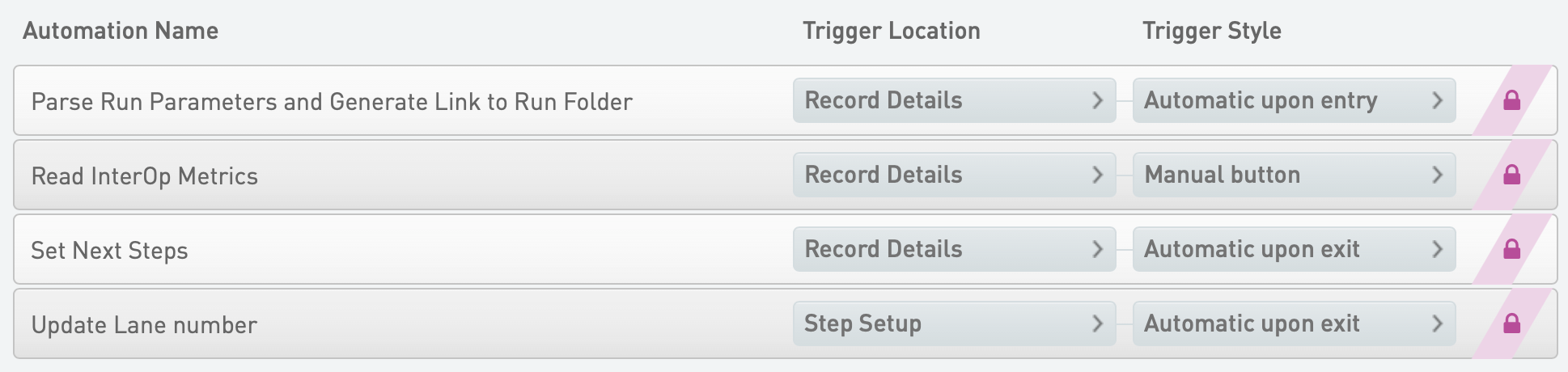
Parse Run Parameters and Generate Link to Run Folder Automation
Automatically triggered on entry to the Record Details screen, this automation does the following actions:
* Parses the *RunParameters.xml* file attached on the Step Setup screen.
* Populates the master and global step fields with extracted values.
* If there is an instrument in Clarity LIMS that matches the instrument name in the file (InstrumentName field), the script associates this instrument with the run.
* Generates and attaches a link to the run folder using the run output folder parsed from *RunParameters.xml*.
The following rules and constraints are present:
* If there is no InstrumentName value in the file, the script continues, but it logs a warning.
* If there is an InstrumentName value in the file and multiple instruments with the same name exist in Clarity LIMS, the script fails and logs an error.
* If the *RunParameters.xml* file is not attached to the step during step setup, the script fails.
* Every *RunParameters.xml* field that has an equivalent step UDF/custom field in Clarity LIMS is required — except for InstrumentName. If a field is not present in the *RunParameters.xml* file, Clarity LIMS logs an error to this effect.
Read InterOp Metrics Automation
Automatically triggered when the sequencing service detects the *CopyComplete.txt* file has been created, this automation parses the InterOp data generated by the run.
* Read summary metrics are recorded on the library pool. These values are aggregated across all lanes. Some values — for example Yield PF (Gb) — are summed, while others are averaged.
* Per lane metrics are recorded on the measurement outputs.
The *read\_interop\_metrics* script loads data from the InterOp files and records summary metrics into derived sample UDFs/custom fields in Clarity LIMS. If any field is not configured or cannot be written to, the script fails.
Set Next Steps Automation
Automatically triggered on exit of the Record Details screen, the following automation sets the next step to ADVANCE and the samples complete the protocol:
{% code overflow="wrap" %}
```markup
nextStep = ::ADVANCE::
```
{% endcode %}
Update Lane Number Automation
Automatically triggered on exit of the Step Setup screen, this automation updates the lane number so that Read InterOp Metrics automation script can populate lane metric to the correct lane.
⚠ Do not disable Update Lane Number automation as it causes run metric parsing to work improperly.
#### Master Step Fields
The fields defined on the AUTOMATED - NovaSeq Run (NovaSeq 6000 v2.3) step are listed in the Clarity LIMS Configuration area (Custom Fields > Master Step Fields tab).
The following table shows how the parsed *RunParameters.xml* fields map to step fields configured on the AUTOMATED - NovaSeq Run (NovaSeq 6000 v2.3) step in Clarity LIMS.
*Fields Parsed by parse\_novaseq\_run\_parameters script*
| **RunParameters.xml Field** | **Field Name** |
| --------------------------- | ------------------------- |
| FlowCellSerialBarcode | Flow Cell ID |
| FlowCellPartNumber | Flow Cell Part Number |
| FlowCellLotNumber | Flow Cell Lot Number |
| FlowCellExpirationdate | Flow Cell Expiration Date |
| FlowCellMode | Flow Cell Mode |
| RunId | Run ID |
| ClusterSerialBarcode | PE Serial Barcode |
| ClusterPartNumber | PE Part Number |
| ClusterLotNumber | PE Lot Number |
| ClusterExpirationdate | PE Expiration Date |
| ClusterCycleKit | PE Cycle Kit |
| SbsSerialBarcode | SBS Serial Barcode |
| SbsPartNumber | SBS Part Number |
| SbsLotNumber | SBS Lot Number |
| SbsExpirationdate | SBS Expiration Date |
| SbsCycleKit | SBS Cycle Kit |
| BufferSerialBarcode | Buffer Serial Barcode |
| BufferPartNumber | Buffer Part Number |
| BufferLotNumber | Buffer Lot Number |
| BufferExpirationdate | Buffer Expiration |
| OutputRunFolder | Output Folder |
| WorkflowType | Loading Workflow Type |
#### Global Fields
The global fields that are configured to support the parsing of key metrics back into Clarity LIMS are as follows.
* Yield PF (Gb) R1
* Yield PF (Gb) R2
* Reads PF (M) R1
* Reads PF (M) R2
* Cluster Density (K/mm^2) R1
* Cluster Density (K/mm^2) R2
* %PF R1
* %PF R2
* % Bases >=Q30 R1
* % Bases >=Q30 R2
* Intensity Cycle 1 R1
* Intensity Cycle 1 R2
* % Phasing R1
* % Phasing R2
* % Prephasing R1
* % Prephasing R2
* % Aligned R1
* % Aligned R
* % Error Rate R1
* % Error Rate R2
## Components Installed
The following sections describe the various components that are installed by default as part of this integration. These components include files, properties, reagent categories/label groups, reagent kits, and containers. Information on installed workflows, protocols, steps, and automation points is provided in the previous [Workflows, Protocols, and Steps](#workflows-protocols-and-steps) section.
The Illumina NovaSeq 6000 Integration v2.6.0 Package is distributed as two RPM packages:
* *BaseSpaceLIMS-novaseq-extensions*
* *BaseSpaceLIMS-novaseq-sequencing-service*
The RPM packages install the components listed in the following table.
The NovaSeq 6000 Integration requires installation of NGS Extensions Package v5.25.0 or later.
* If the NGS Extensions Package is not already installed, or if a version earlier than v5.25.0 is installed, the latest version is installed by default with the NovaSeq integration. For details, refer to [NovaSeq 6000 Integration v2.6.0 Release Notes](/clarity-lims/instruments-and-integrations/novaseq6k-file/novaseq6k-file-v2.6.0/novaseq6k-file-v2.6.0-release-notes.md).
* If NGS Extensions Package v5.25.0 is already installed, upgrade is not forced or required.
* Secret Util Package is required for the NGS Extensions Package v5.25.0.
* If the Secret Util Package is not already installed, then Secret Util package is installed along with the installation of NGS Extension Package v5.25.0.
* If the Secret Util Package is already installed, upgrade is not forced or required.
*Illumina NovaSeq 6000 Integration v2.6.0 RPM Components*
| **Files Installed** | **Location** | **Description** |
| --------------------------------------------------------------------------------------------------------------------------------------------------------------------------------------------------------------------------------------------------------- | ----------------------------------------------------- | --------------------------------------------------------------------------------------------------------- |
| configure\_extensions\_novaseq.sh | /opt/gls/clarity/config/ | Script that imports Clarity LIMS configuration into the application database and updates property values. |
| novaseq-extensions.jar | /opt/gls/clarity/extensions/novaseq | Jar file containing API-based Clarity LIMS extensions used throughout the protocols. |
| novaseq-sequencing.jar | /opt/gls/clarity/extensions/novaseq/SequencingService | Sequencing service jar file that captures the run results. |
| novaseq-remote-extensions.jar | /opt/gls/clarity/extensions/novaseq | Jar file containing scripts that require access to the run folders on the NAS. |
| InterOp libraries | /opt/gls/clarity/extensions/novaseq/lib | Illumina shared library for parsing InterOp data files. |
|
| /opt/gls/clarity/extensions/novaseq/Templates | Template files used for file generation throughout the protocols. |
### Properties
Refer to [Integration Properties Details](https://help.connected.illumina.com/clarity-lims/instruments-and-integrations/novaseq6k-file/novaseq6k-file-v2.6.0/pages/j3YmJXTEwnatcqS0qB5g#novaseq-6000-file-based-v2.6.0-and-onwards) for the properties installed with the integration package.
### Label Groups, Reagent Kits, and Containers
The NovaSeq 6000 Integration v2.6.0 Package installs the following label groups, reagent kits, and container types.
#### Label Groups
* TruSeq HT Adapters v2 (D7-D5)
#### Reagent Kits
* DPX1
* DPX2
* DPX3
* Resuspension Buffer (RSB)
* NaOH
* Tris-HCl
#### Container Types
* Library Tube
* S1
* S2
* S4
* SP
## Instrument Integration
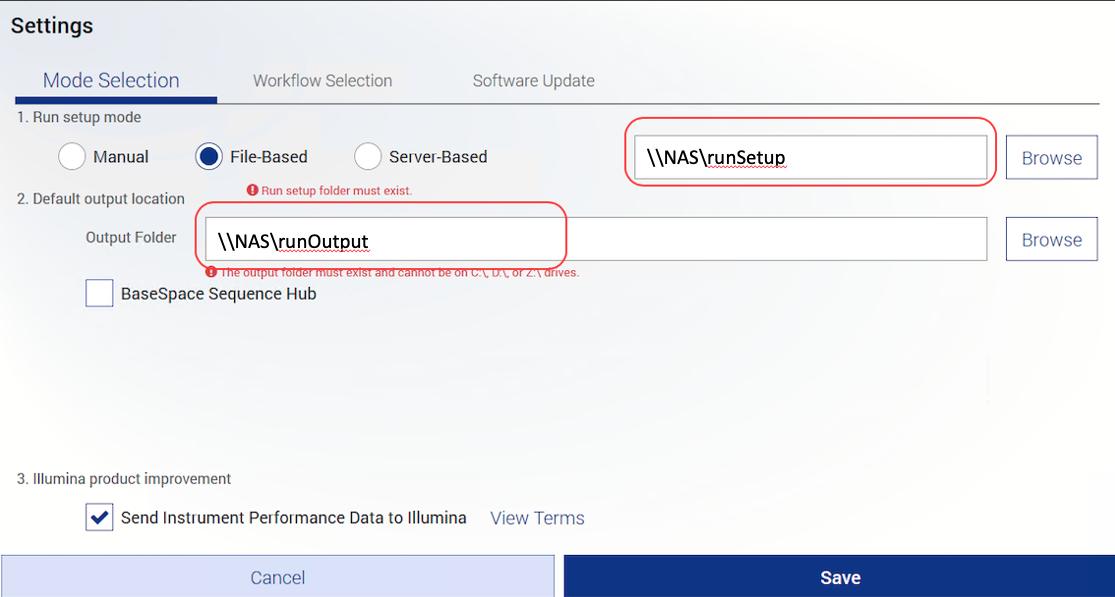
The following are instructions for configuring the NovaSeq instrument for the Clarity LIMS integration:
1. Launch NovaSeq Control Software.
2. On the home screen, select the menu (top left) and select **Settings**.
3. Select **File-Based** and enter the network folder location that NovaSeq Control Software retrieves the JSON recipe from.
4. Enter the network output folder location.
5. Select **Save**.
For more information, refer to the NovaSeq 6000 Sequencing System Guide at [support.illumina.com](https://support.illumina.com/).
## Routing Script Requirements
The requirements for the routing script functionality are as follows.
* On the steps that use the routing script — Define Run Format (NovaSeq 6000 v2.3) and Dilute and Denature (NovaSeq 6000 v2.3) — the Next Step for all samples must be set to Remove from workflow. This value is set by a script. Do not change this value in the Assign Next Steps screen.
* In the protocol configuration screen, the following setting is required and must not be changed.
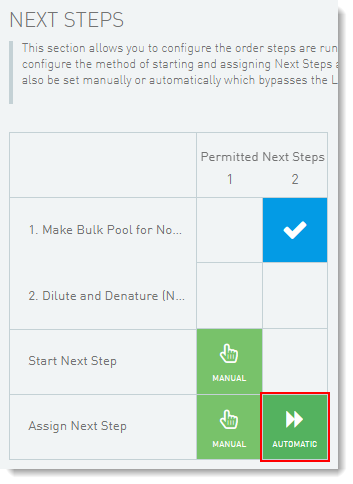
* In the Next Steps section for the last step in the protocol, the method of assigning the next step must be set to Automatic.
## Sample Sheet and Run Recipe File Generation
Sample sheet and run recipe file generation occurs on the step before the run—Dilute and Denature (NovaSeq 6000 v2.3) in the NovaSeq Standard protocol or Load to Flowcell (NovaSeq 6000 v2.3) in the NovaSeq Xp protocol. This step is where samples are placed on the library tube or flow cell that is loaded in the NovaSeq instrument.
In the default configuration, the Generate Sample Sheet & Run Recipe automation generates the following:
* One CSV format sample sheet file for use bcl2fastq v2.20 downstream analysis
* One JSON format run recipe file
The Prepare Files for NovaSeq automation places the generated files on the NAS where the instrument uses them to start the run.
How It Works
* The Prepare Files for NovaSeq automation command line invokes the *copy\_attachments\_to\_network\_folder* script in *novaseq-remote-extensions.jar*. The script can be used on a remote AI node/automation worker, in case the Clarity LIMS server does not have direct access to the NAS.
* The output folder for the run recipe file is found in the *novaseq.runSetupFolder* property.
* The output folder for the sample sheet is determined by using the *novaseq.sampleSheetPathPrefixReplace.\* property (not a comma-separated list).
Sample Sheet Contents
The contents of the sample sheet are controlled by the following fields configured on the Dilute and Denature (NovaSeq 6000 v2.3) and Load to Flowcell (NovaSeq 6000 v2.3) steps:
* Experiment Name
* Read 1 Cycles
* Read 2 Cycles
* Workflow
* Reverse Complement Workflow
* Read1UMILength
* Read2UMILength
* Read1StartFromCycle
* Read2StartFromCycle
Refer to the Bcl2fastq2 Sample Sheet Generation section of the [Illumina Instrument Sample Sheets (NGS v5.17 & later)](/clarity-lims/instruments-and-integrations/references/illumina-instrument-sample-sheets.md) document for detailed information on the following:
* Sample sheet generation script parameters and usage
* Sample sheet data and configuration options
* Enabling unique FASTQ file names per sequencing run
Run Recipe Contents
The contents of the run recipe are controlled by the following fields. These fields are configured on the Dilute and Denature (NovaSeq 6000 v2.3) and Load to Flowcell (NovaSeq 6000 v2.3) steps.
* Experiment Name
* Run Mode
* Workflow Type
* Sample Loading Type (populated based on Workflow field)
* Paired End
* Read 1
* Read 2
* Index Read 1
* Index Read 2
* Sample Sheet Path
* BaseSpace Configuration
* Use Custom Read 1 Primer
* Use Custom Read 2 Primer
* Use Custom Index Read 1 Primer
The following fields are also included in the run recipe:
* **Library Tube Barcode** (*librarytube\_ID* in JSON file)
* NovaSeq Standard workflow — Library tube barcode is derived from the container name entered or scanned on the Placement screen.
* NovaSeq Xp workflow — Library tube barcode is derived from the Library Tube Barcode field in the Load To Flowcell (NovaSeq 6000 v2.3) step.
* **Flowcell Barcode** (*flowcell\_ID* in JSON file)
* NovaSeq Standard workflow — Library tube barcode is not output to JSON recipe file.
* NovaSeq Xp workflow — Flow cell barcode is derived from the container name entered or scanned on the Placement screen.
* **Rehyb** — preset to False.
* **Output Folder** (*output\_folder* in JSON file) — Derived from the system property *novaseq.seqservice.netPathPrefixSearch*.
* **Attachment** — Derived from the system property *novaseq.sampleSheetPathPrefixSearch* with the name of the sample sheet added to the end of the path.
* **Use BaseSpace** (*use\_basespace* in JSON file) — Set to False if the BaseSpace Sequence Hub Configuration step field value is Not Used, and true otherwise.
Rules and Constraints
* The sample sheet and run recipe files are mandatory inputs for the AUTOMATED - NovaSeq Run (NovaSeq 6000 v2.3) step. For the automated run to start successfully, select the **Generate Sample Sheet & Run Recipe** button to generate these files.
* The output folders must exist on the system where the script runs (can be a remote AI node/automation worker).
* The output folders must be writable by the glsai user.
## Container Types
The integration supports the following container types:
* Library tube with barcode provided in the following format:
* \[A-Z]{2}\[0-9]{7}-\[A-Z]{3}
* **Example** — NV1234567-LIB
* Flow cell with barcode provided in one of the following formats:
* **For SP and S1** — \[A-Z0-9]{5}DR\[A-Z0-9]{2}
* **For S2** — \[A-Z0-9]{5}DM\[A-Z0-9]{2}
* **For S4** — \[A-Z0-9]{5}DS\[A-Z0-9]{2}
* **Example S2 flow cell barcode** — H1234DMXX
## Rules and Constraints
* The workflow configuration contains several validation checks. To make sure that the calculations work properly, it is important that you do not disable any of this validation logic. The validation checks the following information:
* Which samples, and how many, can enter each step together.
* Which samples, and how many, can be pooled together.
* Reagent labels (indexes) must be unique.
* The library tube ID must be unique. There should not be multiple library tube containers in the system with the same name.
* Only controls are permitted as unindexed samples. All other unindexed samples and pools are not permitted.
* Refer to the Bcl2fastq2 Sample Sheet Generation section of the [Illumina Instrument Sample Sheets (NGS v5.17 & later)](/clarity-lims/instruments-and-integrations/references/illumina-instrument-sample-sheets.md) document for detailed information on the following:
* Sample sheet generation script parameters and usage
* Sample sheet data and configuration options
* Enabling unique FASTQ file names per sequencing run
* Do not manually start the AUTOMATED - NovaSeq Run (NovaSeq 6000 v2.3) step. This step is fully automated. If the samples have been manually started, the sequencing service may not update them correctly.
* The output folder must be readable by the Clarity LIMS glsjboss account on the server.
---
# Agent Instructions
This documentation is published with GitBook. GitBook is the documentation platform designed so that both humans and AI agents can read, navigate, and reason over technical content effectively. Learn more at gitbook.com.
## Querying This Documentation
If you need additional information that is not directly available in this page, you can query the documentation dynamically by asking a question.
Perform an HTTP GET request on the current page URL with the `ask` query parameter, and the optional `goal` query parameter:
```
GET https://help.connected.illumina.com/clarity-lims/instruments-and-integrations/novaseq6k-file/novaseq6k-file-v2.6.0/novaseq6k-file-v2.6.0-configuration.md?ask=&goal=
```
`ask` is the immediate question: it should be specific, self-contained, and written in natural language.
`goal` is optional and describes the broader end goal you are ultimately trying to accomplish on behalf of the user. GitBook uses it to tailor the answer towards what is most useful for that goal.
The response will contain a direct answer to the question and relevant excerpts and sources from the documentation.
Use this mechanism when the answer is not explicitly present in the current page, you need clarification or additional context, or you want to retrieve related documentation sections.