> For the complete documentation index, see [llms.txt](https://help.connected.illumina.com/llms.txt). Markdown versions of documentation pages are available by appending `.md` to page URLs; this page is available as [Markdown](https://help.connected.illumina.com/clarity-lims/instruments-and-integrations/references/illumina-instrument-sample-sheets.md).
# Illumina Instrument Sample Sheets
**Compatibility:**
* Clarity LIMS v5.1 & later, with NGS Extensions v5.17 and later
Use the Template File Generator tool to generate custom sample sheets for upload to Illumina instruments.
The *driver\_file\_generator* script is invoked in an automation command line, typically configured on the step prior to the instrument run. By default, the automation is triggered by a button on the Record Details screen.
For details on the parameters used by the script, template file contents, and how to create custom template files, see the [Template File Generator](/clarity-lims/integration-toolkits/litk/litk-template-file-generator.md) documentation.
MiSeq Control Software and bcl2fastq2-compatible sample sheet template files are available from the Clarity LIMS Support team.
## MiSeq Sample Sheet Generation
This section summarizes the default configuration for MiSeq sample sheet generation. A template file that is compatible with MiSeq Control Software (MCS) is attached to this page.
| **Automation name** | **Enabled on master step/process type** | **Triggered by** |
| -------------------------- | --------------------------------------- | -------------------------------------- |
| Generate MiSeq SampleSheet | Denature and Dilute (MiSeq v1.0)¹ | Manual button on Record Details screen |
¹ The version reflected in the master step may be different depending on the integration version you are using.
**Automation command line:**
```
bash -l -c "/opt/gls/clarity/bin/java -jar /opt/gls/clarity/extensions/ngs-common/v5/EPP/DriverFileGenerator.jar -i {processURI:v2} -u {username} -p {password} \
script:driver_file_generator \
-t /opt/gls/clarity/extensions/conf/driverfiletemplates/MiSeqSamplesheet.csv \
-o {compoundOutputFileLuid1}.csv \
-q true \
-destLIMSID {compoundOutputFileLuid1} \
-l {compoundOutputFileLuid2}"
```
For a description of the parameters used by the *driver\_file\_generator* script, see the [Creating Template Files](/clarity-lims/integration-toolkits/litk/litk-template-file-generator/litk-creating-template-files.md) article.
In Clarity LIMS v5.1 and later, the automation is configured on the Automation configuration screen. By default, the automation is triggered by a manual button on the Record Details screen. The automation trigger settings are configured on the master step configuration screen.
## bcl2fastq2 Sample Sheet Generation
This section summarizes the default configuration for bcl2fastq2 sample sheet generation.
Two bcl2fastq2 software-compatible template files are attached to this page. If you would like reverse complement sequences to be included in your sample sheet, use the *BCL2FASTQ\_Reverse\_Complement\_Samplesheet.csv* template.
{% hint style="info" %}
The bcl2fastq2 sample sheet may be used with multiple instruments. The default configuration for the Illumina NextSeq integration is shown below.
{% endhint %}
| **Automation name** | **Configured on master step** | **Triggered by** |
| --------------------------------------- | ------------------------------------------- | -------------------------------------- |
| Generate bcl2fastq2 NextSeq Samplesheet | Denature and Dilute (NextSeq 500/550 v1.0)¹ | Manual button on Record Details screen |
¹ The version reflected in the master step may be different depending on the integration version you are using.
**Automation command line:**
```
bash -l -c "/opt/gls/clarity/bin/java -jar /opt/gls/clarity/extensions/ngs-common/v5/EPP/DriverFileGenerator.jar -i {processURI:v2} -u {username} -p {password} \
script:driver_file_generator \
-t /opt/gls/clarity/extensions/conf/driverfiletemplates/{udf:Samplesheet Template} \
-o {compoundOutputFileLuid1}.csv \
-q true \
-destLIMSID {compoundOutputFileLuid1} \
-l {compoundOutputFileLuid2}"
```
or a description of the parameters used by the *driver\_file\_generator* script, see the [Creating Template Files](/clarity-lims/integration-toolkits/litk/litk-template-file-generator/litk-creating-template-files.md) article.
In Clarity LIMS v5.1 and later, the automation is configured on the Automation configuration screen. By default, the automation is triggered by a manual button on the Record Details screen. The automation trigger settings are configured on the master step configuration screen.
## Custom File Generation
To generate a custom sample sheet, complete the following steps:
1. Download the desired template. (See [Attachments](#attachments) section below.)
2. Customize the template file as required. (See [Template File Generator](/clarity-lims/integration-toolkits/litk/litk-template-file-generator.md) documentation.)
3. Upload the customized template file to the appropriate step automation.
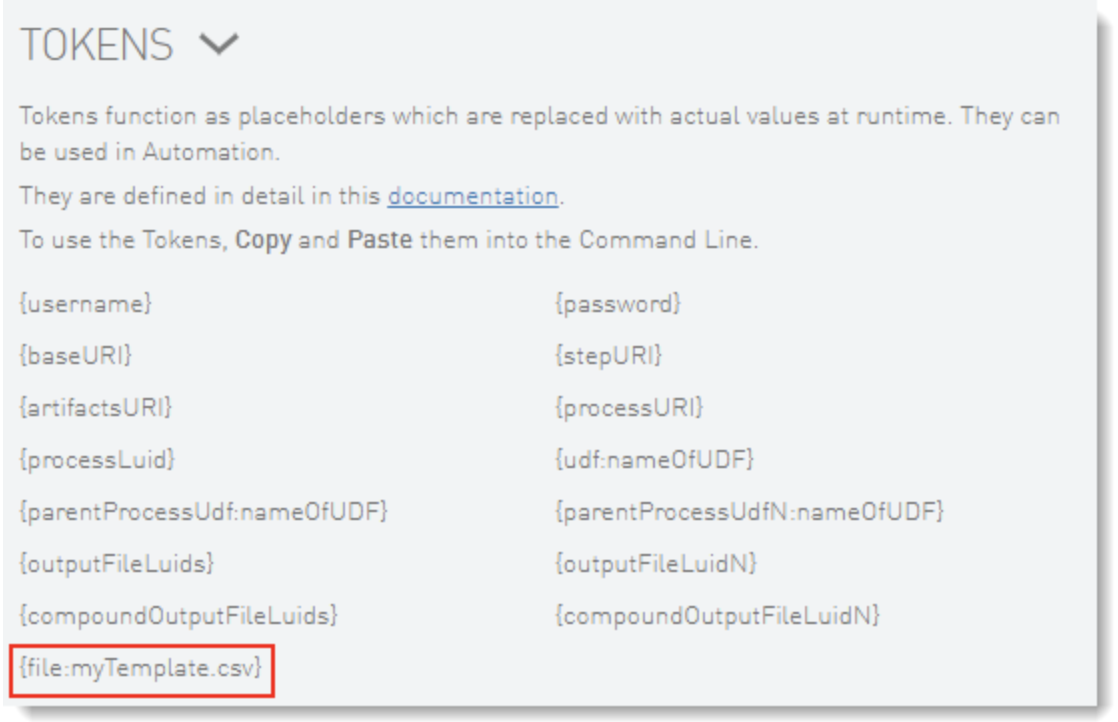
A token for the template file is automatically added to the Tokens list.
4. In the automation command line, provide the file token as the *-t* (*-templatePath*) parameter value:
```
bash -l -c "/opt/gls/clarity/bin/java -jar /opt/gls/clarity/extensions/ngs-common/v5/EPP/DriverFileGenerator.jar -i {processURI:v2} -u {username} -p {password} \
script:driver_file_generator \
-t {file:myTemplate.csv} \
-o {compoundOutputFileLuid1}.csv \
-q true \
-destLIMSID {compoundOutputFileLuid1} \
-l {compoundOutputFileLuid2}"
```
At run time, the token is replaced with the absolute path of the template file.
For instructions on uploading template files to an automation, and adding the token to the command line, see the following articles:
* Adding & Configuring Automations (Attaching template files to step automations document section) in the [Clarity LIMS (Clarity & LabLink Reference Guide) documentation](/clarity-lims/clarity-lims/clarity-and-lablink.md).
* [Creating Template Files](/clarity-lims/integration-toolkits/litk/litk-template-file-generator/litk-creating-template-files.md)
## Attachments
MiSeqSamplesheetv3.csv:
{% file src="/files/SzQzt38VuAC8eJuNZU4F" %}
BCL2FASTQ\_Samplesheet.csv:
{% file src="/files/X3kQ0fOt3onqD1WZxOyU" %}
BCL2FASTQ\_Reverse\_Complement\_Samplesheet.csv:
{% file src="/files/uXANcpmeYbVylHRdrjHp" %}
---
# Agent Instructions
This documentation is published with GitBook. GitBook is the documentation platform designed so that both humans and AI agents can read, navigate, and reason over technical content effectively. Learn more at gitbook.com.
## Querying This Documentation
If you need additional information that is not directly available in this page, you can query the documentation dynamically by asking a question.
Perform an HTTP GET request on the current page URL with the `ask` query parameter, and the optional `goal` query parameter:
```
GET https://help.connected.illumina.com/clarity-lims/instruments-and-integrations/references/illumina-instrument-sample-sheets.md?ask=&goal=
```
`ask` is the immediate question: it should be specific, self-contained, and written in natural language.
`goal` is optional and describes the broader end goal you are ultimately trying to accomplish on behalf of the user. GitBook uses it to tailor the answer towards what is most useful for that goal.
The response will contain a direct answer to the question and relevant excerpts and sources from the documentation.
Use this mechanism when the answer is not explicitly present in the current page, you need clarification or additional context, or you want to retrieve related documentation sections.