> For the complete documentation index, see [llms.txt](https://help.connected.illumina.com/llms.txt). Markdown versions of documentation pages are available by appending `.md` to page URLs; this page is available as [Markdown](https://help.connected.illumina.com/dragen-somatic-for-idt-custom-panels/stage-1-generate-systematic-noise-file/option-a-run-planner.md).
# Option A: From Run Planner
Use this option when you are planning a new sequencing run and want to auto-launch the Baseline Builder at the end of sequencing.
## Step-by-Step Instructions
1. Navigate to BaseSpace Sequence Hub (BSSH) and select your desired workgroup. Log in to your domain first if required.
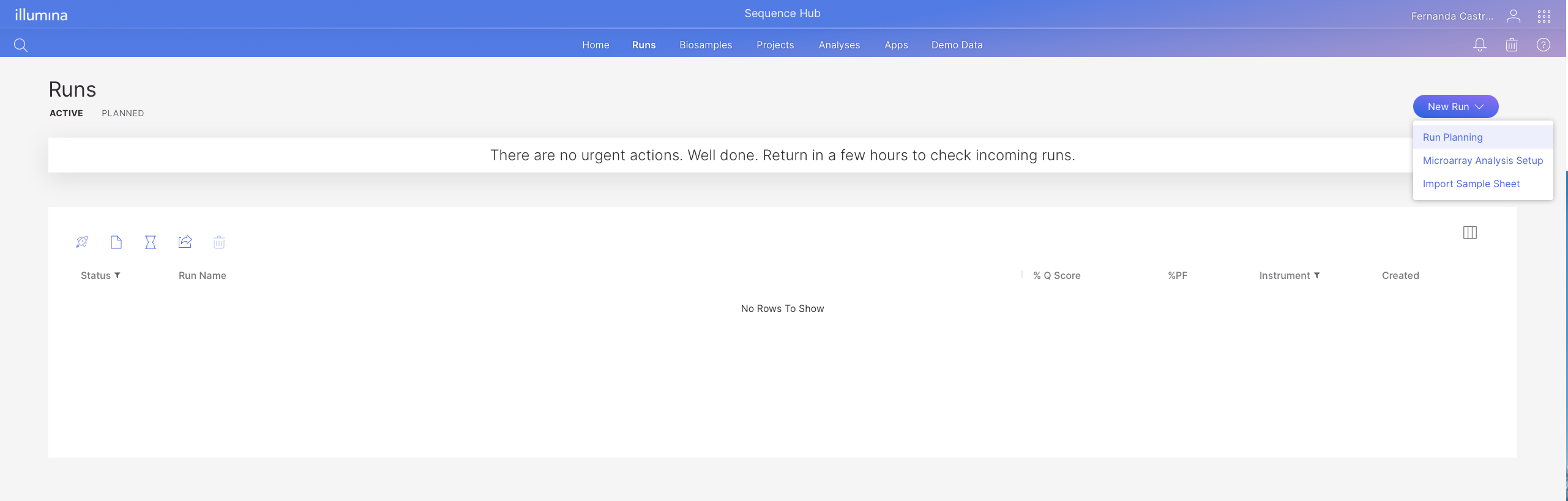
2. Go to the Runs tab, select New Run, then select Run Planning.
3. Set the Analysis Location to BaseSpace/BioInsight Platform Core (Platform Core).
4. Select **DRAGEN systematic noise file builder v4.5** from the Application drop-down menu.
5. Select **IDT xGen cfDNA and FFPE library prep** from the Library Prep Kit drop-down menu and choose the adapter kits you are using. Click next.
6. If needed, modify the read lengths.
7. Complete the sample sheet table. See Tip below for a more straightforward experience.
8. Upload your Target BED file.
9. The reference genome defaults to hg38 v6. Modify it if the Target BED file reference genome is different.
10. UMI is enabled by default and can be turned off if preferred.
11. The SNV systematic noise file threshold is optimized at 0.02 and set as the default.
12. Click next to create the Sample Sheet.
{% hint style="info" %}
**Tip.** Click on **Sample ID** and select **Fill down** to enumerate your samples automatically.
{% endhint %}
{% hint style="warning" %}
**IMPORTANT.** When using the Run Planner UI, samples for systematic noise baseline building and the experimental (tumor) samples must be processed on **different flow cells**. If you need both on the same flow cell, run BCL Convert from Run Planner first, then launch the Baseline Builder app separately from the BSSH or Platform Core application.
{% endhint %}
---
# Agent Instructions
This documentation is published with GitBook. GitBook is the documentation platform designed so that both humans and AI agents can read, navigate, and reason over technical content effectively. Learn more at gitbook.com.
## Querying This Documentation
If you need additional information that is not directly available in this page, you can query the documentation dynamically by asking a question.
Perform an HTTP GET request on the current page URL with the `ask` query parameter, and the optional `goal` query parameter:
```
GET https://help.connected.illumina.com/dragen-somatic-for-idt-custom-panels/stage-1-generate-systematic-noise-file/option-a-run-planner.md?ask=&goal=
```
`ask` is the immediate question: it should be specific, self-contained, and written in natural language.
`goal` is optional and describes the broader end goal you are ultimately trying to accomplish on behalf of the user. GitBook uses it to tailor the answer towards what is most useful for that goal.
The response will contain a direct answer to the question and relevant excerpts and sources from the documentation.
Use this mechanism when the answer is not explicitly present in the current page, you need clarification or additional context, or you want to retrieve related documentation sections.
.png?alt=media)
.png?alt=media)
.png?alt=media)