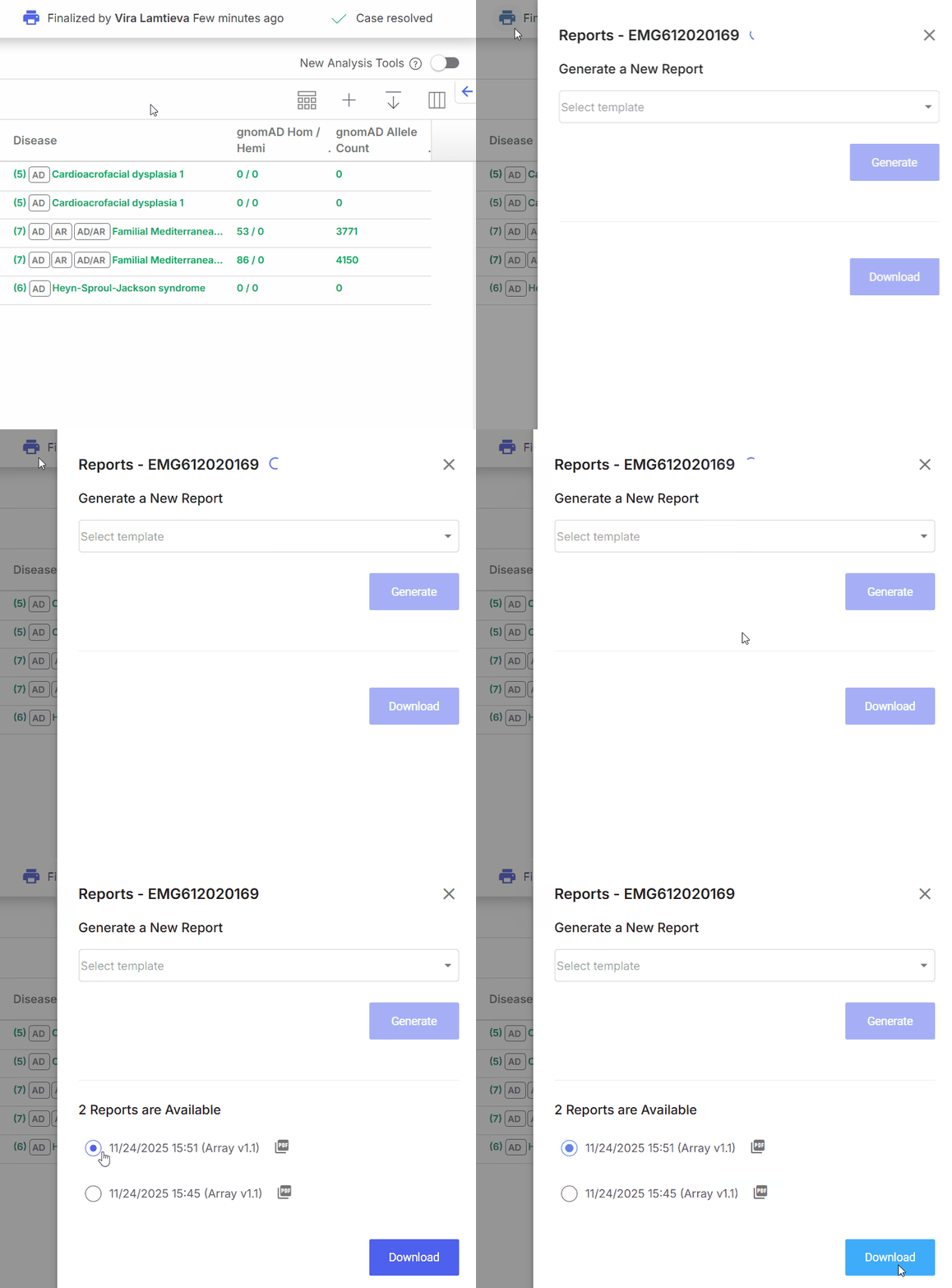
Downloading a saved report.
Downloading a saved report.
%20(1).png?alt=media) printer icon in the [**Individual case page header**](/emedgene/emedgene-analyze-manual/reviewing_a_case/individual-case-page-top-bar.md).
{% endstep %}
{% step %}
Select a report from the list.
{% endstep %}
{% step %}
Select **Download**.
A new browser tab opens with the document preview.
{% endstep %}
{% step %}
To download the `.pdf` file, select
printer icon in the [**Individual case page header**](/emedgene/emedgene-analyze-manual/reviewing_a_case/individual-case-page-top-bar.md).
{% endstep %}
{% step %}
Select a report from the list.
{% endstep %}
{% step %}
Select **Download**.
A new browser tab opens with the document preview.
{% endstep %}
{% step %}
To download the `.pdf` file, select %20(1).png?alt=media) .
To download the `.odt` file, select
.
To download the `.odt` file, select %20(1).png?alt=media) .
{% endstep %}
{% endstepper %}
**Result:** The selected report downloads in the chosen file format.
---
# Agent Instructions
This documentation is published with GitBook. GitBook is the documentation platform designed so that both humans and AI agents can read, navigate, and reason over technical content effectively. Learn more at gitbook.com.
## Querying This Documentation
If you need additional information that is not directly available in this page, you can query the documentation dynamically by asking a question.
Perform an HTTP GET request on the current page URL with the `ask` query parameter, and the optional `goal` query parameter:
```
GET https://help.connected.illumina.com/emedgene/emedgene-analyze-manual/case-completion-and-reporting/clinical_report/downloading-reports-in-a-finalized-case.md?ask=
.
{% endstep %}
{% endstepper %}
**Result:** The selected report downloads in the chosen file format.
---
# Agent Instructions
This documentation is published with GitBook. GitBook is the documentation platform designed so that both humans and AI agents can read, navigate, and reason over technical content effectively. Learn more at gitbook.com.
## Querying This Documentation
If you need additional information that is not directly available in this page, you can query the documentation dynamically by asking a question.
Perform an HTTP GET request on the current page URL with the `ask` query parameter, and the optional `goal` query parameter:
```
GET https://help.connected.illumina.com/emedgene/emedgene-analyze-manual/case-completion-and-reporting/clinical_report/downloading-reports-in-a-finalized-case.md?ask=