# Case status

**Case status reflects the current stage of case processing**, either by the Emedgene platform or your team. Statuses enable case progress tracking and support a consistent, collaborative case review workflow.

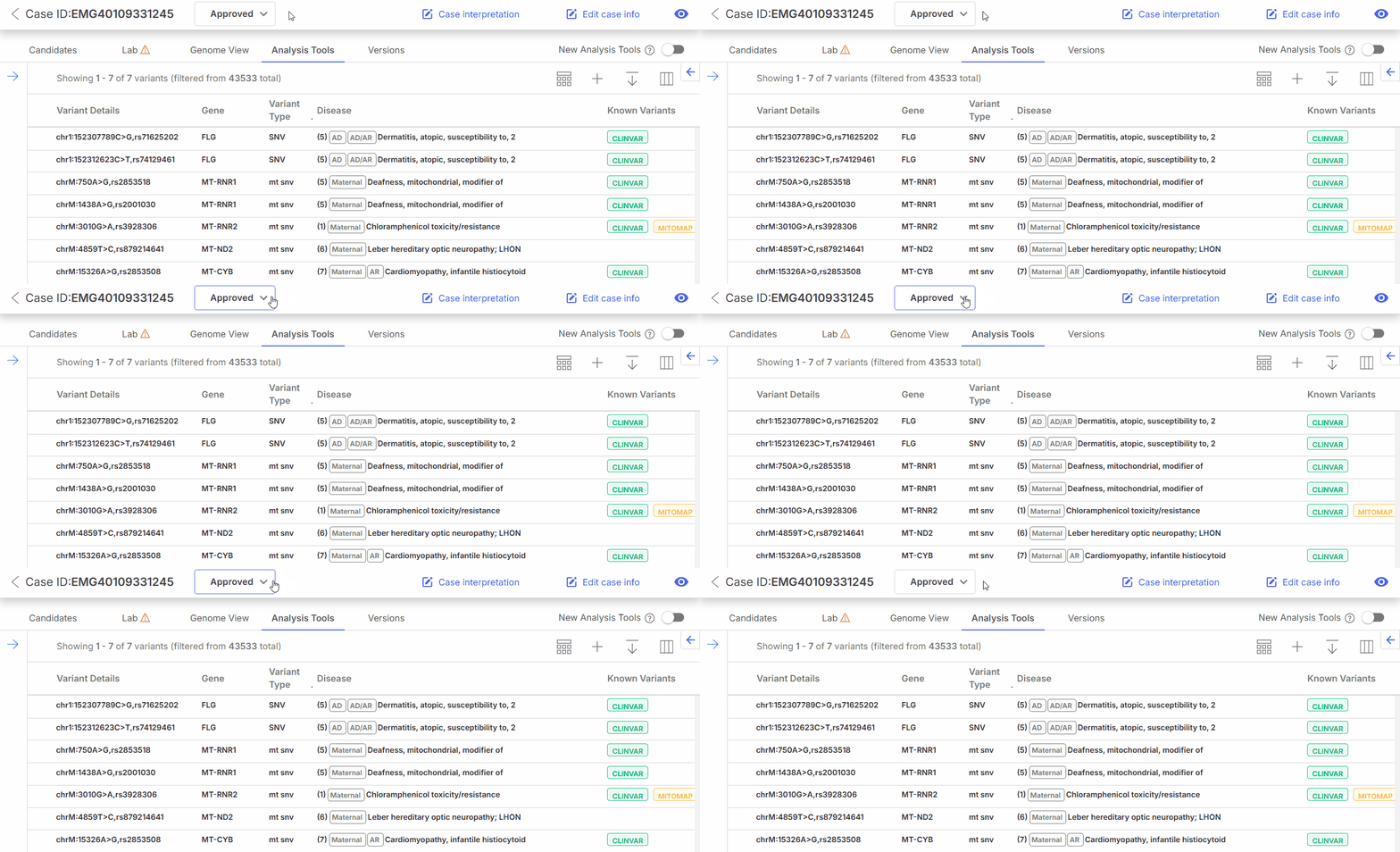
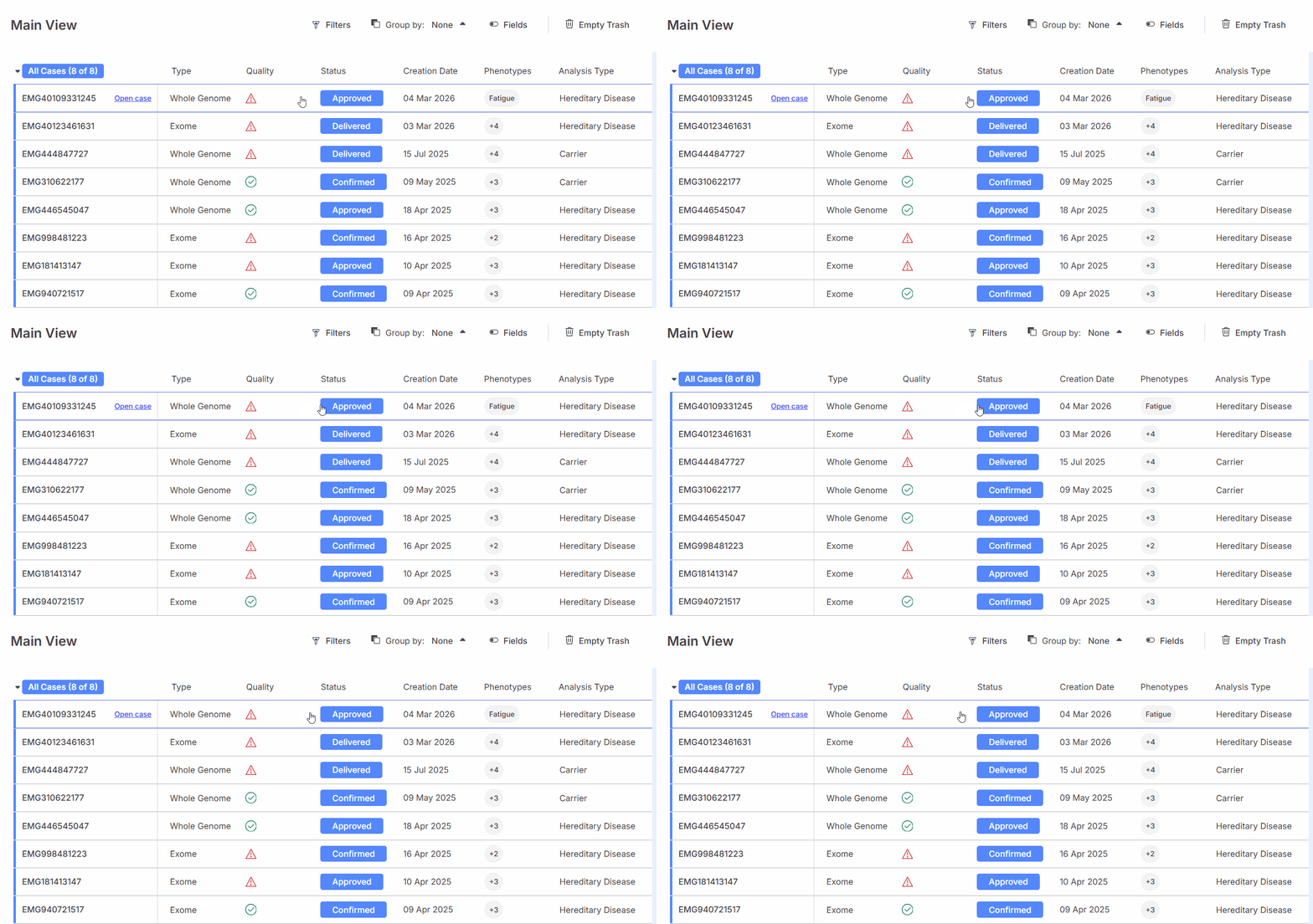
You can view and [update](/emedgene/emedgene-analyze-manual/reviewing_a_case/case_status/how-to-update-a-case-status.md) the current case status in the **Cases table** and in the top bar of the **individual case page**.

{% tabs %}
{% tab title="Status in the Cases table" %}

<figure><img src="/files/32FFQs7VaRqulxQcz51r" alt=""><figcaption><p>Cases table</p></figcaption></figure>
{% endtab %}

{% tab title="Status in the individual case page" %}

<figure><img src="/files/AFaX3i8Eiz1QR5BhZ8hc" alt=""><figcaption><p>Case page</p></figcaption></figure>
{% endtab %}
{% endtabs %}

## Out-of-the-box and custom statuses

Emedgene provides out-of-the-box statuses, as well as the option to create custom statuses to match your case review workflow. To create, remove, or reorder case statuses for your organization, go to **Settings** > **Management** > [**Case statuses**](/emedgene/emedgene-analyze-manual/settings/management/case-statuses.md).

## Case status history

Each time a case status is [updated](/emedgene/emedgene-analyze-manual/reviewing_a_case/case_status/how-to-update-a-case-status.md), the change is logged and recorded in the case activity history.

To review case status updates:

{% stepper %}
{% step %}
In the relevant case, open the [**Case details** **panel**](/emedgene/emedgene-analyze-manual/getting_around_the_platform/cases_tab/case_details.md)**.**
{% endstep %}

{% step %}
Select the **Activity tab**.
{% endstep %}

{% step %}
Filter logs by selecting **Case‑related activities** from the dropdown list.
{% endstep %}
{% endstepper %}

**Result:** The status history is show&#x6E;**,** along with other case-level logs.

## Learn more

<table data-view="cards"><thead><tr><th></th><th></th><th></th></tr></thead><tbody><tr><td><strong>Case statuses in a case lifecycle</strong></td><td>A visual overview of case status transitions and a reference description of each status.</td><td><i class="fa-up-right-from-square">:up-right-from-square:</i> <a href="/pages/7dMkh6Debg84ISFWnfCH">Learn more</a></td></tr><tr><td><strong>How to update a case status</strong></td><td>Update case status.</td><td><i class="fa-up-right-from-square">:up-right-from-square:</i> <a href="/pages/2puvLO2kJ6Rb9EEaM5WM">Learn more</a></td></tr><tr><td><strong>Case status management</strong></td><td>Create custom case statuses and reorder them according to your workflow.</td><td><i class="fa-up-right-from-square">:up-right-from-square:</i> <a href="/pages/f4eJ4aBGAAIYh3aXjOyx">Learn more</a></td></tr></tbody></table>


---

# Agent Instructions: Querying This Documentation

If you need additional information that is not directly available in this page, you can query the documentation dynamically by asking a question.

Perform an HTTP GET request on the current page URL with the `ask` query parameter:

```
GET https://help.connected.illumina.com/emedgene/emedgene-analyze-manual/reviewing_a_case/case_status.md?ask=<question>
```

The question should be specific, self-contained, and written in natural language.
The response will contain a direct answer to the question and relevant excerpts and sources from the documentation.

Use this mechanism when the answer is not explicitly present in the current page, you need clarification or additional context, or you want to retrieve related documentation sections.