> For the complete documentation index, see [llms.txt](https://help.connected.illumina.com/llms.txt). Markdown versions of documentation pages are available by appending `.md` to page URLs; this page is available as [Markdown](https://help.connected.illumina.com/emedgene/emedgene-analyze-manual/settings/organization_settings_-330+/kit-management/panel-of-normals-pon/creating-a-pon-for-emedgene-using-basespace-baseline-builder.md).
# Creating a PON for Emedgene using BaseSpace Baseline Builder
Emedgene users can supply their own panel of normal (PON) to enable CNV calling on gene panels and WES samples. This guide details the process using BaseSpace.
The DRAGEN Baseline Builder application in BaseSpace can be used to build PONs that are compatible with Emedgene:
Users without BaseSpace can receive a free trial BaseSpace account along with compute (250 iCredits) and storage (1 TB) by registering here (). The compute is allocated for 30 days upon trial commencement and will be sufficient to generate a PON.
Alternatively, Illumina Connected Analytics (ICA), DRAGEN servers and DRAGEN in cloud are also capable of generating Emedgene-compatible PONs.
## Requirements
* \~ 50 normal samples 50/50 male:female split, originating from the same library prep protocol, ideally from the same sequencer.
* The sample fastq files need to be in one or more Projects in your Basespace account.
* iCredits
* Compatible BED file
## Uploading a BED file:
The BED file used must match that uploaded to Emedgene, any discrepancy may cause a failure during case processing.
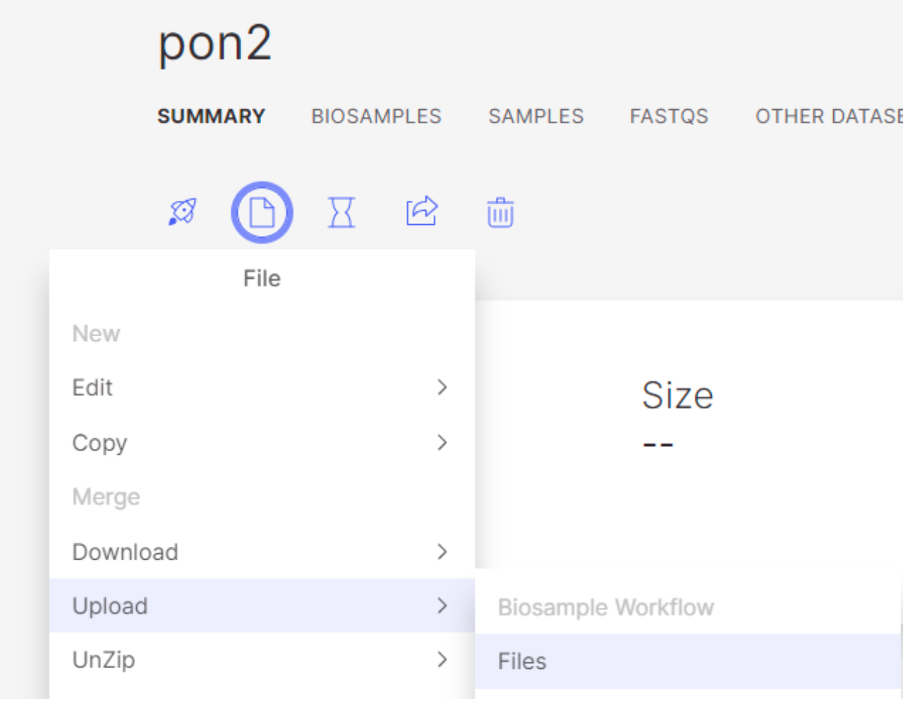
Uploading a BED file to a project in BaseSpace can be done within the project:
\
Note that hg19/grch37 BED files are not directly compatible with hs37d5 (the reference used within Emedgene) and will require their region contigs being renamed from "chr1", "chr2", "chr3"... etc. to "1", "2", "3" etc.
## Running the app
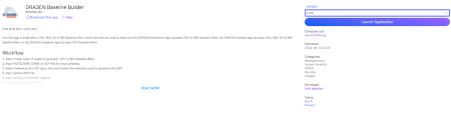
1\) Select the application "DRAGEN Baseline Builder" with the latest version that matches your Emedgene secondary analysis pipeline (4.3 in example) and click launch:
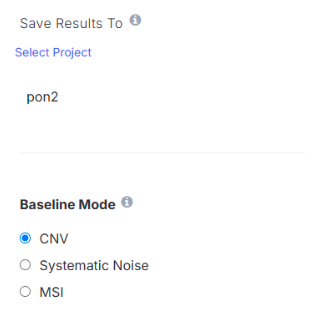
2\) Select output project and Baseline Mode "CNV":
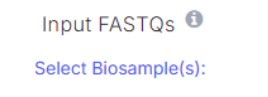
3\) Select input FASTQ Biosamples to use.\
50 samples is a rough guideline as the degree of correlation between normals and case sample is more important than quantity.
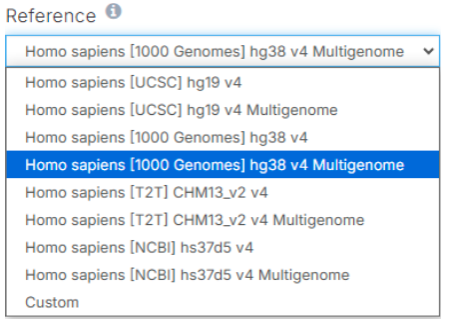
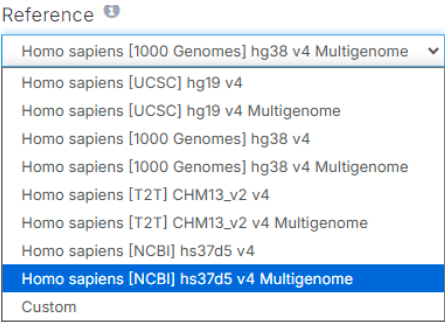
4\) Select correct reference genome, matching that used in Emedgene.
Chose the multigenome version of the genome build.
For GRCh38/hg38:
For GRCh37/hg19 choose the hs37d5 build (remember to rename contigs in BED file if using hs37d5):
5\) Select BED file you uploaded to your Basespace project in Step 2.1 above:
6\) Configure Emedgene-specific settings:
Emedgene CNV calling has DRAGEN settings that must also be used during PON creation. In the app, this can be done in the advanced settings section at the bottom of the page:
Tick "**Ignore Duplicate Reads in CNV Baseline Files**" and change "Generated Combined Counts file for CNV" to "**GC Corrected**"\
\
\
7\) Tick the BaseSpace Labs App Acknowledgement box.\
8\) Launch the app.
## Downloading Results
Once the analysis is complete, open the output files and look for the \*.combined.counts.txt.gz file. It may be within a folder called "pon".
It can be downloaded from analysis results manually, by clicking on the file and selecting "Download", via the Basespace CLI (), or if the output project is connected to Emedgene - loaded directly into the platform.
---
# Agent Instructions
This documentation is published with GitBook. GitBook is the documentation platform designed so that both humans and AI agents can read, navigate, and reason over technical content effectively. Learn more at gitbook.com.
## Querying This Documentation
If you need additional information that is not directly available in this page, you can query the documentation dynamically by asking a question.
Perform an HTTP GET request on the current page URL with the `ask` query parameter, and the optional `goal` query parameter:
```
GET https://help.connected.illumina.com/emedgene/emedgene-analyze-manual/settings/organization_settings_-330+/kit-management/panel-of-normals-pon/creating-a-pon-for-emedgene-using-basespace-baseline-builder.md?ask=&goal=
```
`ask` is the immediate question: it should be specific, self-contained, and written in natural language.
`goal` is optional and describes the broader end goal you are ultimately trying to accomplish on behalf of the user. GitBook uses it to tailor the answer towards what is most useful for that goal.
The response will contain a direct answer to the question and relevant excerpts and sources from the documentation.
Use this mechanism when the answer is not explicitly present in the current page, you need clarification or additional context, or you want to retrieve related documentation sections.