> For the complete documentation index, see [llms.txt](https://help.connected.illumina.com/llms.txt). Markdown versions of documentation pages are available by appending `.md` to page URLs; this page is available as [Markdown](https://help.connected.illumina.com/emedgene/emedgene-analyze-manual/settings/organization_settings_-330+/lab-workflow/presets.md).
# Presets
Use **Organization Settings → Lab workflow → Presets** to view and manage [**presets**](/emedgene/emedgene-analyze-manual/reviewing_a_case/analysis-tools-tab-beta-v100.39.0+/filters_presets_panel/presets.md) for your organization.
## Presets table
The table lists every preset in your organization. It includes:
* **Preset name**
* **Type**
* **Last update** (v100.39+) — the date of the most recent preset change
You can sort the table by any column in v100.39 onward.
## View preset logic
Select :chevron-down: **Expand** beside a preset name to view its logic.
Viewing preset logic.
The way preset logic is displayed depends on how the preset was created. **Query Builder** **presets** display the full query structure. **Quick Filters presets** display only the filter conditions, grouped by category.
## Create a preset
### From active filters in a case
Create presets from active case filters. You cannot create them directly in settings.
1. In **Organization Settings → Lab workflow → Presets**, select **Add new**.\
The most recently run case opens.
2. Configure the filters and [save them as a preset](/emedgene/emedgene-analyze-manual/reviewing_a_case/analysis-tools-tab-beta-v100.39.0+/filters_presets_panel/presets/creating-a-preset.md#creating-a-filter-based-preset).
### By uploading a preset group
Upload a preset group JSON file under **Lab workflow → Preset groups**. The system creates any missing presets. It then adds them to the organization’s **Presets** list.
## Duplicate a preset (v100.39+)
Duplicate a preset to reuse its filtering logic with minor changes.
{% stepper %}
{% step %}
In **Organization Settings → Lab workflow → Presets**, locate the preset to copy.
:lock: Locked presets cannot be duplicated.
{% endstep %}
{% step %}
Select the :copy: **Duplicate** icon on the right.
{% endstep %}
{% step %}
Enter a name for the duplicate.
{% hint style="warning" %}
**Note:** Use only Latin characters that comply with the ISO‑8859‑1 standard.
{% endhint %}
{% endstep %}
{% step %}
Select **Save**.
{% endstep %}
{% endstepper %}
**Result:** A new preset appears in the list with the original filtering logic.
## Edit preset logic
Edit a preset’s JSON definition to refine or correct its filtering logic. You can edit the logic, but not the preset name.
Editing requires familiarity with JSON.
* Contact your Illumina representative for help editing a preset.
* To define conditions in a case, create a new preset.
{% stepper %}
{% step %}
In **Organization Settings → Lab workflow → Presets**, locate the preset to edit.
:lock: Locked presets cannot be edited.
{% endstep %}
{% step %}
Select :pen: **Edit**. The preset logic opens in the JSON editor.
{% endstep %}
{% step %}
Make changes in the JSON editor.
{% endstep %}
{% step %}
Select **Save**.
The system validates JSON syntax only. It does not validate key names, values, or biological relevance.
* If validation finds errors, fix them before saving. The error details identify the issues.
* If validation succeeds, select **Save** in the confirmation dialog.
{% endstep %}
{% endstepper %}
**Result:** The updated logic takes effect immediately. It affects every preset group containing the preset. It also affects existing and future cases using those preset groups.
## Lock or unlock a preset
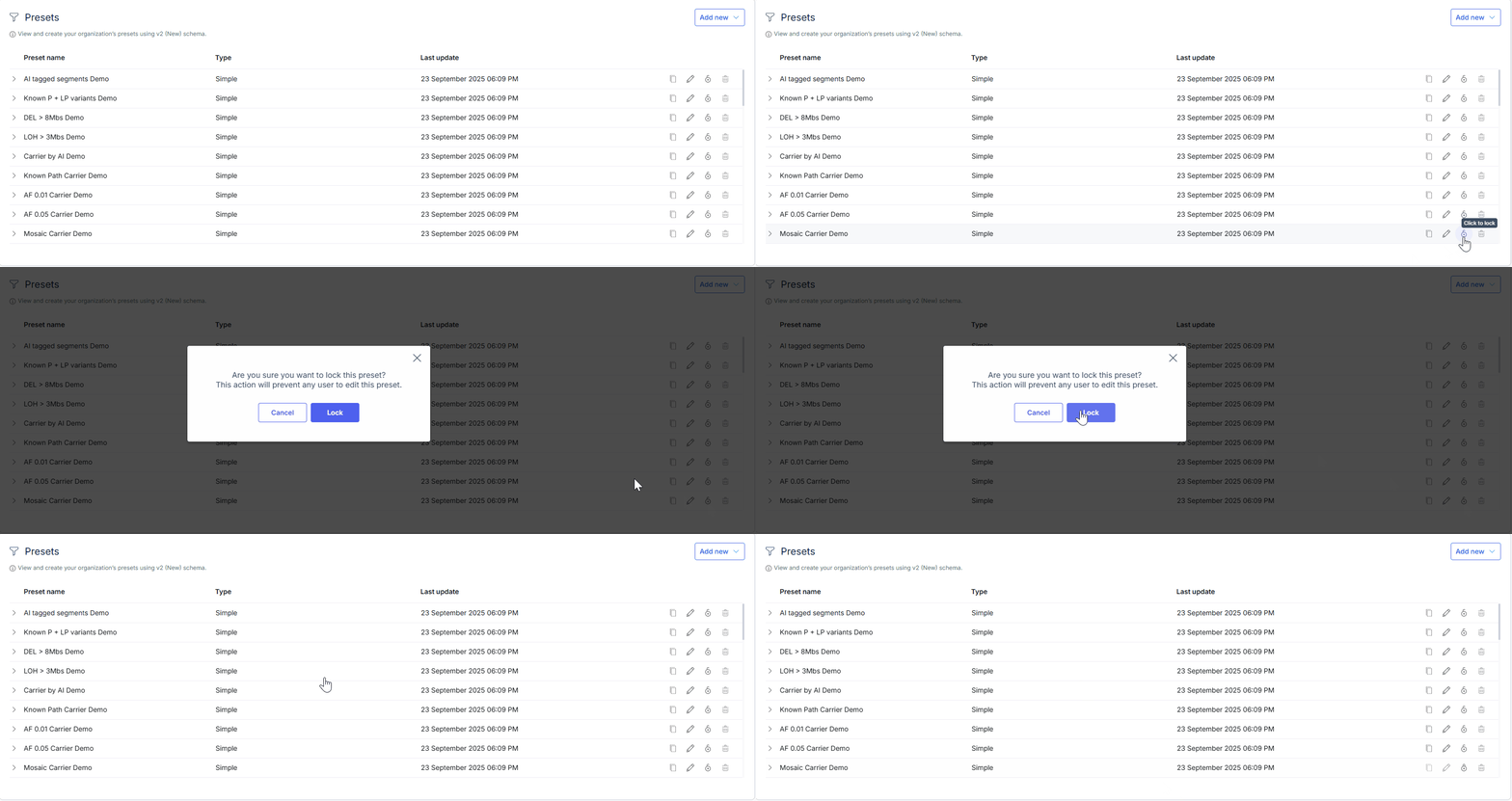
Lock or unlock a preset from the Presets list.
Locking prevents any user from editing a preset’s filtering logic. Use it to protect validated, SOP-approved presets.
{% stepper %}
{% step %}
In **Organization Settings → Lab workflow → Presets**, locate the preset to lock or unlock.
{% endstep %}
{% step %}
Select :unlock: **Lock** or :lock: **Unlock**.
{% endstep %}
{% step %}
In the confirmation dialog, select **Lock** or **Unlock**.
{% endstep %}
{% endstepper %}
**Result:**
* **Lock:** The preset becomes read-only. It cannot be [edited](#edit-preset-logic) or [duplicated](#duplicate-a-preset-v100.39).
* **Unlock:** The preset becomes editable again. Authorized users can [edit](#edit-preset-logic) and [duplicate](#duplicate-a-preset-v100.39) it.
## Delete an unused preset
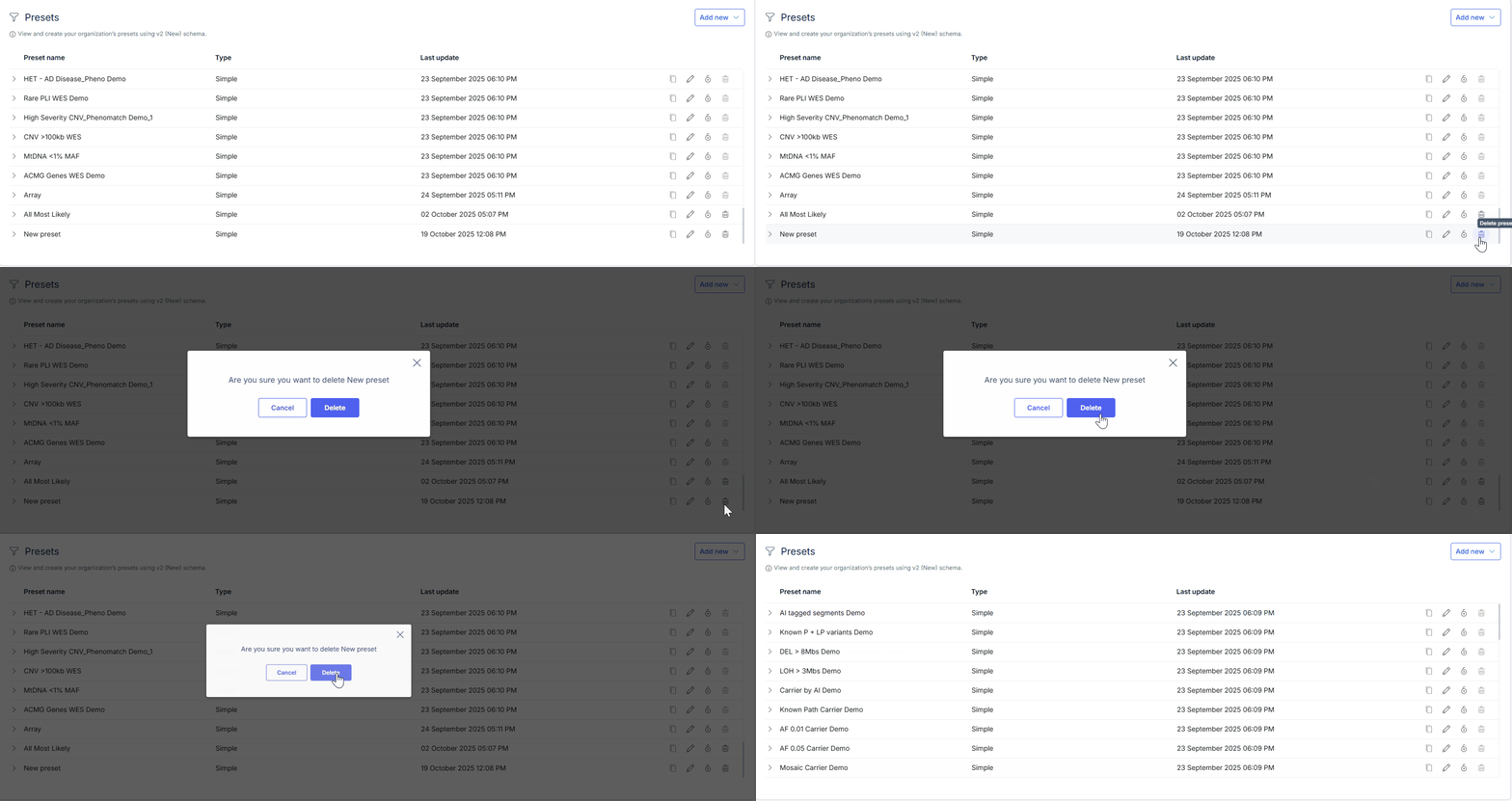
Delete an unused preset from the Presets list.
You can delete an **unused** preset. A preset is unused when no preset group includes it.
{% stepper %}
{% step %}
In **Organization Settings → Lab workflow → Presets**, locate the preset to delete.
{% endstep %}
{% step %}
Select :trash-can: **Delete**.
{% endstep %}
{% step %}
In the confirmation dialog, select **Delete**.
{% endstep %}
{% endstepper %}
**Result:** The preset is no longer available for inclusion in preset groups.
---
# Agent Instructions
This documentation is published with GitBook. GitBook is the documentation platform designed so that both humans and AI agents can read, navigate, and reason over technical content effectively. Learn more at gitbook.com.
## Querying This Documentation
If you need additional information that is not directly available in this page, you can query the documentation dynamically by asking a question.
Perform an HTTP GET request on the current page URL with the `ask` query parameter, and the optional `goal` query parameter:
```
GET https://help.connected.illumina.com/emedgene/emedgene-analyze-manual/settings/organization_settings_-330+/lab-workflow/presets.md?ask=&goal=
```
`ask` is the immediate question: it should be specific, self-contained, and written in natural language.
`goal` is optional and describes the broader end goal you are ultimately trying to accomplish on behalf of the user. GitBook uses it to tailor the answer towards what is most useful for that goal.
The response will contain a direct answer to the question and relevant excerpts and sources from the documentation.
Use this mechanism when the answer is not explicitly present in the current page, you need clarification or additional context, or you want to retrieve related documentation sections.