# Adding a single variant to Curate

To add one or several variants, use manual entry in **Curate**. Follow the instructions below.

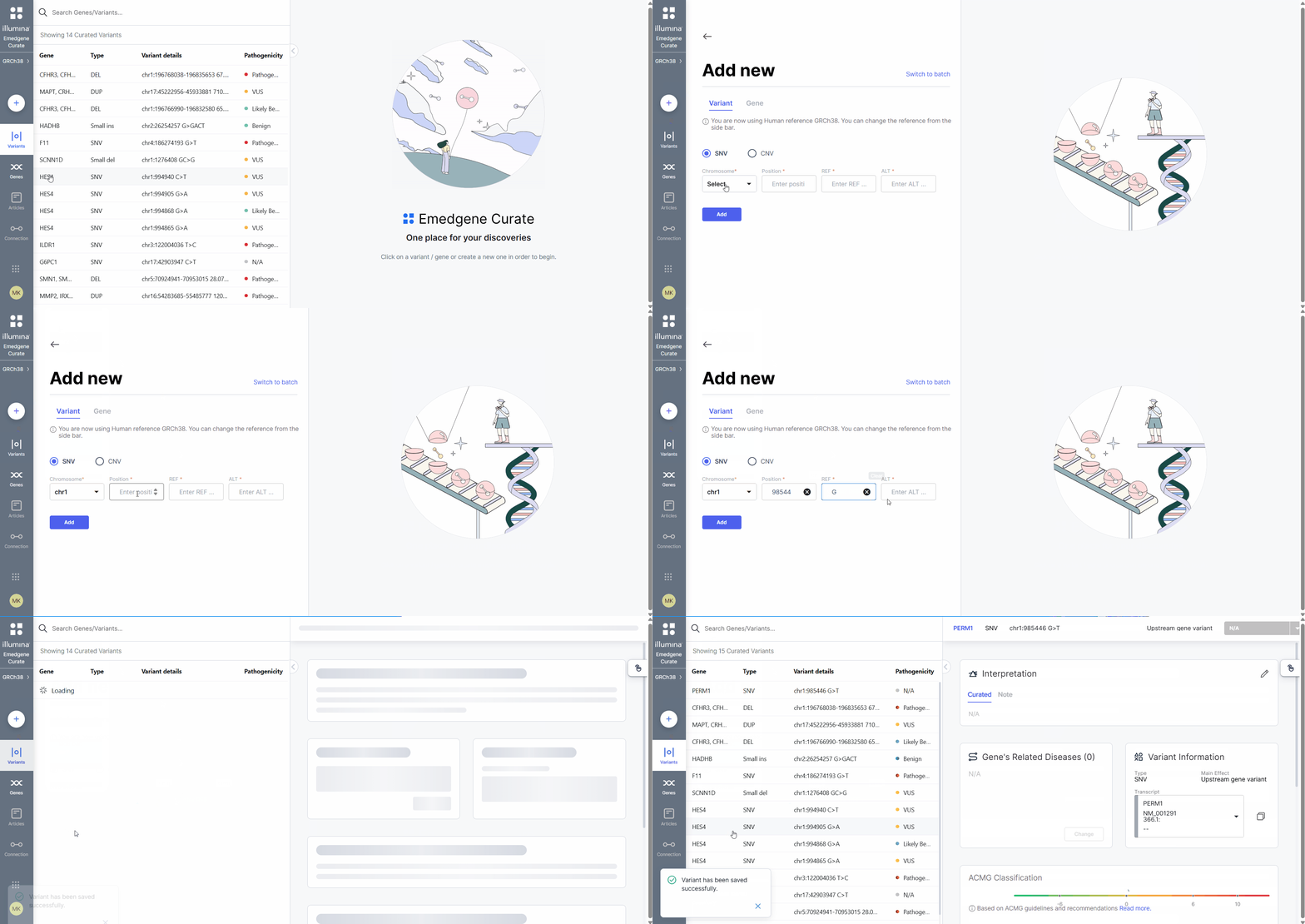
<figure><img src="/files/IGBs0YDZwnYLWDIDZogw" alt=""><figcaption><p>Adding a single variant to <strong>Curate</strong></p></figcaption></figure>

## How to add a variant in Curate

{% stepper %}
{% step %}
Open **Curate Variants**.
{% endstep %}

{% step %}
In the navigation panel, select the **Add new** button (<i class="fa-plus-large">:plus-large:</i> symbol).
{% endstep %}

{% step %}
In the **Add new variant** dialog, select the variant type:

* **SNV**: Single nucleotide variant or indel variant
* **CNV:** Deletion or duplication
  {% endstep %}

{% step %}
Enter variant details.

{% hint style="info" %}
Confirm the human genome reference (GRCh37 or GRCh38) in the navigation panel. The genome build must match the variant coordinates you enter in `Position`, `Position start`, and `Position end`.
{% endhint %}

**SNV variant details:**

<table><thead><tr><th valign="top">Field name</th><th>Expected input</th><th>Example</th></tr></thead><tbody><tr><td valign="top"><code>Chromosome</code></td><td><code>1</code> - <code>22</code>, <code>X</code>, <code>Y</code>, <code>M</code></td><td><code>X</code></td></tr><tr><td valign="top"><code>Position</code></td><td>Integer</td><td><code>123000</code></td></tr><tr><td valign="top"><code>REF</code></td><td><code>A</code>, <code>T</code>, <code>G</code>, <code>C</code>, or a string of these letters</td><td><code>G</code></td></tr><tr><td valign="top"><code>ALT</code></td><td><code>A</code>, <code>T</code>, <code>G</code>, <code>C</code>, or a string of these letters</td><td><code>GACT</code></td></tr></tbody></table>

**CNV variant details:**

<table><thead><tr><th valign="top">Field name</th><th>Expected input</th><th>Example</th></tr></thead><tbody><tr><td valign="top"><code>Chromosome</code></td><td><code>1</code> - <code>22</code>, <code>X</code>, <code>Y</code>, <code>M</code></td><td><code>14</code></td></tr><tr><td valign="top"><code>Position start</code></td><td>Integer</td><td><code>123000</code></td></tr><tr><td valign="top"><code>Position end</code></td><td>Integer. Must be greater than <code>Position start</code>.</td><td><code>124000</code></td></tr><tr><td valign="top"><code>REF</code></td><td><code>A</code>, <code>T</code>, <code>G</code>, <code>C</code>, or a string of these letters</td><td><code>G</code></td></tr><tr><td valign="top"><code>Type</code></td><td><code>DEL</code>, <code>DUP</code></td><td><code>DEL</code></td></tr></tbody></table>
{% endstep %}

{% step %}
Select **Add**.
{% endstep %}
{% endstepper %}

**Result:**

* Variant is added to **Curate**.
* The [**Curate Variant page**](/emedgene/emedgene-curate-manual/curate_variants/curate_variant_page.md) opens, where you can assign pathogenicity, add curated interpretation, select a disease, classify the variant using ACMG criteria, and perform additional actions as needed.

## Alternative ways to add variants to Curate

Unsure if manual variant entry in **Curate** is the right option?

* Upload a CSV file to efficiently handle a large set of variants. <i class="fa-up-right-from-square">:up-right-from-square:</i> [Learn more](/emedgene/emedgene-curate-manual/curate_variants/adding-variants-to-curate/adding-multiple-variants-to-curate.md)
* Export a variant directly from a case in **Analyze**. <i class="fa-up-right-from-square">:up-right-from-square:</i> [Learn more](/emedgene/emedgene-curate-manual/curate_variants/adding-variants-to-curate/exporting-a-variant-from-analyze.md)


---

# Agent Instructions: Querying This Documentation

If you need additional information that is not directly available in this page, you can query the documentation dynamically by asking a question.

Perform an HTTP GET request on the current page URL with the `ask` query parameter:

```
GET https://help.connected.illumina.com/emedgene/emedgene-curate-manual/curate_variants/adding-variants-to-curate/adding-a-single-variant-to-curate.md?ask=<question>
```

The question should be specific, self-contained, and written in natural language.
The response will contain a direct answer to the question and relevant excerpts and sources from the documentation.

Use this mechanism when the answer is not explicitly present in the current page, you need clarification or additional context, or you want to retrieve related documentation sections.
