> For the complete documentation index, see [llms.txt](https://help.connected.illumina.com/llms.txt). Markdown versions of documentation pages are available by appending `.md` to page URLs; this page is available as [Markdown](https://help.connected.illumina.com/emedgene/emedgene-curate-manual/curate_variants/adding-variants-to-curate/adding-or-updating-multiple-variants-in-curate.md).
# Adding or updating multiple variants in Curate
To add or update (v100.40.0+) multiple variants in **Curate**, upload a CSV[^1] file with variant information.
Follow the instructions below.
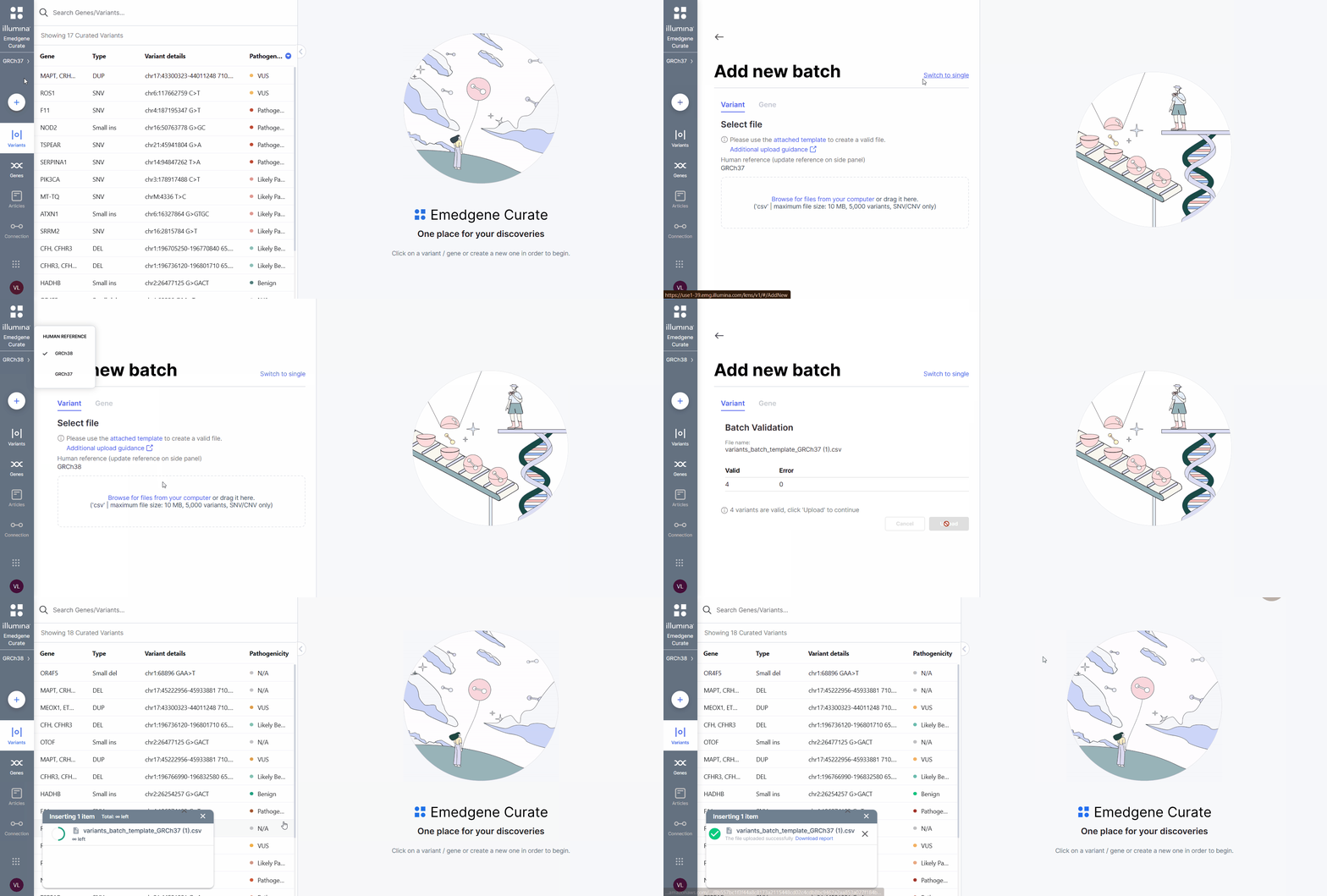
Adding multiple variants to Curate
## How to add or update a large set of variants in **Curate**
{% stepper %}
{% step %}
Prepare a CSV file with variant details. See [CSV requirements](/emedgene/emedgene-curate-manual/curate_variants/adding-variants-to-curate/adding-or-updating-multiple-variants-in-curate/csv-format-requirements-for-variant-upload.md) for details about supported fields and formatting.
**Batch updates (v100.40.0+)**
Starting with v100.40.0, you can update existing variants in batch mode. To do this, include the **`Update`** column in the CSV file and set its value to `true` for each variant you want to update.
{% endstep %}
{% step %}
Open **Curate Variants**.
{% endstep %}
{% step %}
Select **Add new** (:plus-large: symbol) in the navigation panel.
{% endstep %}
{% step %}
Select **Switch to batch**.
{% endstep %}
{% step %}
Confirm that the genome reference selected in the navigation panel (GRCh37 or GRCh38) matches the reference used in the CSV file.
{% endstep %}
{% step %}
Upload the CSV file.
{% hint style="warning" %}
**Important:** Do not leave the page until file upload is complete, as leaving will cancel the upload. The upload is finished when file validation results appear.
{% endhint %}
{% endstep %}
{% step %}
Review the file validation results:
* **If validation succeeds:** Proceed to the next step (confirming file upload).
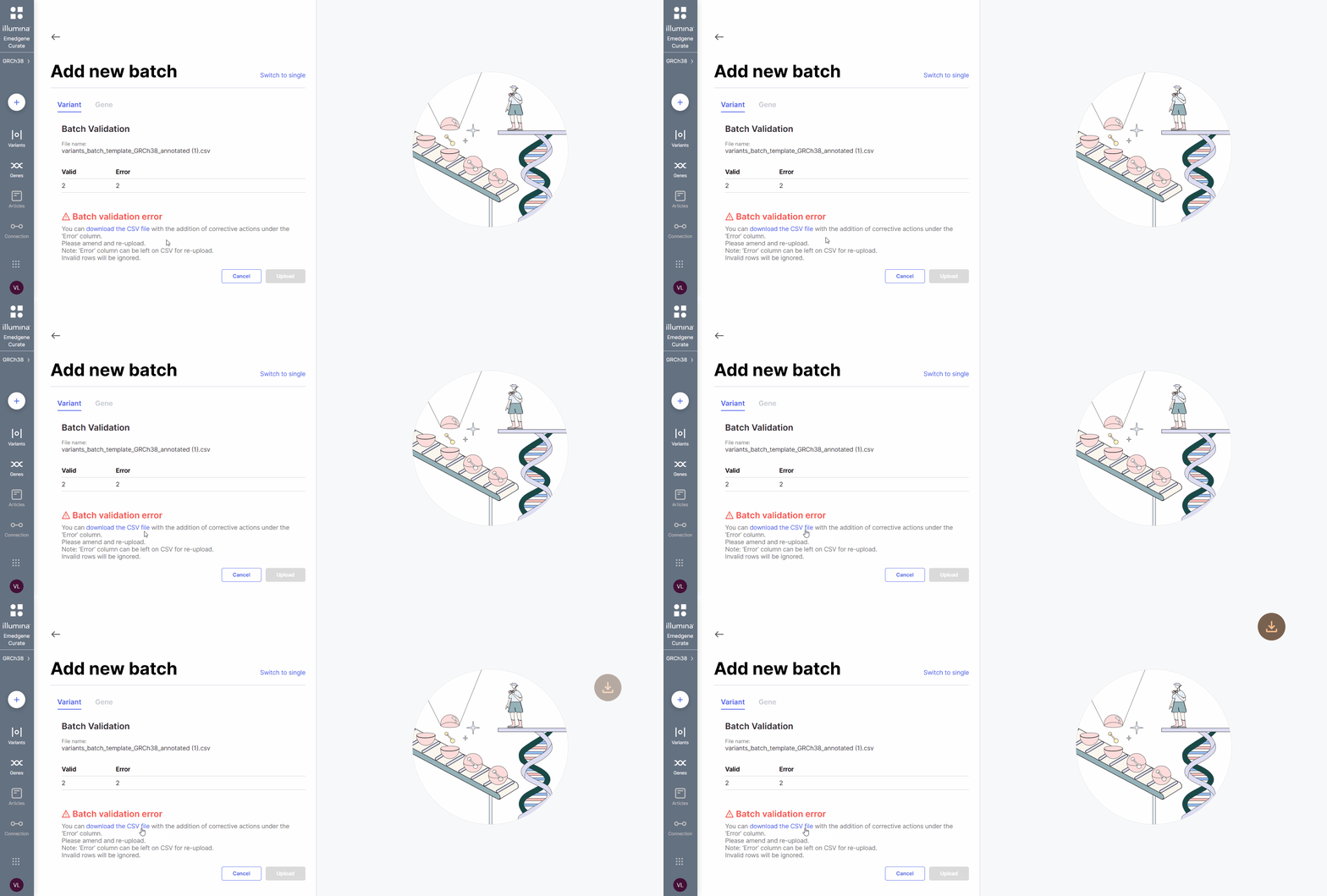
* **If validation fails:**
* Select **Download the CSV file** to download the CSV file with an added Error column detailing any issues.
* Fix errors in either the original or annotated file. The Error column in the annotated CSV file is ignored during re-upload.
* Select **Cancel**.
* Return to the previous step (uploading the file).
Select Download the CSV file to download your original file with an added Error column explaining the issue.
{% endstep %}
{% step %}
Select **Upload** to finalize the file upload.
{% endstep %}
{% step %}
After uploading the file to **Curate**, a notification appears with a **Download report** link. Download the upload summary file to review the status of each variant's upload.
{% hint style="warning" %}
**Important:** If you don't download the upload summary before closing the notification or leaving the page, it won’t be accessible later from the UI. You will need to contact Illumina Support for assistance.
{% endhint %}
**Upload results:**
* **Success:** Variant added with all details.
* **Partial success**: Variant added, but some fields were ignored.
* **Duplication**: Variant not added because it already exists in **Curate**.
* **Update**: Existing variant updated with new information.
* **Fail:** Variant not added due to overlap or intergenic location.
**Handling existing variants during batch upload**
* If **`Update`** is set to `false` (default), an existing variant in **Curate** is marked as **Duplication** and is not updated.
* If **`Update`** is set to `true`, an existing variant in **Curate** is updated with the new information from the CSV file.
{% endstep %}
{% endstepper %}
**Result:** Variants are added, partially added, updated, or skipped. Review the upload summary to confirm the outcome for each variant.
{% hint style="info" %}
**Note:** Updating existing variants with ACMG data does not change the ACMG schema version.
{% endhint %}
## Alternative ways to add variants to **Curate**
* Manually add a single or several variants by specifying their details. :up-right-from-square: [Learn more](/emedgene/emedgene-curate-manual/curate_variants/adding-variants-to-curate/adding-a-single-variant-to-curate.md)
* Export a variant directly from a case in **Analyze**. :up-right-from-square: [Learn more](/emedgene/emedgene-curate-manual/curate_variants/adding-variants-to-curate/exporting-a-variant-from-analyze.md)
[^1]: Comma-Separated Values
---
# Agent Instructions
This documentation is published with GitBook. GitBook is the documentation platform designed so that both humans and AI agents can read, navigate, and reason over technical content effectively. Learn more at gitbook.com.
## Querying This Documentation
If you need additional information that is not directly available in this page, you can query the documentation dynamically by asking a question.
Perform an HTTP GET request on the current page URL with the `ask` query parameter, and the optional `goal` query parameter:
```
GET https://help.connected.illumina.com/emedgene/emedgene-curate-manual/curate_variants/adding-variants-to-curate/adding-or-updating-multiple-variants-in-curate.md?ask=&goal=
```
`ask` is the immediate question: it should be specific, self-contained, and written in natural language.
`goal` is optional and describes the broader end goal you are ultimately trying to accomplish on behalf of the user. GitBook uses it to tailor the answer towards what is most useful for that goal.
The response will contain a direct answer to the question and relevant excerpts and sources from the documentation.
Use this mechanism when the answer is not explicitly present in the current page, you need clarification or additional context, or you want to retrieve related documentation sections.