> For the complete documentation index, see [llms.txt](https://help.connected.illumina.com/llms.txt). Markdown versions of documentation pages are available by appending `.md` to page URLs; this page is available as [Markdown](https://help.connected.illumina.com/emedgene/emedgene-curate-manual/curate_variants/curate_variant_page/network-summary-card.md).
# Network summary card
## Card contents
The **Network summary card** on the [**Curate Variant page**](/emedgene/emedgene-curate-manual/curate_variants/curate_variant_page.md) shows related variant curations shared by collaborator organizations in your [**Network**](/emedgene/emedgene-analyze-manual/settings/network.md).
For small variants, the card shows occurrences of the same variant. For copy number variants, the card shows overlapping variants.
A variant may be displayed in **Curate variant table** based on network data before it has been added to your own **Curate** database (network-only variant). For network-only variants, the **Network summary card** is the only card shown on the variant page. Use [**Import**](#how-to-import-a-network-only-variant) to add the variant to your **Curate** database.
### Small variants
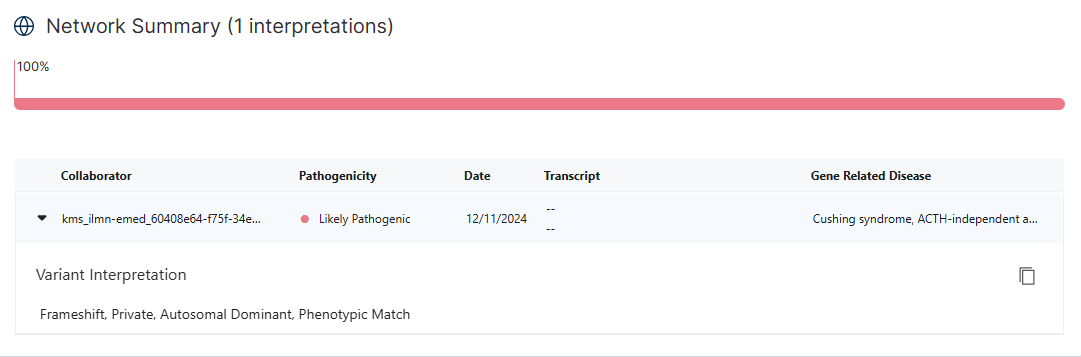
Network summary card for a small variant.
For small variants, the **Network summary card** features:
* Collaborator (organization name)
* Variant pathogenicity
* Case creation date
* Transcript
* Gene-related disease
* Variant interpretation, shown when you expand a row
* [Import](#how-to-import-a-network-only-variant) option (for network-only variants)
### CNVs

For copy number variants, the table shows all overlapping variants. By default, the annotation overlap range is set to 70–100%, and you can adjust it with the filter.
For copy number variants, the **Network summary card** features:
* Collaborator (organization name)
* Variant details: genomic coordinates and size
* Annotation overlap percentage
* Variant pathogenicity
* Case creation date
* Gene-related disease
* Variant interpretation, shown when you expand a row
* [Import](#how-to-import-a-network-only-variant) option (for network-only variants)
## How to import a network-only variant
You can add a network-only variant to your **Curate** database. If the variant already exists in your **Curate** database, import is not available.
{% hint style="info" %}
You cannot import a variant if it does not have pathogenicity.
{% endhint %}
To add a network-only variant to your **Curate** database, select **Import** in the corresponding row.
**Result:**
* The variant is added to your **Curate** database.
* The import activity is logged in the [**Activities panel**](/emedgene/emedgene-curate-manual/curate_variants/curate_variant_page/activities-panel.md).
After import, you can review and update the local curation as needed.
---
# Agent Instructions
This documentation is published with GitBook. GitBook is the documentation platform designed so that both humans and AI agents can read, navigate, and reason over technical content effectively. Learn more at gitbook.com.
## Querying This Documentation
If you need additional information that is not directly available in this page, you can query the documentation dynamically by asking a question.
Perform an HTTP GET request on the current page URL with the `ask` query parameter, and the optional `goal` query parameter:
```
GET https://help.connected.illumina.com/emedgene/emedgene-curate-manual/curate_variants/curate_variant_page/network-summary-card.md?ask=&goal=
```
`ask` is the immediate question: it should be specific, self-contained, and written in natural language.
`goal` is optional and describes the broader end goal you are ultimately trying to accomplish on behalf of the user. GitBook uses it to tailor the answer towards what is most useful for that goal.
The response will contain a direct answer to the question and relevant excerpts and sources from the documentation.
Use this mechanism when the answer is not explicitly present in the current page, you need clarification or additional context, or you want to retrieve related documentation sections.