> For the complete documentation index, see [llms.txt](https://help.connected.illumina.com/llms.txt). Markdown versions of documentation pages are available by appending `.md` to page URLs; this page is available as [Markdown](https://help.connected.illumina.com/icm/analyses/analysis-functionality/share-analysis.md).
# Share Analysis
The share analysis function is used to import and export analysis pipelines across different workgroups or different domains. It can be used to collaborate with other researchers outside your domain and workgroup. Data files in the analysis will be copied when the analysis is imported to the destination.
{% hint style="warning" %}
Analysis cannot be shared across regions. If the data is located in a regional cloud instance (ie N. Virigina - use1) , it can only be shared within that regional cloud instance.
{% endhint %}
### Export analysis
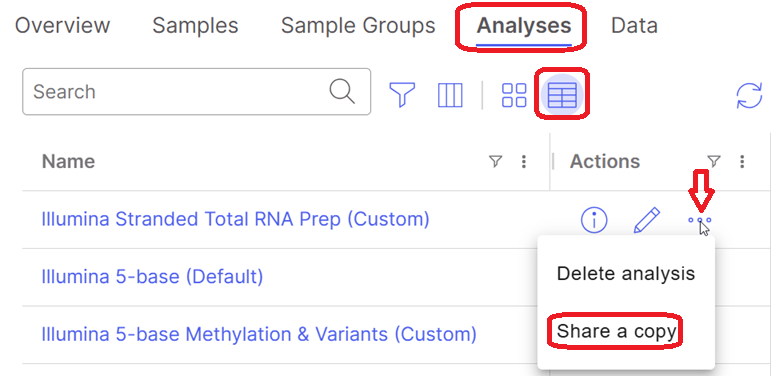
In the list view of the *Analysis* page, the three dots icon in the *Actions* column for each analysis row contains additional options. Click on it and choose **Share a copy** option.
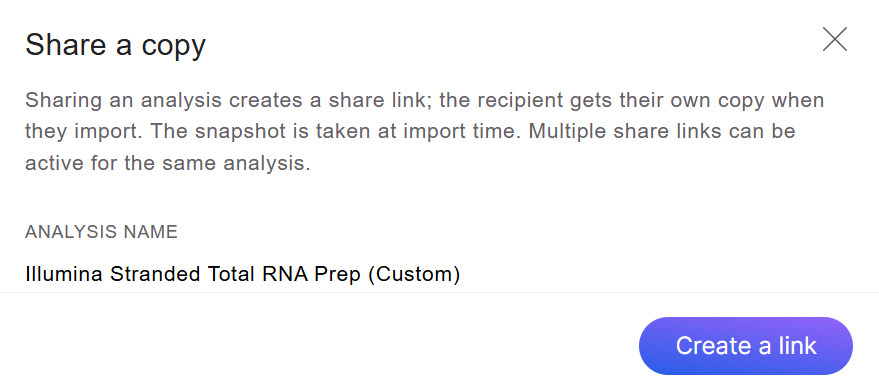
A dialog pops up to create a link of the current status of the analysis
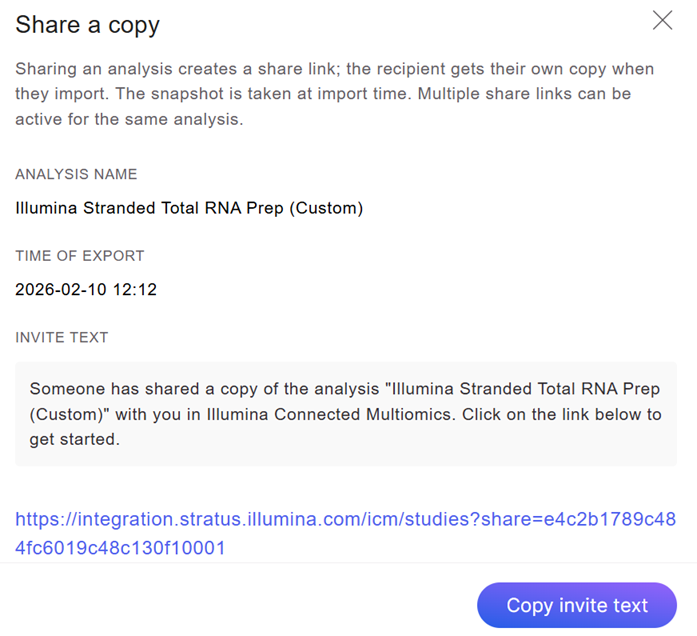
Click on the **Create a link** button, information about the snapshot of the analysis is displayed.
Click on the **Copy invite text**, the entire invite text and the link will be copied to your clipboard, you can paste to your email. Or you can just copy the link. Close the dialog by clicking the "X" button on the upper-right corner of the dialog.
Sharing the analysis multiple times will generate multiple links, but it will not invalidate the previous links.
### Import
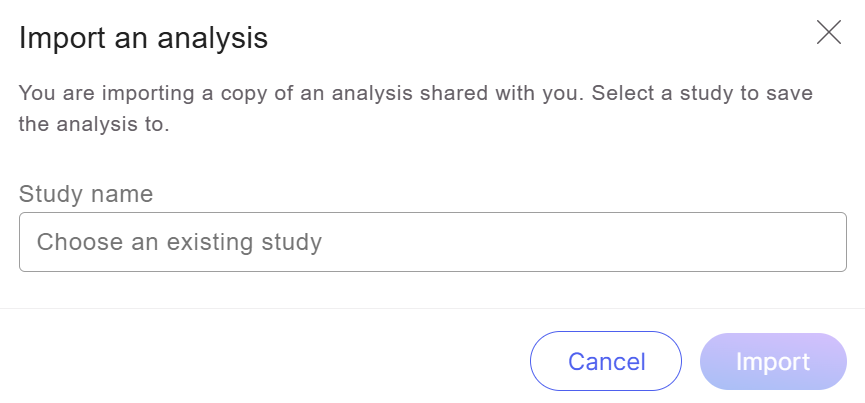
In order to import an analysis in a different domain or workgroup, you first need to create a study. You can click on the link sent to you, or paste the url in the browser address bar. If you haven't login to your domain, the system will prompt you to login, and the import dialog will ask you to choose an existing study.
Specify a study from the *Study name* drop-down list, click **Import**.
The analysis will be added to your selected study and goes into "Importing" status. For big analysis, the importing can take some time to complete. Once the importing is finished, the status of the analysis will become "**Complete**".
### History of Exports and Imports
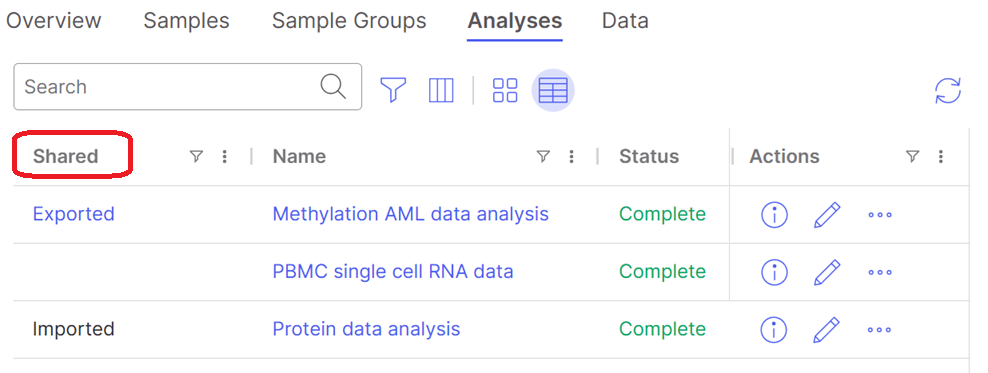
In the Analysis list view page, if there is one analysis has been imported or exported, a new column titled "*Sharing*" will appear in the table. By default, when this column is empty, this field is hidden. You can manually turn it on/off by choosing the table columns (.png?alt=media) ). Analysis table can be filtered or sorted based on the value in this field.
The *Exported* value is clickable, it will open a dialog to display the details of the analysis, when/who/where the analysis was imported from.
### Implementation details
The state of the source analysis that is copied during the import is the state that is present when the share link is consumed, not when it is generated in the current version of Connected Multiomics.
Only analysis data are imported in the destination. The study level samples and source files are not transferred. More analysis can be performed in the *Analyses* pipeline page, but you cannot generate new analysis at study level.
If a user with Professional subscription exports a custom analysis, and shares with a user with only Basic subscription, the user with basic subscription can import and view the analysis.
If the source analysis (exported analysis) is deleted after the analysis imported in the destination, the destination analysis will lose its import history, and no longer be indicated as "Imported" in the system.
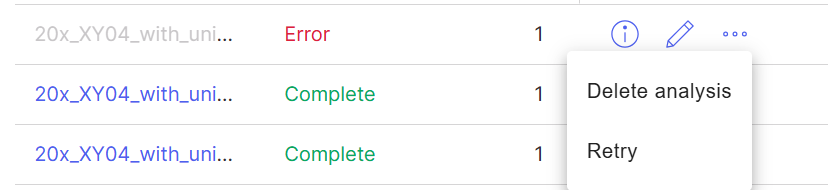
Only complete analyses can be exported, if an analysis is not successfully created, the status is Error, the analysis cannot be shared.
---
# Agent Instructions
This documentation is published with GitBook. GitBook is the documentation platform designed so that both humans and AI agents can read, navigate, and reason over technical content effectively. Learn more at gitbook.com.
## Querying This Documentation
If you need additional information that is not directly available in this page, you can query the documentation dynamically by asking a question.
Perform an HTTP GET request on the current page URL with the `ask` query parameter, and the optional `goal` query parameter:
```
GET https://help.connected.illumina.com/icm/analyses/analysis-functionality/share-analysis.md?ask=&goal=
```
`ask` is the immediate question: it should be specific, self-contained, and written in natural language.
`goal` is optional and describes the broader end goal you are ultimately trying to accomplish on behalf of the user. GitBook uses it to tailor the answer towards what is most useful for that goal.
The response will contain a direct answer to the question and relevant excerpts and sources from the documentation.
Use this mechanism when the answer is not explicitly present in the current page, you need clarification or additional context, or you want to retrieve related documentation sections.
). Analysis table can be filtered or sorted based on the value in this field.
The *Exported* value is clickable, it will open a dialog to display the details of the analysis, when/who/where the analysis was imported from.
### Implementation details
The state of the source analysis that is copied during the import is the state that is present when the share link is consumed, not when it is generated in the current version of Connected Multiomics.
Only analysis data are imported in the destination. The study level samples and source files are not transferred. More analysis can be performed in the *Analyses* pipeline page, but you cannot generate new analysis at study level.
If a user with Professional subscription exports a custom analysis, and shares with a user with only Basic subscription, the user with basic subscription can import and view the analysis.
If the source analysis (exported analysis) is deleted after the analysis imported in the destination, the destination analysis will lose its import history, and no longer be indicated as "Imported" in the system.
Only complete analyses can be exported, if an analysis is not successfully created, the status is Error, the analysis cannot be shared.
---
# Agent Instructions
This documentation is published with GitBook. GitBook is the documentation platform designed so that both humans and AI agents can read, navigate, and reason over technical content effectively. Learn more at gitbook.com.
## Querying This Documentation
If you need additional information that is not directly available in this page, you can query the documentation dynamically by asking a question.
Perform an HTTP GET request on the current page URL with the `ask` query parameter, and the optional `goal` query parameter:
```
GET https://help.connected.illumina.com/icm/analyses/analysis-functionality/share-analysis.md?ask=&goal=
```
`ask` is the immediate question: it should be specific, self-contained, and written in natural language.
`goal` is optional and describes the broader end goal you are ultimately trying to accomplish on behalf of the user. GitBook uses it to tailor the answer towards what is most useful for that goal.
The response will contain a direct answer to the question and relevant excerpts and sources from the documentation.
Use this mechanism when the answer is not explicitly present in the current page, you need clarification or additional context, or you want to retrieve related documentation sections.
.png?alt=media)