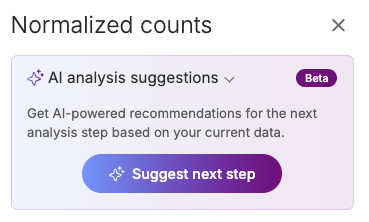
AI analysis suggestions

Provides AI-powered recommendations for the next analysis step based on your current data.

circle-exclamation

How AI suggestions are generated

The AI suggestions tool relies on a database of thousands of historical datasets. Once a node has been selected, the tool will determine the three most probable next steps in order of likelihood. It also provides an rationale for each choice to inform the user on how to proceed with their analysis.

Generating an AI-guided analysis

  • Click on a node to open the task menu and select 'Suggest next step' (Figure 1).

Figure 1. The AI suggestion tool is accessible from the context menu. Click Suggest next step to generate the suggestions.
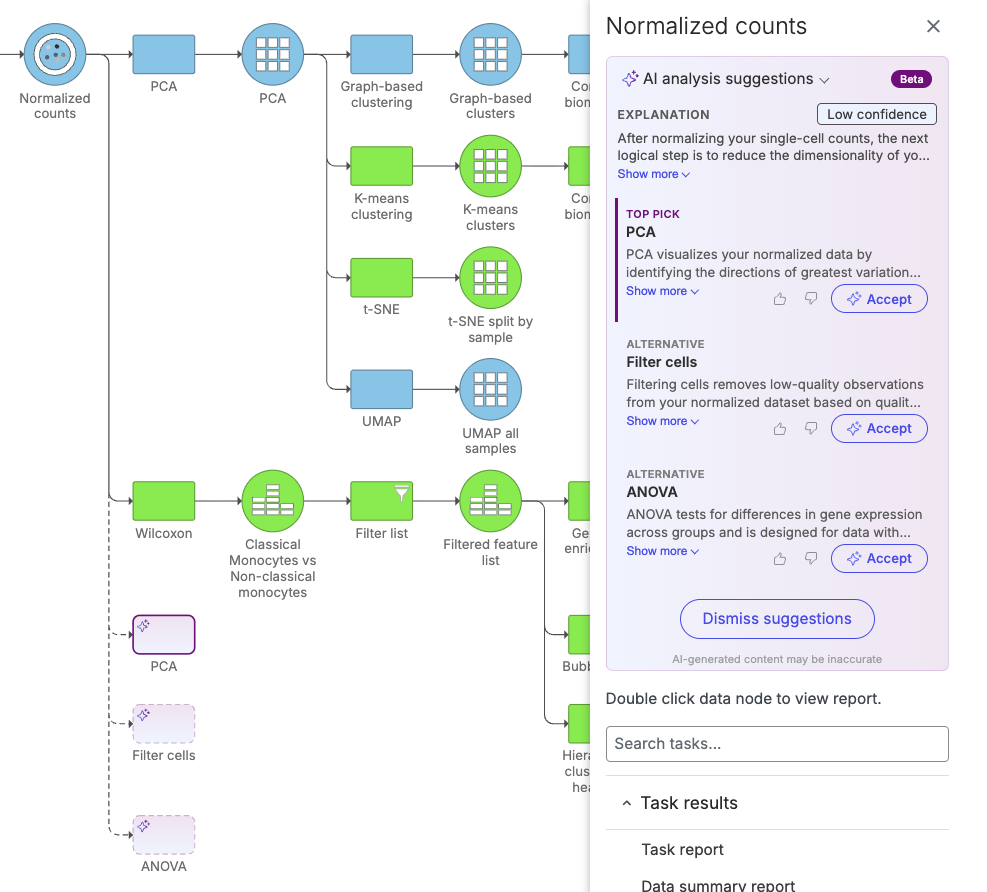
  • Three suggestions will appear in the task menu and on the task graph. Each suggestion has an accompanying rationale, accessible by clicking 'Show more'. Once the user has made a decision on how to proceed they can click 'Accept' (Figure 2).

Figure 2. After clicking on Suggest next step the tool provides three potential next steps in order of likelihood. The nodes suggested will appear on the task graph. At this stage the use can select Accept for one of the suggested tasks or click Dismiss suggestions. The tool provides a rationale for each suggested task, click Show more to read the full explanation.
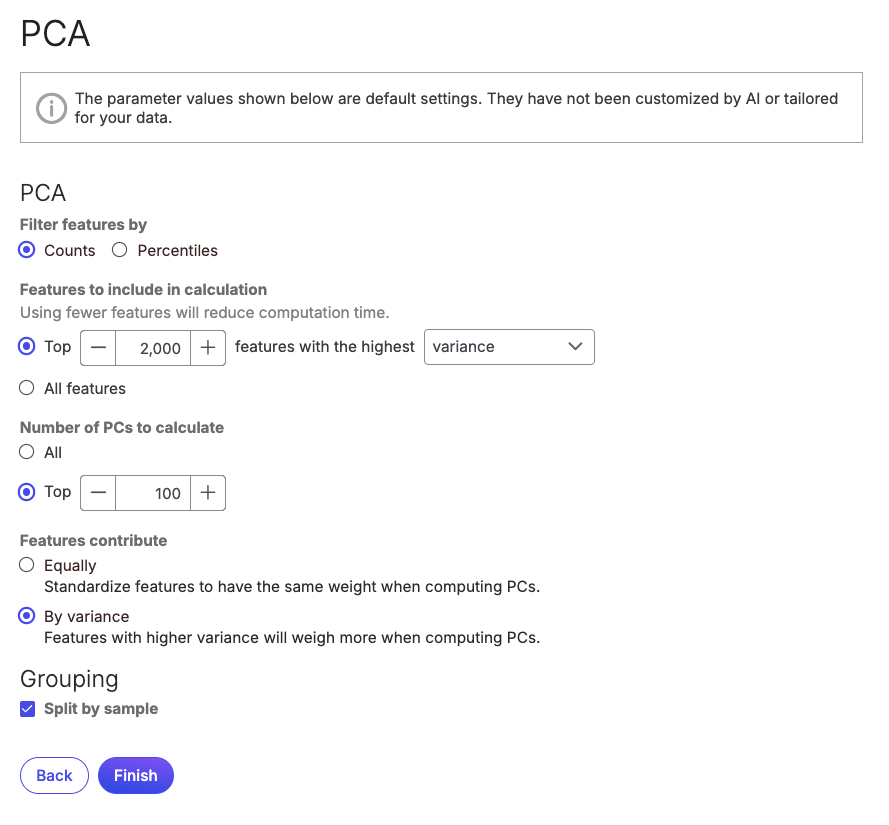
  • Once the user clicks 'Accept' the task setup page will open. Note the disclaimer at the top of the page. Currently the AI tool does not recommend analysis-specific parameters. These remain the default set for the data type (Figure 3).
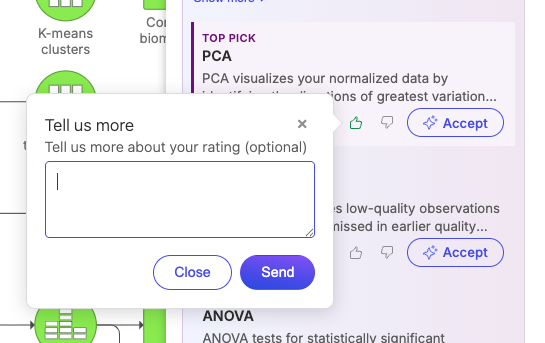
Figure 3. The task setup menu opens, note the disclaimer at the top of the page.
  • Clicking 'Finish' runs the task as it normally would. A new node appears on the task graph.

Additional notes

  • The user is encouraged to provide feedback using the thumbs up/down icons (Figure 4). They can also provide written feedback for their choice. Clicking 'Cancel' will still send the thumbs up/down selection as feedback. If you don't want to share your feedback click the 'x' in the feedback box.

Figure 4. Feedback for each task suggested by the AI tool can be provided by clicking on the thumbs up/down icons. Users are also encouraged to provide feedback using the text box
  • Clicking 'Dismiss suggestions' will trigger a similar feedback process.

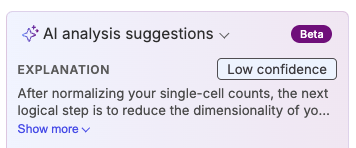
  • The tool will provide a confidence score for the choices presented. This can be low, medium or high; based on the historical data. Note that a low score can indicate all the options proposed are equally valid as a subsequent step, depending on the specific analysis (Figure 5).

Figure 5. Confidence score assigned to the AI suggestions.

Last updated

Was this helpful?