> For the complete documentation index, see [llms.txt](https://help.connected.illumina.com/llms.txt). Markdown versions of documentation pages are available by appending `.md` to page URLs; this page is available as [Markdown](https://help.connected.illumina.com/icm/introduction/upload-data-files.md).
# Data Inputs
To have data to be used as input for Connected Multiomics, data can be:
* [Generated from a DRAGEN pipeline](#use-data-from-dragen-pipeline)
* [Added from ICA project](#add-data-from-ica-project)
* [Add demo data](#add-demo-data)
* [Uploaded from local drive](#add-data-from-local-drive)
* [Add Generic Count Matrix](#add-generic-count-matrix)
* [Transferred from a public BaseSpace account](#transfer-data-from-public-basespace)
### Use data from DRAGEN pipeline
Connected Multiomics uses data from DRAGEN pipelines within the Illumina Connected ecosystem.
When kicking off DRAGEN pipelines in BaseSpace, ensure the same workgroup is used in BaseSpace as Connected Multiomics so that the DRAGEN outputs are visible to Connected Multiomics. To change the workgroup on BaseSpace, select the desired workgroup in the top right-hand corner.
If DRAGEN pipeline are kicked off in BioInsight Platform Core or in BaseSpace using Personal, these results can be shared with the workgroup by adjusting the permissions set as indicated in the [Add data from Core project](#add-data-from-ica-project) section.
### Add data from BioInsight Platform Core project
Connected Multiomics inputs are the results of secondary analysis pipelines that are stored on projects in [BioInsight Platform Core](https://help.ica.illumina.com/) (Core). Secondary analysis results may be generated from [auto-launched pipelines](https://help.ica.illumina.com/sequencer-integration/analysis_autolaunch), run manually or come from [other sources](https://help.multiomics.illumina.com/icm/reference/supported-data-types) such as legacy pipelines or commercial applications.
To access Core in your software, select the BioInsight Platform Core application tile from your Product Dashboard. For guidance on uploading and managing data in Core, please refer to the instructions [here](https://help.ica.illumina.com/project/p-data). For data types and files format supported for analysis in the Connected Multiomics, please refer [Supported Data Types](/icm/reference/supported-data-types.md).
To ensure users can proceed smoothly with their data exploration in Connected Multiomics, the workgroup that is in use in Connected Multiomics needs to be added to the BioInsight Platform Core **Project(s)** at [**Team**](https://help.ica.illumina.com/project/p-team) settings, with the following permissions set:
* Contributor or higher [role](https://help.ica.illumina.com/project/p-team#project-access)
* [Download](https://help.ica.illumina.com/project/p-team#upload-and-download-rights) permissions
* [Upload](https://help.ica.illumina.com/project/p-team#upload-and-download-rights) permissions
After data files are uploaded and workgroup is added, you may click on the Product Dashboard icon  to navigate to Illumina Connected Multiomics to start working on your data.
{% embed url="" %}
### Add demo data
For new Connected Multiomics users, a tutorial study is linked to all Connected Multiomics domains. This is a read-only study that offers users the ability to view example pipelines and provide visibility into each task and result.
Connected Multiomics also offers the ability to import demo data into any study. This allows the ability to create new analysis tasks and pipelines.
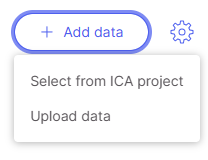
In order to import demo data into a specific study, first clock on the "+ Add Data" > "Select from Core Project".
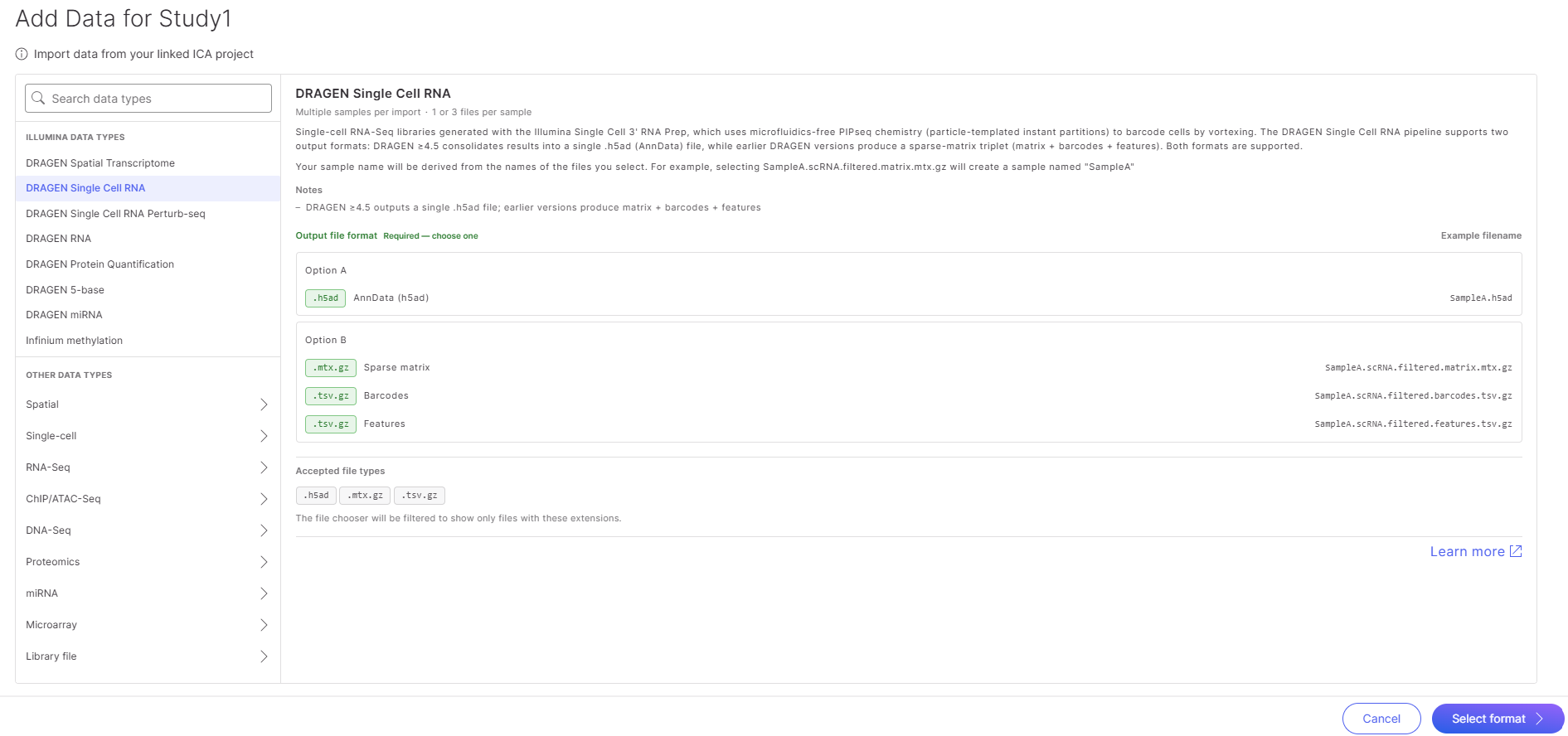
From the new window, select any data type to import. For the purposes of this instruction, DRAGEN Single Cell RNA will be selected. Afterwards, click on "Select format" on the bottom right corner of the screen.
In the next window, click on "Add Demo Data" button in the upper right section of the screen.
After the screen loads momentarily, a notification will be displayed that the "Resource Bundle Linked" and a new folder named "Multiomics-Demo-Data" will appear at the bottom of the page.
Navigating further into the directory will allow the specific files to be imported into Connected Multiomics as samples.
### Add data from local drive
In a Connected Multiomics study, click on Add Data and choose Upload data.
ICA is now BioInsight Platform Core
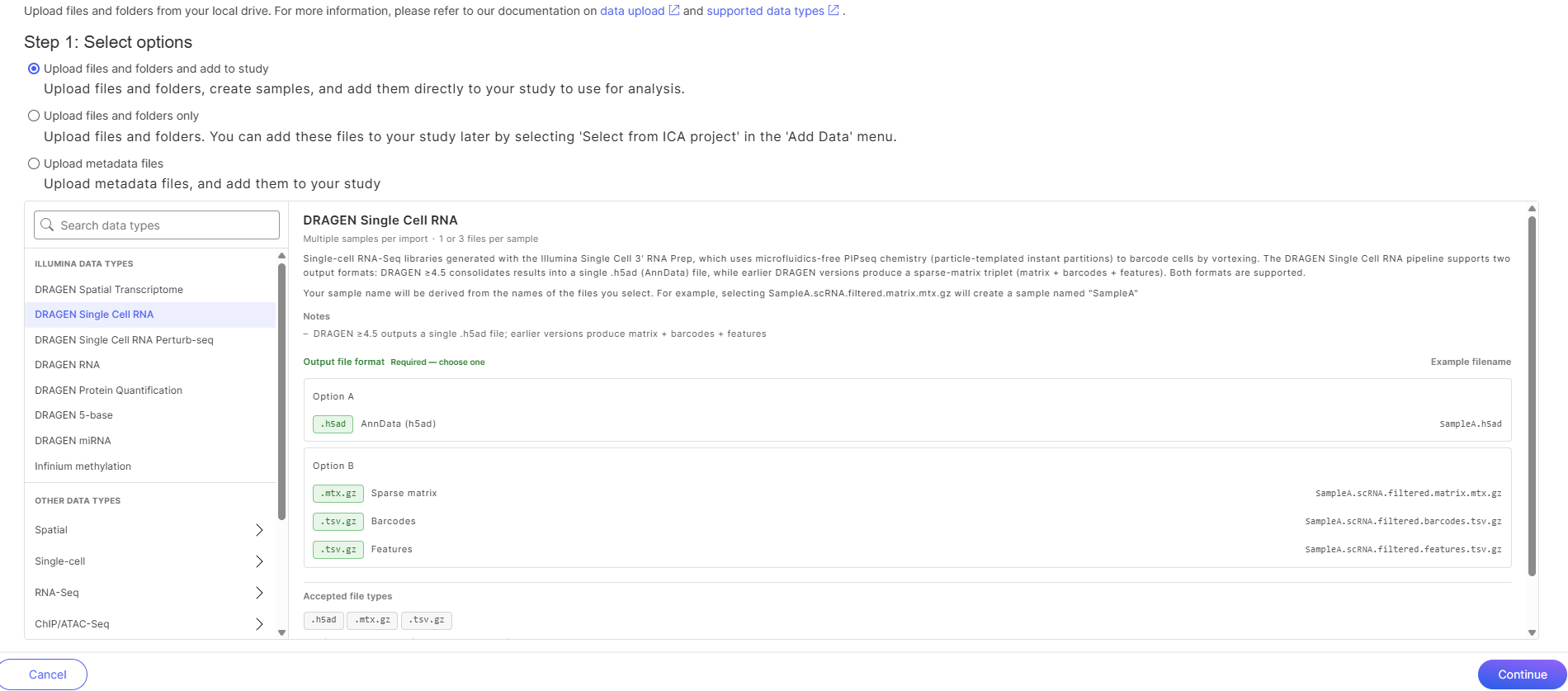
There are three options:
* **Upload files and folders and add to study**: the wizard will guide you create samples in a study after the files are uploaded
* **Upload files and folders only**: files will be stored in a BioInsight Platform Core project. If you want to create samples from those files later, you need to choose "Select from BioInsight Platform Core project" when you create samples
* **Upload metadata files**: upload [sample metadata](/icm/studies/view-studies/sample-metadata.md) file and add the metadata into a study
When choosing the first option, data type needs to be selected from the data types panel on the left
Select a data type and click **Continue**
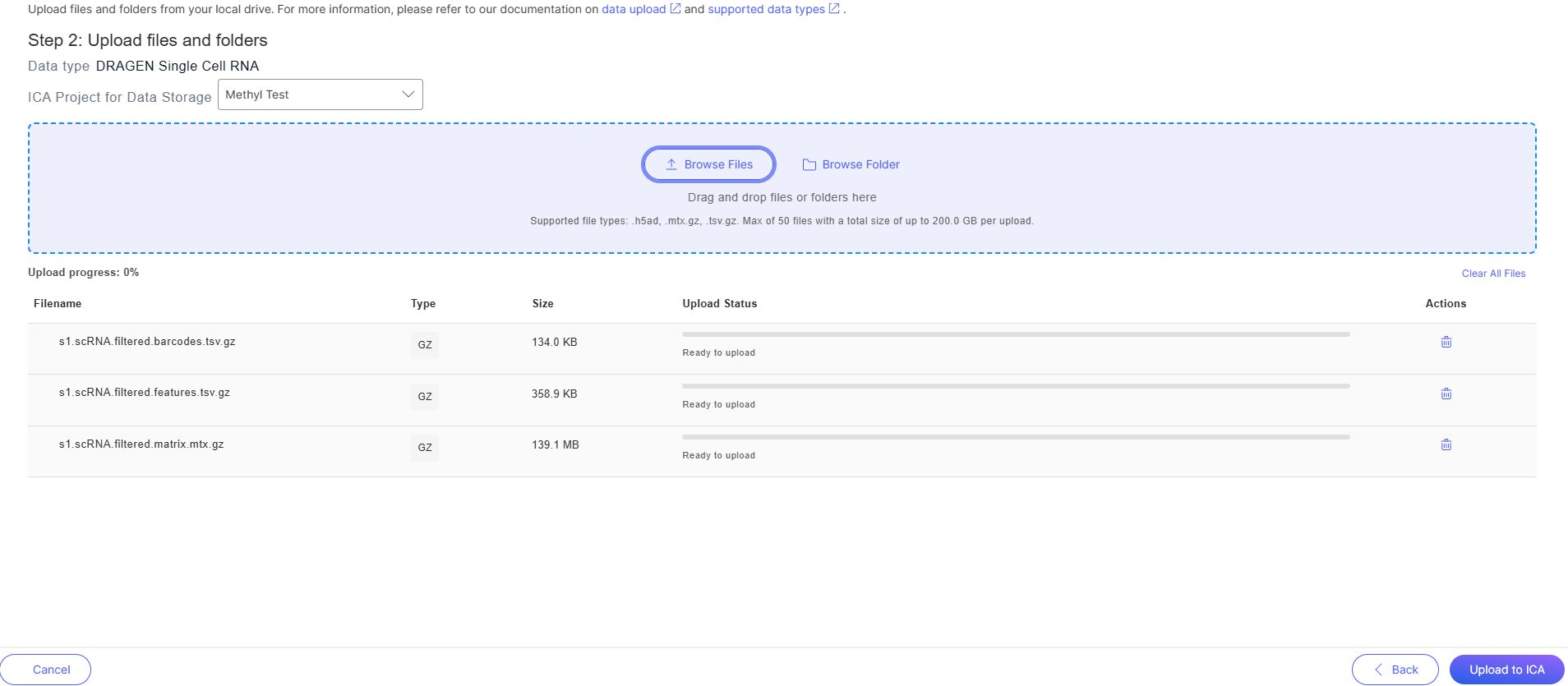
The files will be uploaded to BioInsight Platform Core, specify a BioInsight Platform Core project folder and drag & drop files from your local device or click on the Browse Files button to select files, click **Upload to BioInsight Platform Core**
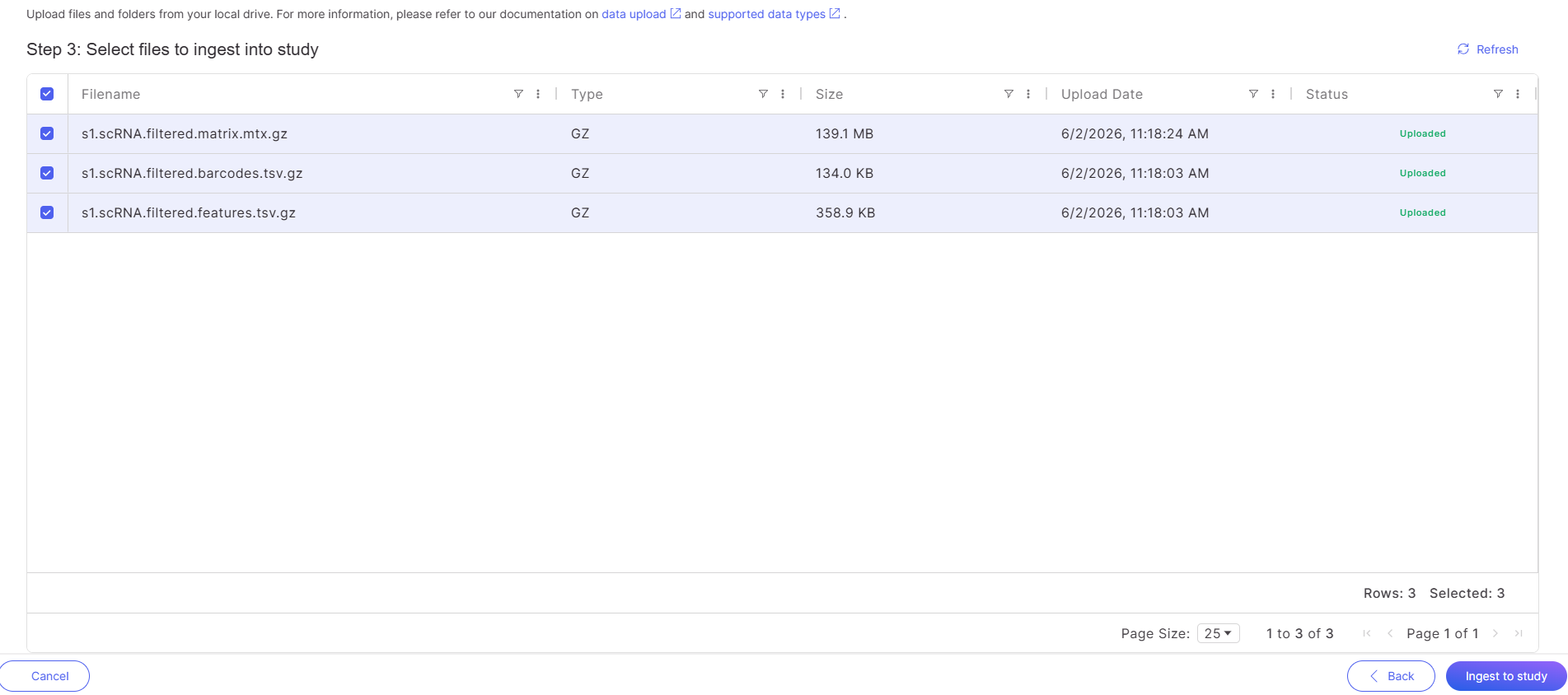
A progress bar will be displayed during uploading, once it is done, the status is displayed as Uploaded
Files will be uploaded to the folder of the BioInsight Platform Core project name, subfolder "**uploads**" and Connected Multiomics project name subfolder
Click on **Ingest to Study** to generate samples in the study.
### Add Generic Count Matrix
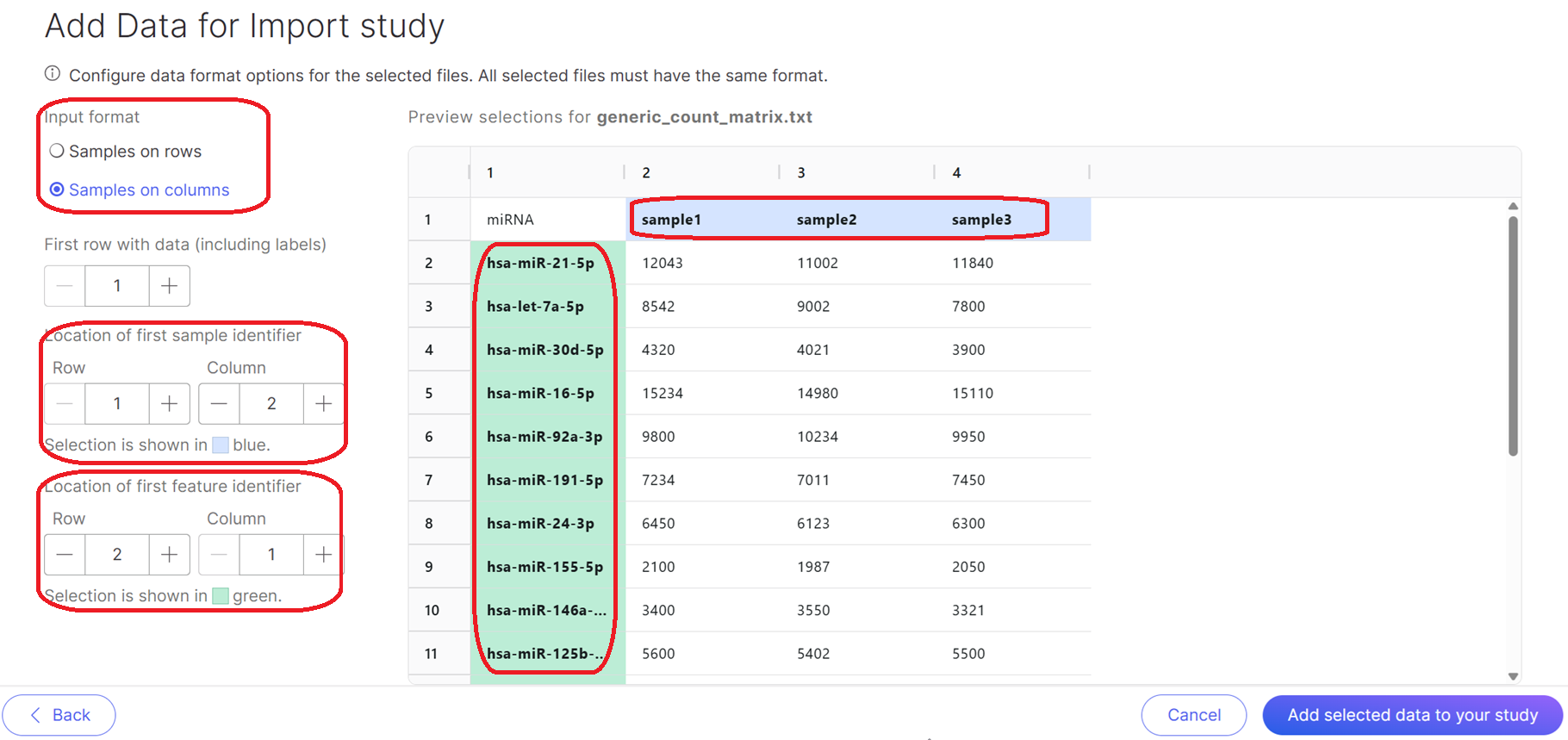
For bulk RNA-seq, bulk Proteomics, bulk miRNA, microarray data, sample-by-feature matrix text files are supported. Refer to the [Support Data Types](/icm/reference/supported-data-types.md) to see which file extensions are accepted. After selecting the matrix file, the input file format needs to be specified, as well as sample identifier and feature identifier location:
User should carefully review the file layout; sample identifiers are in blue color, while feature identifiers are in green color. If multiple files are selected, the format of the files should be the same. The order of the features can be different. All the samples and features from different files will be combined after import. If features are missing in one file, the value of the samples in this file of the missing features will be imputed as 0s.
### Transfer data from public BaseSpace
If the data is in BaseSpace in public domain, see [instructions](https://knowledge.illumina.com/software/basespace-sequence-hub/software-basespace-sequence-hub-reference_material-list/000003654) on how to transfer data to an enterprise domain.
{% embed url="" %}
---
# Agent Instructions
This documentation is published with GitBook. GitBook is the documentation platform designed so that both humans and AI agents can read, navigate, and reason over technical content effectively. Learn more at gitbook.com.
## Querying This Documentation
If you need additional information that is not directly available in this page, you can query the documentation dynamically by asking a question.
Perform an HTTP GET request on the current page URL with the `ask` query parameter, and the optional `goal` query parameter:
```
GET https://help.connected.illumina.com/icm/introduction/upload-data-files.md?ask=&goal=
```
`ask` is the immediate question: it should be specific, self-contained, and written in natural language.
`goal` is optional and describes the broader end goal you are ultimately trying to accomplish on behalf of the user. GitBook uses it to tailor the answer towards what is most useful for that goal.
The response will contain a direct answer to the question and relevant excerpts and sources from the documentation.
Use this mechanism when the answer is not explicitly present in the current page, you need clarification or additional context, or you want to retrieve related documentation sections.