ICA is now BioInsight Platform Core
 in the top right and follow the steps below.
{% stepper %}
{% step %}
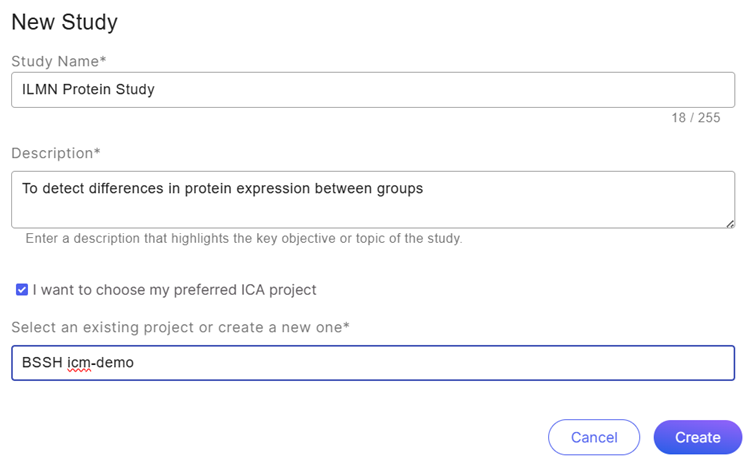
### Enter a Study Name
Enter a name for your study between 1 and 255 characters in length (including special characters). The study name can be updated later.
{% endstep %}
{% step %}
### Enter a Study Description
Enter an optional description between 1 and 500 characters in length (including special characters). The study description can be updated later.
{% endstep %}
{% step %}
### Select an Existing Project
If the data files are stored in a BioInsight Platform Core project, check the box of "I want to choose my preferred BioInsight Platform Core project" and select a BioInsight Platform Core project to ingest data from. The project list will only display the projects accessible to your workgroup. When adding data to your study, the available data will come from the BioInsight Platform Core project you select.
If you don't have a BioInsight Platform Core project before creating study, you can type in new project name to create one, and then upload files to the project in BioInsight Platform Core after new project creation.
{% endstep %}
{% endstepper %}
in the top right and follow the steps below.
{% stepper %}
{% step %}
### Enter a Study Name
Enter a name for your study between 1 and 255 characters in length (including special characters). The study name can be updated later.
{% endstep %}
{% step %}
### Enter a Study Description
Enter an optional description between 1 and 500 characters in length (including special characters). The study description can be updated later.
{% endstep %}
{% step %}
### Select an Existing Project
If the data files are stored in a BioInsight Platform Core project, check the box of "I want to choose my preferred BioInsight Platform Core project" and select a BioInsight Platform Core project to ingest data from. The project list will only display the projects accessible to your workgroup. When adding data to your study, the available data will come from the BioInsight Platform Core project you select.
If you don't have a BioInsight Platform Core project before creating study, you can type in new project name to create one, and then upload files to the project in BioInsight Platform Core after new project creation.
{% endstep %}
{% endstepper %}
ICA is now BioInsight Platform Core