> For the complete documentation index, see [llms.txt](https://help.connected.illumina.com/llms.txt). Markdown versions of documentation pages are available by appending `.md` to page URLs; this page is available as [Markdown](https://help.connected.illumina.com/icm/studies/create-study/add-data.md).

# Add Data

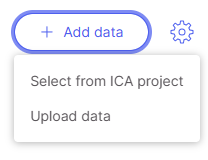
To add data into a study, click the <img src="/files/00g9ij3jfa230y6PRQrV" alt="" data-size="line"> button on the top right.

<div align="left"><figure><img src="/files/xZtUlioU3sylZt4M7gdv" alt=""><figcaption></figcaption></figure></div>

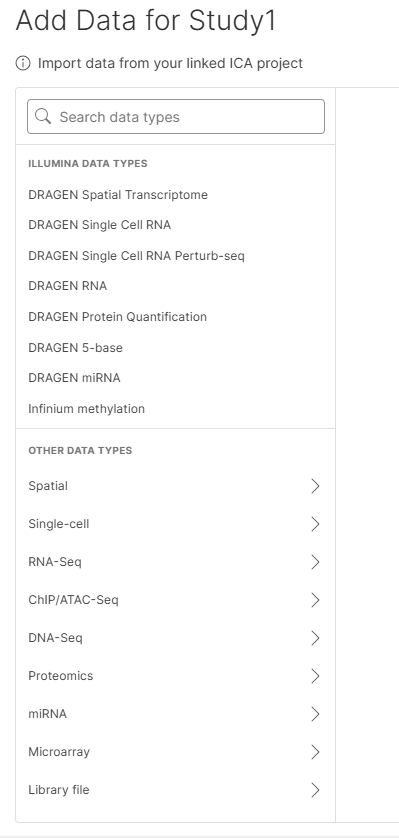
You can select data from an [ICA project](/icm/introduction/upload-data-files.md) or[ upload local files](/icm/introduction/upload-data-files.md). Selecting data from an ICA project will open a new screen where you can select your data. At the top of the screen, you'll see the name of your study. On the left panel, is a list of [supported data types](/icm/reference/supported-data-types.md) in Connected Multiomics, with *Illumina data types* on the top section, third-party data types at the *Other data types* section. You can search data type by typing into the *Search data types* search box.

<div align="left"><figure><img src="/files/9UODOolUMpBsNj5Fa1sc" alt=""><figcaption></figcaption></figure></div>

For each of the Other data types, click on the arrow (>) to expand the data type to view details:

<div align="left"><figure><img src="/files/dMYVdqB4VFhWUBzfFzdX" alt=""><figcaption></figcaption></figure></div>

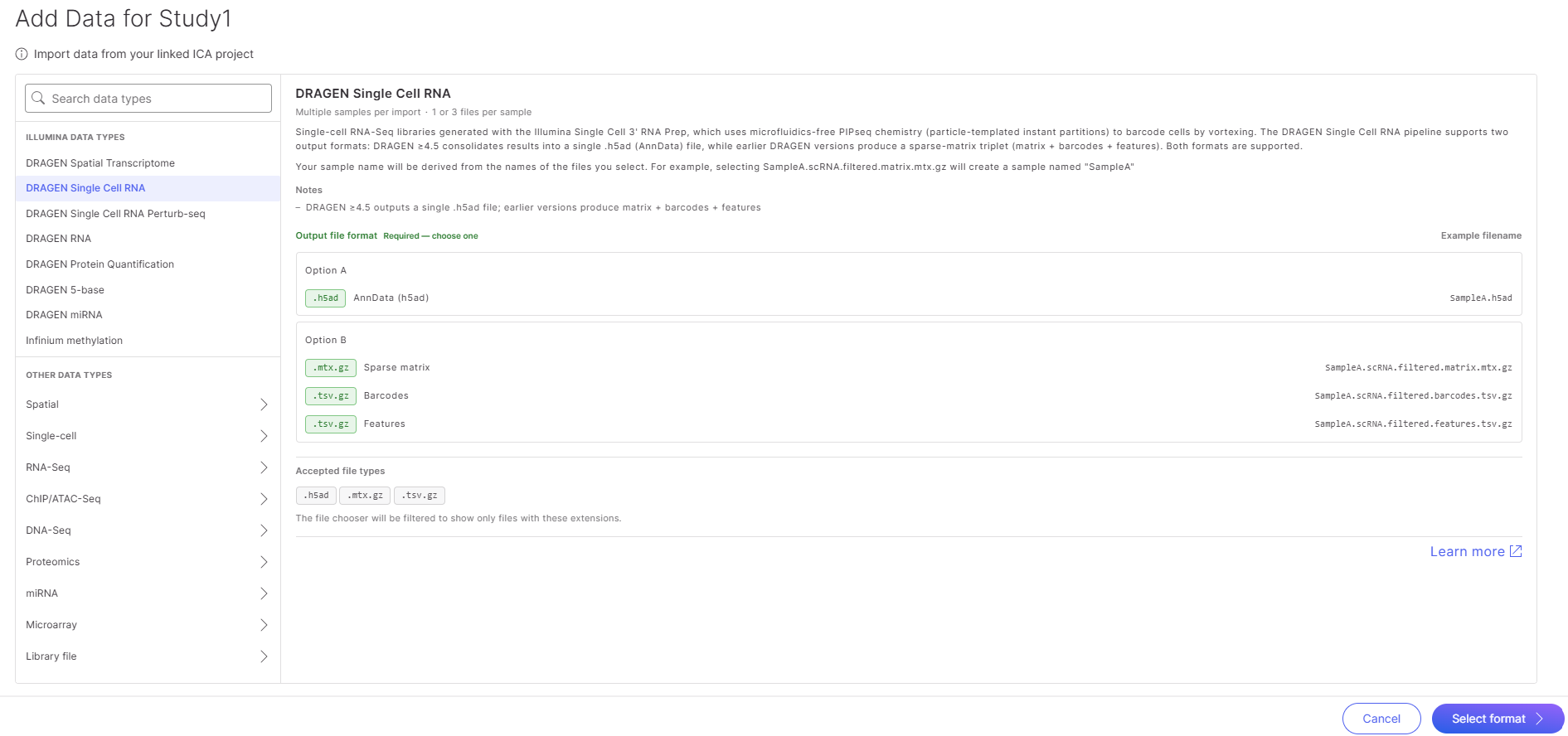
Click to select a data type from the left panel, you will see more details about the selected data type on the right, such as accepted file types, example filename, and input data options. For example, if you choose DRAGEN Single Cell RNA, you will see that you have the options to add either a .h5ad file or a set of feature, barcode, matrix file, per sample.

<figure><img src="/files/TEIFZ68gv2U43s3ZqhIK" alt=""><figcaption></figcaption></figure>

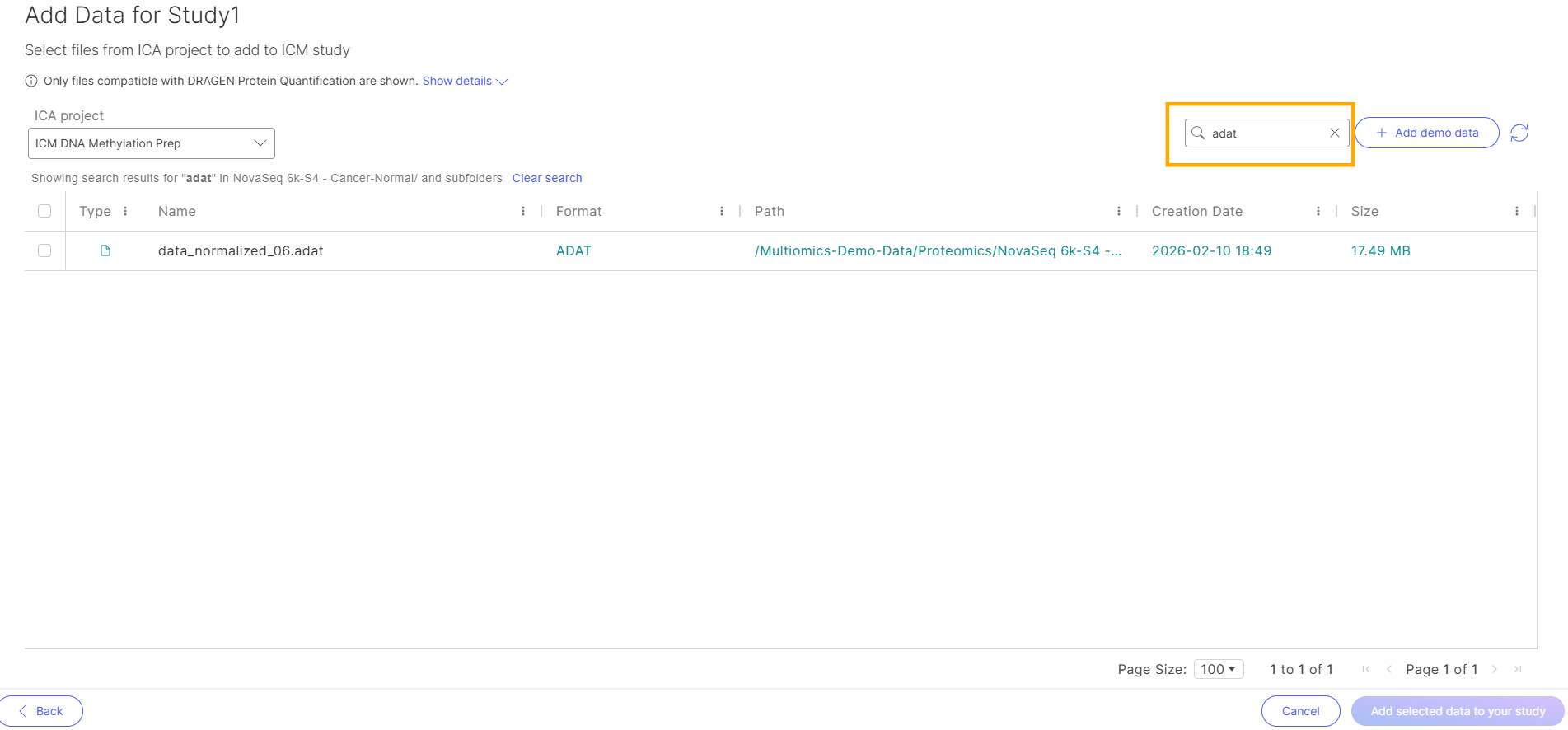
After understanding the required files format, click on **Select format**, and you will be directed to files selection page. Navigate to the folder containing your data files. Select an entire folder or click into the folder to select files individually. You can search files by typing into the *Search* text box on the top right to filter the file list.

<figure><img src="/files/PQA0FpF6xIug6FPhzj7m" alt=""><figcaption></figcaption></figure>

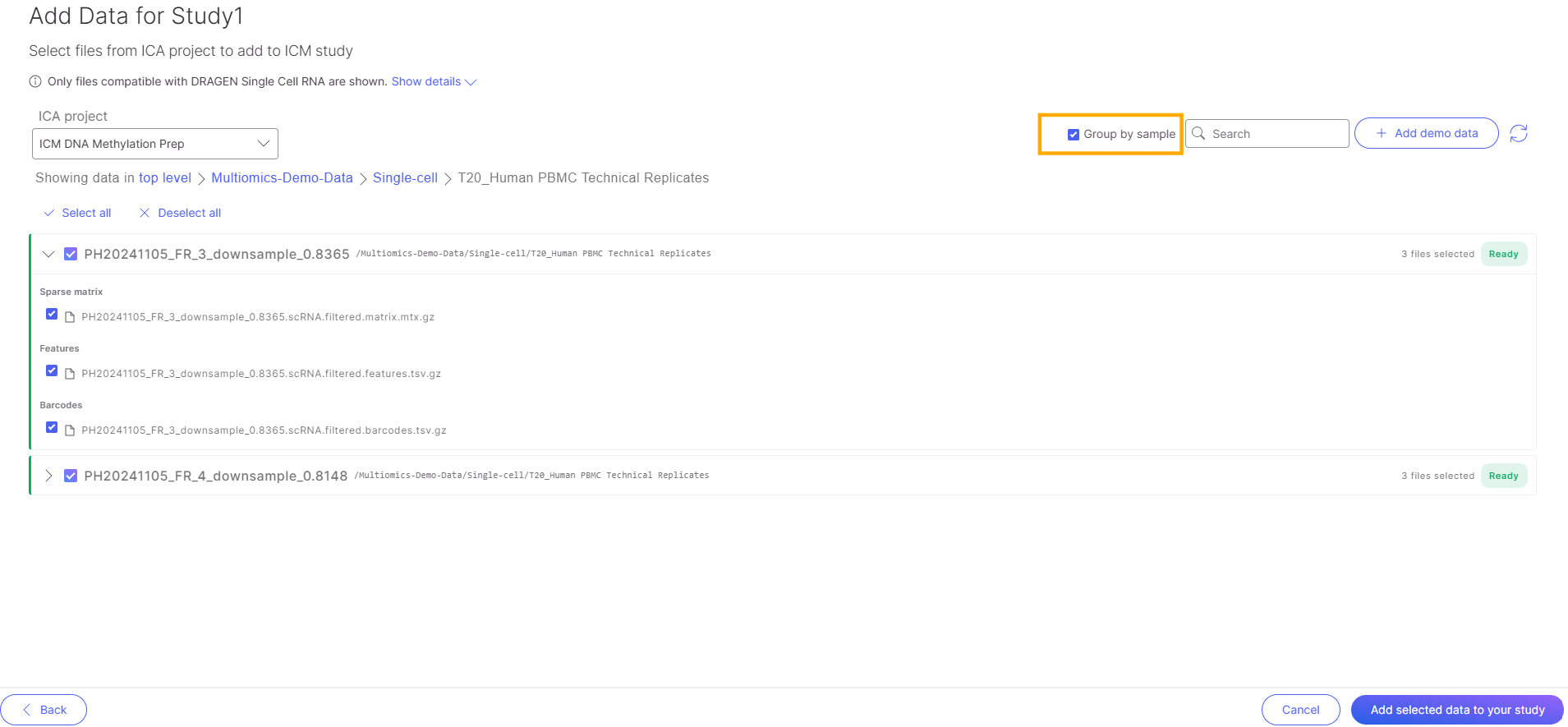
For data types with multiple files per sample, you can tick **Group by sample** checkbox on the top right to automatically group and select files by samples.

<figure><img src="/files/p4ou4wl6iYM6crkkt5IH" alt=""><figcaption></figcaption></figure>

Demo data that is used to generate the [Tutorial Study](/icm/introduction/icm.md#explore-onboarding-resources) is available to you to add to your Study by clicking <img src="/files/Bq3B3aNg0jOjLjDlXoUM" alt="" data-size="line">.

Once you've selected your data, click <img src="/files/9sNbOWxptkNQJbv1FLpK" alt="" data-size="line"> to add the data to your study. Upon submitting, you'll be redirected to the **Samples** tab, and a message will indicate your data ingestion was successful. Here you can [upload metadata](/icm/studies/view-studies/sample-metadata.md) from local storage, [add additional data](#add-data) from an ICA project, create [sample groups](/icm/studies/view-studies/view-studies-1.md), or create [new analysis](/icm/studies/view-studies/view-studies-2.md#create-analysis).


<figure><img src="/files/3O19N0taByg46Ju59lPY" alt=""><figcaption></figcaption></figure>

Now, if you click back to the **Overview** tab, you'll see that the **Date Modified** was updated and the **Data Metrics** reflect the newly added files and samples.

Repeat the process to add data for additional data types.


---

# Agent Instructions
This documentation is published with GitBook. GitBook is the documentation platform designed so that both humans and AI agents can read, navigate, and reason over technical content effectively. Learn more at gitbook.com.

## Querying This Documentation
If you need additional information that is not directly available in this page, you can query the documentation dynamically by asking a question.

Perform an HTTP GET request on the current page URL with the `ask` query parameter, and the optional `goal` query parameter:

```
GET https://help.connected.illumina.com/icm/studies/create-study/add-data.md?ask=<question>&goal=<endgoal>
```

`ask` is the immediate question: it should be specific, self-contained, and written in natural language.
`goal` is optional and describes the broader end goal you are ultimately trying to accomplish on behalf of the user. GitBook uses it to tailor the answer towards what is most useful for that goal.

The response will contain a direct answer to the question and relevant excerpts and sources from the documentation.

Use this mechanism when the answer is not explicitly present in the current page, you need clarification or additional context, or you want to retrieve related documentation sections.