# Sample Metadata

## Sample Metadata

Sample metadata allows you to add important additional information to your study that can be used to create sample groups or make comparisons as part of your study design. Sample metadata can be uploaded from local storage or added to an ICA project.

### Metadata mapping

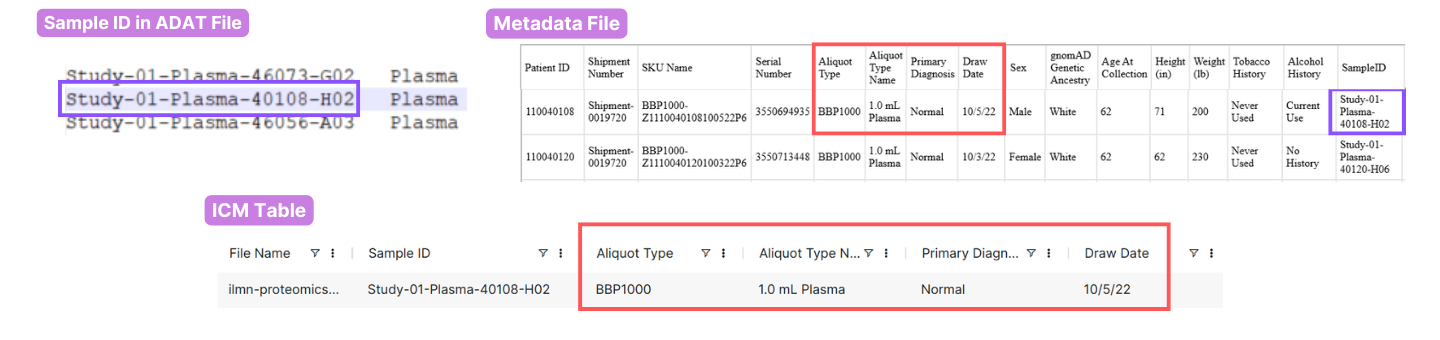
Metadata columns are populated based on the information in your metadata TSV file. Metadata files are required per study. Upon importing a metadata file, the samples will automatically be updated to reflect the metadata attributes. The sample names in the metadata file must match those in the data files. For example, in the figure below, you can see that the Sample ID in the ADAT file matches the SampleID in the metadata file. As a result, the attribute columns in the metadata file will correspond with the metadata columns available for selection in the **Samples** table.

{% hint style="warning" %}
The column order does not matter but you must have a column headed with "**SampleID**" (no space) and the column values need to match the Sample ID in the software.
{% endhint %}

<figure><img src="/files/TcOnijsYavNCacEySDGV" alt=""><figcaption></figcaption></figure>

You can add multiple metadata files. In this case, any samples that do not overlap with existing ones will be added as new entries in the **Samples** table.

{% hint style="warning" %}
Metadata cannot be overwritten. If an erroneous metadata file is added, a new study and analysis should be created.
{% endhint %}

### Download Sample Metadata file

Download a formatted Metadata file example for your study to review the metadata information. Make sure to correct the SampleID column header to match the exact name of the samples.

* Navigate to **Sample groups > Info> Download Metadata.** Click the Sample groups tab, under Action click the Info button (<img src="/files/GBuCCkTZUvgUg1s93S5f" alt="" data-size="line">), then use the **Download Metadata** button to download an example metadata file to your machine.

{% hint style="warning" %}
Metadata files should be saved as a .tsv or .csv extension.
{% endhint %}

<figure><img src="/files/cte2lgzl6A1kDOXECGCk" alt=""><figcaption><p>Download Metadata example file for modification with attribute information</p></figcaption></figure>

### Upload sample metadata file to Connected Multiomics

Upload the sample metadata file to Connected Multiomics to update the sample records of the study.

* Within a study, click **+ Add Data > Upload metadata**
* Upload data from your local or server based drives. Click Browse to select the files or drag and drop the files to the purple box.

{% hint style="warning" %}
This will not add the metadata file to the ICA project as a stored file. The metadata uploaded a Connected Multiomics study will be used only in this study. It will need to be added again to other studies later if you want to use it again for other samples. To add metadata to the ICA project you will need to do this within the ICA interface.
{% endhint %}

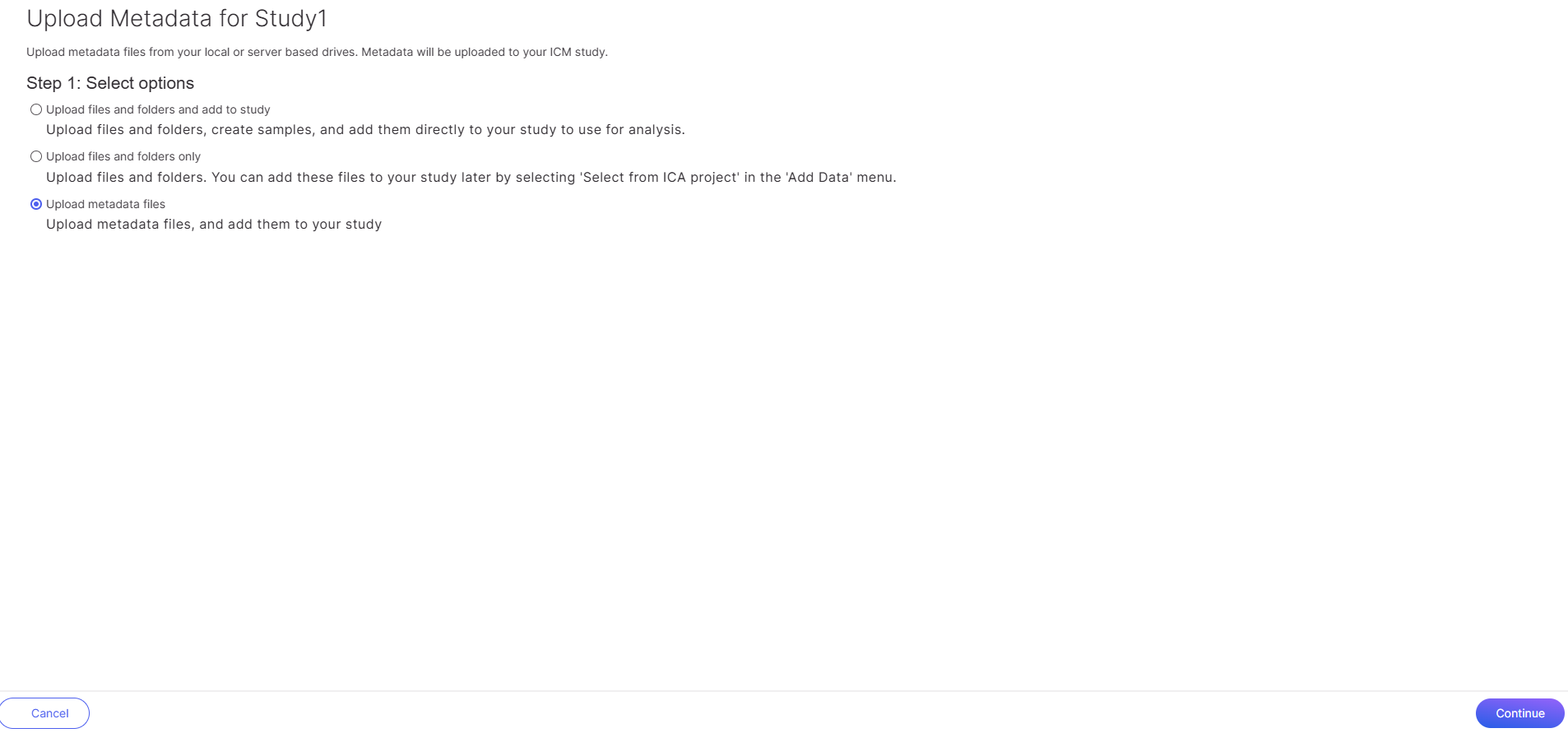
<figure><img src="/files/lGELdXzjvgfODiSGtI8s" alt=""><figcaption><p>Upload metadata file to an existing study</p></figcaption></figure>

### Using a sample metadata file contained in the Illumina Connected Analytics project

To add data, click the <img src="/files/00g9ij3jfa230y6PRQrV" alt="" data-size="line"> button in the top right. You can [select data from an ICA project](/icm/studies/create-study/add-data.md#add-data) and choose your data type and format. TSV metadata files can always be selected. For example, if you choose Bulk > Proteomics as the data type, you will only see ADAT files and TSV files as options for upload.

### Sync metadata from Study

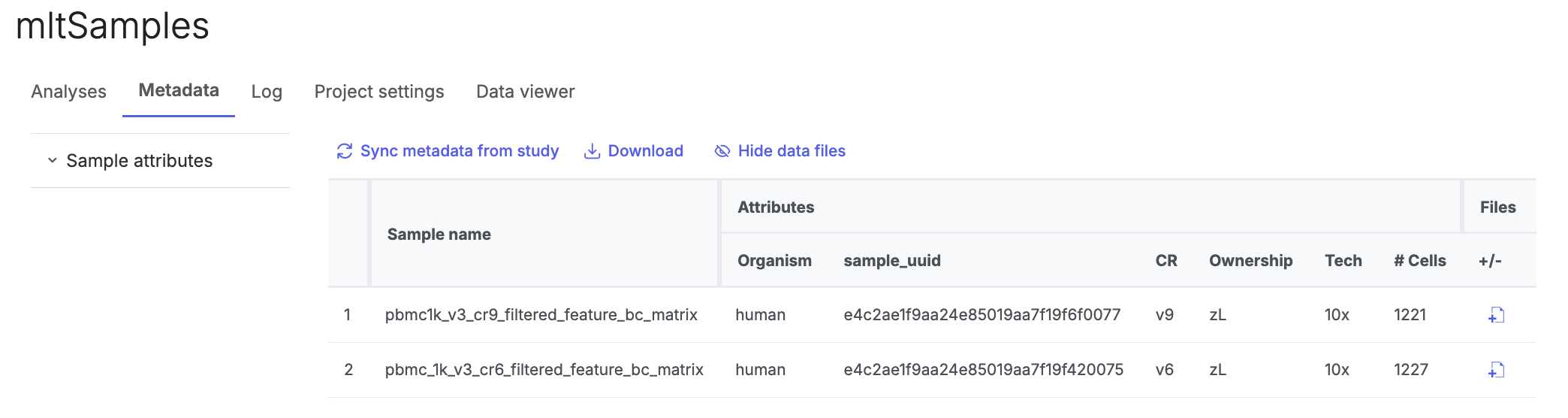
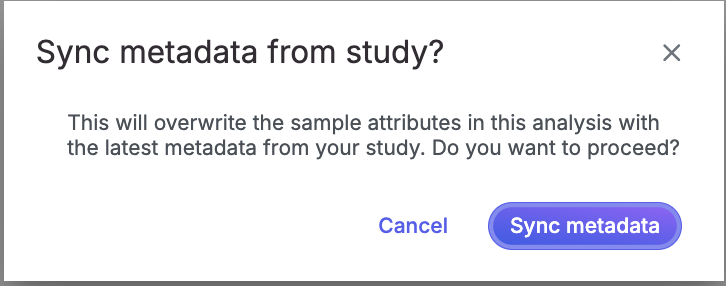
After the new metadata file has been added to the ***Study***, users will be able to update their metadata within an existing analysis by clicking the "***Sync metadata from study***" button in the ***Metadata*** tab.

A new confirmation dialog will appear to make sure users understand what will happen.
<div align="left"><figure><img src="/files/u5kZy4uH4648tEFnhSRu" alt="" width="545"><figcaption></figcaption></figure></div>

Once the above ***Sync metadata*** button is pushed, the metadata will be updated accordingly.

<figure><img src="/files/QoL7Z3hgFWHOz76jjhWc" alt=""><figcaption></figcaption></figure>

{% hint style="warning" %}
No metadata will be applied to the duplicate samples if the metadata file does not contain the sample\_uuid.
{% endhint %}


---

# Agent Instructions: Querying This Documentation

If you need additional information that is not directly available in this page, you can query the documentation dynamically by asking a question.

Perform an HTTP GET request on the current page URL with the `ask` query parameter:

```
GET https://help.connected.illumina.com/icm/studies/view-studies/sample-metadata.md?ask=<question>
```

The question should be specific, self-contained, and written in natural language.
The response will contain a direct answer to the question and relevant excerpts and sources from the documentation.

Use this mechanism when the answer is not explicitly present in the current page, you need clarification or additional context, or you want to retrieve related documentation sections.