> For the complete documentation index, see [llms.txt](https://help.connected.illumina.com/llms.txt). Markdown versions of documentation pages are available by appending `.md` to page URLs; this page is available as [Markdown](https://help.connected.illumina.com/illumina-trupath-genome/run-analysis-setup/ica-analysis.md).
# Platform Core Analysis
This section describes the steps required to execute the DRAGEN Germline 4.5 analysis on Illumina BioInsight Platform Core (previously ICA).
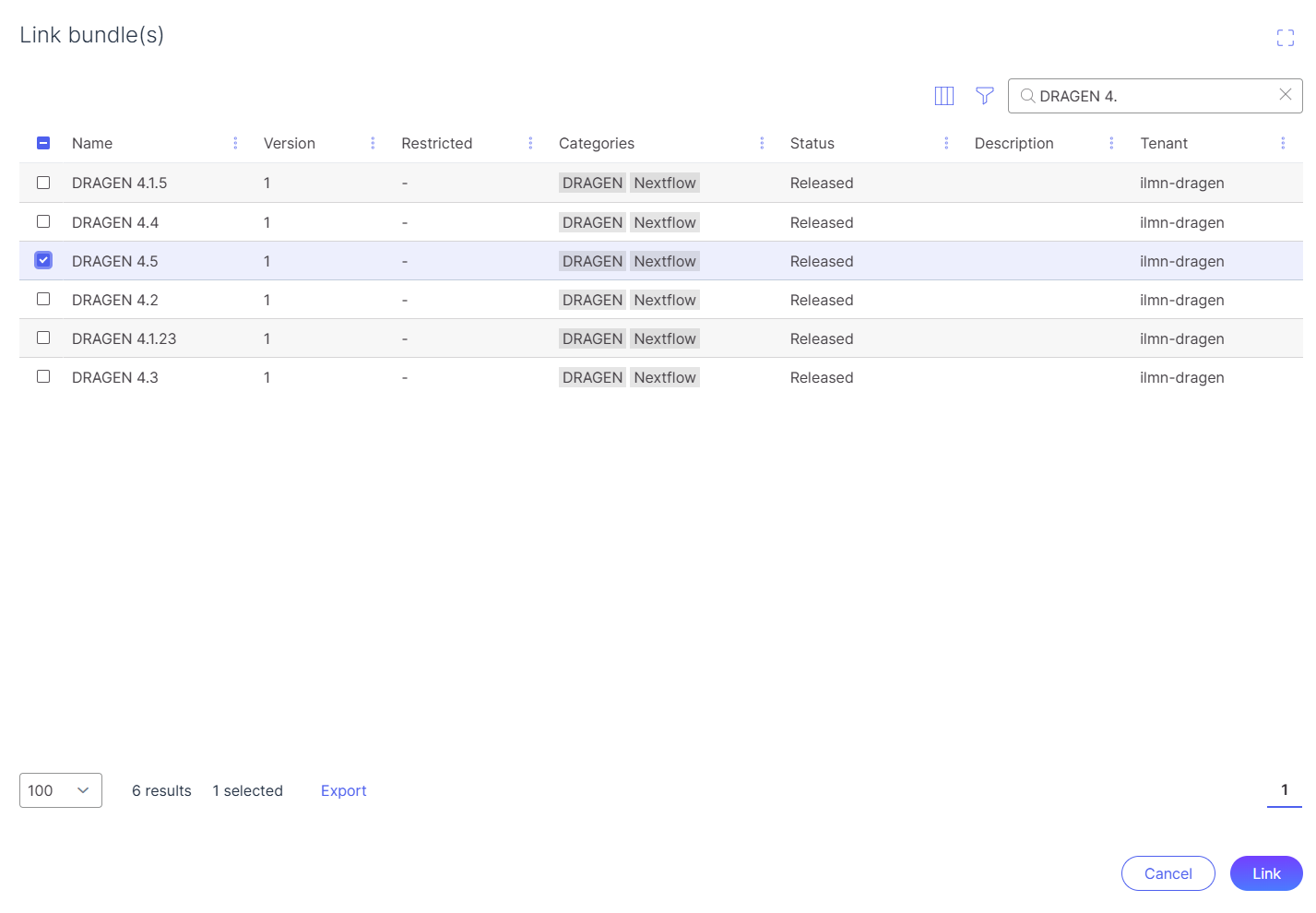
### Link Bundles
1. Link the DRAGEN 4.5 bundle in Platform Core to the Platform Core project.
2. See Platform Core reference pages for more details on adding bundles: [h-bundles](https://help.ica.illumina.com/home/h-bundles)
3. See Platform Core reference pages for more details on uploading data: [p-data](https://help.ica.illumina.com/project/p-data)
### Executing DRAGEN Germline Analysis
**WARNING**: Deviation from these instructions (including adding additional options) may cause pipeline failure.
1. Select the DRAGEN\_Germline\_Whole\_Genome\_4-5-4 Pipeline. Select to start analysis with that pipeline.
2. Enter the necessary run information such as user reference tags, outputs and logs folder.\
Select the necessary input files for the run, including sample inputs. .FASTQ.GZ or .FASTQ.ORA are supported inputs, optionally with an FASTQ list file. Select "Homo sapiens \[1000 Genomes] hg38 v6 Pangenome" for the reference genome.
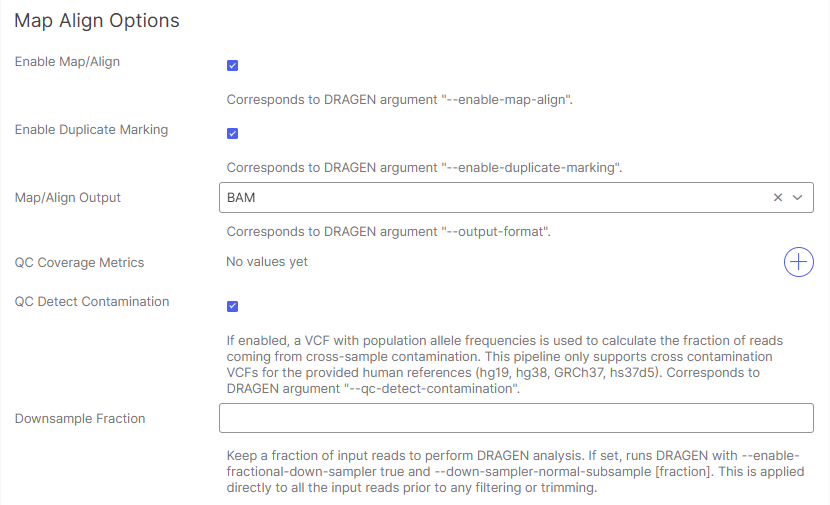
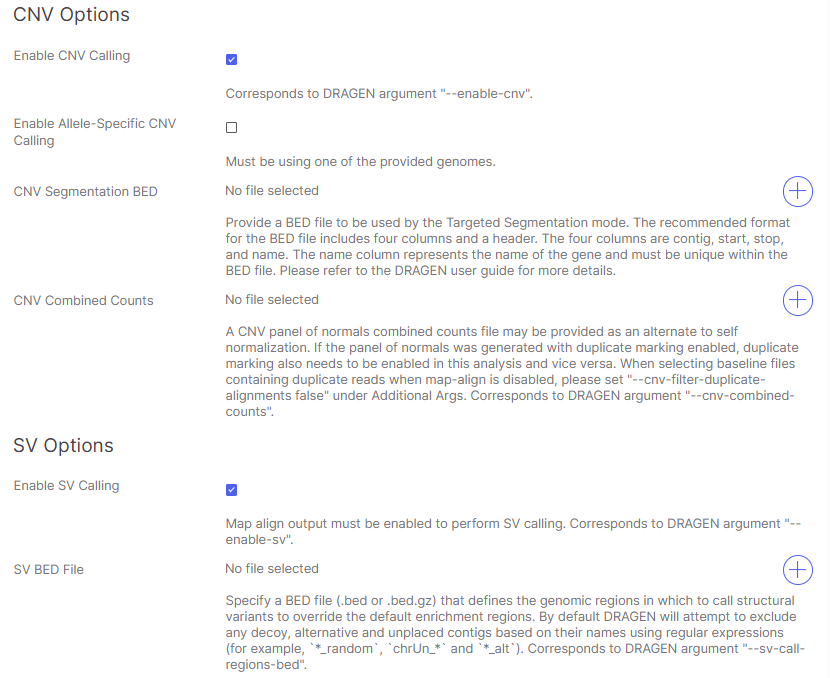
3. By **default**, Map/Align Options, Variant Calling Options, CNV Options, and SV Options **are enabled** for the DRAGEN 4.5.2 version and is recommended. If no Small Variant Calling, CNV or SV Calling is desired, set those options to "False" (screenshot displays the button to click; the box will disappear upon selecting "False" for those settings). \\
**NOTE**: SV results are turned on to improve CNV calling accuracy, but these results are not verified or supported.
4. Navigate to the **Illumina TruPath Genome Options** section of the analysis input settings.
5. By **default**, "Enable Proximity Mode" for use with Illumina TruPath Genome is check-marked and enabled. **NOTE:** This option must be enabled in order to analyze TruPath data.
6. (Optional): To output an additional Hi-C output file for visualization, checkmark the option for "Enable Illumina TruPath Visualization"
7. (Optional): To turn on Multi-Region Joint Detection (MRJD) Calling, checkmark the option for "Enable running Illumina TruPath MRJD." Please refer to the DRAGEN User Guide for more information on Multi-Region Joint Detection.
8. Confirm configured settings. Start the analysis upon configuring all analysis settings.
### Visualizations
Visualize TruPath analysis outputs with the following tools:
* [Visualize Data in Genome Viewer](/illumina-trupath-genome/data-visualizations-and-analysis/visualize-data-in-platform-core.md) after analysis completes.
---
# Agent Instructions
This documentation is published with GitBook. GitBook is the documentation platform designed so that both humans and AI agents can read, navigate, and reason over technical content effectively. Learn more at gitbook.com.
## Querying This Documentation
If you need additional information that is not directly available in this page, you can query the documentation dynamically by asking a question.
Perform an HTTP GET request on the current page URL with the `ask` query parameter, and the optional `goal` query parameter:
```
GET https://help.connected.illumina.com/illumina-trupath-genome/run-analysis-setup/ica-analysis.md?ask=&goal=
```
`ask` is the immediate question: it should be specific, self-contained, and written in natural language.
`goal` is optional and describes the broader end goal you are ultimately trying to accomplish on behalf of the user. GitBook uses it to tailor the answer towards what is most useful for that goal.
The response will contain a direct answer to the question and relevant excerpts and sources from the documentation.
Use this mechanism when the answer is not explicitly present in the current page, you need clarification or additional context, or you want to retrieve related documentation sections.
.png?alt=media)
.png?alt=media)

.png?alt=media)

.png?alt=media)
.png?alt=media)

.png?alt=media)
.png?alt=media)