# Creating Restricted User Folders within the Partek Flow server

Partek Flow provides the infrastructure to isolate data from different users within the same server. This guide will provide general instructions on how to create this environment within Partek Flow. This can be modified to accommodate existing file systems already accessible to the server.

Go to **Settings > Directory** permissions and restrict parent folder access (typically */home/flow*) to *Administrator* accounts only

<figure><img src="/files/FzKRuA1tbGimCoZys29D" alt=""><figcaption><p><em>Figure 1. Setting directory permission for administrators</em></p></figcaption></figure>

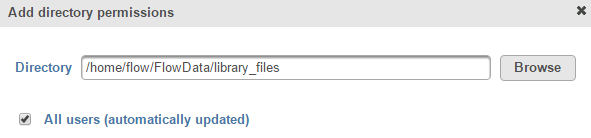
Click the Permit access to a new directory button and navigate to the folder with your library files (typically /home/flow/FlowData/library\_files). Select the All users (automatically updated) checkbox to permit all users (including those that will be added in the future) to see the library files associated with the Partek Flow server

<figure><img src="/files/CJaLVlxnp6zJpkbmaSiG" alt=""><figcaption><p><em>Figure 2. Allow all users permission to see the library files</em></p></figcaption></figure>

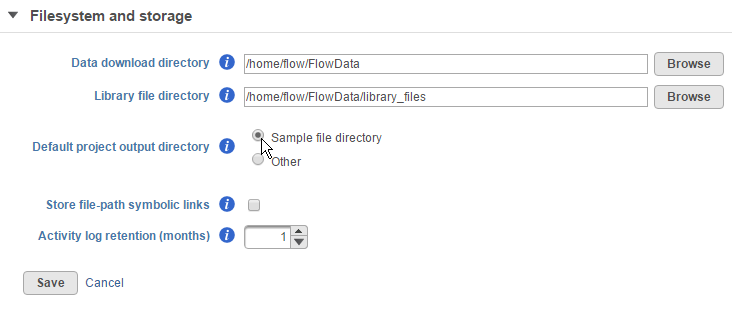
Then go to System preferences > Filesystem and storage and set the Default project output directory to "Sample file directory"

<figure><img src="/files/pvqYl33IuhXT7YVpdLRY" alt=""><figcaption><p><em>Figure 3. Set default project output directory</em></p></figcaption></figure>

Create your first user and select the Private directory checkbox. Specify where the private directory for that user is located

<figure><img src="/files/vNIHGUIF9BcHf7frv7Xr" alt=""><figcaption><p><em>Figure 4. Adding a user with a private directory</em></p></figcaption></figure>

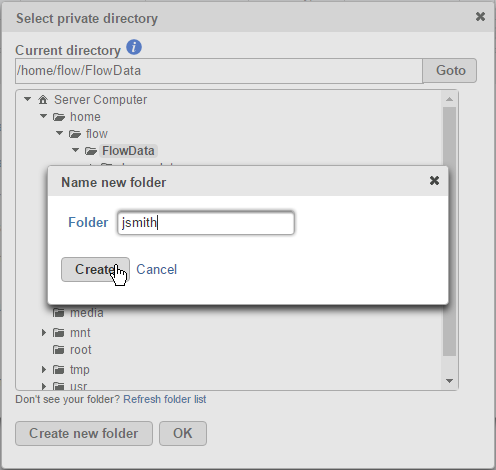
If needed, you can create a user directory by clicking Browse > Create new folder

<figure><img src="/files/5O36ZW1qDQQqbE0QZ4kF" alt=""><figcaption><p><em>Figure 5. Create a new private user folder</em></p></figcaption></figure>

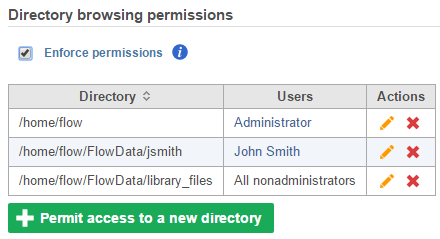
This automatically sets browsing permissions for that private directory to that user

<figure><img src="/files/yPqnCB2JuuCDlIexRycG" alt=""><figcaption><p><em>Figure 6. Private directories automatically get restricted permissions</em></p></figcaption></figure>

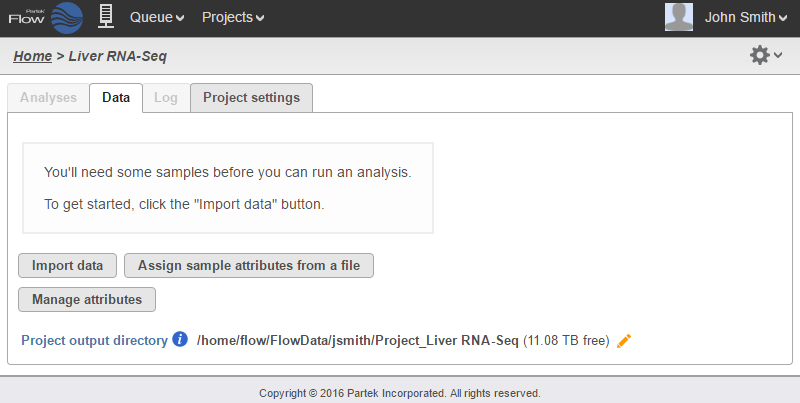
When a user creates a project. The default project output directory is now within their own restricted folder

<figure><img src="/files/ST94k7ugD5XcxLdPZC1e" alt=""><figcaption><p><em>Figure 7. Project output directory will now be within private directory</em></p></figcaption></figure>

More importantly, other users cannot see them

<figure><img src="/files/5O36ZW1qDQQqbE0QZ4kF" alt=""><figcaption><p><em>Figure 8. Other users' directories are not visible</em></p></figcaption></figure>

Add additional users as needed

## Additional Assistance

If you need additional assistance, please visit [our support page](http://www.partek.com/support) to submit a help ticket or find phone numbers for regional support.


---

# Agent Instructions: Querying This Documentation

If you need additional information that is not directly available in this page, you can query the documentation dynamically by asking a question.

Perform an HTTP GET request on the current page URL with the `ask` query parameter:

```
GET https://help.connected.illumina.com/partek/partek-flow/installation-guide/creating-restricted-user-folders-within-the-partek-flow-server.md?ask=<question>
```

The question should be specific, self-contained, and written in natural language.
The response will contain a direct answer to the question and relevant excerpts and sources from the documentation.

Use this mechanism when the answer is not explicitly present in the current page, you need clarification or additional context, or you want to retrieve related documentation sections.