> For the complete documentation index, see [llms.txt](https://help.connected.illumina.com/llms.txt). Markdown versions of documentation pages are available by appending `.md` to page URLs; this page is available as [Markdown](https://help.connected.illumina.com/partek/partek-flow/tutorials/10x-genomics-xenium-data-analysis/import-10x-genomics-xenium-analyzer-output.md).
# Import 10x Genomics Xenium Analyzer output
* [Obtain and add files to the project](#obtain-and-add-files-to-the-project)
## Obtain and add files to the project
The project includes [Human Breast Cancer (In Situ Replicate 1)](https://www.10xgenomics.com/products/xenium-in-situ/preview-dataset-human-breast) and [Human Breast Cancer (In Situ Replicate 2)](https://www.10xgenomics.com/products/xenium-in-situ/preview-dataset-human-breast) files in one project.
* Obtain the **Xenium Output Bundles** (Figure 1) for each sample.

* Navigate the options to select **10x Genomics Xenium Output Bundle** as the file format for input. Choose to import **10x Genomics Xenium** for your project (Figure 2).

* Click [**Transfer files**](/partek/partek-flow/user-manual/importing-data.md#navigating-the-file-browser-to-transfer-files-to-the-server) on the homepage, under settings, or during import.
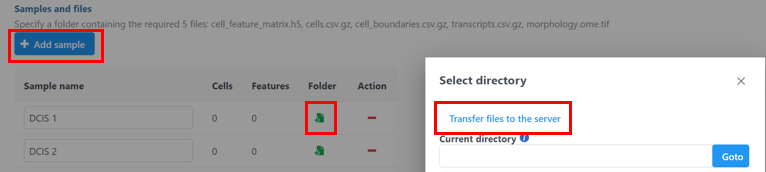
* Click the blue **+ Add sample button** then use the green **Add sample**  button to add each sample's Xenium output bundle folder. If you have not already transferred the folder to the server, this can be done using **Transfer files to the server** (Figure 3).
Figure 3. Transfer files using the 10x Genomics Xenium importer
* You will need to **decompress** the Xenium Output Bundle zip file before they are uploaded to the server. After decompression, you can **drag and drop** the entire folder into the Transfer files dialog, all individual files in the folder will be listed in the Transfer files dialog after drag & drop, with no folder structure (Figure 4). The folder structure will be restored after upload is completed.

* Once uploaded the folder to the server, navigate to the appropriate folder for each sample using **Add sample**  (Figure 5).
The Xenium output bundle should be included for each sample (Figure 5). Each sample requires the whole sample folder or a folder containing these 6 files: cell\_feature\_matrix.h5, cells.csv.gz, cell\_boundaries.csv.gz, nucleus\_boundaries.csv.gz, transcripts.csv.gz, morphology\_focus.ome.tif. Once added, the *Cells* and *Features* values will update. You can choose an annotation file during import that matches what was used to generate the feature count.
Do not limit cells with a total read count since Xenium data is targeted to less features.

Once the download completes, the sample table will appear in the *Metadata* tab, with one row per sample (Figure 6).

The sample table is pre-populated with one sample attributes: # Cells. Sample attributes can be added and edited manually by clicking *Manage* in the *Sample attributes* menu on the left. If a new attribute is added, click *Assign values* to assign samples to different groups. Alternatively, you can use the *Assign values from a file* option to assign sample attributes using a tab-delimited text file. For more information about sample attributes, see [here](/partek/partek-flow/tutorials/creating-and-analyzing-a-project/the-metadata-tab.md#sample-annotation). Cell attributes are found under Sample attributes and can be added by [publishing cell attributes to a project](/partek/partek-flow/user-manual/task-menu/annotation-metadata/publish-cell-attributes-to-project.md).
For this tutorial, we do not need to edit or change sample attributes.
## Additional Assistance
If you need additional assistance, please visit [our support page](http://www.partek.com/support) to submit a help ticket or find phone numbers for regional support.
---
# Agent Instructions
This documentation is published with GitBook. GitBook is the documentation platform designed so that both humans and AI agents can read, navigate, and reason over technical content effectively. Learn more at gitbook.com.
## Querying This Documentation
If you need additional information that is not directly available in this page, you can query the documentation dynamically by asking a question.
Perform an HTTP GET request on the current page URL with the `ask` query parameter, and the optional `goal` query parameter:
```
GET https://help.connected.illumina.com/partek/partek-flow/tutorials/10x-genomics-xenium-data-analysis/import-10x-genomics-xenium-analyzer-output.md?ask=&goal=
```
`ask` is the immediate question: it should be specific, self-contained, and written in natural language.
`goal` is optional and describes the broader end goal you are ultimately trying to accomplish on behalf of the user. GitBook uses it to tailor the answer towards what is most useful for that goal.
The response will contain a direct answer to the question and relevant excerpts and sources from the documentation.
Use this mechanism when the answer is not explicitly present in the current page, you need clarification or additional context, or you want to retrieve related documentation sections.