Attributes describe samples. Examples of sample attributes include treatment group, age, sex, and time point. Attributes can be added individually in the Metadata tab or in bulk using a text file. In this tutorial, we will add one attribute, 5-AZA Dose, manually.
Click the Metadata tab
Click Manage under Sample attributes (Figure 1)
Figure 1. Adding sample attributes manually
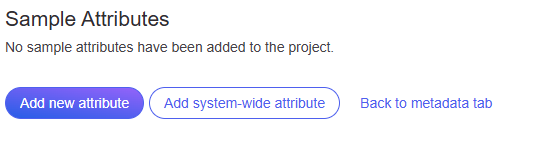
Click Add new attribute (Figure 2)
Figure 2. Adding a new attribute
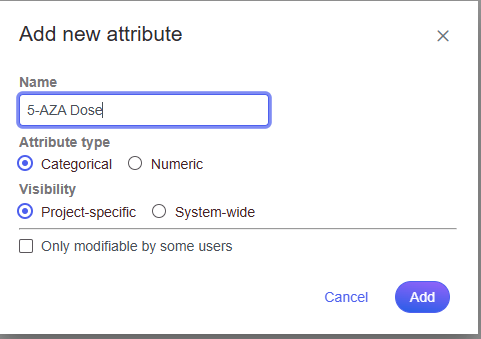
To configure a new attribute, at Name, type in 5-AZA Dose as the name of the attribute
Click Add to add 5-AZA Dose as a categorical, project-specific attribute (Figure 3)
Figure 3. Configuring a new attribute
Name the first New category 0uM
Click the plus icon to add category (Figure 4)
Repeat for two additional categories, 5uM and 10uM (Figure 5)
Figure 4. Creating attribute category
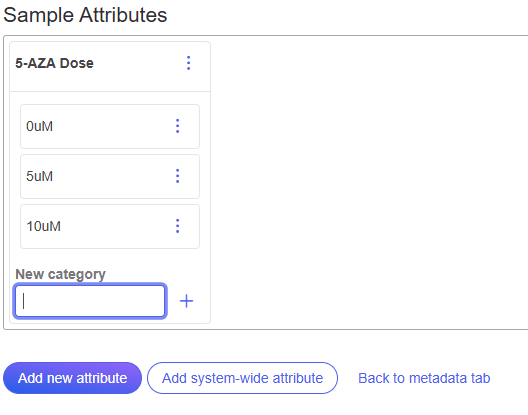
Figure 5. All category attributes for 5-AZA Dose
Click Back to metadata tab
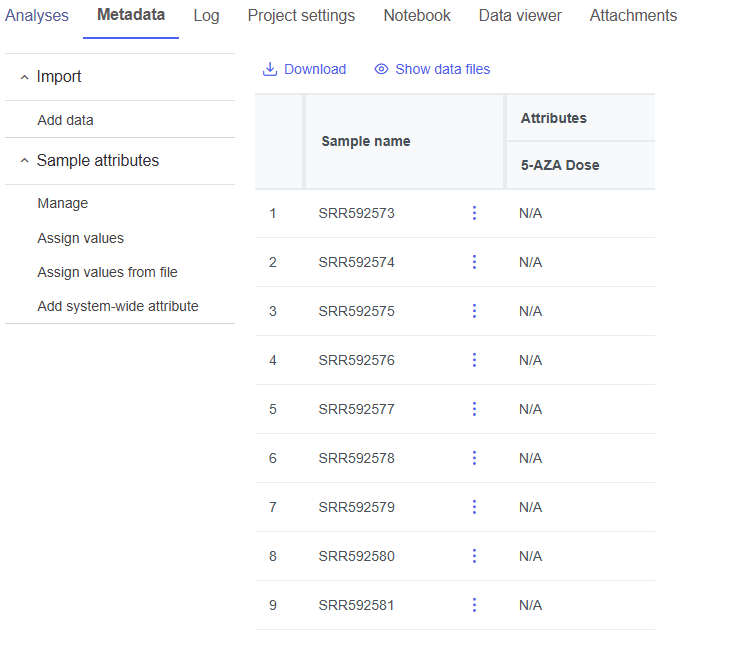
The data table now includes an Attribute column for 5-AZA Dose (Figure 6). Next, we need to assign samples attribute categories for 5-AZA Dose.
Figure 6. Data table updated with column for 5-AZA Dose
Select Assign values
The option to edit the 5-AZA Dose field for each sample will appear as a drop-down menu (Figure 7).
Figure 7. Dropdown menu to select treatment for each sample
Select the 5-AZA Dose text box for a sample to bring up a drop-down menu with the 5-AZA Dose attribute categories (0uM, 5uM, 10uM)
Use the drop-down menus to add a treatment group for each sample
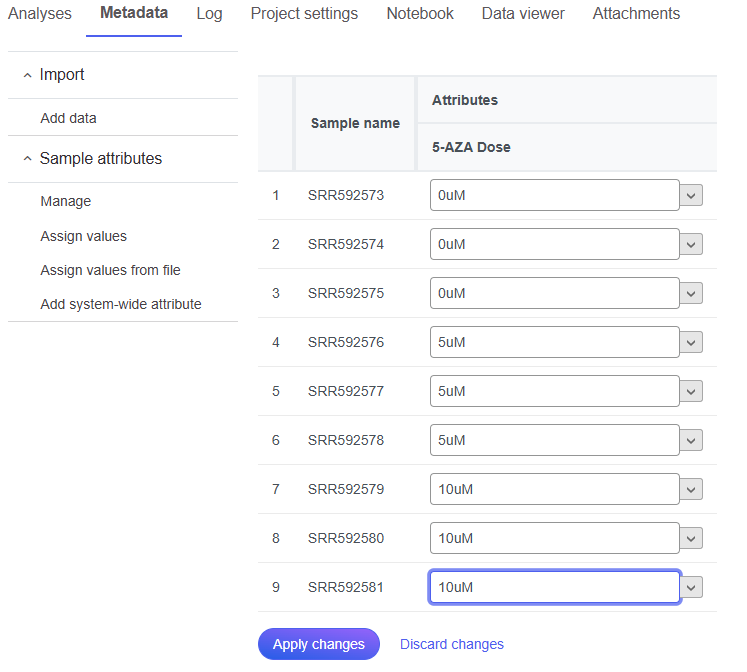
The first three samples (SRR592573-5) should be 0uM, the next three samples (SRR592576-8) should be 5uM, and the final three samples (SRR592579-81) should be 10uM (Figure 8).
Click Apply changes
Figure 8. Add 5-AZA dose to each sample as shown
The data table will now show each a 5-AZA Dose attribute for each sample.
Additional Assistance
If you need additional assistance, please visit our support page to submit a help ticket or find phone numbers for regional support.