# Performing differential expression analysis with DESeq2

After normalizing the data, we can perform differential analysis to identify genes that are differentially expressed based on treatment.

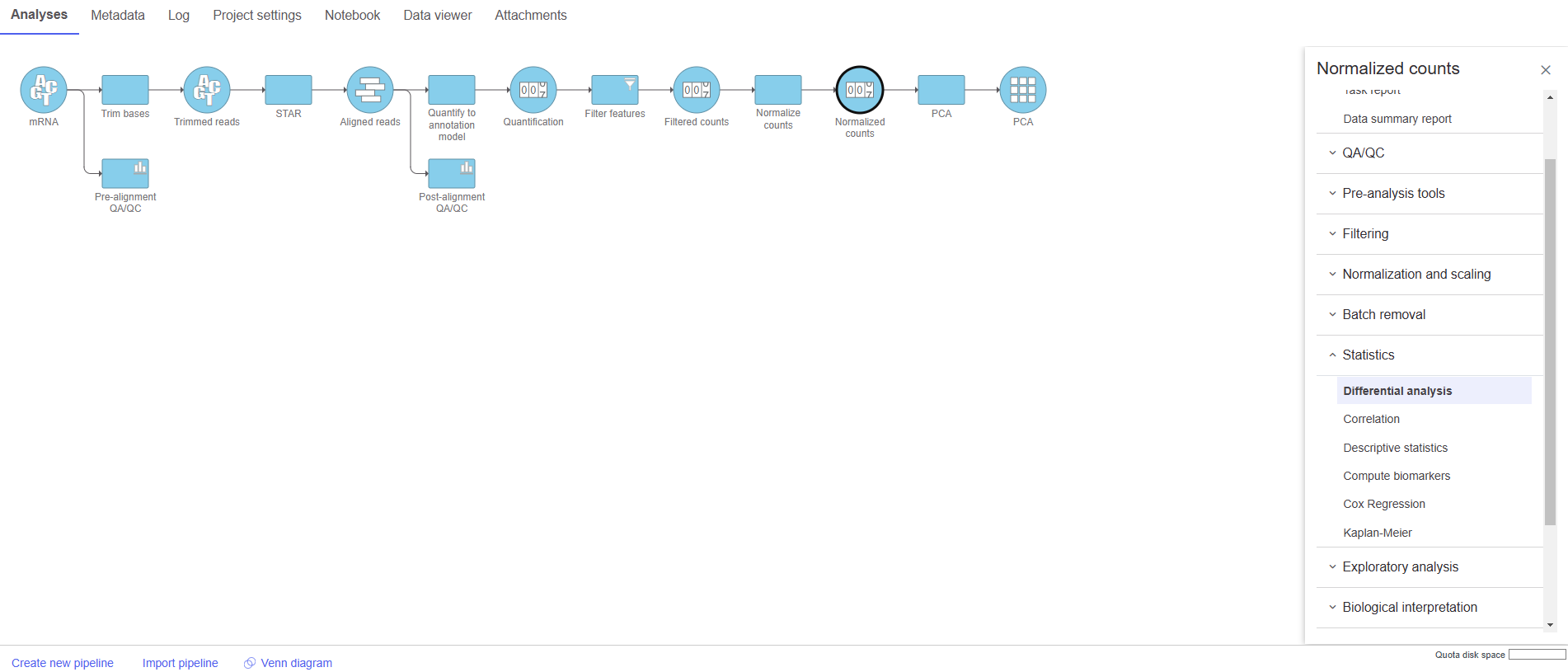
* Click the **Normalized counts** node
* Click **Statistics** in the task menu
* Click **Differential analysis** in the task menu (Figure 1)

<figure><img src="https://1384254481-files.gitbook.io/~/files/v0/b/gitbook-x-prod.appspot.com/o/spaces%2FJVEESmJAPppJ3ijFq5aR%2Fuploads%2Fgit-blob-11fac55a751ed69e042941c20bf79e512aeea35a%2Fselect%20differential%20analysis.png?alt=media" alt=""><figcaption><p><em>Figure 1. Navigating to the differential analysis options</em></p></figcaption></figure>

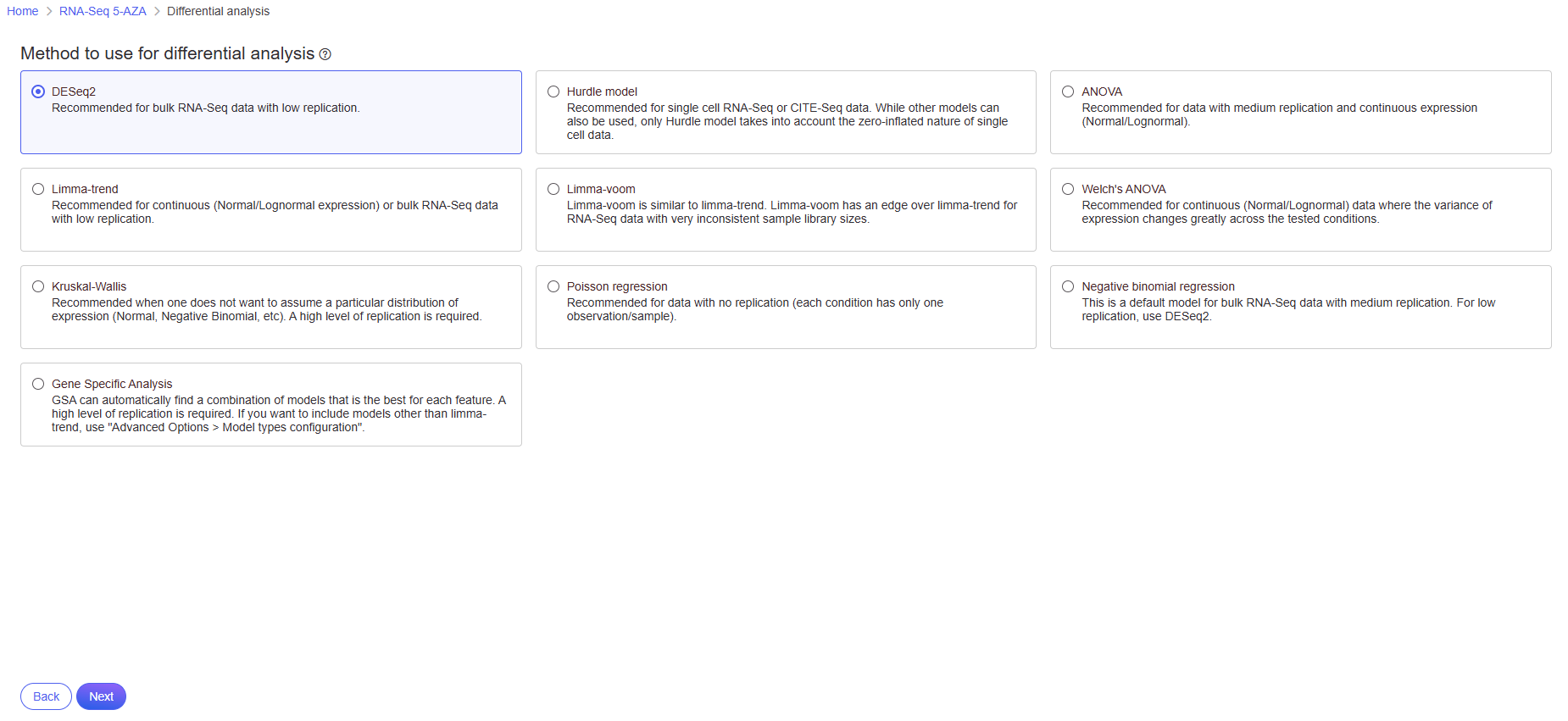
Select the appropriate differential analysis method (Figure 2). In this tutorial we are going to use DESeq2, but Partek Flow offers a number of alternatives. Hover the mouse over the <img src="https://1384254481-files.gitbook.io/~/files/v0/b/gitbook-x-prod.appspot.com/o/spaces%2FJVEESmJAPppJ3ijFq5aR%2Fuploads%2Fgit-blob-a884bb0d29a3431e1108909f8dfd1d94bc48ee8e%2Fquestion_mark_info.png?alt=media" alt="Info tip" data-size="line"> symbol for more information on each differential analysis method, or see our [Differential Analysis](https://help.connected.illumina.com/partek/partek-flow/user-manual/task-menu/differential-analysis) user guide for a more in-depth look.

<figure><img src="https://1384254481-files.gitbook.io/~/files/v0/b/gitbook-x-prod.appspot.com/o/spaces%2FJVEESmJAPppJ3ijFq5aR%2Fuploads%2Fgit-blob-a60fb301ac116f449f18fe2599b0322a8909ea84%2FDE%20methods.png?alt=media" alt=""><figcaption><p><em>Figure 2. Select the method for differential analysis from the options provided.</em></p></figcaption></figure>

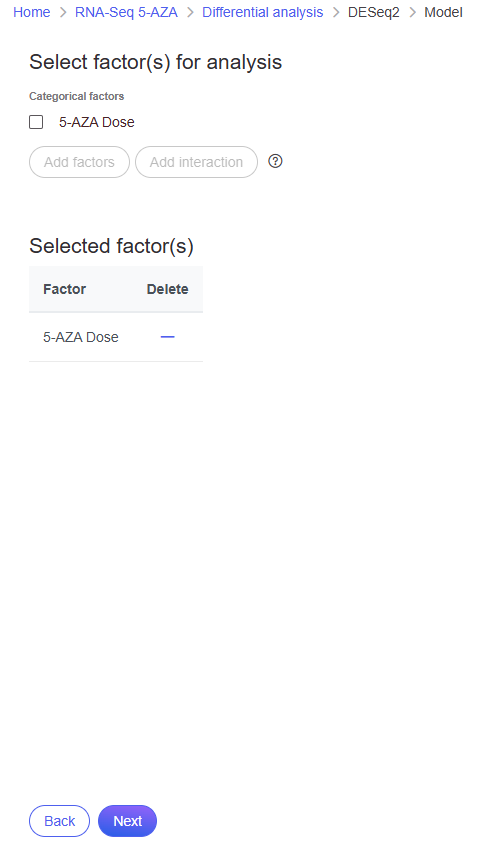
* Check **5-AZA Dose** and click **Add factors** to add the attribute to the statistical model.

<figure><img src="https://1384254481-files.gitbook.io/~/files/v0/b/gitbook-x-prod.appspot.com/o/spaces%2FJVEESmJAPppJ3ijFq5aR%2Fuploads%2Fgit-blob-9e2e009cb080374ddd1f75eb101900851058a82b%2Fselect%20factor%20for%20analysis.png?alt=media" alt=""><figcaption><p><em>Figure 3. Selecting attributes to include in analysis</em></p></figcaption></figure>

* Select **Next** to continue with 5-AZA Dose as the selected attribute

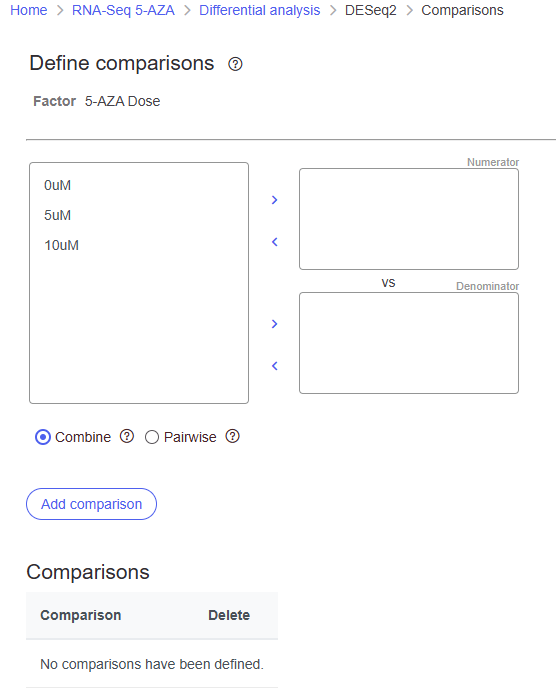
The Comparisons page will open (Figure 4).

<figure><img src="https://1384254481-files.gitbook.io/~/files/v0/b/gitbook-x-prod.appspot.com/o/spaces%2FJVEESmJAPppJ3ijFq5aR%2Fuploads%2Fgit-blob-fe0de4070323ebd790f03027ad17616e6bd51be4%2FDE%20comparison%20page.png?alt=media" alt=""><figcaption><p><em>Figure 4. The Comparison selector allows multiple comparisons to be designed and added</em></p></figcaption></figure>

It is easiest to think about comparisons as the questions we are asking. In this case, we want to know what are the differentially expressed genes between untreated and treated cells. We can ask this for each dose individually and for both collectively.

The upper box will be the numerator and the lower box will be the denominator in the comparison calculation so we will select the 0μM control in the lower box.

* Drag 5μM to the upper box
* Drag 0μM to the lower box
* Click **Add comparison** to add **5μM vs. 0μM** to the comparison table (Figure 5)

<figure><img src="https://1384254481-files.gitbook.io/~/files/v0/b/gitbook-x-prod.appspot.com/o/spaces%2FJVEESmJAPppJ3ijFq5aR%2Fuploads%2Fgit-blob-03e2742054d39dcfafcdbdcd3e59917d81e10655%2Fadd%20one%20comparison.png?alt=media" alt=""><figcaption><p><em>Figure 5. Designing a comparison to add</em></p></figcaption></figure>

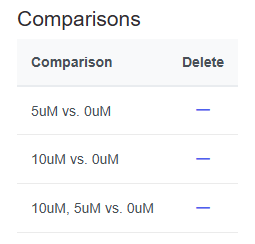
* Repeat to create comparisons for **10μM vs. 0μM** and **10μM,5μM vs. 0μM** (Figure 6)

<figure><img src="https://1384254481-files.gitbook.io/~/files/v0/b/gitbook-x-prod.appspot.com/o/spaces%2FJVEESmJAPppJ3ijFq5aR%2Fuploads%2Fgit-blob-9587cacd5b93b27d6945d241c99cac5ed75bd3ca%2Fadd%20all%20comparions.png?alt=media" alt=""><figcaption><p><em>Figure 6. Comparisons for 5uM vs. 0uM, 10uM vs. 0uM, and 5uM:10uM vs. 0uM have been added</em></p></figcaption></figure>

* Click **Finish** to perform DESeq2 as configured

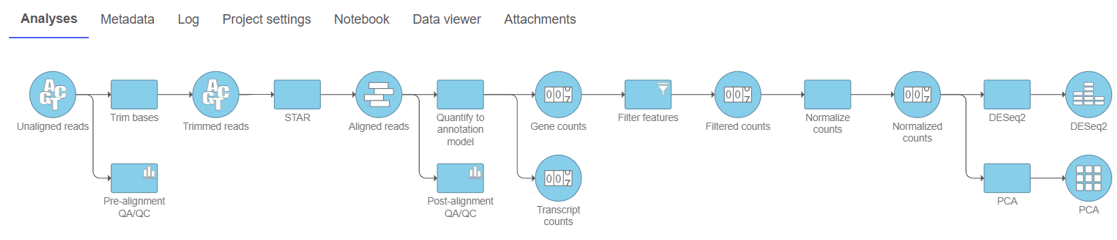
A DESeq2 task node and a DESeq2 data node will be added to the pipeline (Figure 7).

<figure><img src="https://1384254481-files.gitbook.io/~/files/v0/b/gitbook-x-prod.appspot.com/o/spaces%2FJVEESmJAPppJ3ijFq5aR%2Fuploads%2Fgit-blob-12cc86ed4162e274410e598900f1c911684488d1%2Fbulk%20seq%20tut%20deseq2%20task%20graph.png?alt=media" alt=""><figcaption><p><em>Figure 7. DESeq2 task node and data node</em></p></figcaption></figure>

## Additional Assistance

If you need additional assistance, please visit [our support page](http://www.partek.com/support) to submit a help ticket or find phone numbers for regional support.