# The Metadata Tab

The Partek Flow *Metadata* Tab has an option to import data, and is where sample/cell attributes are managed. This is also where users can modify the location of the project output folder.

* [Import data](#import-data)
  * [Automatically create samples from files](#automatically-create-samples-from-files)
  * [Create a new blank sample](#create-a-new-blank-sample)
  * [Importing count matrix data](#importing-count-matrix-data)
* [Project output directory](#project-output-directory)
* [Sample Annotation](#sample-annotation)
  * [Sample attributes](#sample-attributes)
  * [Adding a categorical attribute](#adding-a-categorical-attribute)
  * [Adding a numeric attribute](#adding-a-numeric-attribute)
  * [Adding a system-wide attribute](#adding-a-system-wide-attribute)
  * [Assigning categories or values to attributes](#assigning-categories-or-values-to-attributes)
  * [Assigning attributes using a Sample Annotation Text File](#assigning-attributes-using-a-sample-annotation-text-file)
  * [Guidelines for preparing the sample annotation text file](#guidelines-for-preparing-the-sample-annotation-text-file)
  * [Use of attributes as Optional columns in task report tables](#use-of-attributes-as-optional-columns-in-task-report-tables)
* [Deleting or Renaming samples within a Project](#deleting-or-renaming-samples-within-a-project)

## Import data

The *Metadata* tab can be used to import data. To add samples to the project, click **Add data** under Import, different import options are displayed using the cascading menu (Figure 1).

<figure><img src="https://1384254481-files.gitbook.io/~/files/v0/b/gitbook-x-prod.appspot.com/o/spaces%2FJVEESmJAPppJ3ijFq5aR%2Fuploads%2Fgit-blob-a3c921beae53fec80465e7d338a6eb09a794291f%2Fthe-partek-flow-metadata-tab-and-selecting-options-for-adding-samples.png?alt=media" alt=""><figcaption><p><em>Figure 1. The Partek Flow Metadata tab and selecting options for adding samples</em></p></figcaption></figure>

### Automatically create samples from files

This method adds samples by creating them simultaneously as the data gets imported into a project. The sample names are assigned automatically based on filenames.

*Before proceeding, it is ideal that you have already transfer the data you wish to analyze in a folder (with appropriate permissions) within the Partek Flow server. Please seek assistance from your system administrator in uploading your data directly.*

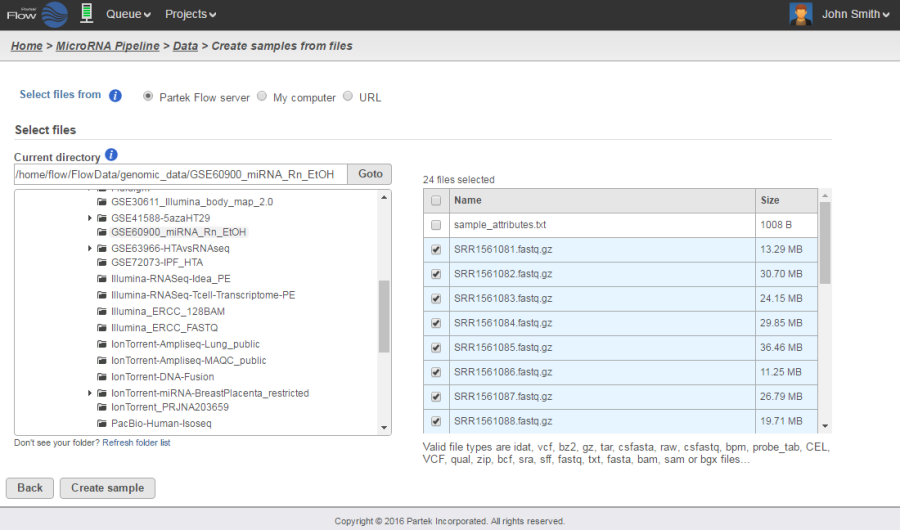
Select the **Automatically create samples from files** button. The next screen will feature a file browser that will show any folders you have access to in the Partek Flow server (Figure 2). Select a folder by clicking the folder name. Files in the selected folder that have file formats that can be imported by Partek Flow will be displayed and tick-marked on the right panel. You can exclude some files from the folder by unselecting the check mark on the left side of the filename. When you have made your selections, click the **Create sample** button.

<figure><img src="https://1384254481-files.gitbook.io/~/files/v0/b/gitbook-x-prod.appspot.com/o/spaces%2FJVEESmJAPppJ3ijFq5aR%2Fuploads%2Fgit-blob-fe6103592372f802d25c4571af0ebb399592f3c4%2Fselecting-files-in-the-partek-flow-server-to-be-imported-in-a-project.png?alt=media" alt=""><figcaption><p><em>Figure 2. Selecting files in the Partek Flow server to be imported in a project</em></p></figcaption></figure>

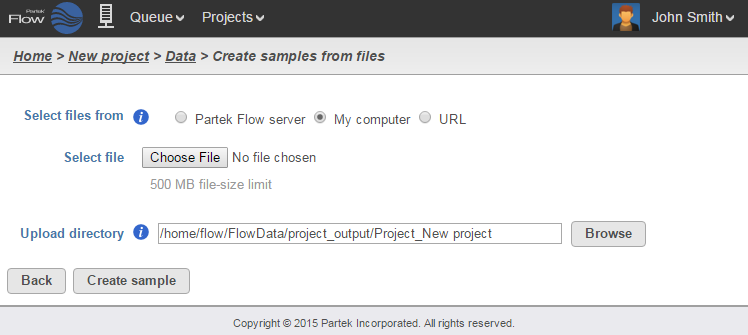
Alternatively, files can also be uploaded and imported into the project from the user's local computer -only use this option if your file size is less than 500MB. Select the **My computer** radio button (Figure 3) and the options of selecting the local file and the upload (destination) directory will appear. Only one file at a time can be imported to a project using this method.

<figure><img src="https://1384254481-files.gitbook.io/~/files/v0/b/gitbook-x-prod.appspot.com/o/spaces%2FJVEESmJAPppJ3ijFq5aR%2Fuploads%2Fgit-blob-595fded3405e3be5220ee3e3415341b56423e420%2Fselecting-files-from-the-users-local-computer-for-upload-and-import.png?alt=media" alt=""><figcaption><p><em>Figure 3. Selecting files from the user's local computer for upload and import</em></p></figcaption></figure>

Multiple data files can be compressed a single .zip file before uploading. Partek Flow will automatically unzip the files and put them in the upload directory.

Please be aware that the use of the method illustrated in Figure 3 highly depends on the speed and latency of the Internet connection between the user's computer and the server where Partek Flow is installed. Given the large size of most genomics data sets, is not recommended in most cases.

After successful creation of samples from files, the Data tab now contains a Sample management table (Figure 4). The Sample name column in the table is automatically generated based on the filenames and the table is sorted in alphabetical order.

Clicking the on the\*\* Show data files\*\* link on the lower right side of the sample management table will expand the table and reveal the filenames of the files associated with each sample. Conversely, clicking on **Hide data files** will hide the file information.

The columns in the expanded view show the files associated with each sample. Files are organized by file type. Any filename extensions that indicate compression (such as .gz) are not shown.

<figure><img src="https://1384254481-files.gitbook.io/~/files/v0/b/gitbook-x-prod.appspot.com/o/spaces%2FJVEESmJAPppJ3ijFq5aR%2Fuploads%2Fgit-blob-13b11bdb1ea8610a9813094f79aafdb2e2e4d249%2Fthe-sample-management-table-with-data-files-shown.png?alt=media" alt=""><figcaption><p><em>Figure 4. The sample management table with data files shown</em></p></figcaption></figure>

Once a sample is created in a project, the files associated with it can be modified. In the expanded view, mouse over the +/- column of a sample. The highlighted icons will correspond to the options for the sample on that row.

Click the **green icon** ( ![Green icon](https://1384254481-files.gitbook.io/~/files/v0/b/gitbook-x-prod.appspot.com/o/spaces%2FJVEESmJAPppJ3ijFq5aR%2Fuploads%2Fgit-blob-1c06ad31a0debd9d34ef8cee3b8d85a0a0e1ccb8%2Fgreen-icon.png?alt=media) ) to associate additional files or the **red icon** ( ![Red icon](https://1384254481-files.gitbook.io/~/files/v0/b/gitbook-x-prod.appspot.com/o/spaces%2FJVEESmJAPppJ3ijFq5aR%2Fuploads%2Fgit-blob-8679288b744547a454dc87c968160750da4cb6f3%2Fred-icon.png?alt=media) ) to dissociate a file from a sample. You can manually associate multiple files with one sample. Dissociating a file from a sample does not delete the file from the Partek Flow server.

### Create a new blank sample

Samples can be added one at a time by selecting the **Create a new blank sample** option (Figure 5). In the following dialog box, type a sample name and click **Create**. This process creates a sample entry in the sample management table but there is no associated file with it, hence it is a "blank sample."

Expanding the Sample management table by clicking **Show data files** on the lower left corner of the table will reveal the option to associate files to the blank sample.

Mouse over the +/- column and click the **green icon** ( ![Green icon](https://1384254481-files.gitbook.io/~/files/v0/b/gitbook-x-prod.appspot.com/o/spaces%2FJVEESmJAPppJ3ijFq5aR%2Fuploads%2Fgit-blob-1c06ad31a0debd9d34ef8cee3b8d85a0a0e1ccb8%2Fgreen-icon.png?alt=media) ) to associate a file(s) to the sample. Perform the process for every sample in your project.

<figure><img src="https://1384254481-files.gitbook.io/~/files/v0/b/gitbook-x-prod.appspot.com/o/spaces%2FJVEESmJAPppJ3ijFq5aR%2Fuploads%2Fgit-blob-5146e24843e81a5ad64548e11e44d029263863ba%2Fadding-a-blank-sample.png?alt=media" alt=""><figcaption><p><em>Figure 5. Adding a blank sample</em></p></figcaption></figure>

### Importing count matrix data

Alternatively, if you have a matrix of data, such as raw read count data in text format, select Import count matrix. The requirements of this text file are listed below:

* The file contains numeric values in a tab-delimited format, samples can be on rows while features (e.g.gene names) are in columns, or vice versa
* The file contains unique sample IDs and feature IDs
* If the data contains sample attribute information, all these attributes have to be ether
  * The leftmost columns when samples are on rows (Figure 6)
  * The first few rows when samples are on columns (Figure 7)

<figure><img src="https://1384254481-files.gitbook.io/~/files/v0/b/gitbook-x-prod.appspot.com/o/spaces%2FJVEESmJAPppJ3ijFq5aR%2Fuploads%2Fgit-blob-8537e222114abcf2b525d5e51421d1c7167f485e%2Fexample-of-sample-on-row.png?alt=media" alt=""><figcaption><p><em>Figure 6. Example of sample on row, the first column is sample ID, the 2nd and 3rd columns contain sample attribute information, feature count starts from column 4</em></p></figcaption></figure>

<figure><img src="https://1384254481-files.gitbook.io/~/files/v0/b/gitbook-x-prod.appspot.com/o/spaces%2FJVEESmJAPppJ3ijFq5aR%2Fuploads%2Fgit-blob-c4b82f0c0310bb9ea7f7681e29f40eab523ff431%2Fexample-of-sample-on-column.png?alt=media" alt=""><figcaption><p><em>Figure 7. Example of sample on column, the first row is sample ID, the 2nd and 3rd rows contain sample attribute information, feature count starts from column 4</em></p></figcaption></figure>

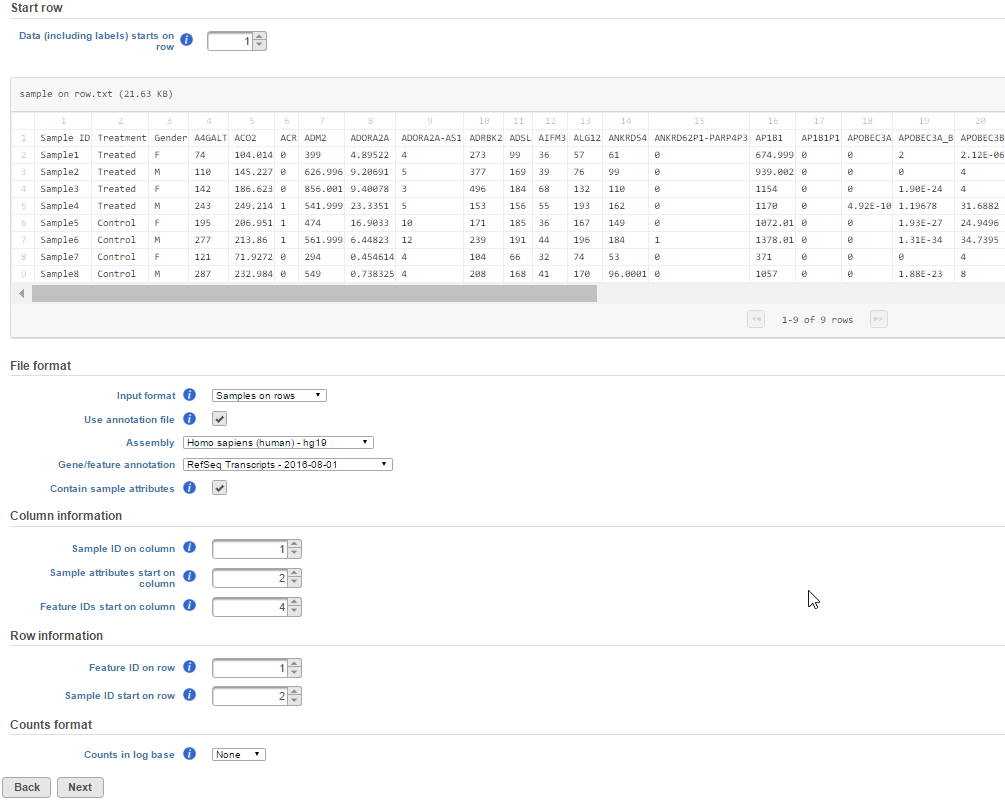
Like all other input files, you can upload the file from the Partek Flow server, My Computer or via a URL. Uploading the file brings up a file preview window (Figure 8). The preview of the first few rows and columns of the text file should help you determine on which rows/columns the relevant counts are located (the preview will display up to 100 rows and 100 columns). Inspect the text preview and indicate the orientation of the text file under **File format>Input format**.

If the read counts are based on a compatible annotation file in Partek Flow, you can specify that annotation file under **Gene/feature annotation**. Select the appropriate genome build and annotation model for your count data. Select the **Contain sample attributes** checkbox if your data includes additional sample information.

<figure><img src="https://1384254481-files.gitbook.io/~/files/v0/b/gitbook-x-prod.appspot.com/o/spaces%2FJVEESmJAPppJ3ijFq5aR%2Fuploads%2Fgit-blob-fabd744f49fd78bd85f002f2bf197903eff72cef%2Fimporting-count-matrix-data-preview.png?alt=media" alt=""><figcaption><p><em>Figure 8. Importing count matrix data preview. This example is showing a count matrix text file has samples on rows with sample attributes colummns</em></p></figcaption></figure>

The example above is showing an example text file with samples listed on rows. The gene ID is compatible with the *hg19 RefSeq Transcripts - 2016-08-01* annotation model. Under the **Column information** and **Row information** sections, indicate the location of the Sample ID, which in this case is on *Column 1*. Indicate the sample attribute location by marking where it starts, which in the example is at *Column 2*. Mark the Feature ID, which in this case are gene IDs and starts at *Column 4*.

If the data has been log transformed, specify the base under **Counts format**.

## Project output directory

The project output directory is the folder within the Partek Flow server where all output files produced during analysis will be stored.

*The default directory is configured by the Partek Flow Administrator under the Settings menu (under **System Preferences > Default project output directory**).*

If the user does not override the default, the task output will go to a subdirectory with the name of the Project.

The user has the option of specifying an existing folder or creating a new one as the project output directory. To do so, click the ![Pencil icon](https://1384254481-files.gitbook.io/~/files/v0/b/gitbook-x-prod.appspot.com/o/spaces%2FJVEESmJAPppJ3ijFq5aR%2Fuploads%2Fgit-blob-da2197ed6754d8ba8ad747abac725862bc41646f%2Fpencil-icon.png?alt=media) icon next to the directory and specify or create a new folder in the dialog box.

## Sample Annotation

After samples have been added in the project, additional information about the samples can be added. Information such as disease type, age, treatment, or sex can be annotated to the data by assigning the Attributes for each sample.

Certain tasks in Partek Flow, such as Gene-Specific Analysis, require that samples be assigned attributes in order to do statistical comparisons between groups or samples. As attributes are added to the project, additional columns in the sample management table will be created.

### Sample attributes

Attributes can be managed or created within a project. Under the Data tab, click the button to open the *Manage attributes* page (Figure 9).

<figure><img src="https://1384254481-files.gitbook.io/~/files/v0/b/gitbook-x-prod.appspot.com/o/spaces%2FJVEESmJAPppJ3ijFq5aR%2Fuploads%2Fgit-blob-e0796dad64dcabba37d100000bcc6c26f94bd29f%2Fmanaging-attributes.png?alt=media" alt=""><figcaption><p><em>Figure 9. Managing attributes</em></p></figcaption></figure>

To prepare for later data analysis using statistical tools, attributes can either be categorical or numeric (i.e., continuous).

### Adding a categorical attribute

For categorical attributes, there are two levels of visibility. *Project-specific* categorical attributes are visible only within the current project. *System-wide categorical attributes* are visible across all the projects within the Partek Flow server, and are useful for maintaining uniformity of terms. Importing samples in a new project will retain the system-wide attributes, but not the project-specific attributes.

A feature of Partek Flow is the use of controlled vocabulary for *categorical attributes*, allowing samples to be assigned only within pre-defined categories. It was designed to effectively manage content and data and allow teams to share common definitions. The use of standard terms minimizes confusion.

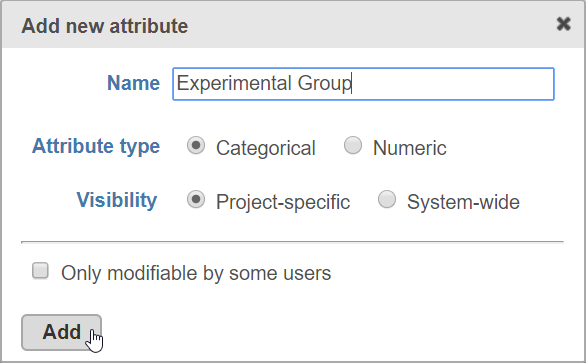
To add a categorical attribute in the *Manage attributes* page, click the **Add new attribute** (Figure 10). In the dialog box, type a **Name** for the attribute, select the **Categorical** radio button next to **Attribute type**, select the visibility of the attribute and then click the **Add** button.

<figure><img src="https://1384254481-files.gitbook.io/~/files/v0/b/gitbook-x-prod.appspot.com/o/spaces%2FJVEESmJAPppJ3ijFq5aR%2Fuploads%2Fgit-blob-7ba0483aeb6fb91fb5f206c711de9f75829a6d03%2Fadding-a-categorical-attribute-and-defining-the-categories.png?alt=media" alt=""><figcaption><p><em>Figure 10. Adding a categorical attribute and defining the categories</em></p></figcaption></figure>

Individual categories for the attribute must then be entered. Enter a name of the **New category** in the New category text box and click **Add** (Figure 11). The Name of the new category will show up in the table. The category can also be edited by clicking ![Pencil icon](https://1384254481-files.gitbook.io/~/files/v0/b/gitbook-x-prod.appspot.com/o/spaces%2FJVEESmJAPppJ3ijFq5aR%2Fuploads%2Fgit-blob-da2197ed6754d8ba8ad747abac725862bc41646f%2Fpencil-icon.png?alt=media) or deleted by clicking ![Red x icon](https://1384254481-files.gitbook.io/~/files/v0/b/gitbook-x-prod.appspot.com/o/spaces%2FJVEESmJAPppJ3ijFq5aR%2Fuploads%2Fgit-blob-88bdaffa9b9244654742838ea0a450732262a5fa%2Fred-x-icon.png?alt=media) (visible on mouse-over). Repeat to add additional categories within the attribute.

Repeat the process for additional attributes of the samples in your study. When done, click **Back to sample management table**. Categorical attributes will default to Project-specific visibility.

Click an attribute name to drag and drop can change the order of the attributes displayed on the data tab. Click on group name to drag and drop vertically can change the order of the group name, which can be reflected on visualization.

<figure><img src="https://1384254481-files.gitbook.io/~/files/v0/b/gitbook-x-prod.appspot.com/o/spaces%2FJVEESmJAPppJ3ijFq5aR%2Fuploads%2Fgit-blob-2ef611342cc847ab19a32f739c8d9a21b354b41f%2Fadding-categories-within-an-attribute.png?alt=media" alt=""><figcaption><p><em>Figure 11. Adding categories within an attribute</em></p></figcaption></figure>

### Adding a numeric attribute

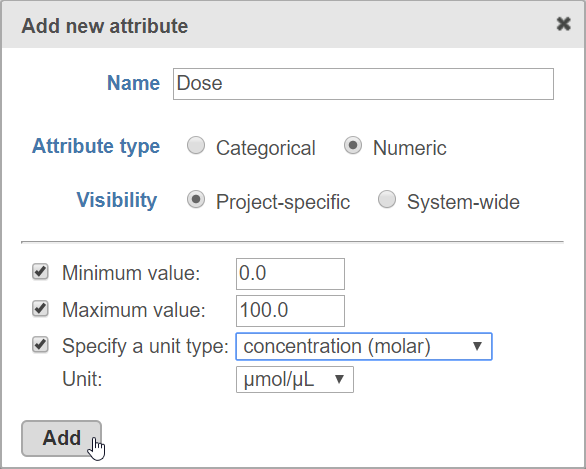
To add a numeric attribute in the Manage attributes page, click the **Add new attribute**. In the dialog box (Figure 13), type a **Name** for the attribute, select the **Numeric** radio button next to **Attribute type**, and then click the **Add** button. Some optional parameters for numeric attributes include the Minimum value, Maximum value, and Units. When done, click **Add** to return to the Manage attributes page. Repeat the process add more numeric attributes. When done, click **Back to sample management table**.

<figure><img src="https://1384254481-files.gitbook.io/~/files/v0/b/gitbook-x-prod.appspot.com/o/spaces%2FJVEESmJAPppJ3ijFq5aR%2Fuploads%2Fgit-blob-bb2ac19ac7c37c89689c6f94205f6a58969f9664%2Fadding-a-numeric-attribute-and-specifying-the-units.png?alt=media" alt=""><figcaption><p><em>Figure 12. Adding a numeric attribute and specifying the units</em></p></figcaption></figure>

### Adding a system-wide attribute

Since system-wide attributes do not have to be created by the current user, they only need to be added to the sample management table in a project.

In the *Data* tab, click **Add a system-wide attribute** button. In the dialog box that follows (Figure 14), a drop down menu is located next to **Add attribute** where you can select the *System-wide attribute* you would like to add to the project. Once selected, it will be recognized automatically as either *Categorical, system-wide* or the *Numeric attribute*.

For an *System-wide categorical attribute*, the different categories are listed and you have the option of pre-filling the columns with N/A (or any other category within the attribute). Click **Add column** and you will return to the *Data* Tab.

<figure><img src="https://1384254481-files.gitbook.io/~/files/v0/b/gitbook-x-prod.appspot.com/o/spaces%2FJVEESmJAPppJ3ijFq5aR%2Fuploads%2Fgit-blob-810a2c73863ebb3d972503a378b2db8b78a82650%2Fadding-a-system-wide-categorical-attribute-column.png?alt=media" alt=""><figcaption><p><em>Figure 13. Adding a system-wide categorical attribute column</em></p></figcaption></figure>

### Assigning categories or values to attributes

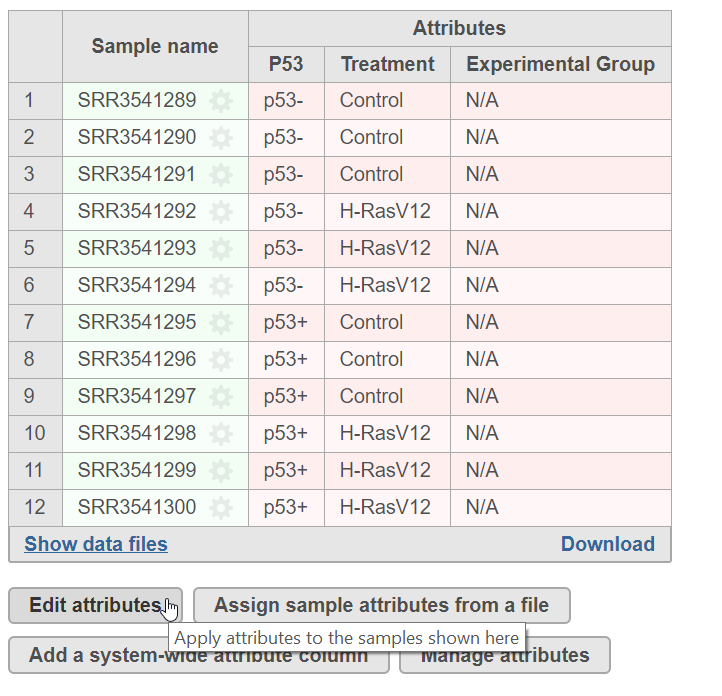
After adding all the desired attributes to a project, the sample management table will show a new column for each attribute (Figure 15). The columns will initially as "N/A", as the samples have not yet been categorized or assigned a value. To edit the table, click **Edit attributes**. Assign the sample attributes by using a drop down for categorical attributes (controlled vocabulary) or typing with a keyboard for numeric attributes.

<figure><img src="https://1384254481-files.gitbook.io/~/files/v0/b/gitbook-x-prod.appspot.com/o/spaces%2FJVEESmJAPppJ3ijFq5aR%2Fuploads%2Fgit-blob-72514e69e541618f1ae277443beb5e2a5a0a5a92%2Fa-sample-management-table-prior-to-assigning-attribute-columns-for-a-new-attribute.png?alt=media" alt=""><figcaption><p><em>Figure 14. A sample management table prior to assigning attribute columns for a new attribute</em></p></figcaption></figure>

When all the attributes have been entered, click **Apply changes** and the sample management table will be updated. After editing the sample table, make sure there are no fields with blank or N/A values before proceeding. To rename or delete attributes, click **Manage attributes** from the *Data* tab to access the *Manage attributes* page.

### Assigning attributes using a Sample Annotation Text File

Another way to assign attributes to samples in the Data tab is to use a text file that contains the table of attributes and categories/values. This table is prepared outside of Partek Flow using any text editing software capable of saving tab-separated text files.

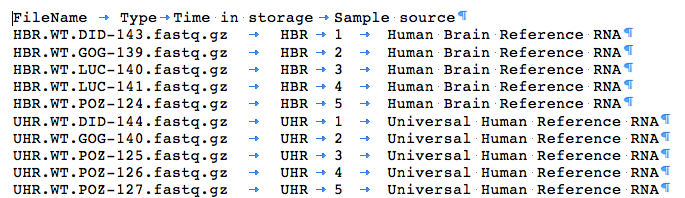
Using a text editor, prepare a table containing the attributes. An example is shown in Figure 16. There should only be one tab between columns with no extra tabs after the last column. In this particular example, the first column contains the filename and the text file is saved as *Sampleinfo.txt*.

<figure><img src="https://1384254481-files.gitbook.io/~/files/v0/b/gitbook-x-prod.appspot.com/o/spaces%2FJVEESmJAPppJ3ijFq5aR%2Fuploads%2Fgit-blob-acc3403b70d06d38e9ba64f44fd9d7d9b98a7ec7%2Fa-sample-annotation-text-file.png?alt=media" alt=""><figcaption><p><em>Figure 15. A sample annotation text file. This view shows tab stops</em></p></figcaption></figure>

The first row of the table in the text file contains the attributes (as headers). The first *column* of the table in the text file, regardless of the header of the first column, should contain either the sample names or the file names of the samples already added in Partek Flow. The first column is the unique identifier that will match the samples to the correct values or categories.

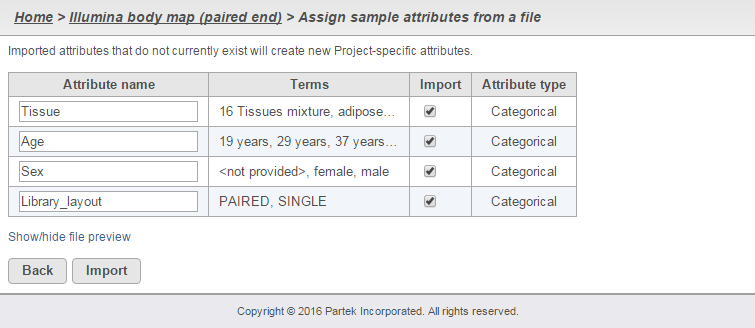
To upload sample attributes, click **Assign sample attributes from a file** in the *Data* tab. Then indicate where the attribute text file is stored and navigate to it. Partek Flow will parse the text file and present attributes that will be available for import (Figure 17).

Select the attributes you want to import by clicking the Import check box. Imported attributes that do not currently exist in the project will create new *project-specific attributes*.

<figure><img src="https://1384254481-files.gitbook.io/~/files/v0/b/gitbook-x-prod.appspot.com/o/spaces%2FJVEESmJAPppJ3ijFq5aR%2Fuploads%2Fgit-blob-680c3fc8454a7f6a6876a7411a652bddba6fbe96%2Fassigning-attributes-of-samples-using-a-sample-annotation-text-file.png?alt=media" alt=""><figcaption><p><em>Figure 16. Assigning attributes of samples using a sample annotation text file</em></p></figcaption></figure>

You can change the name of a specific attribute by editing the *Attribute* name text box. Columns containing letter characters are automatically selected as *categorical attributes*. Columns containing numbers are suggested to be *numeric attributes* and can be changed to categorical using the drop down menu under *Attribute* type.

### Guidelines for preparing the sample annotation text file

* The first column is always the unique identifier and can refer only to *File names* or *Sample names*.
* If using *Sample names* in the first column, they must match the entries of the Sample name column in the Sample management table.
* If using *File names* in the first column, use the filenames shown in the *fastq* column of the expanded sample management table (see Figure 4) then add the extension .gz. All filenames must include the complete file extension (e.g., *Samplename.fastq.gz*).
* The header name of the first column of the table (top left cell of our text table) is irrelevant but should not be left blank. Whether the first column contains *File names* or *Sample names* will be chosen during the process.
* The last column cannot have empty values
* Missing data (blank cells) can only be handled if the attribute is numeric. If it is categorical, please put a character in it.

It is advisable to use Sample name as the first column identifier when:

* Samples are associated with more than one file (for instance, paired-end reads and/or technical replicates).
* The files were imported in the SRA format (from the Sequence Read Archive database). In Partek Flow, they are automatically converted to the FASTQ format. Consequently, their filenames would change once they are imported. The new file names can be seen by expanding the sample management table, the new extension would be *.fastq.gz*.

If attributes are assigned from two different text files, the following will happen:

* If the previous attributes have the same header and type (both are either categorical or numeric), the values are overwritten.
* If there are different/additional headers on the "second round" of assignment, these new attributes will be appended to the table.
* For *numeric attributes*, a "blank" value will not override a previous value.

### Use of attributes as Optional columns in task report tables

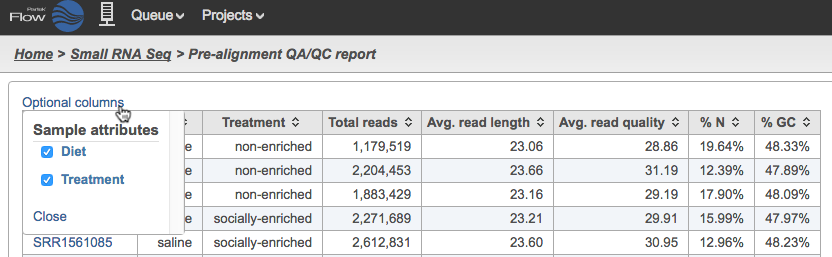
The attributes assigned to the samples within the Data Tab will be associated with the samples throughout the project. During the course of analysis, Partek Flow tasks generate various tables and any attributes associated with a sample can be included in the table as optional columns. An example is shown in Figure 18 for a pre-alignment QA/QC report where the Optional columns link on the top left of the table reveal the different sample attributes.

<figure><img src="https://1384254481-files.gitbook.io/~/files/v0/b/gitbook-x-prod.appspot.com/o/spaces%2FJVEESmJAPppJ3ijFq5aR%2Fuploads%2Fgit-blob-2b2dfb453ef77a4d261e095dfd9d838acf177782%2Foptional-columns-include-sample-attributes.png?alt=media" alt=""><figcaption><p><em>Figure 17. Optional columns include sample attributes</em></p></figcaption></figure>

## Deleting or Renaming samples within a Project

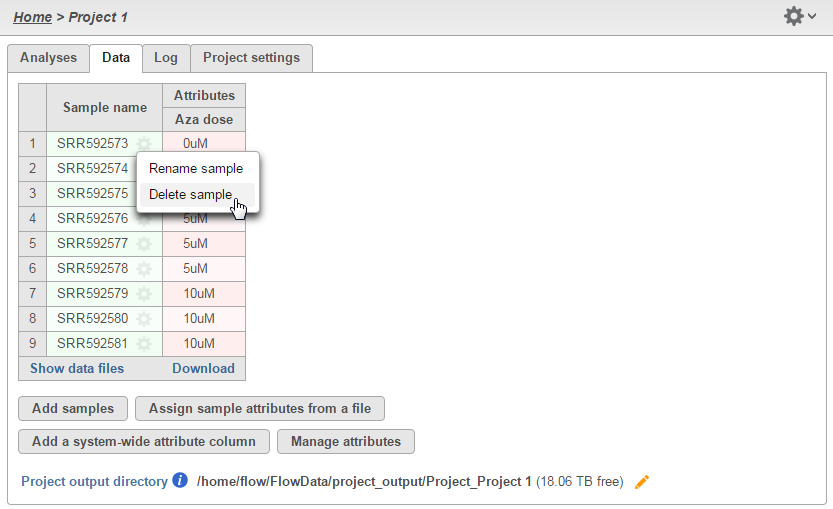
In the *Data* tab, each sample can be renamed or deleted from the project by clicking the gear icon next to the sample name. The gear icon is readily visible upon mouse over (Figure 19). Sample can only be deleted if no analysis has been performed on the data yet. If any analysis has been performed on the data node, then delete sample operation is invisible. You can perform filter samples in downstream analysis if you want to exclude certain samples in further analysis. Deleting a sample from a project does not delete the associated files, which will remain on the disk.

<figure><img src="https://1384254481-files.gitbook.io/~/files/v0/b/gitbook-x-prod.appspot.com/o/spaces%2FJVEESmJAPppJ3ijFq5aR%2Fuploads%2Fgit-blob-570101e5fd2256014d58178906b984cc4ebd664f%2Frenaming-or-deleting-a-sample.png?alt=media" alt=""><figcaption><p><em>Figure 18. Renaming or deleting a sample</em></p></figcaption></figure>

## Additional Assistance

If you need additional assistance, please visit [our support page](http://www.partek.com/support) to submit a help ticket or find phone numbers for regional support.