> For the complete documentation index, see [llms.txt](https://help.connected.illumina.com/llms.txt). Markdown versions of documentation pages are available by appending `.md` to page URLs; this page is available as [Markdown](https://help.connected.illumina.com/partek/partek-flow/user-manual/large-file-viewer.md).
# Large File Viewer
Partek Flow software provides a built-in *Large File Viewer* to preview files generated by tasks within a project. The file types supported by the viewer are:
|
.bam .fastq .fastq.gz .txt
|
.sam .csfasta .csfastq .fa .fq
|
.bgx .bpm .probe\_tab .qual .raw
|
| ------------------------------------------ | ------------------------------------------------- | --------------------------------------------------- |
\
The *Large File Viewer* is particularly useful when you would like to:
* preview large output files within a project
* preview details of a binary BAM file (including headers and summary)
* quickly preview a text file from the task details
* download specific files (if you do not want to download the whole data node)
* preview files that you have imported into a project
\
The preview will display up to the first 1000 lines.
This feature of Partek Flow is one of the ways the software provides access to your own data. Remember that in Partek Flow, you can also download any data node through the context-sensitive menu (select a data node and choose *Download* data from the menu). Furthermore, any table from a Task Report can be downloaded by selecting the *Download* hyperlink at the bottom right of each table.
### Previewing a File from the Task Details
The way to access the viewer is through the *Task details* page. Select a rectangular task node and choose the **Task details** in the context-sensitive menu (Figure 1). You can also access the **Task details** from the bottom of any *Task report*.
Figure 1. Opening the Task details
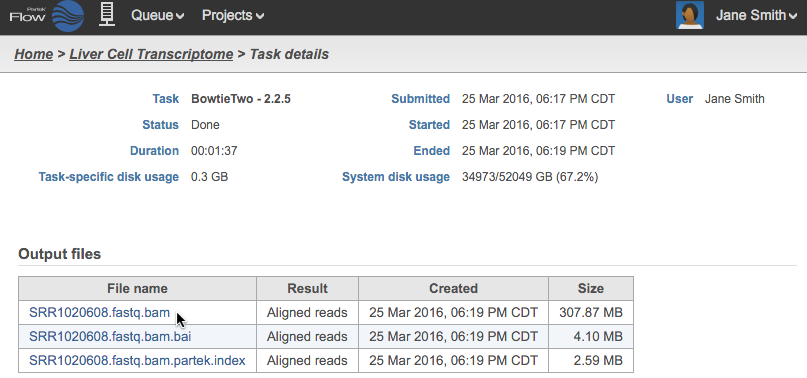
The *Output files* section of the *Task details* page shows the different files generated by the task (Figure 2).
Figure 2. Selecting an output file to preview from the Task details
Note that since some filenames created by Partek Flow are generated by appending the filename of an input file, files may contain several file name extensions. The last extension is the actual file format for the file. In the example in Figure 2, the file in the first row (SRR1020608.fastq.bam) is a BAM file generated from a FASTQ file.
\
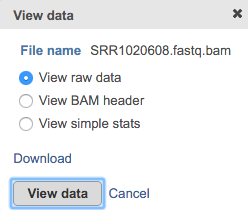
To open the *Large File Viewer*, click the name of the output file and select from the viewing options (Figure 3), which depends on the data type selected.
Note that only files listed in the first section of this document are compatible with the viewer. If you select a file from the table that is not compatible (such as a zip file), the file will not be not previewed, but would be downloaded to your local drive.\
Once you have made your selection from the radio buttons (Figure 3), click **View Data**. You also have the option to **Download** the selected file instead of previewing it.
Figure 3. Choices when viewing a BAM file
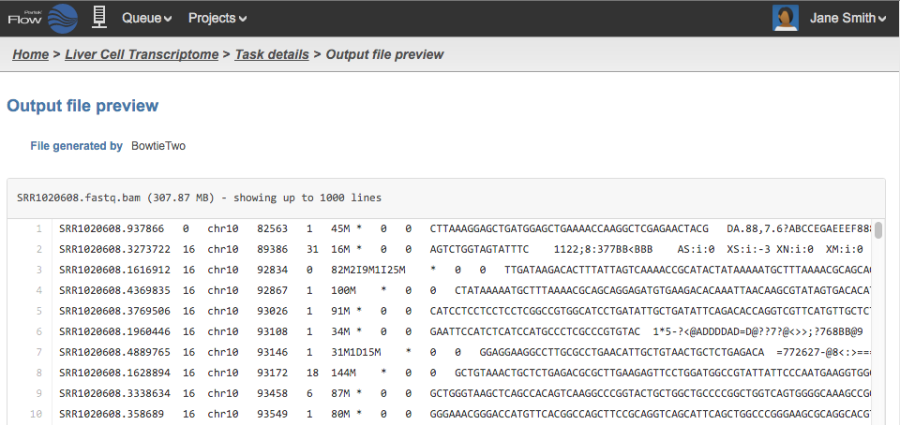
For raw data, the *Large File Viewer* will display an *Output file preview* in a scrollable window showing up to 1000 lines (Figure 4). The filename, filesize, and the name of the task that generated the file are also displayed.
Figure 4. Output file preview for viewing raw data
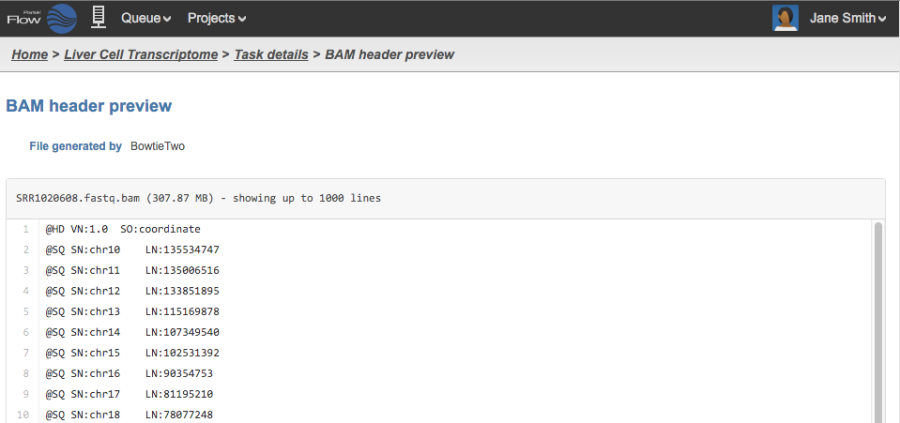
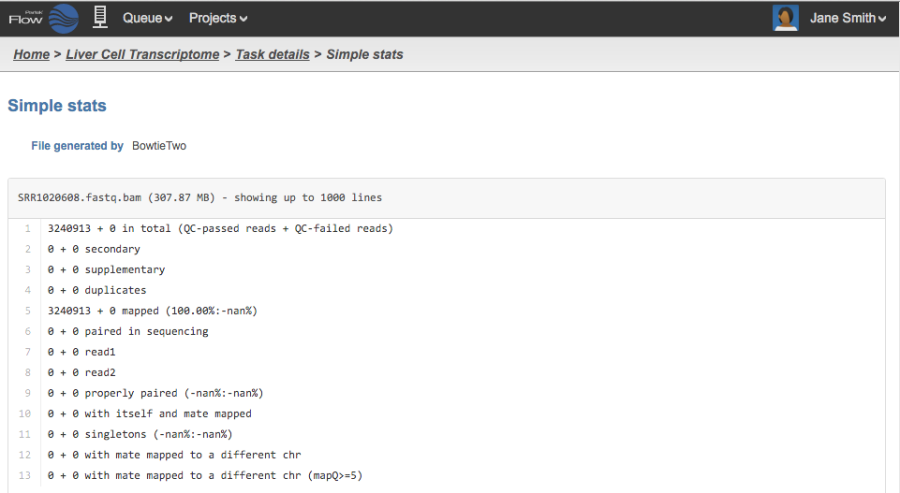
For BAM files, additional options are to display the headers that were generated by the aligners (Figure 5) and the SAMtools flagstat summary statistics (Figure 6).
Figure 5. BAM header preview
Figure 6. Simple stats (samtools flagstat) for a BAM file
### Previewing an Imported File
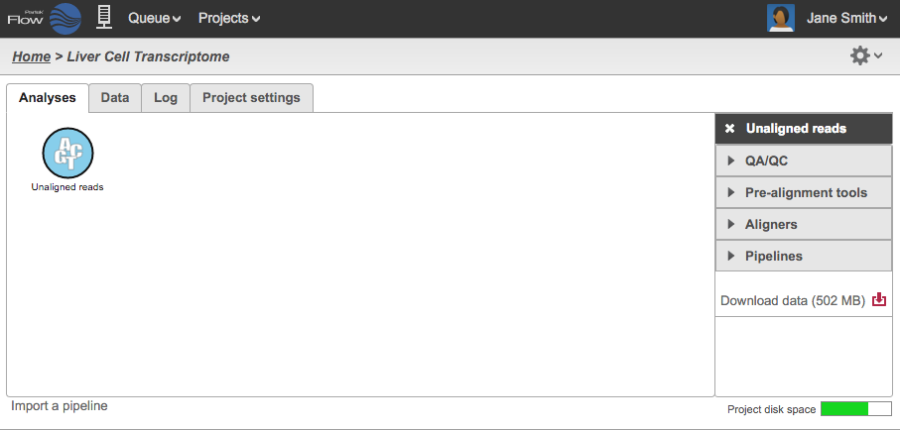
There may be situations when you wish to preview files that were originally imported into a project. However the first data node in project (known as the origin data node) does not have any task details associated with it in the context-sensitive menu (Figure 7).
Figure 7. The origin data node does not have task details in the context-sensitive menu
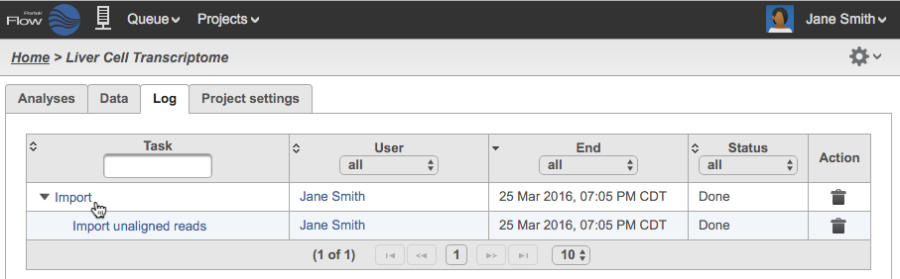
To access the task details in an import task, go to the **Log** tab of the project and select the **Import** task in the table (Figure 8). Select the top level task **Import** (and not the *Import unaligned reads*).
Figure 8. The log tab showing the Import task
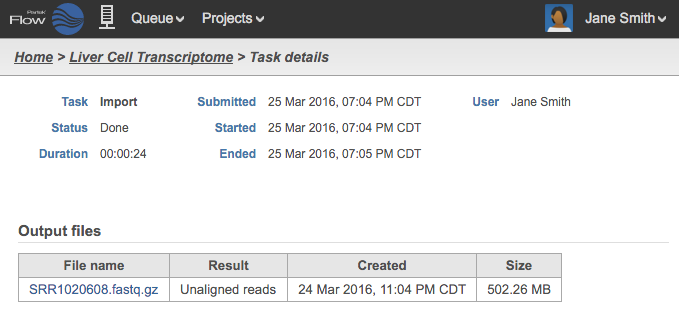
Selecting the **Import** from the *Log* table reveals the *Task details* and the file that was successfully imported (Figure 9). Note that even though the file has just been imported, it is placed under the *Output files* section because it has already gone through the import process of file validation and other file checks.
Figure 9. Task details of an Import task
To open the *Large File Viewer*, simply select the filename of the file you wish to preview as explained in the previous section.
\\
### Additional Assistance
If you need additional assistance, please visit [our support page](http://www.partek.com/support) to submit a help ticket or find phone numbers for regional support.
---
# Agent Instructions
This documentation is published with GitBook. GitBook is the documentation platform designed so that both humans and AI agents can read, navigate, and reason over technical content effectively. Learn more at gitbook.com.
## Querying This Documentation
If you need additional information that is not directly available in this page, you can query the documentation dynamically by asking a question.
Perform an HTTP GET request on the current page URL with the `ask` query parameter, and the optional `goal` query parameter:
```
GET https://help.connected.illumina.com/partek/partek-flow/user-manual/large-file-viewer.md?ask=&goal=
```
`ask` is the immediate question: it should be specific, self-contained, and written in natural language.
`goal` is optional and describes the broader end goal you are ultimately trying to accomplish on behalf of the user. GitBook uses it to tailor the answer towards what is most useful for that goal.
The response will contain a direct answer to the question and relevant excerpts and sources from the documentation.
Use this mechanism when the answer is not explicitly present in the current page, you need clarification or additional context, or you want to retrieve related documentation sections.