# Launching the Chromosome View

The *Chromosome view* can be invoked from some data nodes on the *Analysis* tab, giving a global overview of the results; or from certain *Task report* or result pages, providing a focused view, i.e. pointing to a specific feature of interest.

#### Running a Chromosome View Task from a Data Node <a href="#launchingthechromosomeview-runningachromosomeviewtaskfromadatanode" id="launchingthechromosomeview-runningachromosomeviewtaskfromadatanode"></a>

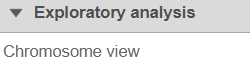
On the *Analysis* tab, selecting a data node containing aligned reads, variants, or feature lists, shows *Chromosome view* in the *Exploratory analysis* section of the context-sensitive menu (Figure 1).

\
If Partek Flow has no information on the genome build, you will need to provide the species and genome build in a subsequent dialog (not shown). Otherwise, chromosome view will come up directly.

<figure><img src="https://documentation.partek.com/download/attachments/3770675/image2021-1-13_14-12-31.png?version=1&#x26;modificationDate=1610568750838&#x26;api=v2" alt=""><figcaption><p>Figure 1. Accessing Chromosome view via the context-sensitive menu (the content of the Visualisation section depends on the selected data node)</p></figcaption></figure>

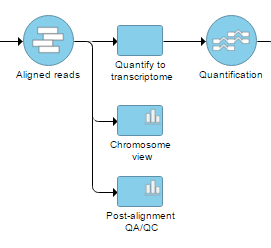
A new *Chromosome view* task node will be added to the canvas (Figure 2) and in order to invoke the viewer **\<double-click>** on the node (you can also select it and then go to **Task report** in the menu). When invoked in this way, the default visualization in the *Chromosome view* is the first 100,000 bases of the first chromosome.

\\

<figure><img src="https://documentation.partek.com/download/attachments/3770675/chromosome_view_task_node.png?version=1&#x26;modificationDate=1468878326630&#x26;api=v2" alt=""><figcaption><p>Figure 2. Selecting Chromosome view from the context-sensitive menu adds a Chromosome view task node to the canvas. To open the view, on it</p></figcaption></figure>

#### Browsing directly to a location directly from a Task Report <a href="#launchingthechromosomeview-browsingdirectlytoalocationdirectlyfromataskreport" id="launchingthechromosomeview-browsingdirectlytoalocationdirectlyfromataskreport"></a>

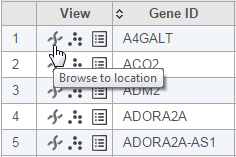
Another way to get the *Chromosome view* is through a *Task report*. You can launch the viewer by selecting the **chromosome icon** ![](https://documentation.partek.com/download/attachments/3770675/chromosome_view_icon_metaphase_gray.png?version=1\&modificationDate=1468967547518\&api=v2) in the View column (Figure 3) of GSA or *View Variants* reports. In that case, the *Chromosome view* will browse directly to the selected genomic location (i.e. a transcript or a variant, depending on the pipeline).

\\

<figure><img src="https://documentation.partek.com/download/attachments/3770675/chromosome_access_browse_to.png?version=1&#x26;modificationDate=1467916241976&#x26;api=v2" alt=""><figcaption><p>Figure 3. Accessing the Chromosome view from results table (mouse-over balloon is visible when hovering over the chromosome icon). The image is an example, based on gene expression pipeline</p></figcaption></figure>

Depending on the task report used to invoke the *Chromosome view* was invoked, some tracks may be pre-selected and customized. For example, when invoked from a variant table, the reads histogram track will be colored by bases (rather than the default of coloring by sample).

## Additional Assistance

If you need additional assistance, please visit [our support page](http://www.partek.com/support) to submit a help ticket or find phone numbers for regional support.


---

# Agent Instructions: Querying This Documentation

If you need additional information that is not directly available in this page, you can query the documentation dynamically by asking a question.

Perform an HTTP GET request on the current page URL with the `ask` query parameter:

```
GET https://help.connected.illumina.com/partek/partek-flow/user-manual/visualizations/chromosome-view/launching-the-chromosome-view.md?ask=<question>
```

The question should be specific, self-contained, and written in natural language.
The response will contain a direct answer to the question and relevant excerpts and sources from the documentation.

Use this mechanism when the answer is not explicitly present in the current page, you need clarification or additional context, or you want to retrieve related documentation sections.