Figure 6. t-SNE results in the Data viewer are automatically plotted in a 3D scatter plot
 to save a PNG, SVG, or PDF to your machine.
Click the **Send to notebook** button
to save a PNG, SVG, or PDF to your machine.
Click the **Send to notebook** button  to send the image to a page in the Notebook.
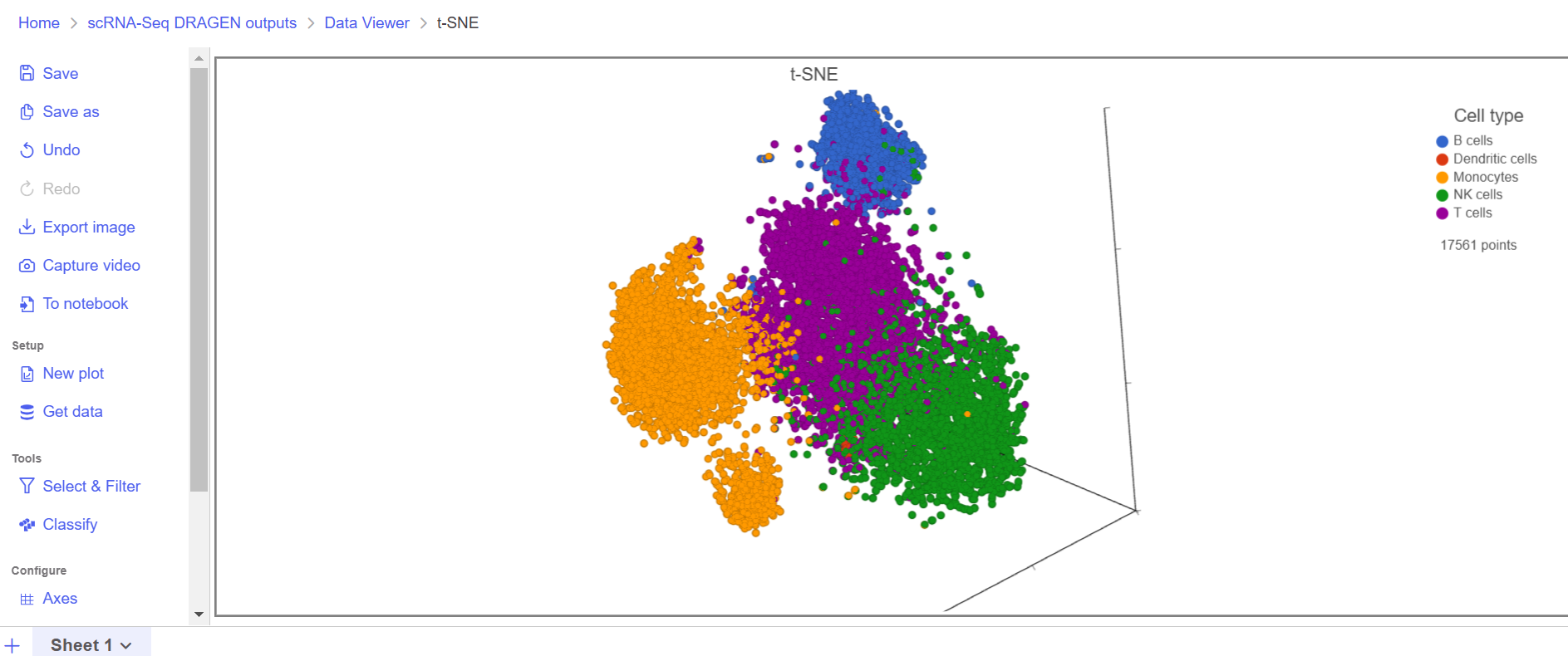
These same options apply to [UMAP](https://help.partek.illumina.com/partek-flow/user-manual/task-menu/exploratory-analysis/umap) and [t-SNE](https://help.partek.illumina.com/partek-flow/user-manual/task-menu/exploratory-analysis/t-sne). Open the t-SNE results in the data viewer by double clicking the t-SNE data node. If there are already cell level attributes published to the project the Data viewer will automatically color the plot by the first cell level attribute (Figure 6).
to send the image to a page in the Notebook.
These same options apply to [UMAP](https://help.partek.illumina.com/partek-flow/user-manual/task-menu/exploratory-analysis/umap) and [t-SNE](https://help.partek.illumina.com/partek-flow/user-manual/task-menu/exploratory-analysis/t-sne). Open the t-SNE results in the data viewer by double clicking the t-SNE data node. If there are already cell level attributes published to the project the Data viewer will automatically color the plot by the first cell level attribute (Figure 6).
Figure 6. t-SNE results in the Data viewer are automatically plotted in a 3D scatter plot
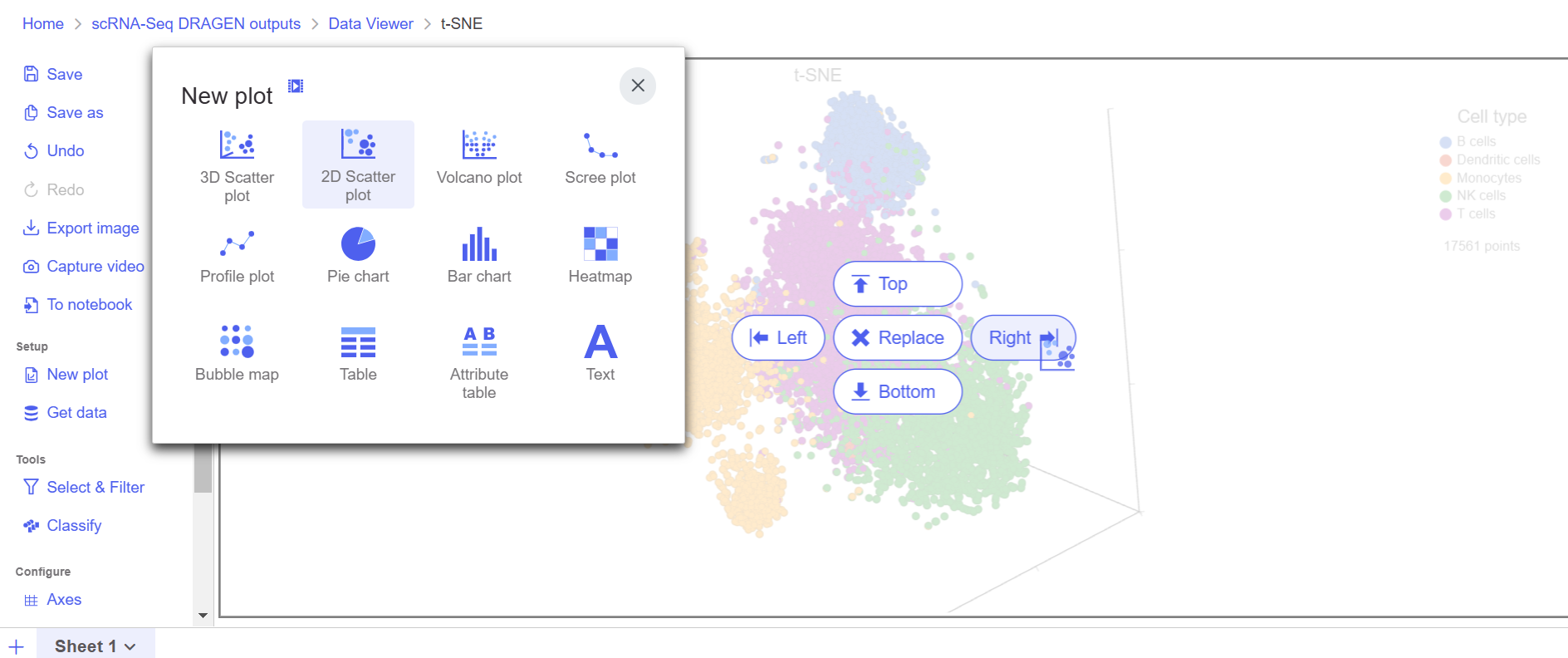
Figure 7. Choose 2D Scatter plot to add the t-SNE in 2D space
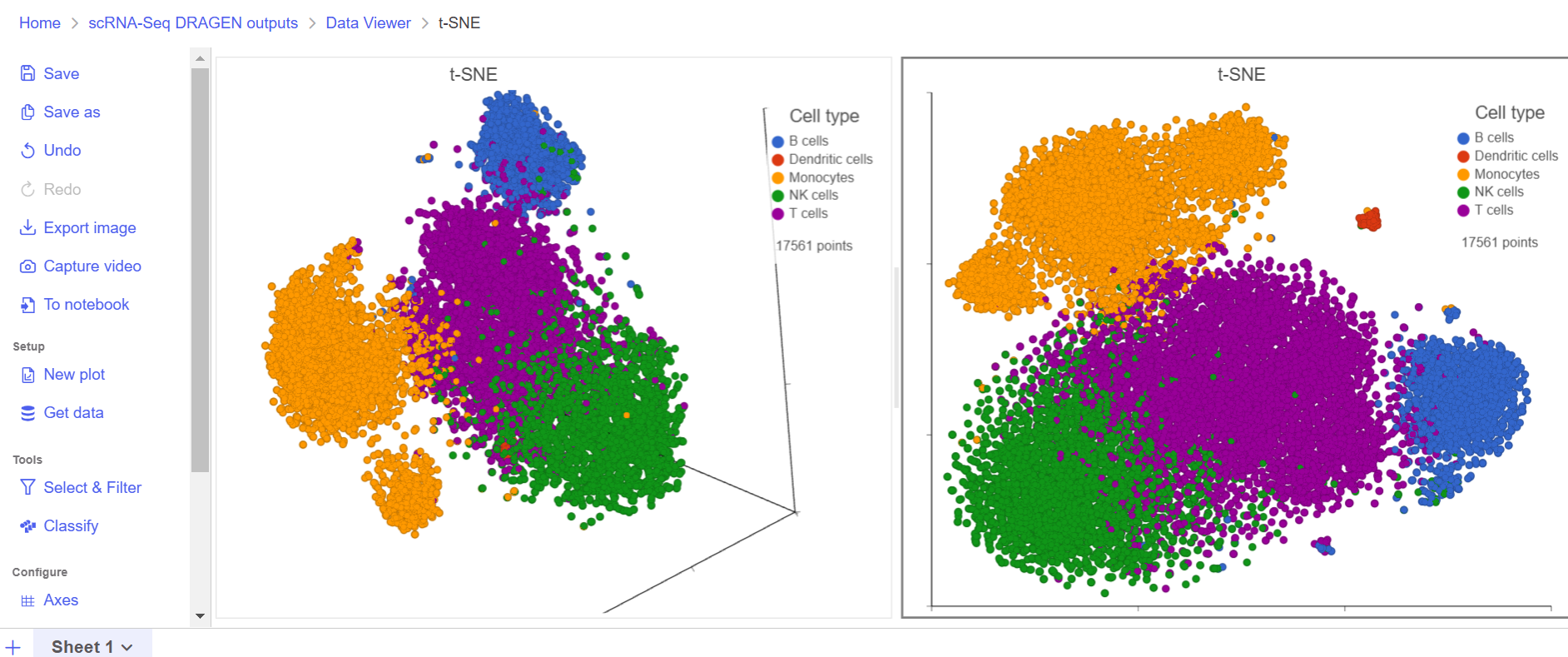
Figure 8. The t-SNE and related visualizations can be plotted as 3D or 2D scatter plots
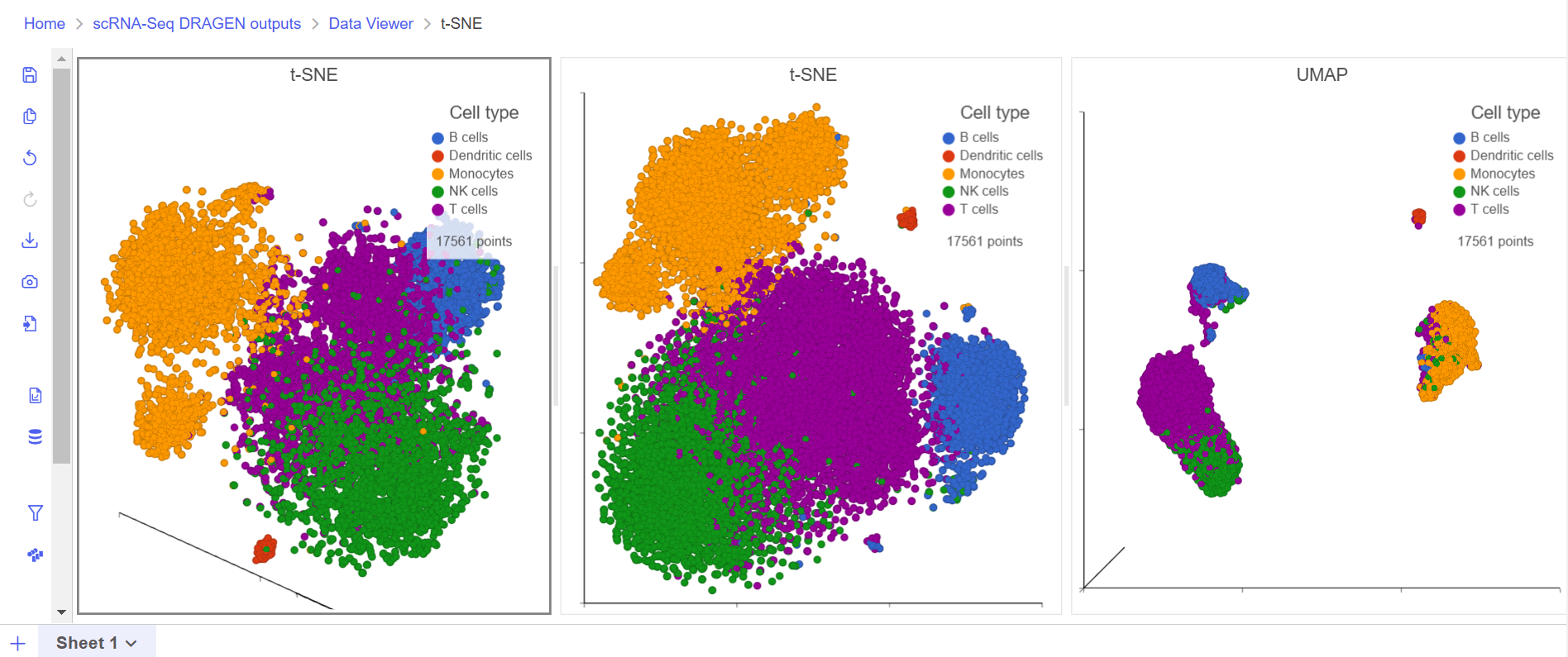
Figure 9. Plot as many visualizations in the Data viewer canvas as required
 option.
## Additional Assistance
If you need additional assistance, please visit [our support page](https://www.illumina.com/company/contact-us.html#/other/technical-support) to submit a help ticket or find phone numbers for regional support.
---
# Agent Instructions
This documentation is published with GitBook. GitBook is the documentation platform designed so that both humans and AI agents can read, navigate, and reason over technical content effectively. Learn more at gitbook.com.
## Querying This Documentation
If you need additional information that is not directly available in this page, you can query the documentation dynamically by asking a question.
Perform an HTTP GET request on the current page URL with the `ask` query parameter, and the optional `goal` query parameter:
```
GET https://help.connected.illumina.com/partek/partek-flow/user-manual/visualizations/pca-umap-and-tsne-scatter-plots.md?ask=
option.
## Additional Assistance
If you need additional assistance, please visit [our support page](https://www.illumina.com/company/contact-us.html#/other/technical-support) to submit a help ticket or find phone numbers for regional support.
---
# Agent Instructions
This documentation is published with GitBook. GitBook is the documentation platform designed so that both humans and AI agents can read, navigate, and reason over technical content effectively. Learn more at gitbook.com.
## Querying This Documentation
If you need additional information that is not directly available in this page, you can query the documentation dynamically by asking a question.
Perform an HTTP GET request on the current page URL with the `ask` query parameter, and the optional `goal` query parameter:
```
GET https://help.connected.illumina.com/partek/partek-flow/user-manual/visualizations/pca-umap-and-tsne-scatter-plots.md?ask=