> For the complete documentation index, see [llms.txt](https://help.connected.illumina.com/llms.txt). Markdown versions of documentation pages are available by appending `.md` to page URLs; this page is available as [Markdown](https://help.connected.illumina.com/dragen-5-base/tertiary-analysis/connected-multiomics-walkthrough.md).
# Connected Multiomics Walkthrough
Connected Multiomics is available for tertiary analysis of the Illumina 5-Base DNA Prep data. This walkthrough includes the following main sections:
* [Getting Started](#getting-started)
* [Demo Data](#demo-data)
* [Default 5-base Methylation Analysis](#default-5-base-methylation-analysis)
* [Custom 5-base Methylation Analysis](#custom-5-base-methylation-analysis)
* [Analysis On 5-base DNA Methylation Data (CpG sites)](#analysis-on-5-base-dna-methylation-data-cpg-sites)
* [Analysis On 5-base DNA Methylation Data (Regions)](#analysis-on-5-base-dna-methylation-data-regions)
* [Analysis on DNA Variants Data](#analysis-on-dna-variants-data)
* [Dual-omics Analysis of DNA Methylation and Variants](#dual-omics-analysis-of-dna-methylation-and-variants)
## Getting Started
[Logging into ICM](https://help.multiomics.illumina.com/icm/introduction/#log-in-to-connected-multiomics)
[Upload Data Files](https://help.multiomics.illumina.com/icm/introduction/upload-data-files)
[Creating a Study from a ICA Project](https://help.multiomics.illumina.com/icm/studies/create-study)
[Viewing Results and Navigating in ICM](https://help.multiomics.illumina.com/icm/analyses/enter-analysis)
## Demo Data
Demo data that can be used to follow along with this walkthrough is found in the Connected Multiomics Demo Data repository. The dataset can be found at /Multiomics-Demo-Data/Methylation/Illumina 5-base-solution/AML-demo-data/. This demo data consists of 24 samples, from acute myeloid leukemia (AML) patient cohort. Both 5-base DNA methylation data and variants data are available in this demo dataset and were generated using DRAGEN Somatic Tumor-only pipeline. In this walkthrough, we outline analysis steps that can be performed to explore the data, identify differentially methylated regions (DMRs) between AML subtypes, and overlay the DMRs with small genomic variants.
Prior to starting an analysis in the Connected Multiomics software, we first need to add the AML demo data and its sample metadata into a study. As the AML demo data consists of both 5-base DNA methylation data and variants data, we need to ingest 7 files with files extension listed below per sample - the first 5 files for methylation data, the last 2 files for variants data:
* .CX\_report.txt.gz
* .methyl\_metrics.csv
* .mapping\_metrics.csv
* .wgs\_coverage\_metrics.csv
* .M-bias.txt
* .vcf.gz
* .vcf.gz.tbi
These files are generated from DRAGEN analysis. [CX\_report file](/dragen-5-base/additional-information/key-output-files-and-metrics.md#cx-report) is the key output file that contains methylation read counts at single nucleotide level. The metrics files and the M-bias file contain QC metrics for reads mapping quality and methylation calling, which will be used to generate visualizations in 5-base Methylation QC task in the Connected Multiomics. The VCF file contains small variant data.
After the DRAGEN output files are ingested into a study, follow below steps to add a sample metadata file to the same study:
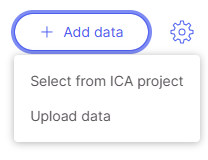
* Click **+ Add data**, choose **Select from ICA project**.
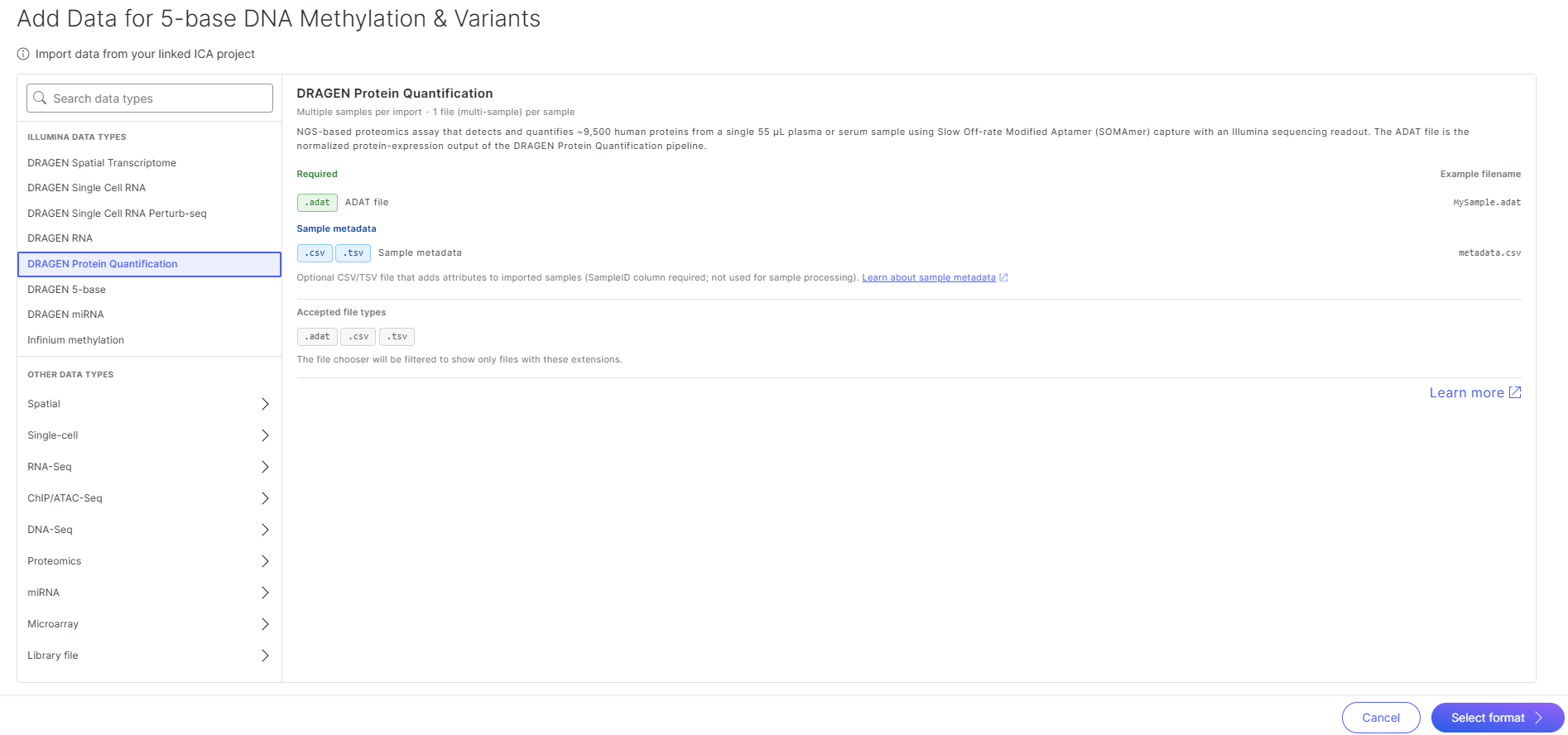
* At data types list on the left, select **DRAGEN Protein Quantification**, then click **Select format**.
* Navigate to the same demo data folder, select **AML\_24samples\_metadata.tsv** file, then click **Add selected data to your study** to add the sample metadata file to the study.
{% hint style="warning" %}
Above steps used proteomics data importer to add metadata file that is stored within an exisiting ICA project because current methylation data importer does not support adding of metadata file from ICA project. When you are analyzing your own data, you can directly upload a metadata (.tsv or .csv) file from your local computer to the Connected Multiomics software, more details at [Sample Metadata](https://help.multiomics.illumina.com/icm/studies/view-studies/sample-metadata).
{% endhint %}
## Default 5-base Methylation Analysis
The default 5-base methylation analysis runs a pre-defined pipeline on the data and presents analysis results in visualizations in a data viewer.
### Creating a Default Analysis
After all 24 samples are added to a study, follow these steps to create a Default analysis in Connected Multiomics:
* At **Samples** page, tick to select all the 24 samples, then click **+ Create analysis.**
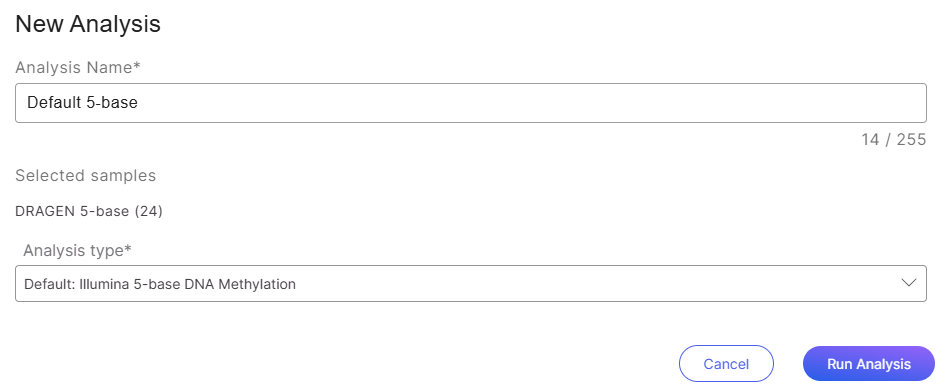
* In the pop-up window, provide a name for the analysis, select **Default: Illumina 5-base DNA Methylation** as the Analysis Type, and click on the **Run Analysis** button.
* Refresh the page to get the latest status of the analysis.
### View Default Analysis Results
When the analysis status is **Complete**, click on the analysis name to open the analysis.
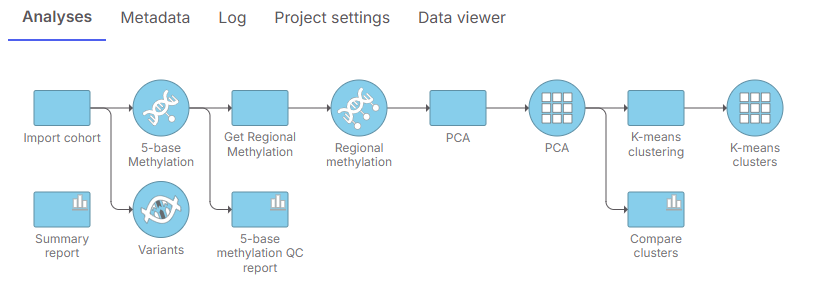
You will see the default analysis pipeline, as shown below. The default analysis imports the data, creates methylation QC report, generates regions from CpG sites, then use exploratory analysis methods such as Principal Components Analysis (PCA), and k-means clustering to explore the data.
To view compiled visualizations on the analysis result, double-click on the **Summary report** task node. The **Summary report** task node opens into a data viewer that consists of principal components analysis (PCA) results and methylation QC plots:
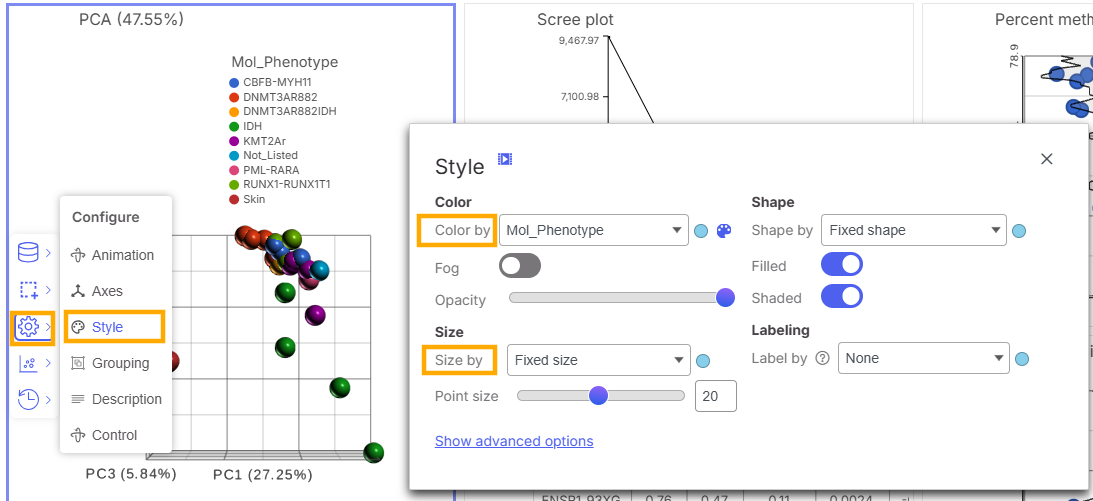
The plots can be configured by selecting Configure option from toolbox on the left within each plot:
* To change color of the data points, select Configure > Style > Color by
* To change size of the data points, select Configure > Style > Point size
## Custom 5-base Methylation Analysis
The custom 5-base methylation analysis imports the methylation data and variants data (if available). Users will use a context-sensitive menu to run analysis tasks individually and eventually build an analysis pipeline. In this section, we outline analysis steps for a workflow shown below, that covers methylation analysis using CpG sites (light blue), methylation analysis using custom AML regions (dark blue), variant analysis (orange), and dual-omics analysis that combines the methylation and the variants data (green).
### Creating a Custom Analysis
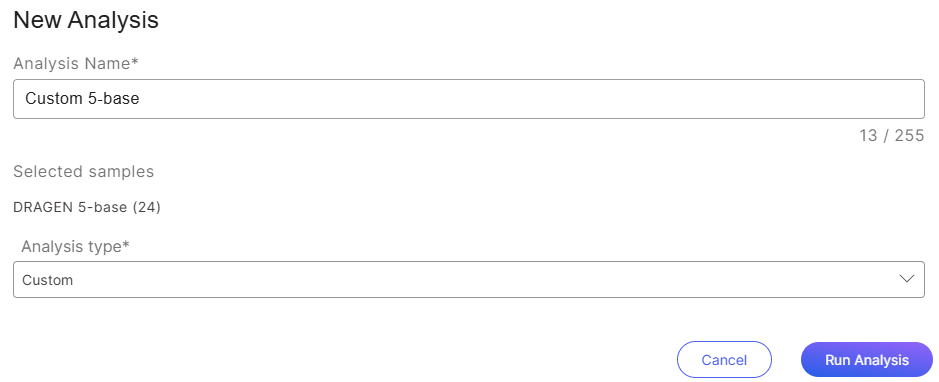
After all 24 samples are added to a study, follow these steps to create a Custom analysis in Connected Multiomics:
* At **Samples** page, tick to select all the 24 samples, then click **+ Create analysis**.
* In the pop-up window, provide a name for the analysis, select **Custom** as the *Analysis type*, and click on the **Run Analysis** button.
* Refresh the page to get the latest status of the analysis.
When the Status is **Complete**, click on the analysis name to enter the analysis module. There is a **Import cohort** task node and two data nodes - one for **5-base Methylation**, one for **Variants**. To review the number of samples and features in the methylation data, hover over the **5-base Methylation** data node. Features refer to CpG sites.
The 5-base Methylation data node contains raw methylated counts and unmethylated counts for genomic postions present in the CX reports. For positions with methylation calls on both strands in the CX report, the strands are collapsed such that position on the postive strand is used and the methylation counts are summed. This data node also contains percent methylation levels which will be used in exploratory analysis such as PCA.
### View Sample Metadata
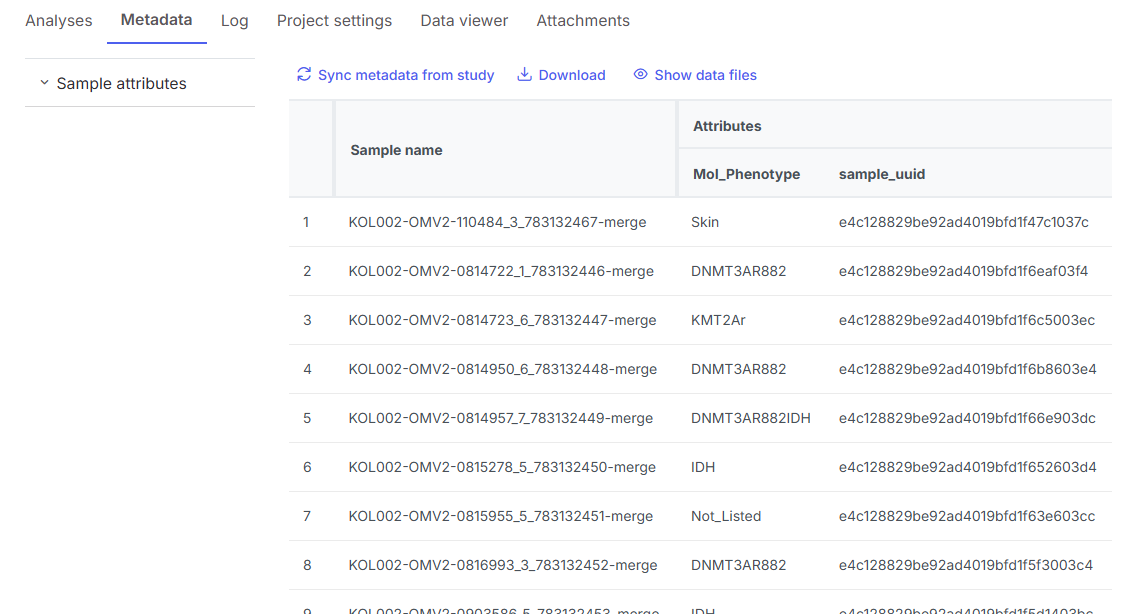
The sample metadata that was added into the study is also imported into an analysis during analysis creation step. To view sample metadata, navigate to **Metadata** tab within an analysis.
A sample table is displayed in the Metadata page, with samples at rows and sample metadata or attributes at columns. In this AML demo dataset, we have one sample attribute called Mol\_Phenotype, which consists of AML subtypes defined by molecular classifications.
## Analysis On 5-base DNA Methylation Data (CpG sites)
### 5-base Methylation QC
The [**5-base methylation QC**](https://help.connected.illumina.com/icm/analyses/analysis-functionality/task-menu/qa-qc/5-base-methylation-qc) task in the Connected Multiomics enables you to visualize sample-level QC metrics that describe reads mapping quality and CpG methylation calling. The QC metrics are extracted from the DRAGEN analysis metric files that were ingested into the study. To invoke the **5-base methylation QC** task:
* At **Analyses** page, click on the **5-base Methylation** node.
* Click **QA/QC** section in the context-sensitive task menu on the right.
* Click **5-base methylation QC**.
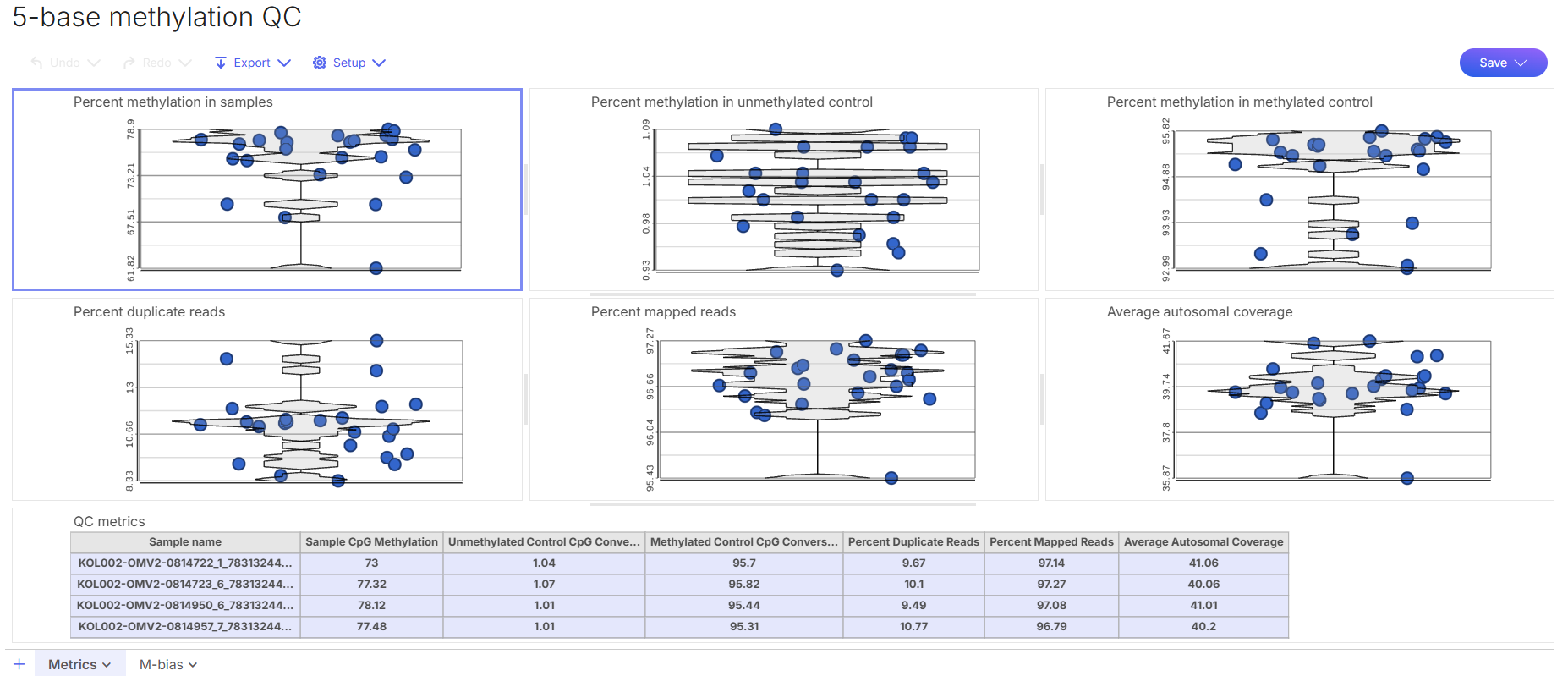
After the **5-base methylation QC** task is completed, double-click on the task node to open the QC report in a data viewer. The QC report consists of plots and tables organized in 2 sheets. Click sheet name at the bottom of the data viewer to navigate from one sheet to another.
* Sheet **Metrics** shows sample-level QC metrics plot. Each sample is a data point, they are randomly spread out on x-axis. The QC metric is represented by y-axis. Each plot has a violin plot overlaid to show distribution of the QC metrics.
* Percent methylation in samples: Percentages of CpG methylation in samples.
* Percent methylation in unmethylated control: Percentage of CpG methylation in the unmethylated control (lambda). Low value indicates good quality.
* Percent methylation in methylated control: Percentage of CpG methylation in the methylated control (pUC19). High value indicates good quality.
* Percent duplicate reads: Percentage of duplicate marked reads, as a result of PCR amplification.
* Percent mapped reads: Percentage of mapped reads, indicate the alignment rate.
* Average autosomal coverage: Mean autosomal coverage across the whole genome. Higher coverage indicates the counts of methylated/unmethylated more accurately reflects the true methylation amount at any particular site.
* QC metrics table: Text representations of the QC metrics plots.
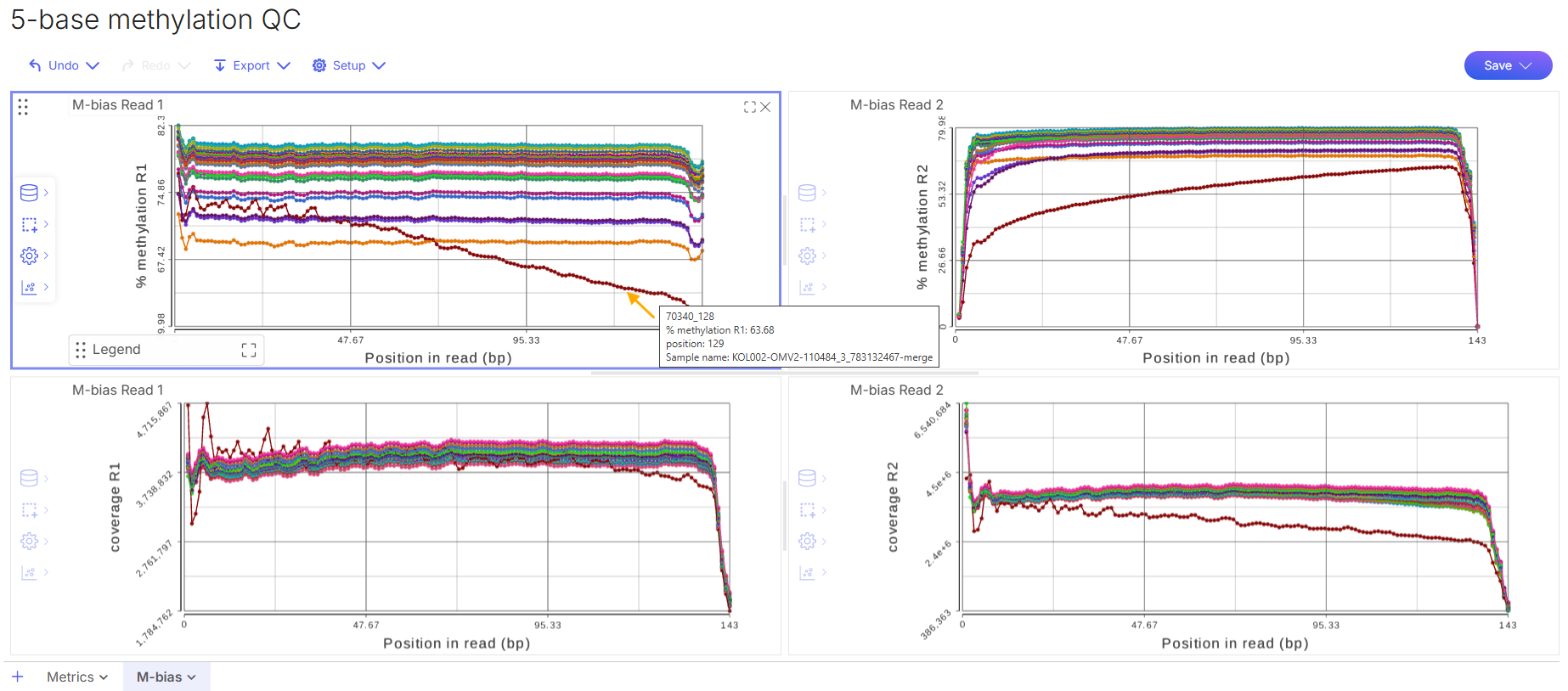
* Sheet **M-bias** shows M-bias plots for methylation level and coverage across genomic positions on read1 and read2. The M-bias should be consistent across all positions on the reads. It is common for the first/last 10 bases to have uneven methylation due to end-repair and sequencing artifacts.
* In this dataset, we observed one sample (pointed in orange arrow) showing M-bias. Hover over the dots on the line show the sample name. We are going to remove this sample from the data in the next step.
### Filter samples
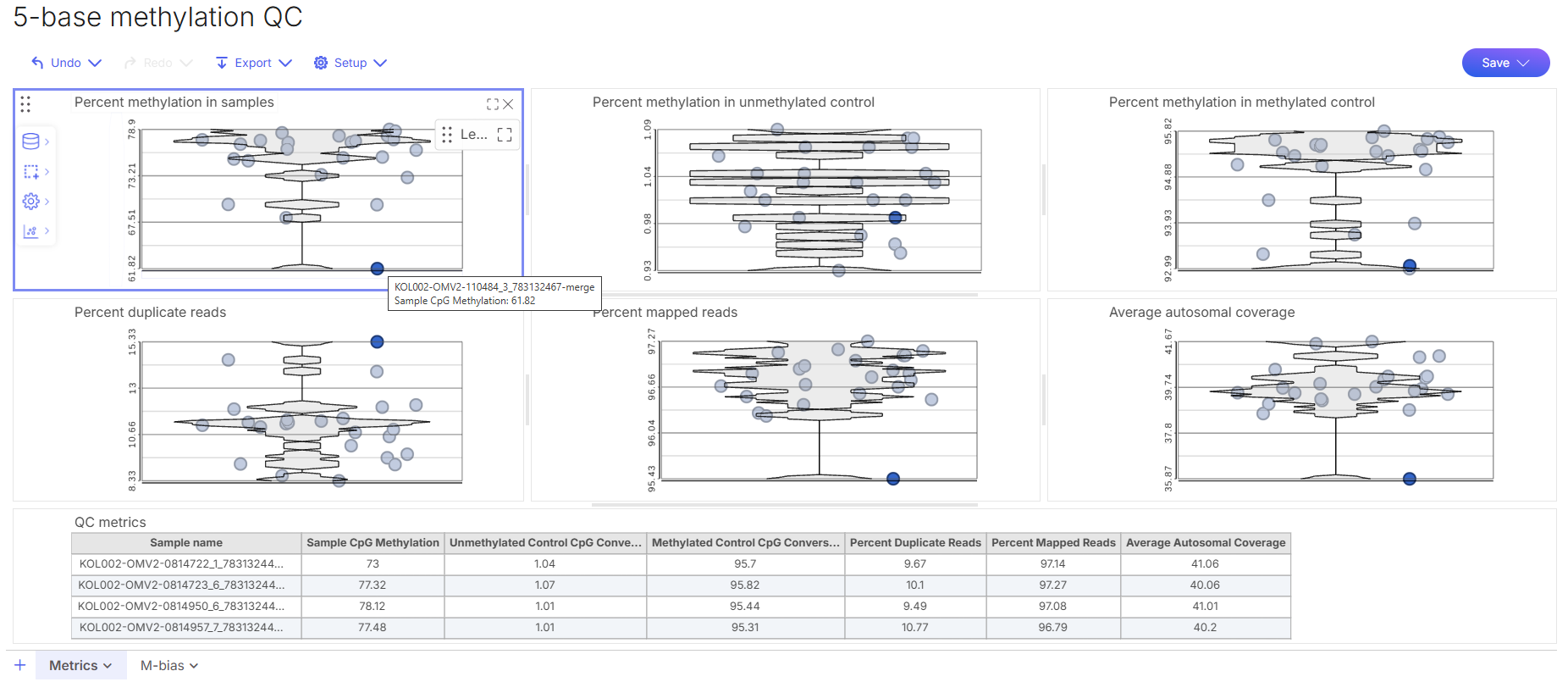
We have identified one sample with M-bias from the M-bias QC plot. Now, switch back to Metrics sheet and click to select this sample to see how this sample performs across all QC metrics.
From the Metrics plots, we can see this sample has lower percent methylation in the sample compared to other samples in the dataset, it also has higher percent of duplicate reads, lower percent of mapped reads, and lower average autosomal coverage.
Let's use **Percent methylation in samples** metric to filter out the poor-quality sample.
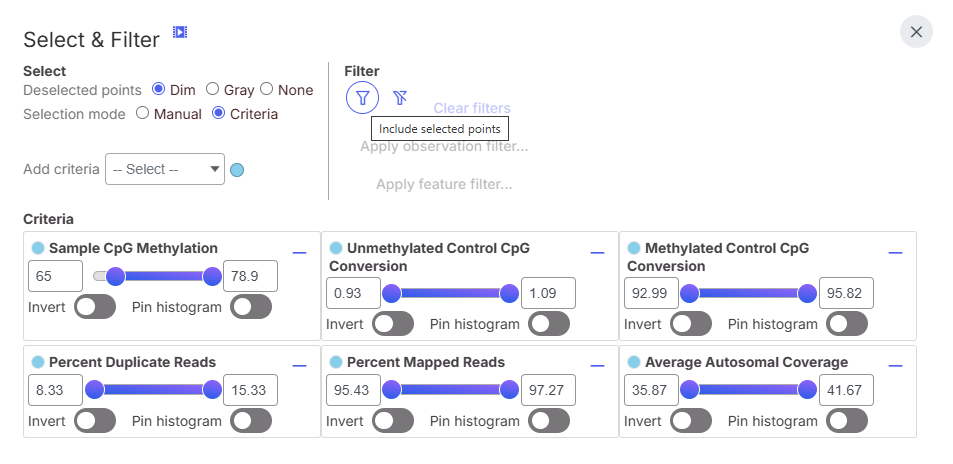
* Click **Selection** tool from the toolbar on the left within the plot, then choose **Select and filter**.
* In the **Select and filter** dialog, select **Criteria** at **Selection mode**.
* Under **Criteria** section, type in **65** as minimum **Sample CpG Methylation**, press **Enter**. The poor-quality sample is now deselected (dimmed) across all plots.
* At **Filter** section, click on **Include selected points**, then click **Apply observation filter...**
* Click to select **5-base Methylation** node as the data node to apply the filter on, then click **Select**.
* A message will show up in the middle of the screen indicating the filter task has been enqueued and you may return to the project analysis page. Click **OK** to close the message.
* Click on the analysis name on the top of the breadcrumb to go back to the Analyses page.
A **Filter counts** task node and a **Filtered samples** data node are added to the analysis task graph. After the task is completed, hover over the **Filtered samples** data node should show only 23 samples available for downstream analysis.
### PCA
The [principal components analysis (PCA)](https://help.connected.illumina.com/icm/analyses/analysis-functionality/task-menu/exploratory-analysis/pca) scatter plot allows us to visualize similarities and differences between the samples in a dataset. To invoke a PCA task from the cleaned CpG data:
* Click on the **Filtered samples** node.
* Click **Exploratory analysis** section in the context-sensitive task menu.
* Click **PCA**.
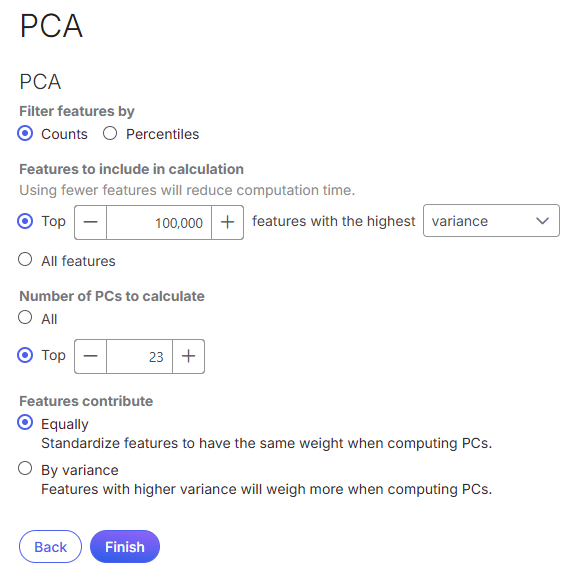
* Set to use the top **100,000** features with the highest **variance** in calculation.
* Keep the rest of the parameters as default, and click **Finish**.
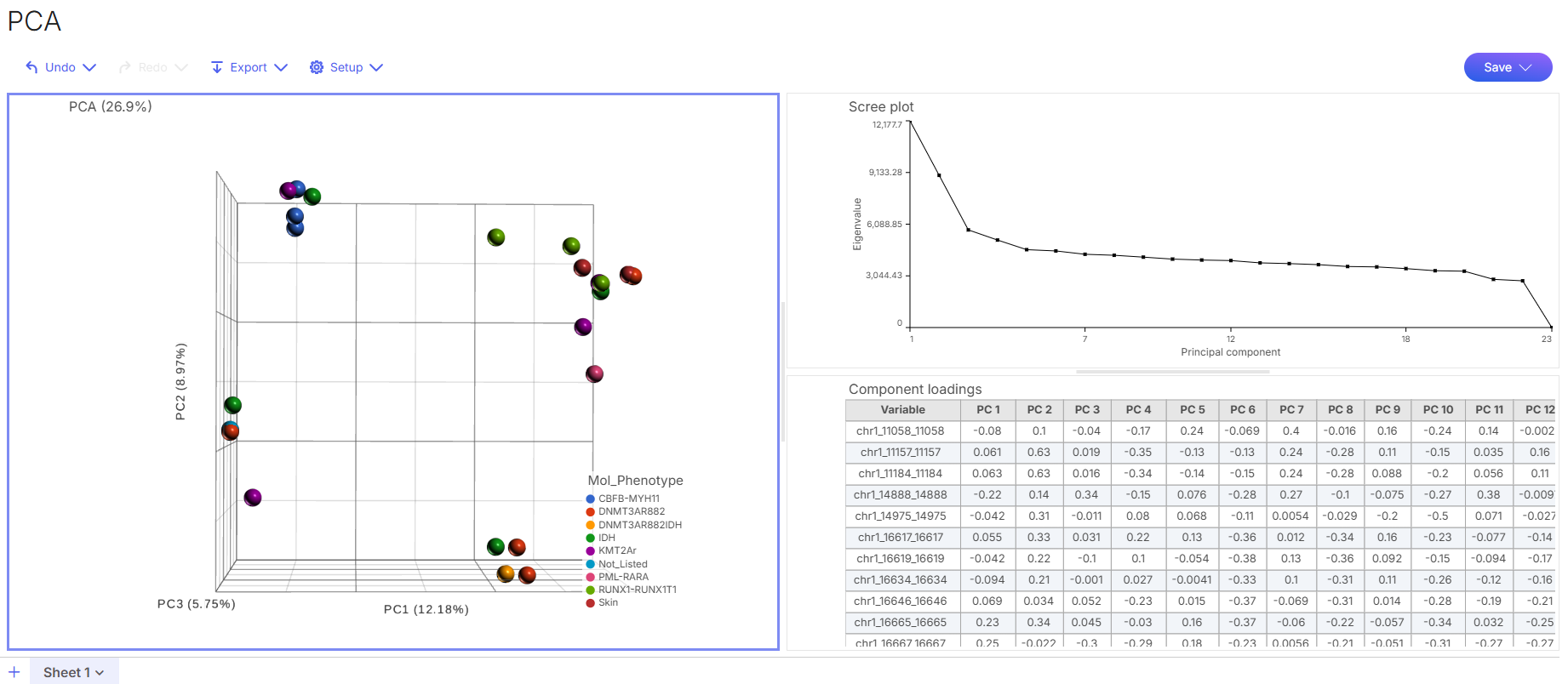
After the PCA task is completed, double click on the **PCA** node to view the PCA plot in a data viewer.
* The scatter plot shows the samples distribution among the first three PCs. Each sample is a data point.
* The scree plot (top right panel) shows variance represented by each PC.
* The component loading table (bottom right panel) shows correlation between CpG methylation sites and PC.
### Detect Differentially Methylated Regions (DMRs)
[DSS ](https://help.connected.illumina.com/icm/analyses/analysis-functionality/task-menu/statistics/correlation-analysis-2)(Dispersion Shrinkage for Sequencing data) enables the detection of differentially methylated regions using counts data at single nucleotide level. It uses beta-binomial distribution to model methylation counts at each CpG site and uses Wald test to identify differentially methylation loci (DML). Nearby DMLs are then merged into a region to form differentially methylated region (DMR). Set up a DSS task to identify DMRs between two AML subtypes:
* Click on the **Filtered samples** node.
* Click **Statistics** section in the context-sensitive task menu.
* Click **Differential Methylation**.
* Select **DSS (General design)** as the Method to use for differential methylation analysis, click **Next.**
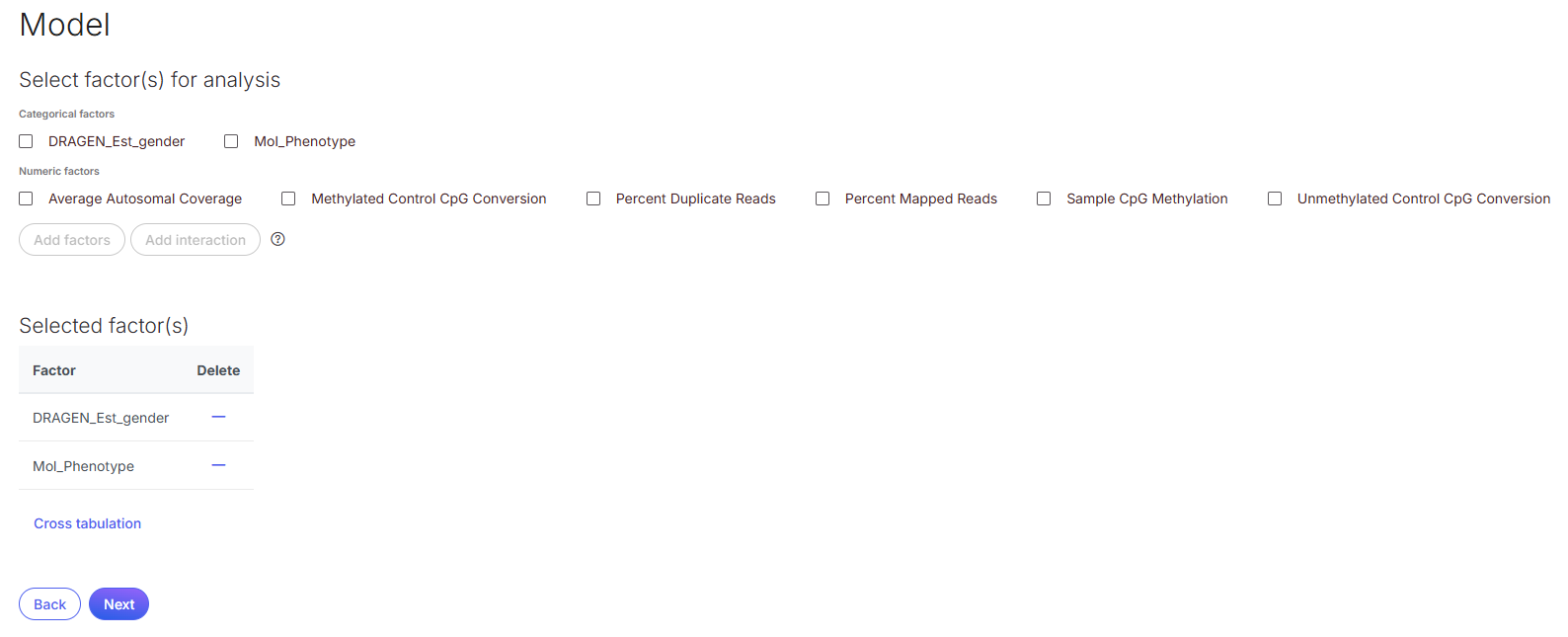
* Add **Mol\_Phenotype** as a factor for analysis, click **Next.**
* Drag **DNMT3AR882** to the top right Numerator box and **KMT2Ar** to the bottom right Denominator box. Click on **Add comparison**.
* Keep the rest of the parameters as default, and click **Finish** to start running DSS.
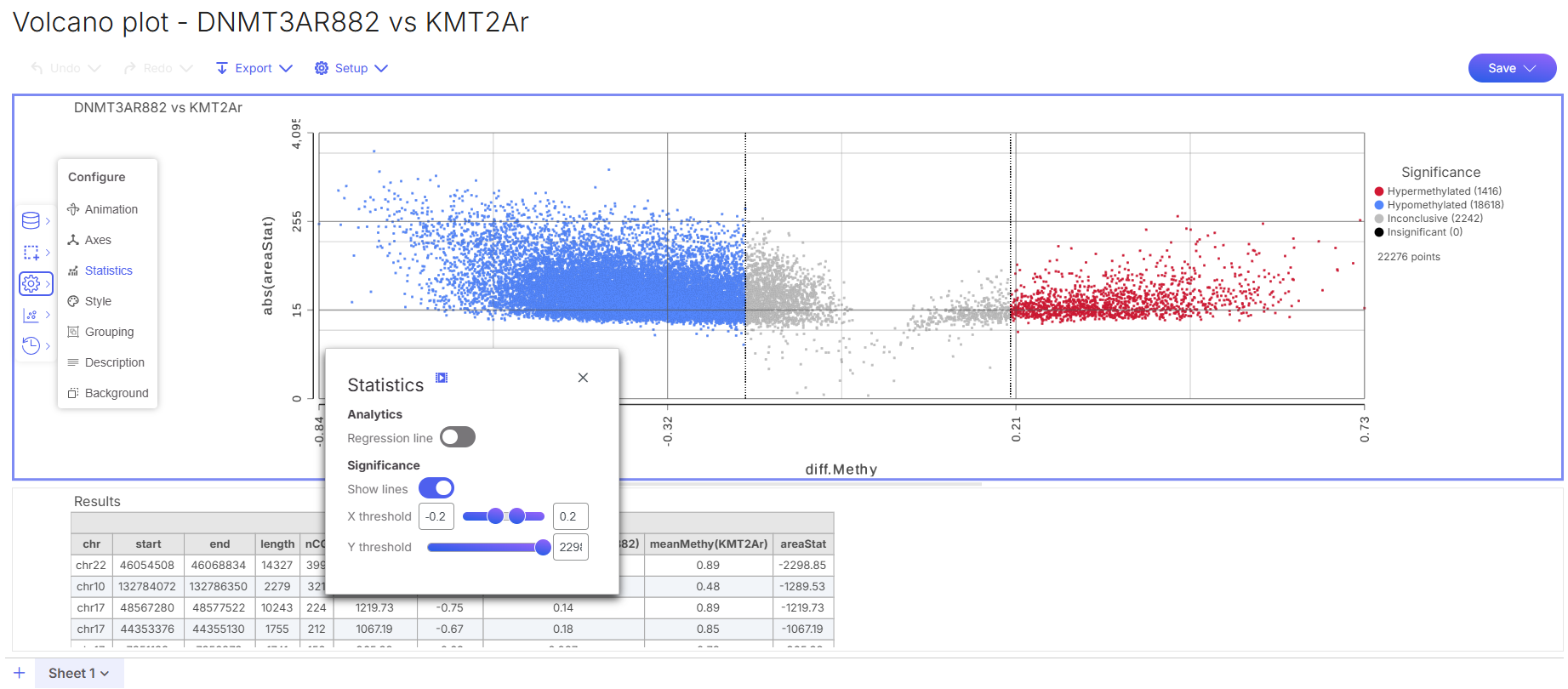
When the DSS task is completed, double click on the **DNMT3AR882 vs KMT2Ar (DMR)** node to open the DMR report. The DSS DMR task report lists regions on rows and the test statistics (areaStat, diff.Methy, etc.) on columns. Regions are listed in descending order by the abs(areaStat) so that the most significant DMR is listed first. diff.Methy statistics reports the difference in average methylation between the two groups, negative value indicates **DNMT3AR882** is hypomethylated compared to **KMT2Ar** in the region, while positive value indicates **DNMT3AR882** is hypermethylated compared to **KMT2Ar** in the region. Refer to [DSS documentation](https://help.multiomics.illumina.com/icm/analyses/analysis-functionality/task-menu/statistics/correlation-analysis-2) to learn more about the differential methylation report.
On the DMR report, click on the **volcano icon** (  ) next to the comparison name to visualize the DMRs result. In the volcano plot, methylation difference (diff.Methy) is represented by the x-axis, absolute value of areaStat (abs(areaStats)) is represented by the y-axis. Each data point in the plot is a DMR. Hypomethylated regions are colored in blue, while hypermethylated regions are colored in red. The hypo- and hypermethylation status is defined by methylation difference (diff.Methy on x-axis), default at -0.2 and 0.2, respectively. The thresholds are adjustable using the **Configure** tool in the left side toolbox within the plot, then select **Statistics**.
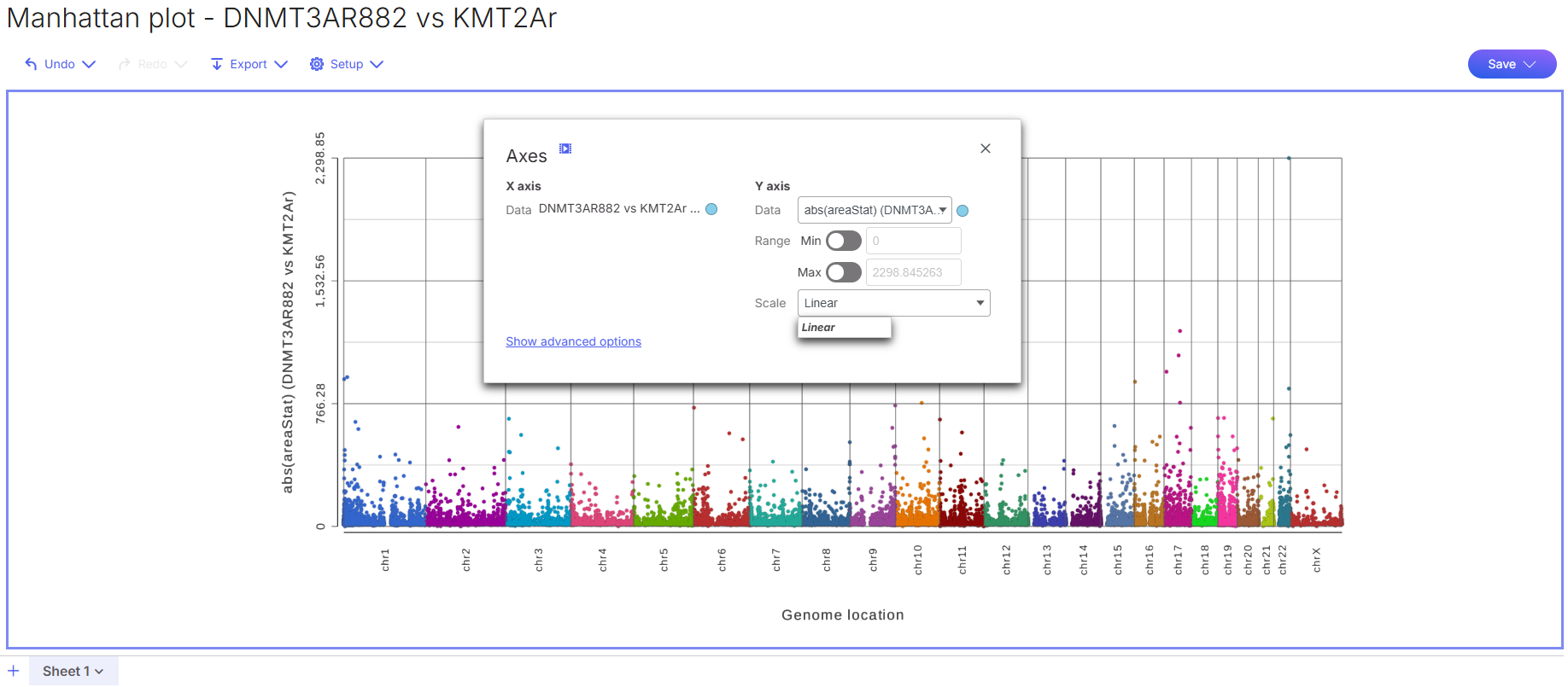
Another option to visualize the DMRs result is using a Manhattan plot. To invoke a Manhattan plot, click on the Manhattan plot icon (  ) next to the comparison name in the DMR report. In a Manhattan plot, genomic positions from chromosome 1 to chromosome Y are represented by the x-axis, absolute value of areaStat (abs(areaStats)) is represented by the y-axis. Each data point is a DMR. The test statistics plotted at y-axis can be configured to linear or log scale, and a different test statistics can be selected to change the content in the Manhattan plot.
### Filter DMRs
We recommend filtering DMRs by hypo- or hypermethylation status, using the diff.Methy statistics, to give the necessary context of which pathways are hypo- or hypermethylated from the differential comparison. To filter DMR results to hypermethylated DMRs,
* Click **DNMT3AR882 vs KMT2Ar (DMR)** node.
* Click **Filtering** section in the context-sensitive task menu.
* Click **Differential analysis filter**.
* Choose **Metadata** as Filter type.
* In Filter criteria section, set Filter features by **include DNMT3AR882 vs KMT2Ar: diff.Methy > 0.2**, then click **Finish**.
This generates a Filtered features list node that contains DMRs passing the filtering criteria. Same steps can be applied to generate a filtered list of hypomethylated DMRs, by setting filtering criteria to include regions with diff.Methy statistics < -0.2. The filtering threshold can be adjusted, more filtering criteria can be defined, based on your research questions.
### Annotate DMRs
Next, we are going to annotate the filtered DMRs list with gene information using an annotation model.
* Click **Filtered feature list** node.
* Click **Region analysis** section in the context-sensitive task menu.
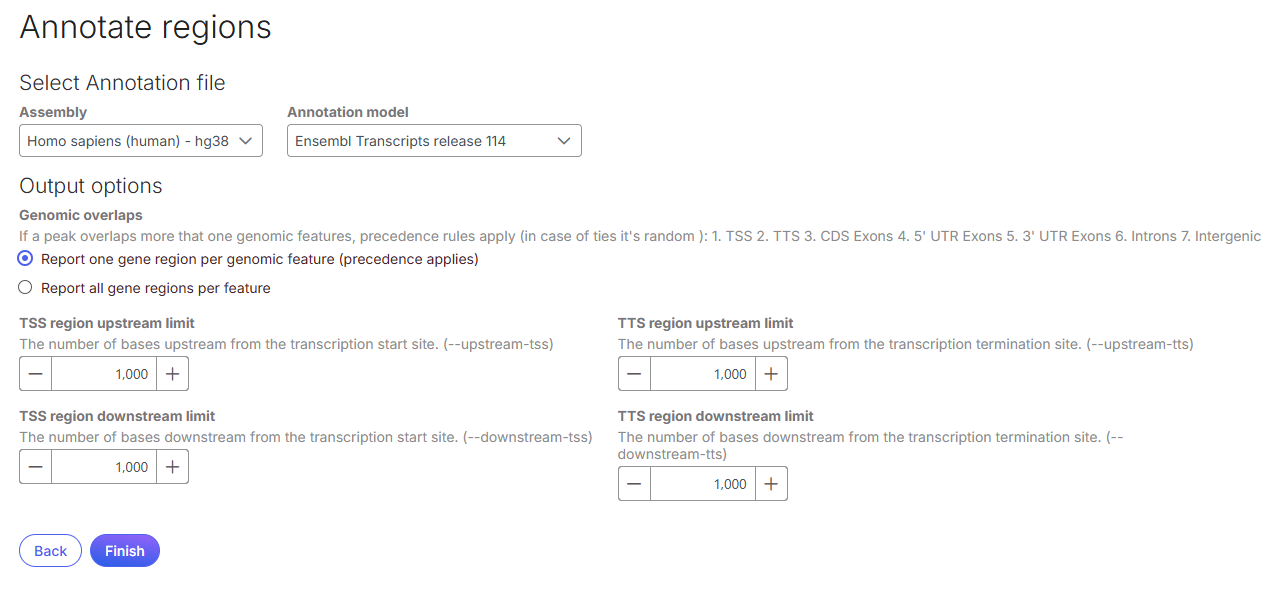
* Click [**Annotate regions**](https://help.multiomics.illumina.com/icm/analyses/analysis-functionality/task-menu/region-analysis/annotate-regions).
* Select an **Annotation model**, keep the remaining settings as default, click **Finish**.
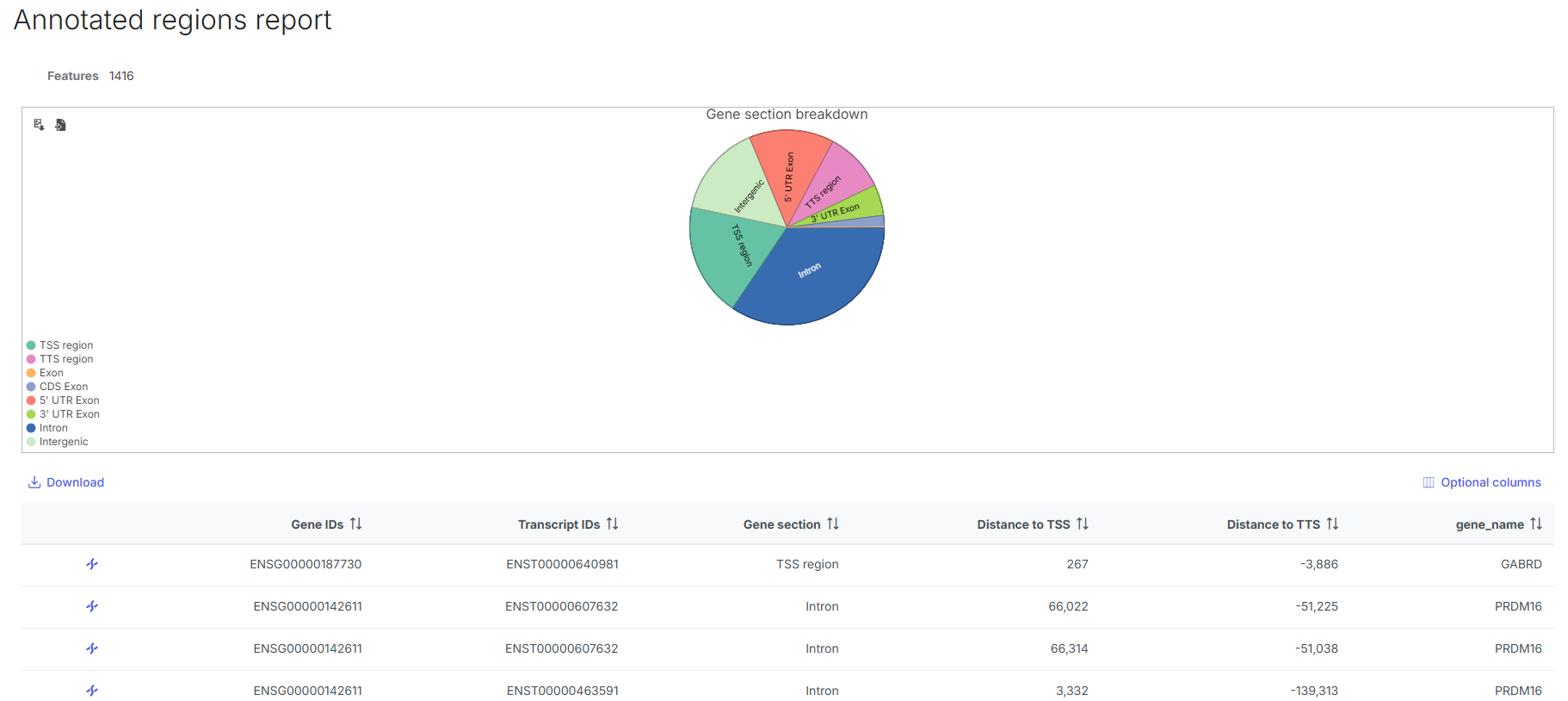
When completed, double click **Annotated regions** node to open the annotation report. The annotation report shows a pie chart on gene section breakdown for the DMRs, and a table where each row is a DMR, columns are the annotated information.
* Click **Optional columns** on the top right of the table, tick **gene\_name** checkbox to display gene name in the table.
### Gene Set Enrichment
The [**Gene set enrichment**](https://help.connected.illumina.com/icm/analyses/analysis-functionality/task-menu/biological-interpretation/gene-set-enrichment) analysis identifies gene sets and pathways that are over-represented in a list of significant genes, providing clues to the biological meaning of your results.
* Click **Annotated regions** node.
* Click **Biological interpretation** section in the context-sensitive task menu.
* Click **Gene set enrichment**.
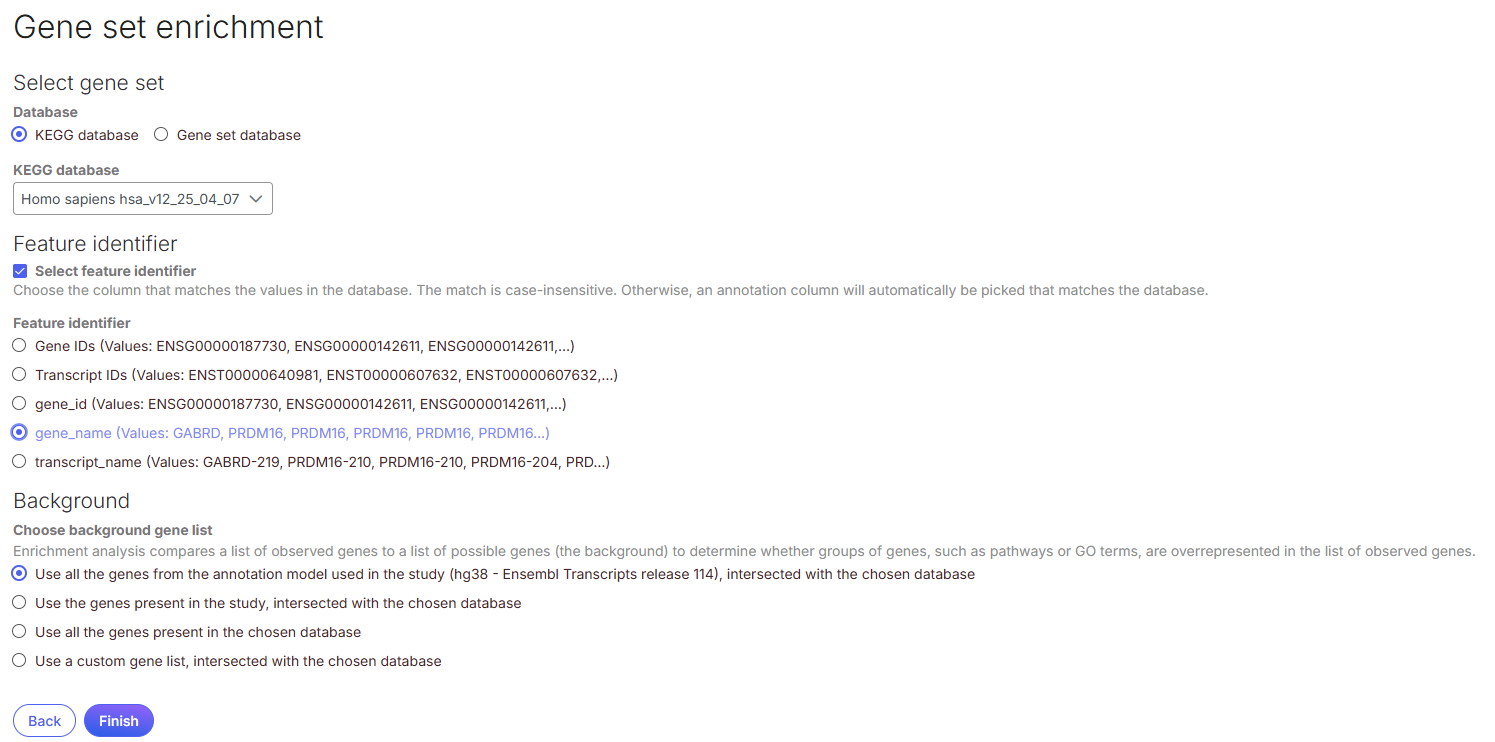
* Select **KEGG database** as **Database** for pathway enrichment analysis. Choose **Homo sapiens hsa\_v12\_25\_04\_07** from the **KEGG database** dropdown.
* At Feature identifier section, tick **Select feature identifier** checkbox, select **gene\_name**, then click **Finish**.
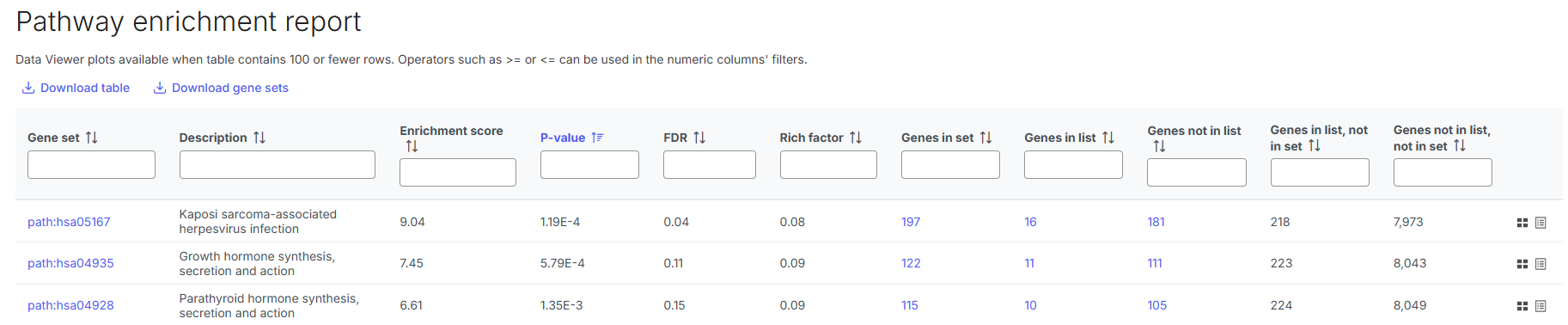
When completed, double click **Pathway enrichment** node to open the pathway enrichment report. Each row in the report is a pathway, with an enrichment score and p-value. It also lists how many genes in the pathway were in the input gene list and how many were not. Click on the gene set ID in the first column to view the pathway diagram. On the pathway diagram, clicking on a gene name links to a KEGG page for additional details.
## Analysis On 5-base DNA Methylation Data (Regions)
When you have a list of regions of interest that you want to analyze, for example, a list of methylation regions relevant to the phenotype in your study, you may use the steps in this section to generate regions data from the CpG sites data, then perform exploratory analysis, differential comparisons, and pathway analysis on the regions. DMRs identified from the regions can also be used for integration analysis with DNA variants data.
### Get Regional Methylation
The [**Get Regional Methylation**](https://help.connected.illumina.com/icm/analyses/analysis-functionality/task-menu/region-analysis/get-regional-methylation) task enables you to generate regions from CpG sites. For each region specified in a region annotation file, methylation counts of all CpG sites within the region are averaged to produce a count value in a regions-by-samples count matrix.
Because some AML subtypes in this demo data has only one sample per condition, we are going to filter the data to samples with at least 3 replicates per condition before we generate regions, to get a better clustering performance in exploratory analysis later. This step is optional and specific to this dataset only.
* Click on **Filtered samples** data node.
* Select **Filtering** from context-sensitive menu, select **Filter samples**.
* Set filter to include **Mol\_Phenotype** in the following AML subtypes, then click **Finish**.
Next, we are going to use a regions list curated for AML to generate regions on the filtered samples. You will need to download a region (.bed) file attached in this section to your computer before continue with the steps.
* Click on data node downstream of **Filter observations** task.
* Select **Region analysis** from context-sensitive menu, select **Get Regional Methylation**.
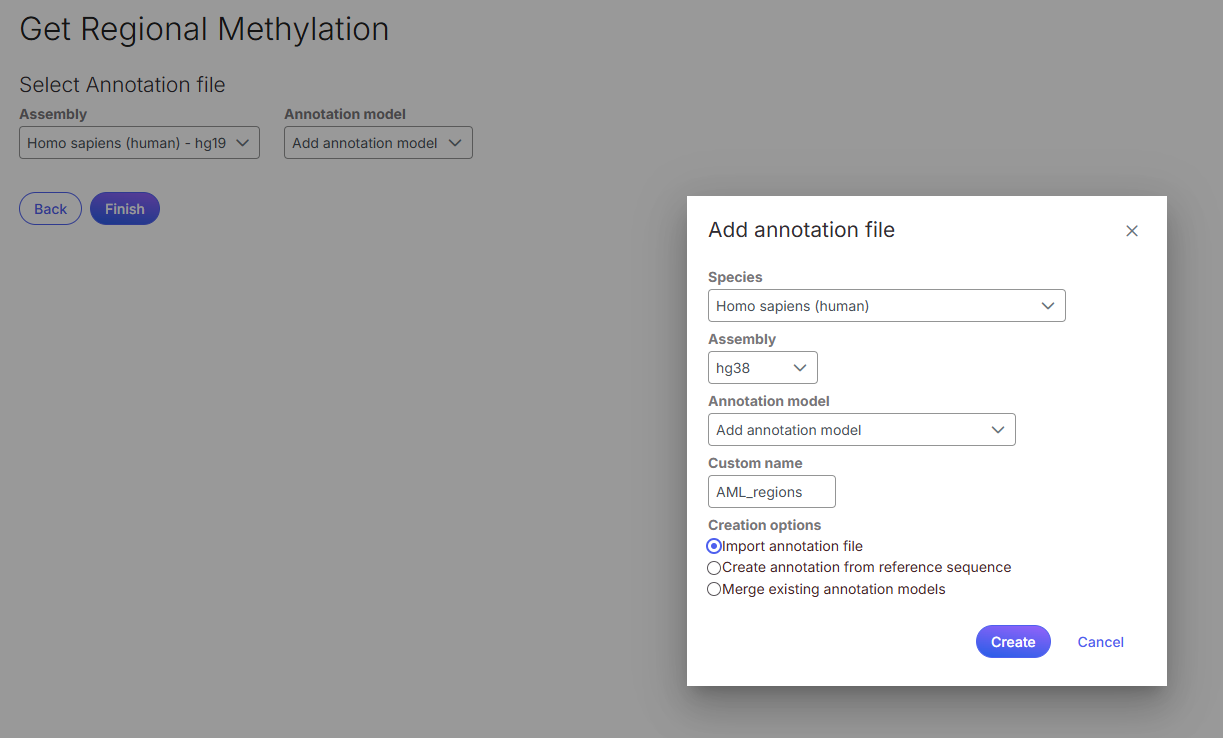
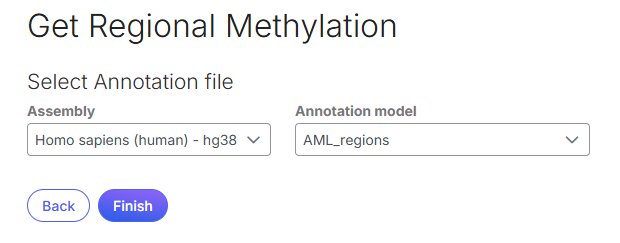
* Select **Homo sapiens (human) - hg38** at **Assembly**, select **Add annotation model** at **Annotation model**.
* In the **Add annotation file** dialog, select **Homo sapiens (human)** at **Species**, **hg38** for **Assembly**, **Add annotation model** at **Annotation model**, type in a name (e.g. AML\_regions) at **Custom name**, select **Import annotation file** at **Creation options**, then click **Create**.
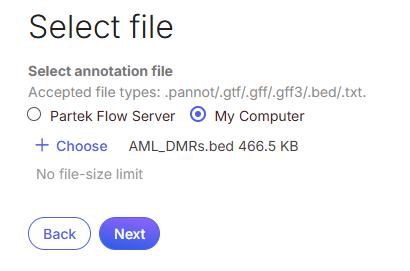
* At **Select file** page, select **My Computer**, click **+ Choose**, then browse and select the downloaded regions bed file from your computer, click **Next**.
* Click **Finish** to start generating regions based on the selected region file.
After the task is completed, you may hover over **Regional Methylation** data node to see the number of regions generated.
{% file src="/files/qmLIjg9vRb8oy4vSNuWP" %}
{% hint style="info" %}
If you do not have your own regions list for Get Regional Methylation, you may use our built-in regions list that is based on human (hg38) promoter regions from ENSEMBL version 114 to explore the curated promoter regions, more details at [using a built-in promoter regions file](https://help.connected.illumina.com/icm/analyses/analysis-functionality/task-menu/region-analysis/get-regional-methylation#using-a-built-in-promoter-regions-file).
{% endhint %}
### PCA and UMAP
[PCA ](https://help.multiomics.illumina.com/icm/analyses/analysis-functionality/task-menu/exploratory-analysis/pca)and [UMAP](https://help.multiomics.illumina.com/icm/analyses/analysis-functionality/task-menu/exploratory-analysis/umap) can be used to explore samples clustering pattern based on their methylation profile on the regions data.
To run PCA,
* Click on **Regional methylation** data node.
* Select **Exploratory analysis** from context-sensitive menu, select **PCA**.
* Use the default settings, click **Finish**.
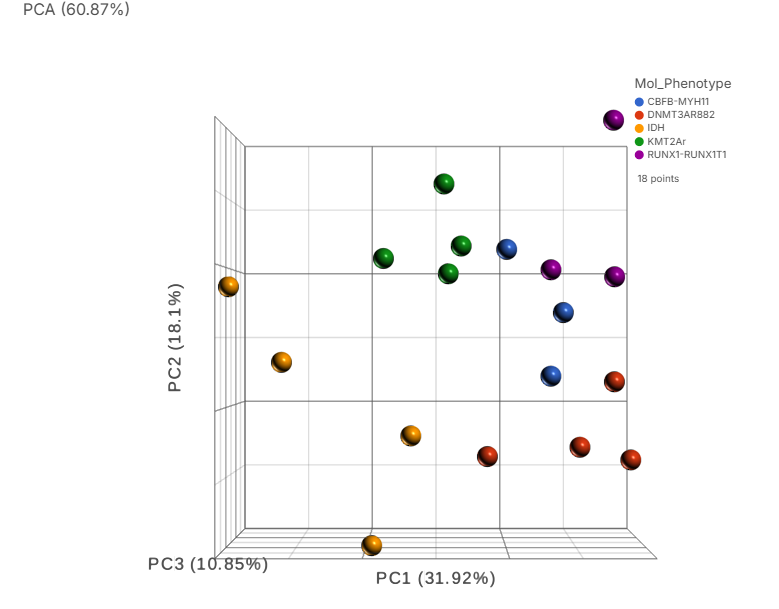
After the task is completed, double-click on the **PCA** data node to open the PCA plot. We can see the samples are mostly separated by the AML subtypes, with some subtypes cluster closer to each other.
Non-linear dimensionality reduction methods such as UMAP and t-SNE can be used to further enhance the clustering. However, these methods often require parameters optimization. For UMAP, parameters such as the number of principal components and the number of nearest neighbors must be carefully tuned.
To run UMAP,
* Click on **PCA** data node.
* Select **Exploratory analysis** from context-sensitive menu, select **UMAP**.
* Set **PCs to use** to Top **4**.
* Under **Advanced options** section, click **Configure** at **Option set**, set **local neighborhood size** to **3**, then click **Apply**.
* Click **Finish** to run UMAP with the custom parameters.
{% hint style="warning" %}
The UMAP parameters applied here are optimized for this specific dataset. When you are analyzing your own data, you may run UMAP multiple times with different parameters settings to identify the parameter sets that is most suitable for your data.
{% endhint %}
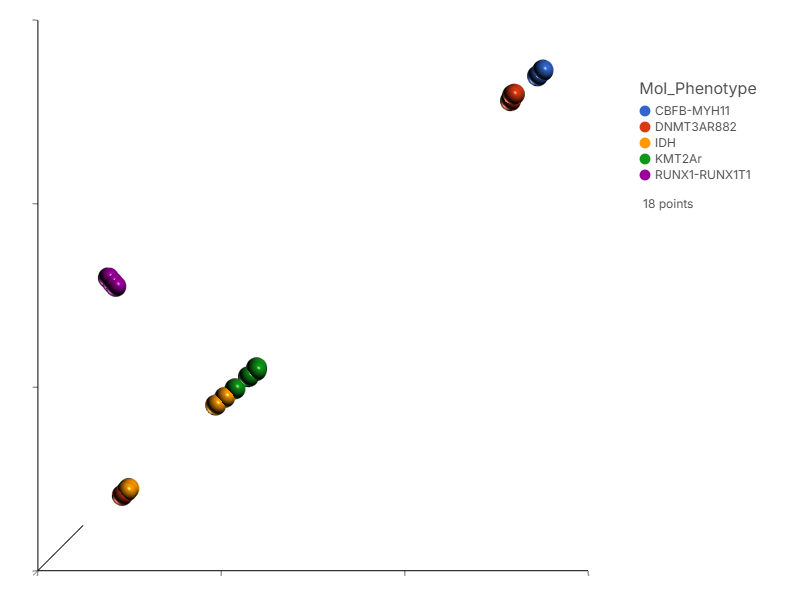
After the task is completed, double-click on the **UMAP** data node to open the UMAP plot. With these UMAP parameters, we see stronger separation on the AML subtypes.
### Annotate regions
The regions generated from a given regions list can be annotated with genomic information such as gene name and gene ID to enable biological intepretation on the regions.
* Click **Regional methylation** node.
* Click **Region analysis** section in the context-sensitive task menu.
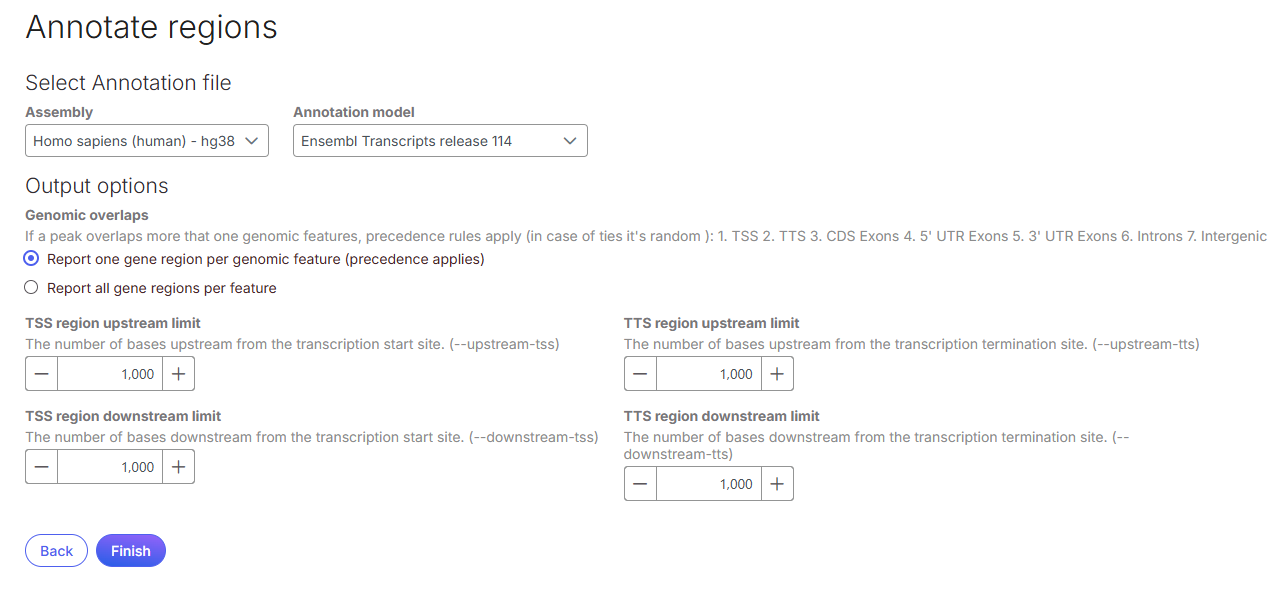
* Click [**Annotate regions**](https://help.multiomics.illumina.com/icm/analyses/analysis-functionality/task-menu/region-analysis/annotate-regions).
* Select **Homo sapiens (human) - hg38** at **Assembly**, **Ensembl Transcripts release 114** at **Annotation model**, keep the remaining settings as default, click **Finish**.
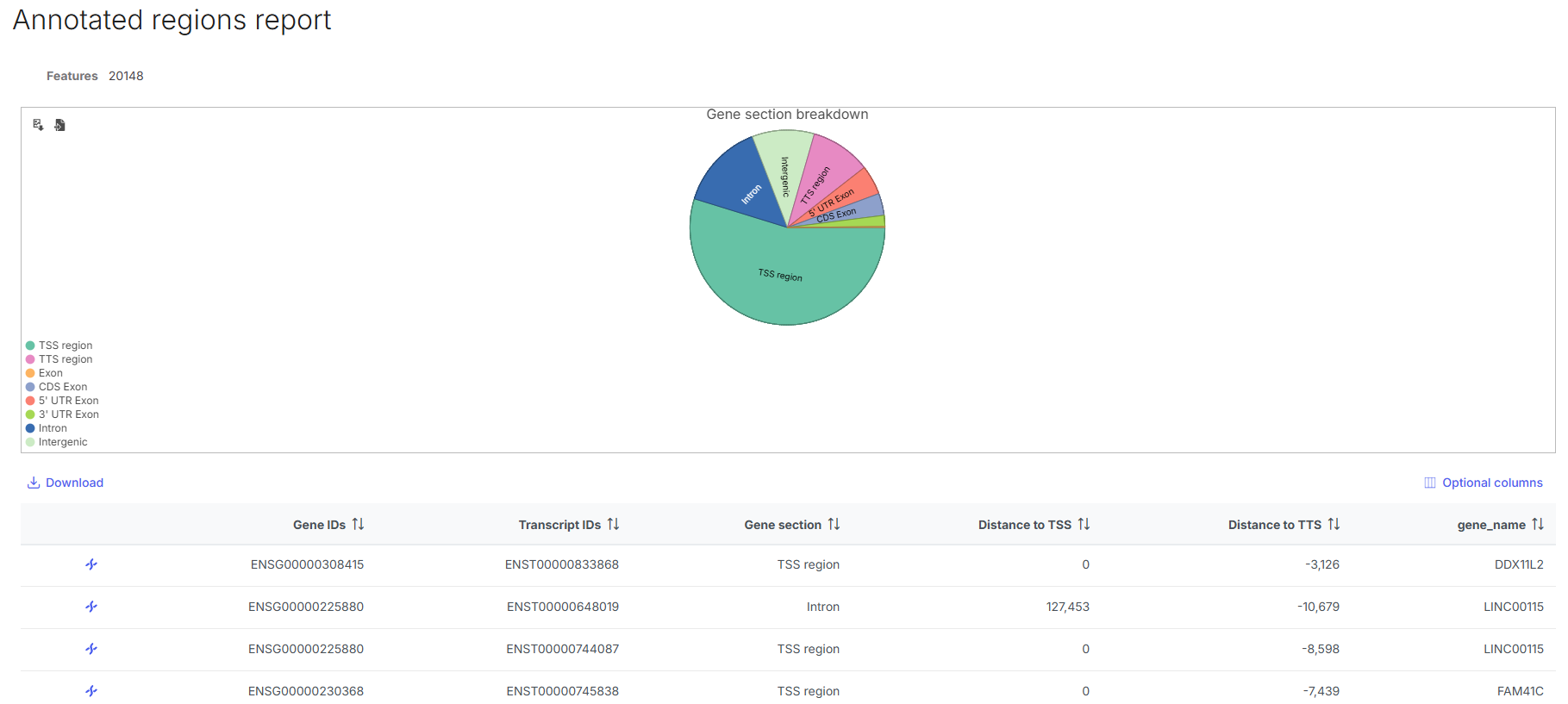
When completed, double click **Annotated regions** node to open the annotation report. The annotation report shows a pie chart on gene section breakdown for the regions, and a table where each row is a region, columns are the annotated gene information.
* Click **Optional columns** on the top right of the table, tick **gene\_name** checkbox to display gene name in the table.
### Detect Differential Methylation
The [**Detect Differential Methylation**](https://help.connected.illumina.com/icm/analyses/analysis-functionality/task-menu/methylation-analysis/detect-differential-methylation) task can be used for differential test on the regional data generated from the Get Regional Methylation task. It converts Beta-values to M-values and uses these to perform ANOVA differential expression analysis.
* Click on **Annotated regions** data node.
* Select **Statistics** from context-sensitive menu, select **Detect Differential Methylation**.
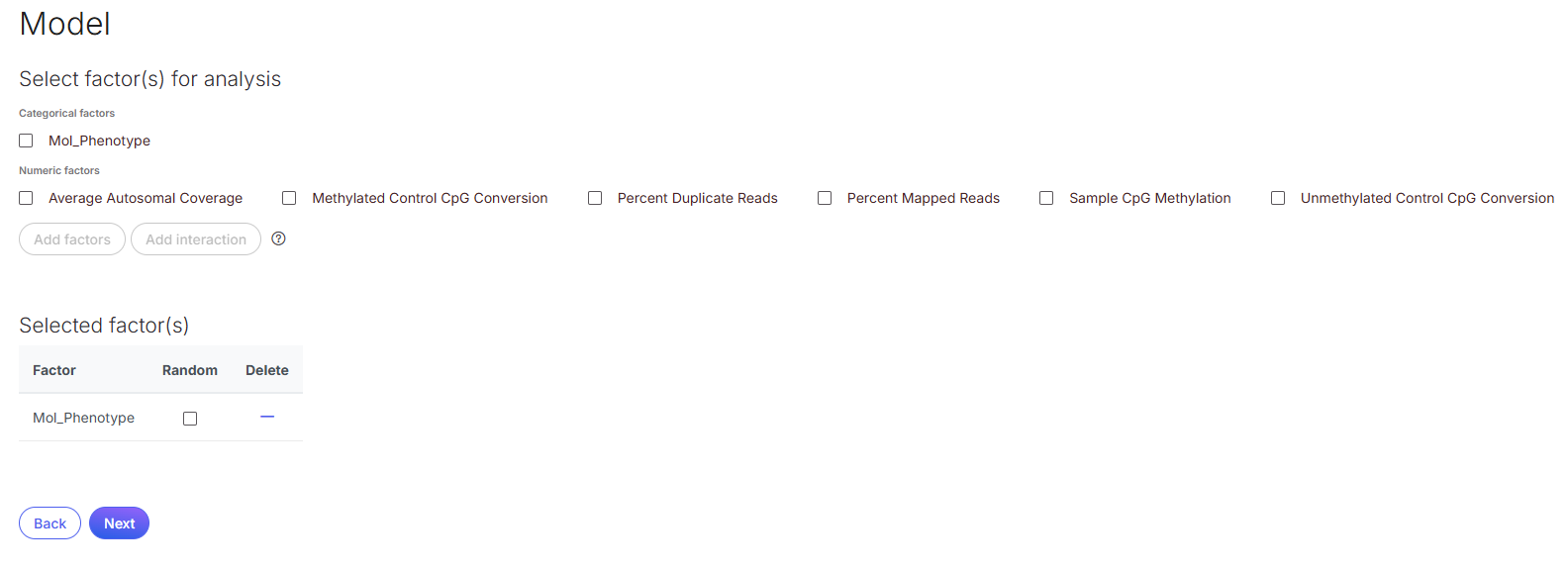
* Add **Mol\_Phenotype** as a factor for analysis, click **Next**.
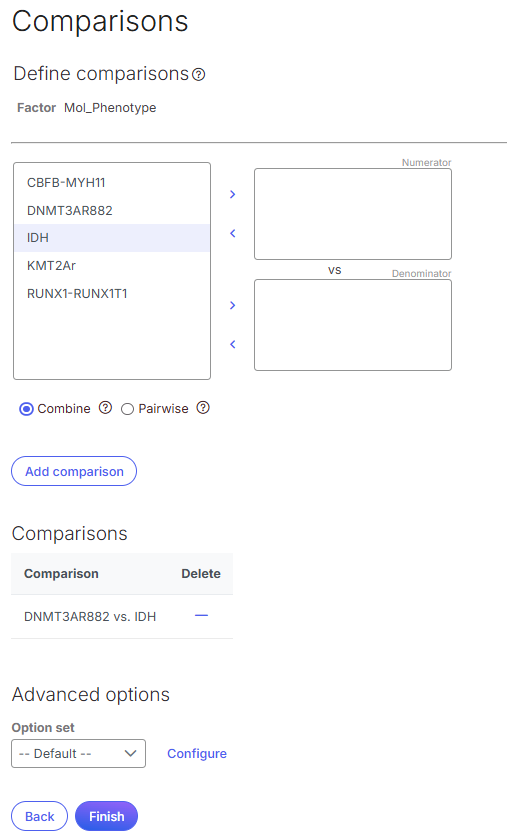
* Define and **add comparison**, then click **Finish**.
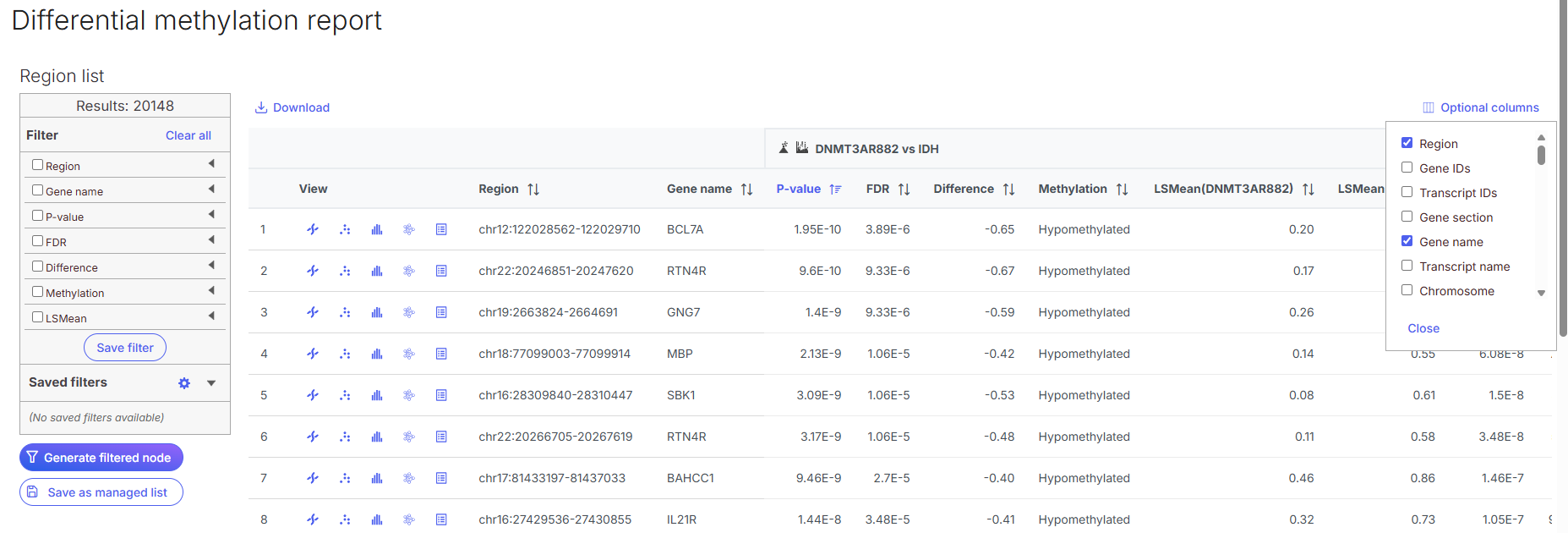
When completed, double click **DNMT3AR882 vs IDH** node to open the differential test report. Each row in the report is a region, sorted by p-values. Significance such as P-value and FDR step up are computed from the M-values. The LSMeans of the groups and the Difference are computed from the Beta-values.
Genomic annotations that were annotated to the data in the previous Annotate regions task are carried over in the differential methylation report. Click **Optional columns** to show or hide the annotations from the report table. In screenshot below, we display gene name associated with each regions in the report table.
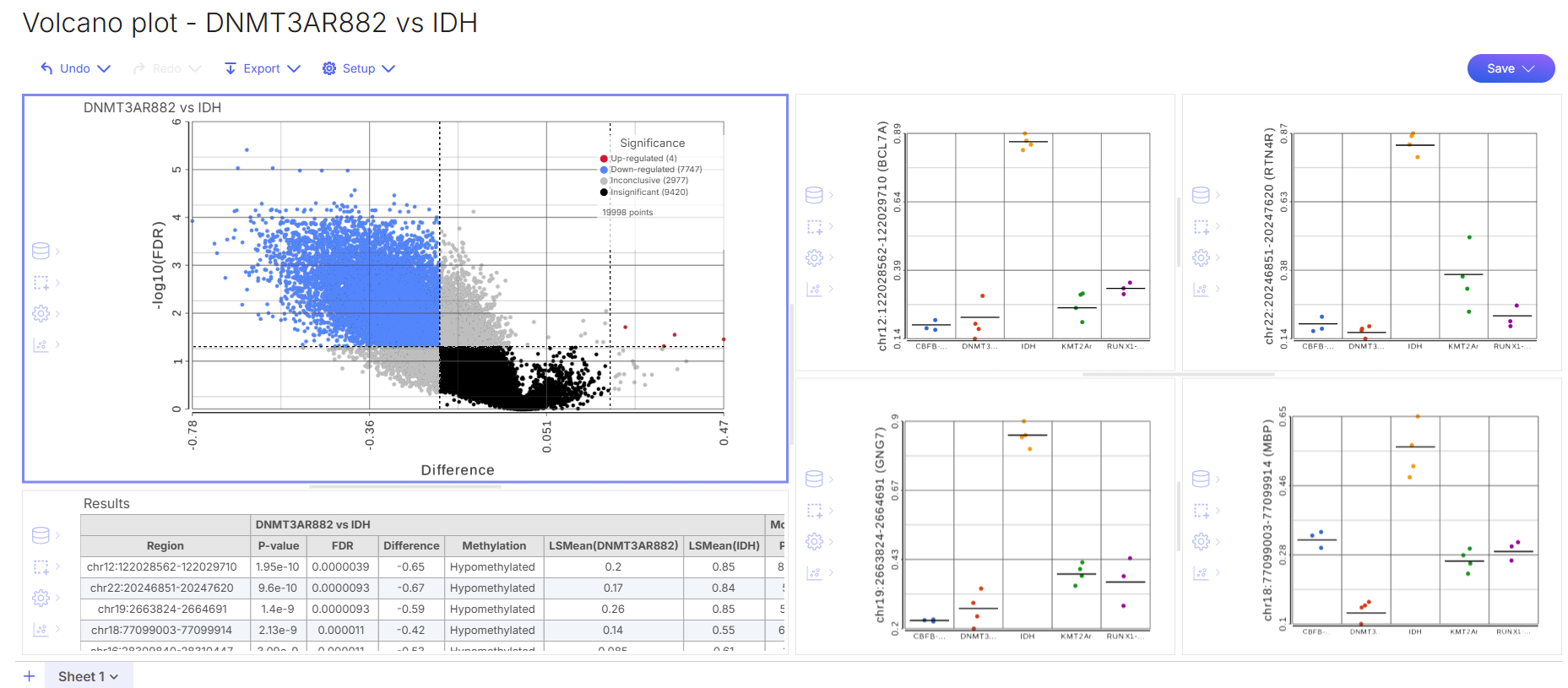
Click **Volcano icon** next to the comparison name, and icons buttons in **View** columns to open visualizations and additional details on the results. The volcano plot dashboard opens to a volcano plot, a differential result table, and dotplots for the top 4 results. From the volcano plot, we can see most of the AML regions in our data are hypomethylated in patients carrying DNMT3A R882 mutation.
### Filter Differential Results
Let's filter the differential results to a list of significant hypomethylated DMRs.
* Click **DNMT3AR882 vs IDH** node.
* Click **Filtering** section in the context-sensitive task menu.
* Click **Differential analysis filter**.
* Choose **Metadata** as Filter type.
* In Filter criteria section, set Filter features by **include DNMT3AR882 vs IDH: FDR <= 0.05 AND DNMT3AR882 vs IDH:Difference < -0.2**, then click **Finish**.
This generates a Filtered features list node that contains DMRs passing the filtering criteria. The filtering criteria is adjustable based on your research questions.
### Gene Set Enrichment
With the list of significant DMRs, we can perform [**gene set enrichment**](https://help.connected.illumina.com/icm/analyses/analysis-functionality/task-menu/biological-interpretation/gene-set-enrichment) analysis to identify gene sets and pathways that are over-represented in a list of significant genes, providing clues to the biological meaning of your results.
* Click **Filtered feature list** node.
* Click **Biological interpretation** section in the context-sensitive task menu.
* Click **Gene set enrichment**.
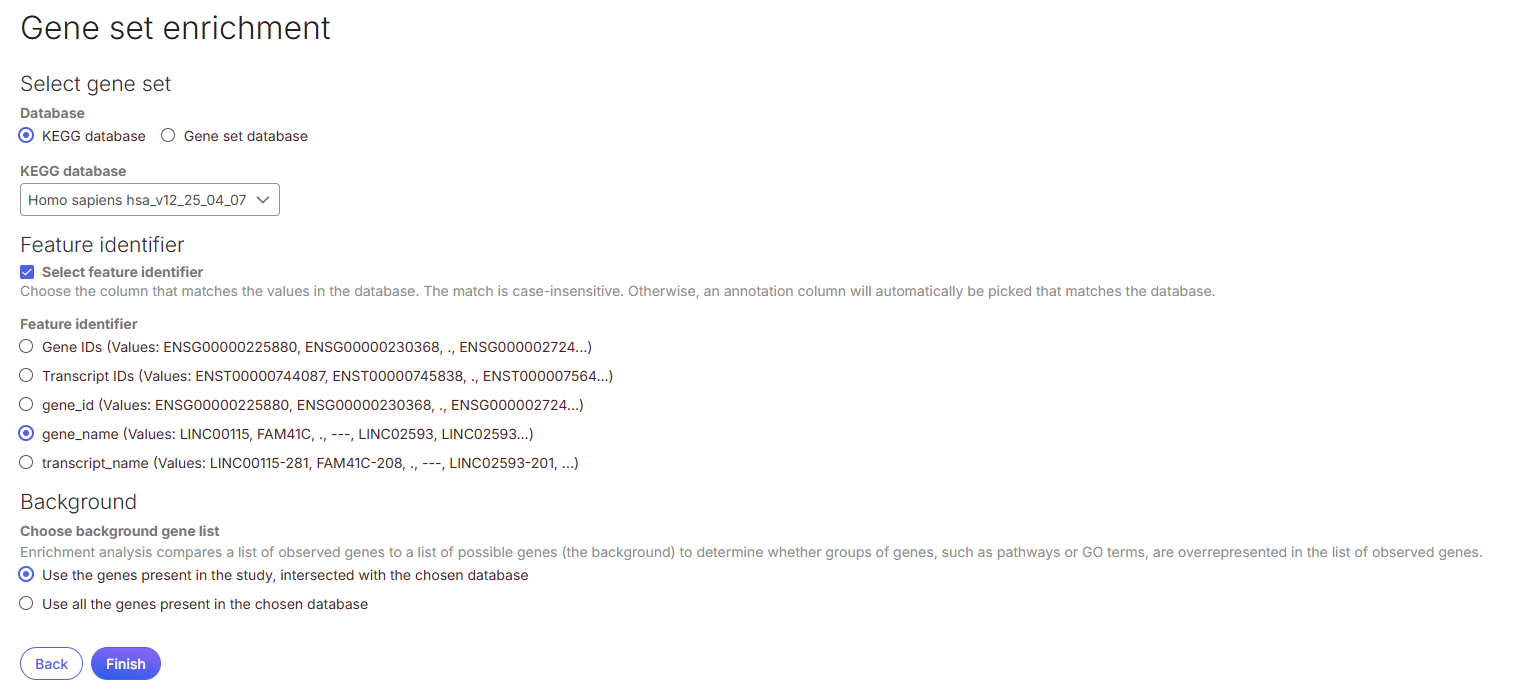
* Select **KEGG database** as **Database** for pathway enrichment analysis. Choose **Homo sapiens hsa\_v12\_25\_04\_07** from the **KEGG database** dropdown.
* At Feature identifier section, tick **Select feature identifier** checkbox, select **gene\_name**, then click **Finish**.
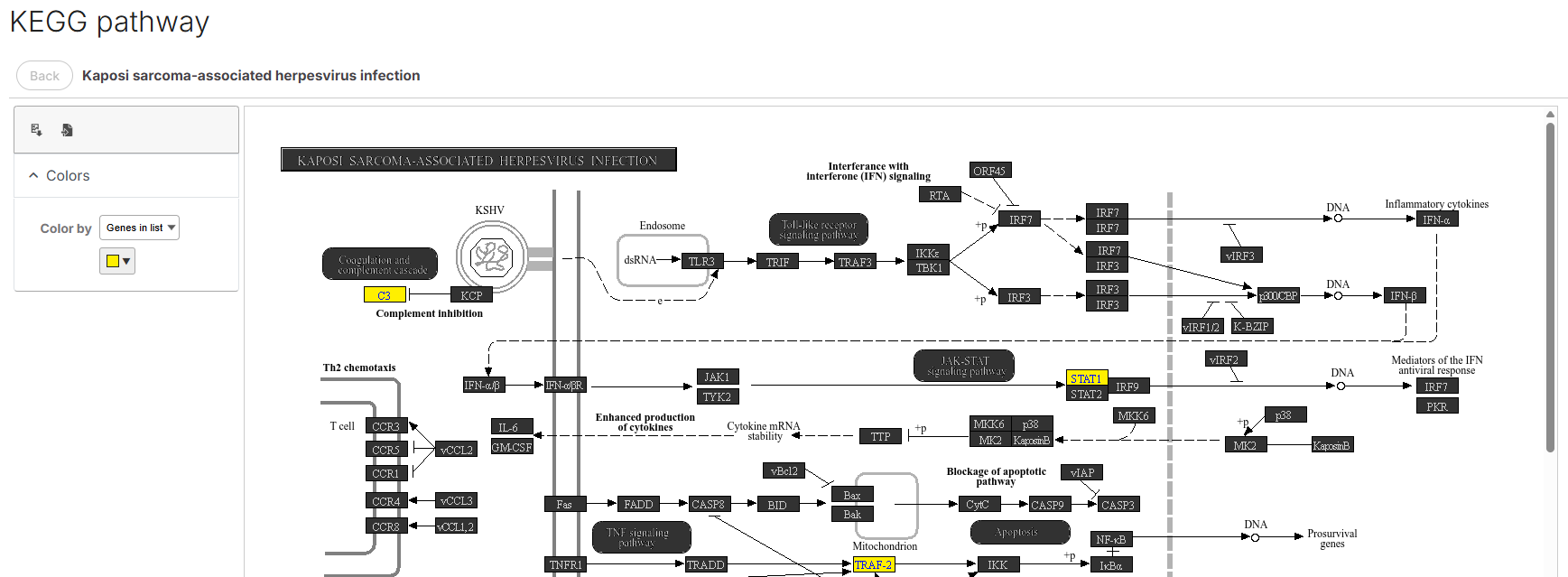
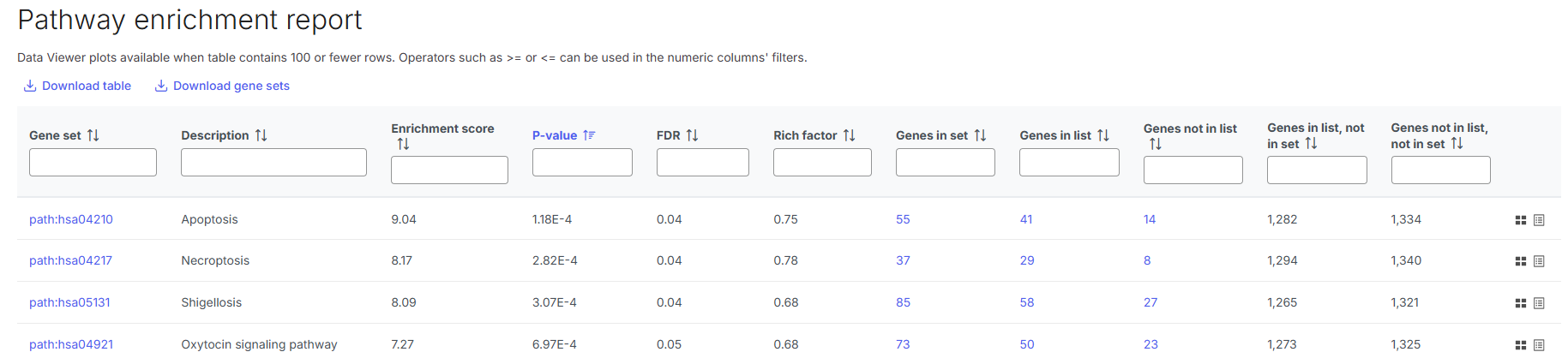
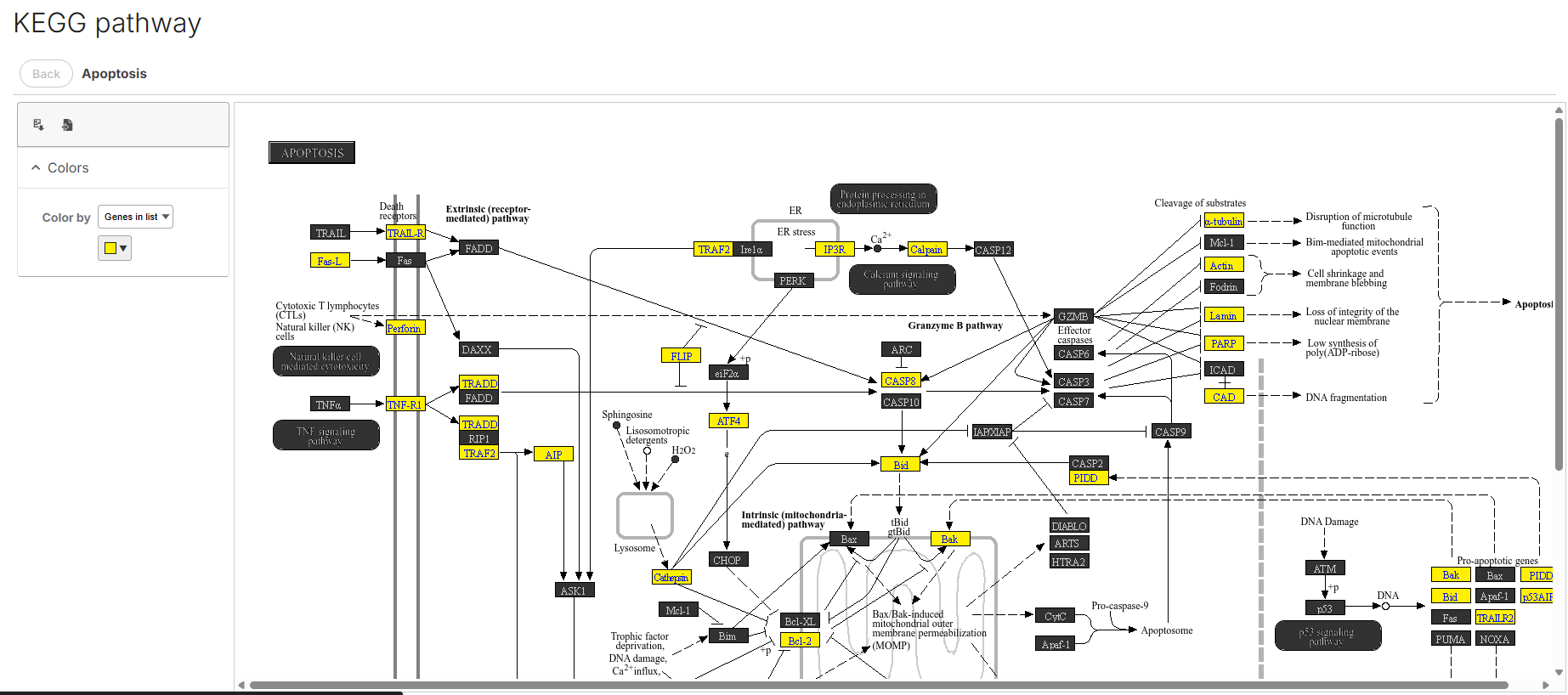
When completed, double click **Pathway enrichment** node to open the pathway enrichment report. Each row in the report is a pathway, with an enrichment score and p-value. It also lists how many genes in the pathway were in the input gene list and how many were not. Click on the gene set ID in the first column to view the pathway diagram. On the pathway diagram, genes in our input filtered features list are colored, clicking on a gene name links to a KEGG page for additional details.
### Correlation Engine Pathways
The [**Correlation Engine Pathways**](https://help.multiomics.illumina.com/icm/analyses/analysis-functionality/task-menu/biological-interpretation/correlation-engine-pathways) is another tool available for biological interpretation of your result. It helps determine if your gene(s) of interest, identified by differential analysis in Connected Multiomics, corresponds to gene or protein sets from the GO consortium, MSigDB, TargetScan, and InterPro.
* Click **Filtered feature list** node.
* Click **Biological interpretation** section in the context-sensitive task menu.
* Click **Correlation Engine pathways**.
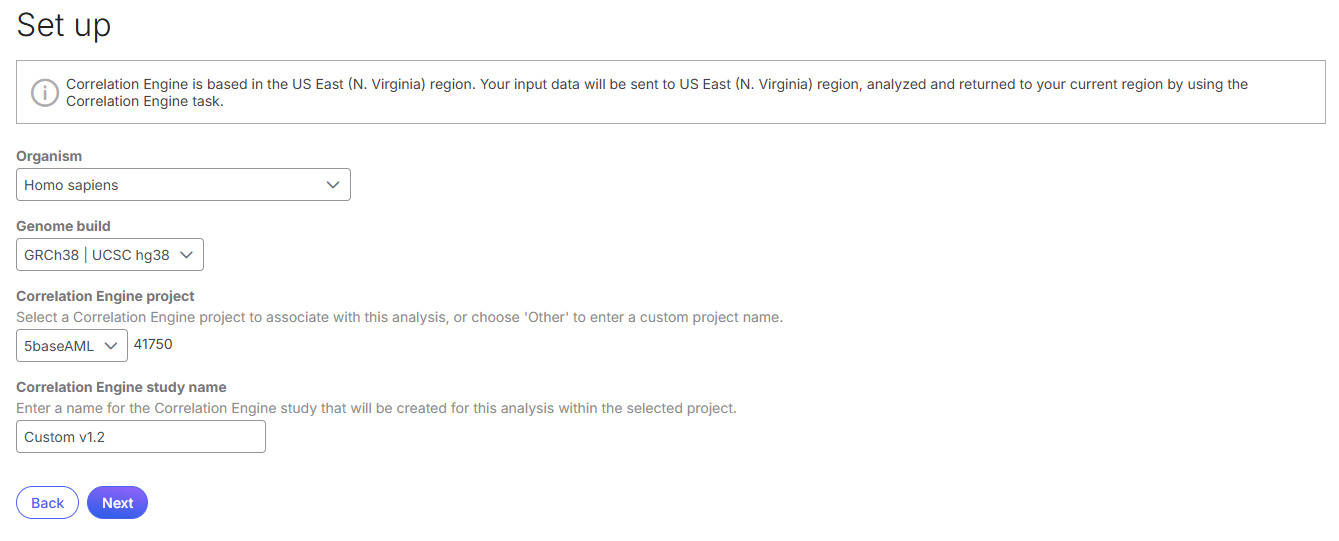
* Select **Organism** and **genome build** of your data, fill in project information, click **Next**.
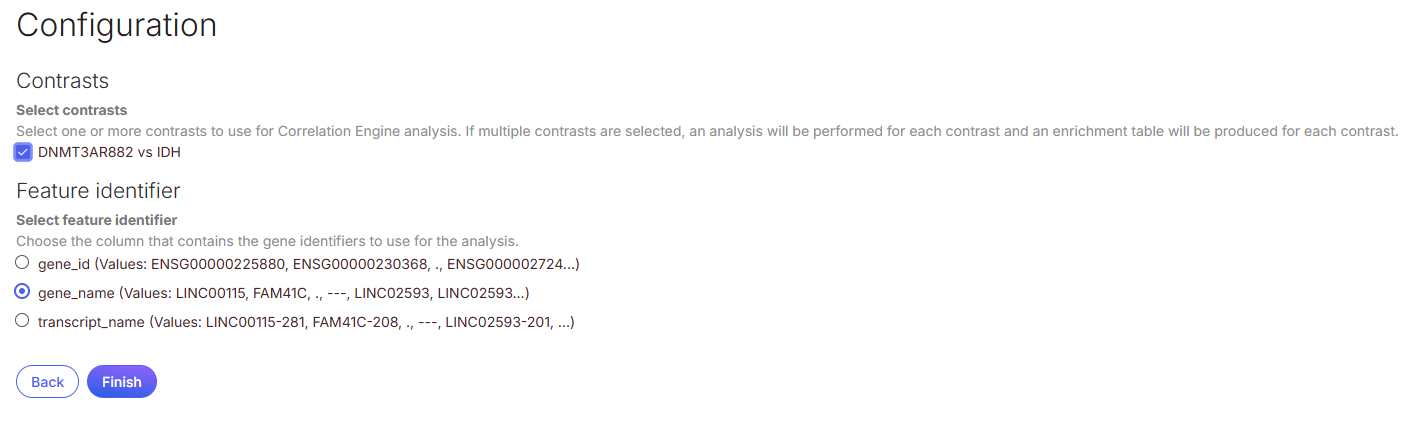
* Select at least one **contrast** of interest for Correlation Engine pathways analysis, click **Finish**.
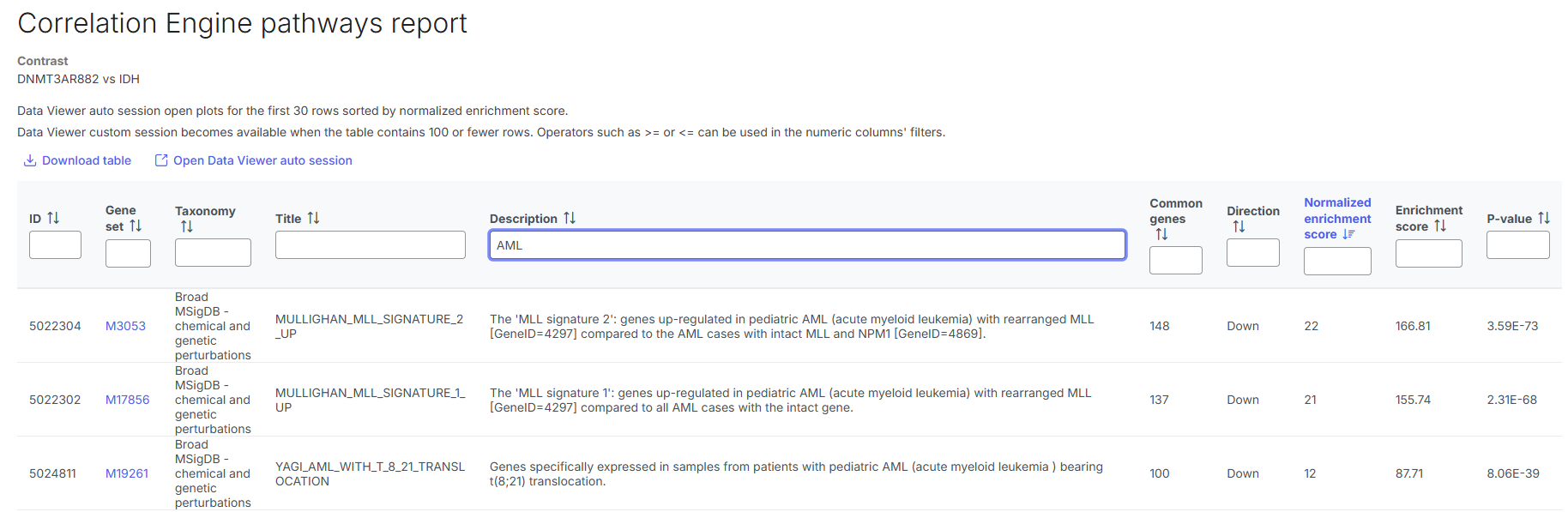
When completed, double click **Correlation Engine pathways** data node to open report. In the report table, each row is a pathway, ID in Gene set column is clickable to open more information from source database about the gene set. The Taxonomy column tells the database sources, while the Description column provides more information about the pathway. The result can be filtered by typing filter criteria in text box under each column name. For example, in screenshot below, we search for AML-related pathway by typing in "AML" at Description column. The top 30 pathways can be visualized by clicking **Open Data Viewer auto session** link on the top of the report table.
## Analysis On DNA Variants Data
Variants data should be filtered and annotated with genomic information such as gene ID and gene name prior to intergration with the DMRs. In this section, we described analysis tasks that can be performed on the variants data to prepare it for dual-omics analysis.
### Filter Variants
Filtering is recommended and subjective to the study. For examples, you may want to filter the data to remove variants with low variants quality, and/or filter to include a sample group of interest (e.g., samples involved in the DMRs comparison).
* Click on **Variants** data node.
* Select **Variant analysis** section in the context-sensitive task menu, select [**Filter variants**.](https://help.connected.illumina.com/icm/analyses/analysis-functionality/task-menu/variant-analysis/filter-variants)
* Select correct **Assembly** for your variants data**.**
* Set filtering criteria based on annotation, samples, and/or variants, then click **Finish.** In this analysis, we are interested to look at variants in **DNMT3AR882** samples, so, we set the filter as follow:
When completed, double click **Variants** node downstream of **Filter variants** task to open the variant filter report. The variant filter report shows a table with number of variants passed the filter, failed the filter, and percentage of passed variants, per sample.
{% hint style="warning" %}
If too many variants are filtered out, you might want to redo the filter and use a more lenient filtering criteria.
{% endhint %}
### Summarized Cohort Mutations
Variants information is stored on a per sample basis, the [**Summarize cohort mutations**](https://help.connected.illumina.com/icm/analyses/analysis-functionality/task-menu/variant-analysis/summarize-cohort-mutations) task enables you to create a summary of variants across samples in the input data node. The summary can be informative to identify both the frequency of variants and the samples that share a particular variant.
* Click on **Variants** data node.
* Select **Variant analysis** section in the context-sensitive task menu, select **Summarized cohort mutations**.
When completed, double-click on the **Summarized variants** node to open the summary report. The report opens to a table where each row is a variant, additional columns can be selected to show in the table using Optional columns button. The table can be filtered by typing in filtering criteria in text box under each column name. Refer the [Summarized cohort mutation documentation](https://help.connected.illumina.com/icm/analyses/analysis-functionality/task-menu/variant-analysis/summarize-cohort-mutations) for more details about the task and its output.
### Filter Variants With Databases
The [**Filter variants with databases**](https://help.multiomics.illumina.com/icm/analyses/analysis-functionality/task-menu/variant-analysis/filter-variants-with-databases) task is a variants filtering task that enables you to filter variants against built-in databases, to clean up noises such as common polymorphisms and benign mutations. The available built-in databases are:
* **Primate AI**: Prediction of pathogenicity on missense mutations. Percentile score ranges from 0 to 1, with 0 being benign, 1 being most pathogenic.
* **Promoter AI**: Prediction of expression-altering consequences of variants at promoter regions. Scores range from -1 to 1. Positive score indicates variant likely enhances transcription, negative score indicates variant likely repress transcription.
* **gnomAD**: The Genome Aggregation Database (gnomAD) is a resource developed by an international coalition of investigators, with the goal of aggregating and harmonizing both exome and genome sequencing data from a wide variety of large-scale sequencing projects, and making summary data available for the wider scientific community. Filtering by minor allele frequency is supported.
* **DRAGEN Haplotype Database**: Proprietary haplotype database built from a panel of 256 population haplotypes. Filtering by minor allele frequency is supported.
{% hint style="warning" %}
The databases in the Filter variants with databases task support only human hg38 assembly.
{% endhint %}
To invoke the **Filter variants with databases** task,
* Click **Summarized variants** data node.
* Click **Variant analysis** section in the context-sensitive task menu.
* Click **Filter variants with databases**.
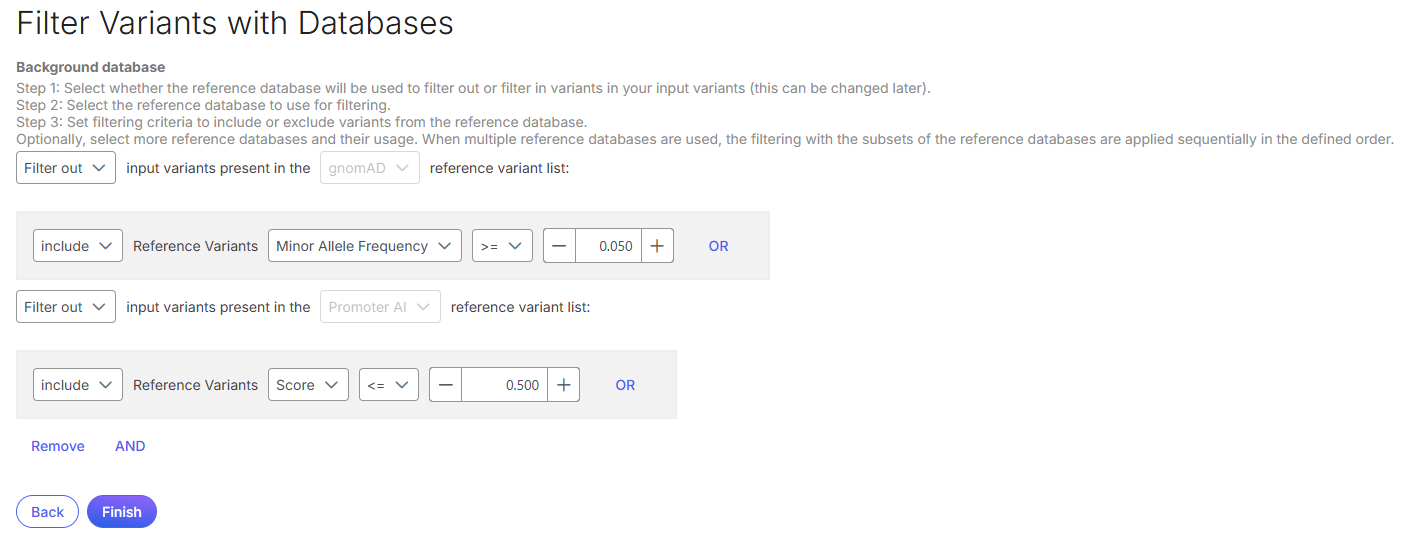
* Select filtering criteria as below, click **Finish**. This will filter out common variants from gnomAD and variants that are either repress transcription or less likely enhance transcription at promoter regions.
The filtering criteria can also be configured to *filter in* input variants and *include/exclude* reference variants. In example below, input variants will present in filtering output if they are present in the less common variants list in gnomAD reference.
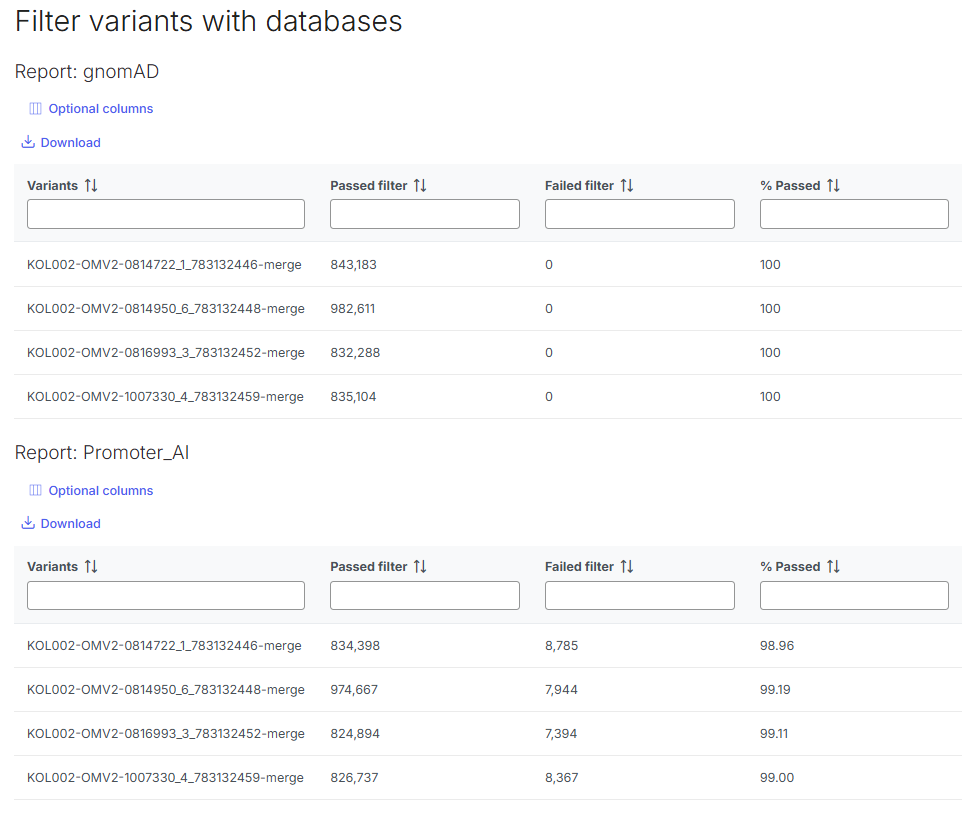
When the task is completed, double-click on the **Variants** data node to open filtering report. The report opens into table that shows number of variants passed or failed each filter, in each sample.
### Annotate Variants
Variants must be annotated so that it is associated with gene ID and gene name, that are both required for dual-omics analysis with the DMRs.
* Click **Variants** data node.
* Click **Variant analysis** section in the context-sensitive task menu.
* Click [**Annotate variants**](https://help.connected.illumina.com/icm/analyses/analysis-functionality/task-menu/variant-analysis/annotate-variants).
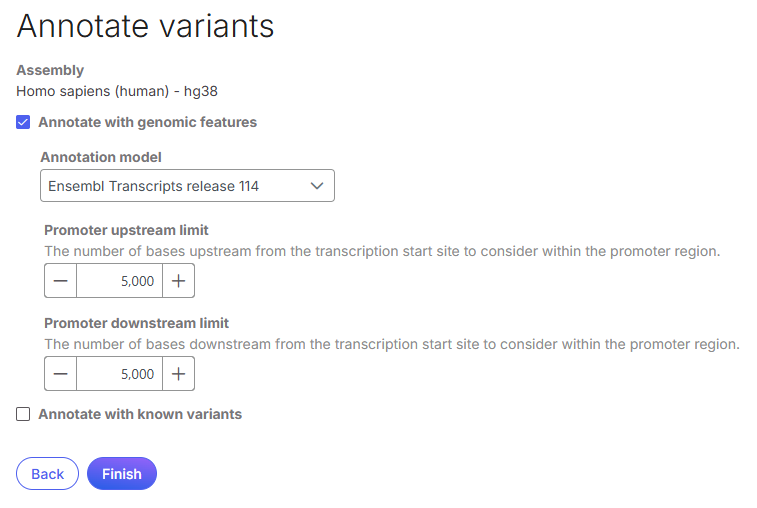
* Tick **Annotate with genomic features**, select **Ensembl Transcripts release 114** at **Annotation model**, click **Finish**.
{% hint style="warning" %}
It is recommended to use the same annotation model to annotate both the DMRs and the variants, because the integration step uses gene ID from the annotation when combining the data. For example, if you have annotated DMRs using Ensembl annotation model, you should use the same Ensembl annotation model to annotate variants.
{% endhint %}
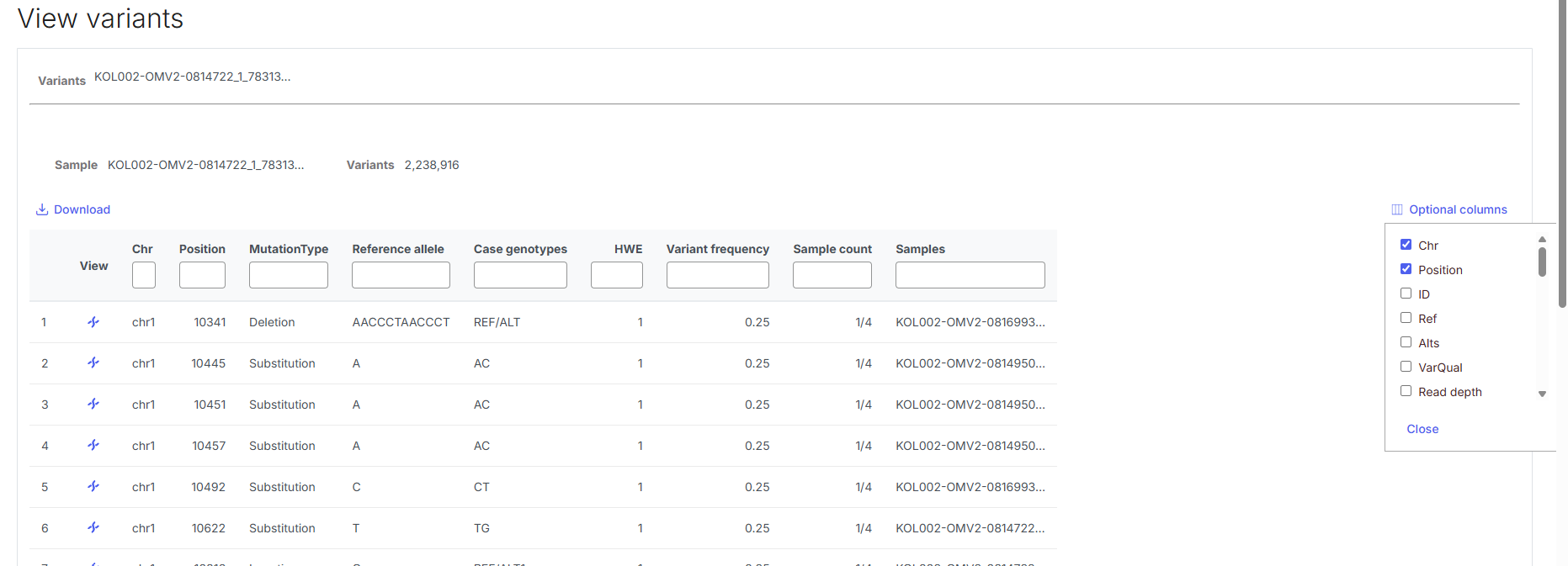
When completed, double-click on **Annotated variants** data node to open report. You may use Optional column button to show/hide annotations in the table.
## Dual-omics Analysis of DNA Methylation and Variants
### Combine DMRs And Variants For Analysis
With annotated DMRs and annotated variants, we are ready to combine both data types for dual-omics analysis.
* Click **Annotated variants** data node.
* Click **Combine multiomics data** section in the context-sensitive task menu.
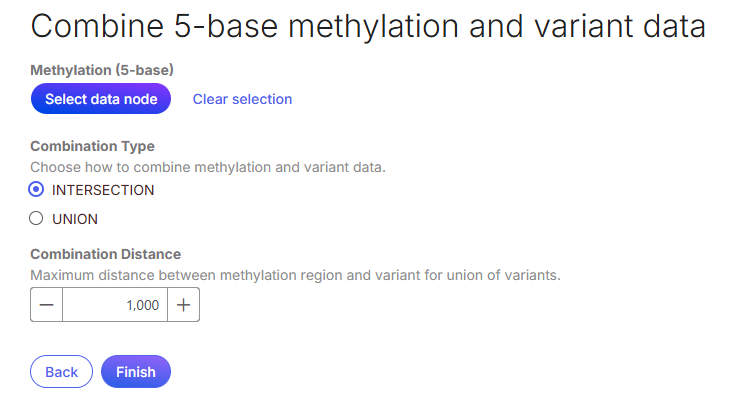
* Click [**Combine 5-base methylation and variant data**](https://help.connected.illumina.com/icm/analyses/analysis-functionality/task-menu/combine-multiomics-data/combine-5-base-methylation-and-variant-data).
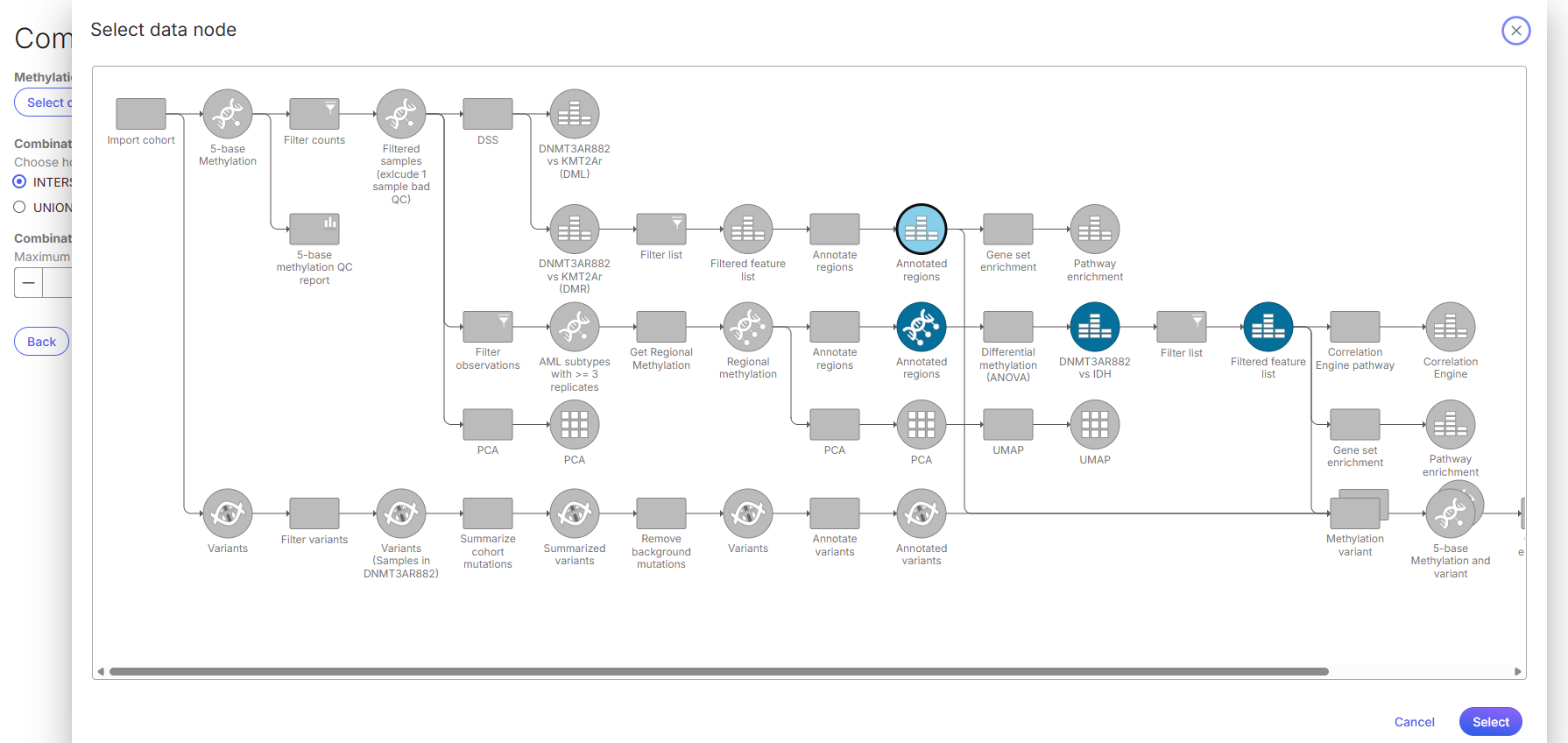
* Click **Select data node** under **Methylation (5-base)**.
* In Select data node pop-up, nodes that are eligible for selection to combine with variants are highlighted. Click **Annotated regions** data node from the DSS DMR analysis branch, then click **Select.**
* Use the default **Intersection** option to combine the data, click **Finish**.
* Intesection: Use gene ID to intersect DMRs and variants. Every intersected variant and DMR are reported.
* Union: Report intesection result and also variants that overlapped DMR by specified distance (default is +/- 1000bp).
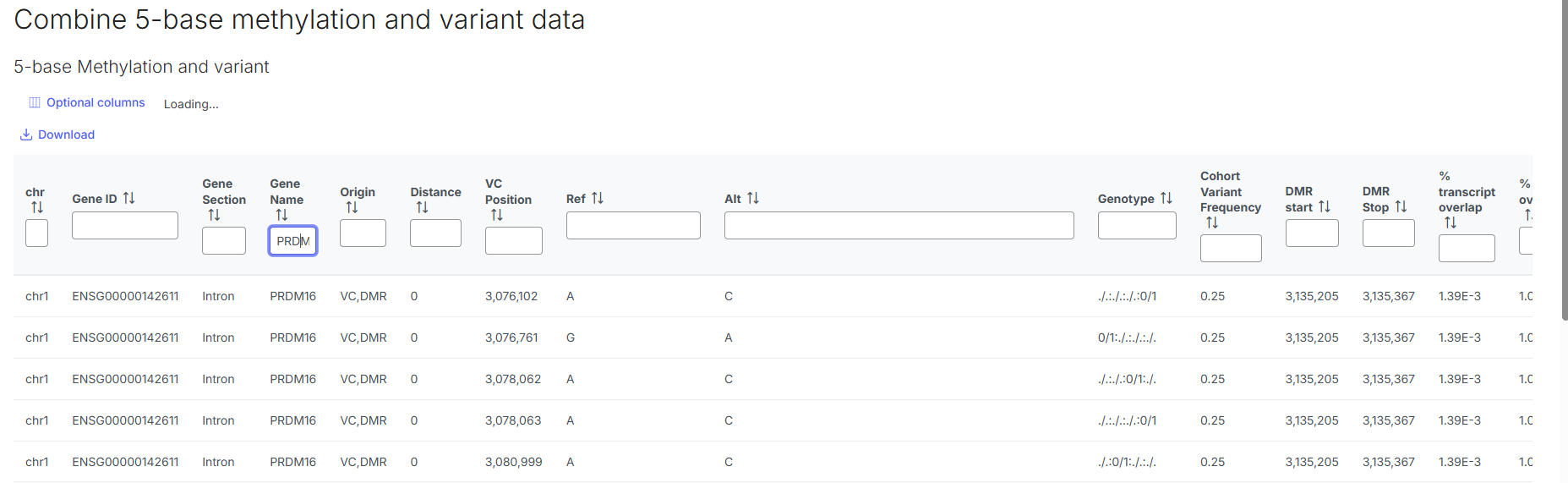
When complete, double-click on **5-base methylation and variants** data node to open result. The task report is similar to the **Summarized cohort mutations** task report, with an additional column *Origin* to indicates if result in a row is present in both methylation and variant data (VC, DMR), or variant data only (VC), or methylation data only (DMR). The table can be filtered by typing in search criteria in text boxes under each column name. For example, you can filter the result to a gene of interest by typing in gene name in *Gene Name* text box.
### Gene Set Enrichment On The Combined Data
After combining methylation and variant data, [**gene set enrichment analysis**](https://help.connected.illumina.com/icm/analyses/analysis-functionality/task-menu/biological-interpretation/gene-set-enrichment) can be used to identify gene sets and pathways overrepresented from the combined data, deriving biological meaning of your results.
* Click **5-base methylation and variants** node.
* Click **Biological interpretation** section in the context-sensitive task menu.
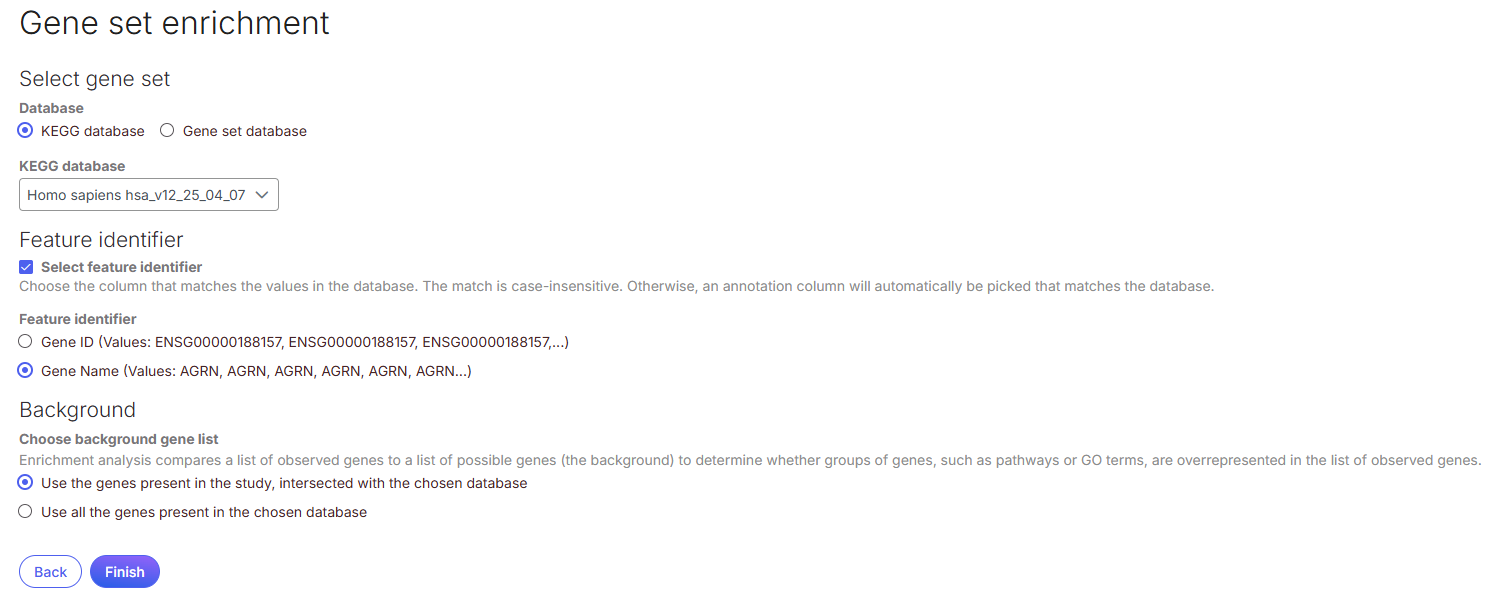
* Click **Gene set enrichment**.
* Select **KEGG database** or **Gene set database** for analysis. KEGG database for pathway analysis, gene set database for gene ontology (GO) analysis.
* At Feature identifier section, tick **Select feature identifier** checkbox, select G**ene Name**, then click **Finish**.
When completed, double-click **Pathway enrichment** node to open result. Clicking on the individual gene set lD to see more details about a pathway.
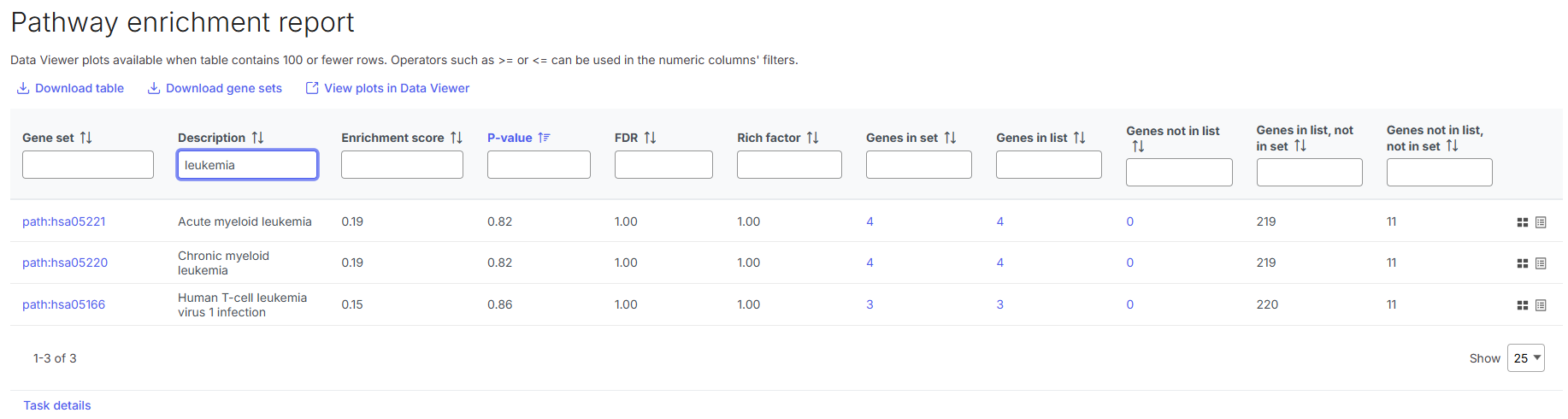
* The result can be filtered by typing in search criteria in text boxes under each column name. For example, filter the report by typing in "leukemia" in the text box under Description column to search for leukemia-related pathways.
---
# Agent Instructions
This documentation is published with GitBook. GitBook is the documentation platform designed so that both humans and AI agents can read, navigate, and reason over technical content effectively. Learn more at gitbook.com.
## Querying This Documentation
If you need additional information that is not directly available in this page, you can query the documentation dynamically by asking a question.
Perform an HTTP GET request on the current page URL with the `ask` query parameter, and the optional `goal` query parameter:
```
GET https://help.connected.illumina.com/dragen-5-base/tertiary-analysis/connected-multiomics-walkthrough.md?ask=&goal=
```
`ask` is the immediate question: it should be specific, self-contained, and written in natural language.
`goal` is optional and describes the broader end goal you are ultimately trying to accomplish on behalf of the user. GitBook uses it to tailor the answer towards what is most useful for that goal.
The response will contain a direct answer to the question and relevant excerpts and sources from the documentation.
Use this mechanism when the answer is not explicitly present in the current page, you need clarification or additional context, or you want to retrieve related documentation sections.
.png?alt=media)
.png?alt=media)
.png?alt=media)



.png?alt=media)






.png?alt=media)