> For the complete documentation index, see [llms.txt](https://help.connected.illumina.com/llms.txt). Markdown versions of documentation pages are available by appending `.md` to page URLs; this page is available as [Markdown](https://help.connected.illumina.com/partek/partek-flow/tutorials/bulk-rna-seq/trimming-bases-and-filtering-reads.md).
# Trimming bases and filtering reads
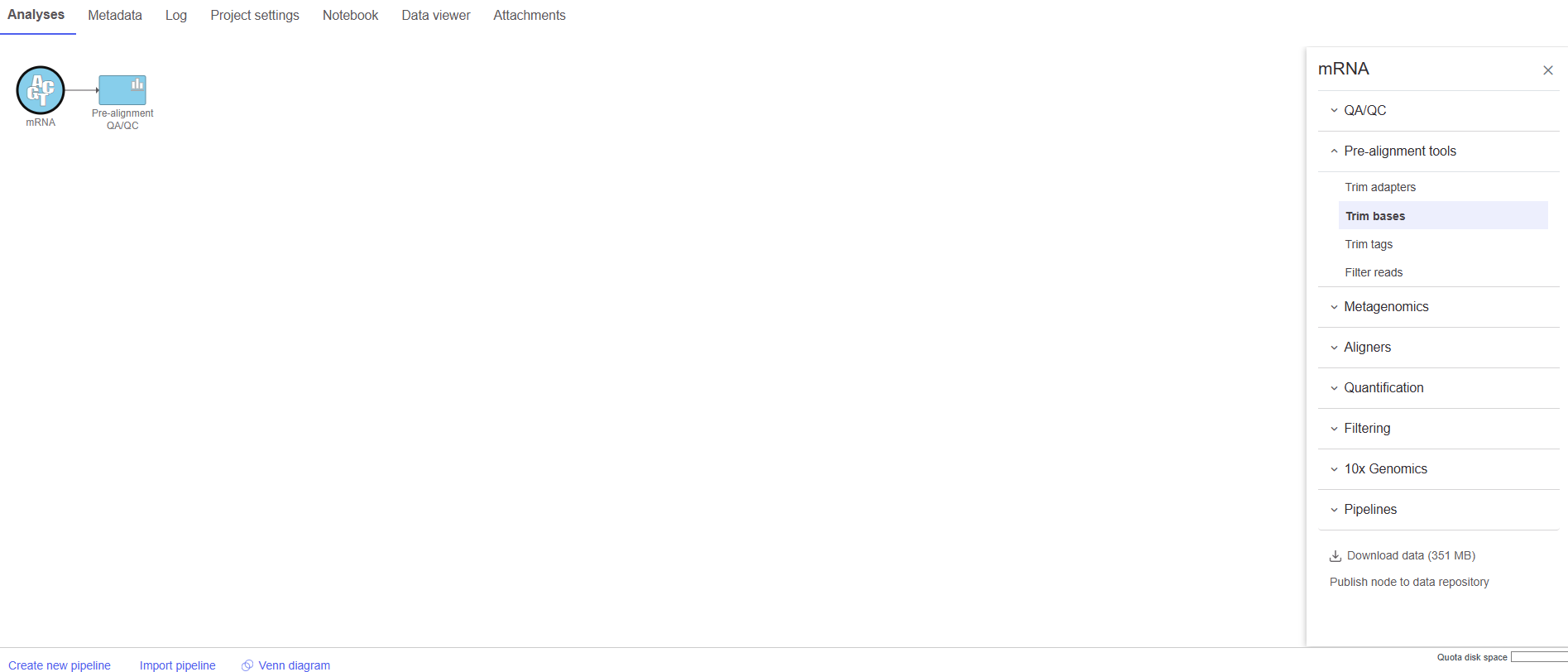
Based on pre-alignment QA/QC, we need to trim low quality bases from the 3' end of reads.
* Click the **Unaligned reads** data node
* Click **Pre-alignment tools** in the task menu
* Click **Trim bases** (Figure 1)
Figure 1. Invoking the Trim bases task
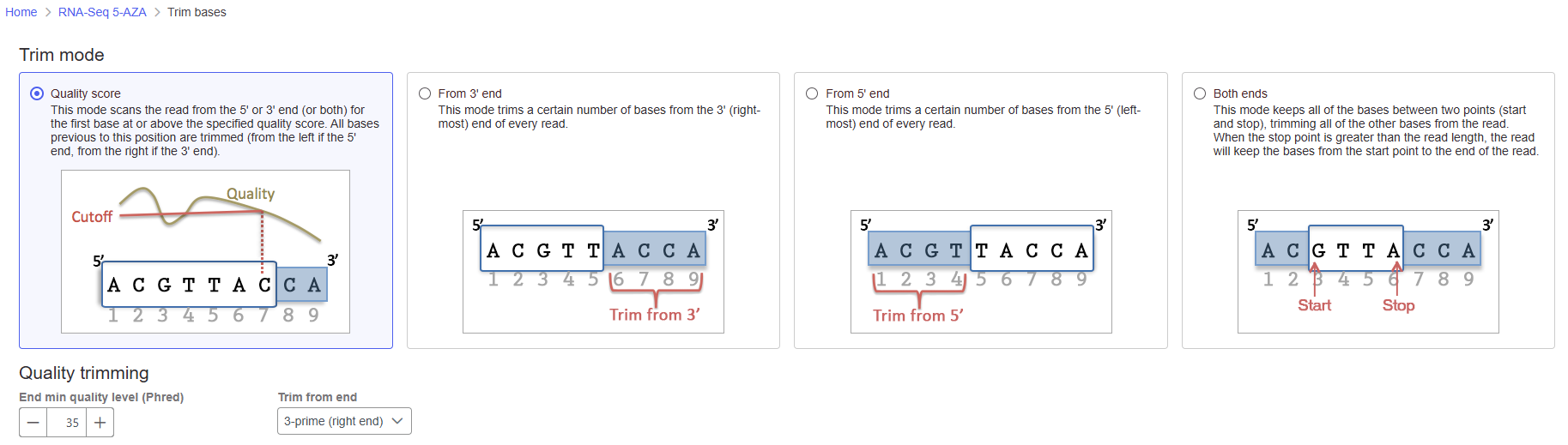
By default, Trim bases removes bases starting at the 3' end and continuing until it finds a base pair call with a Phred score of equal to or greater than 35 (Figure 2).
* Click **Finish** to run Trim bases with default settings
Figure 2. Configure the Trim bases task
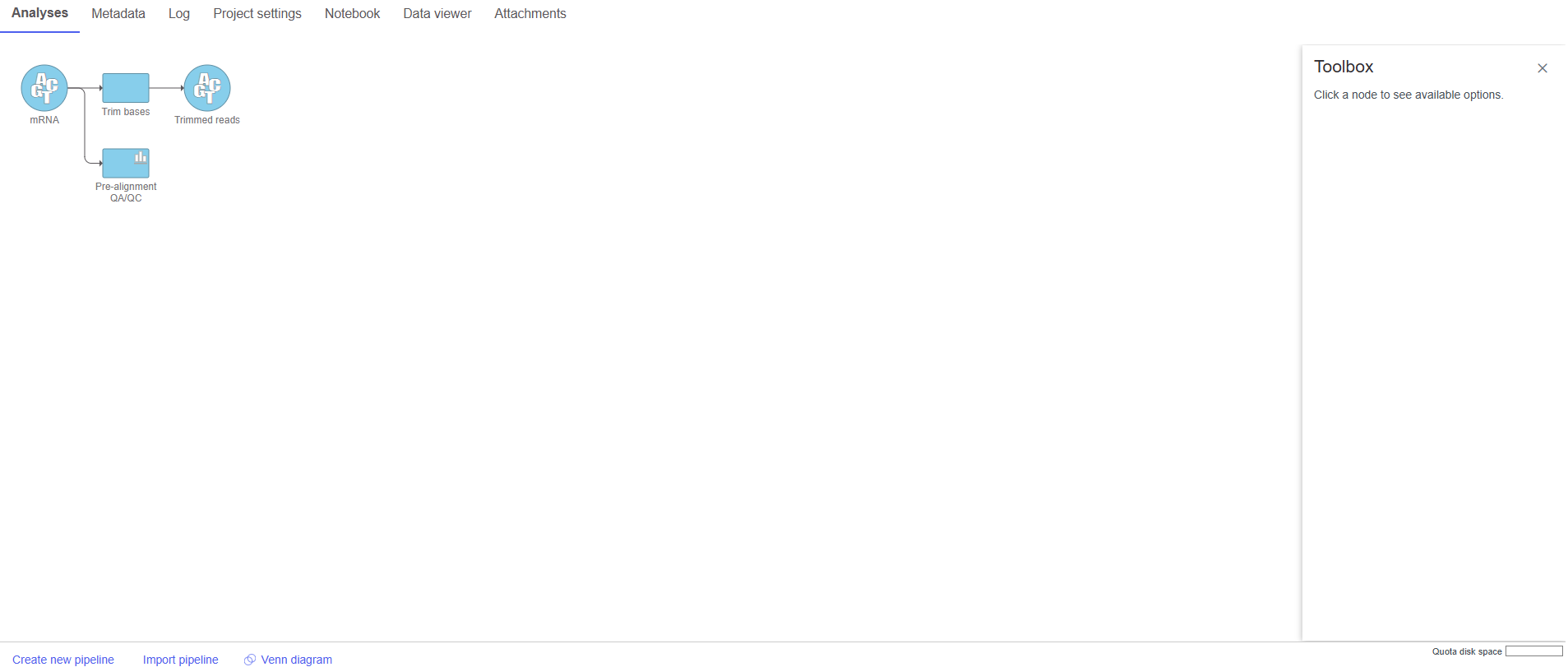
The Trim bases task will generate a new data node, Trimmed reads (Figure 3). We can view the task report for Trim bases by double-clicking either the Trim bases task node or the Trimmed reads data node or choosing Task report from the task menu.
Figure 3. A task and a data node are created from the Trim bases task
* Double-click the **Trimmed reads** data node to open the task report
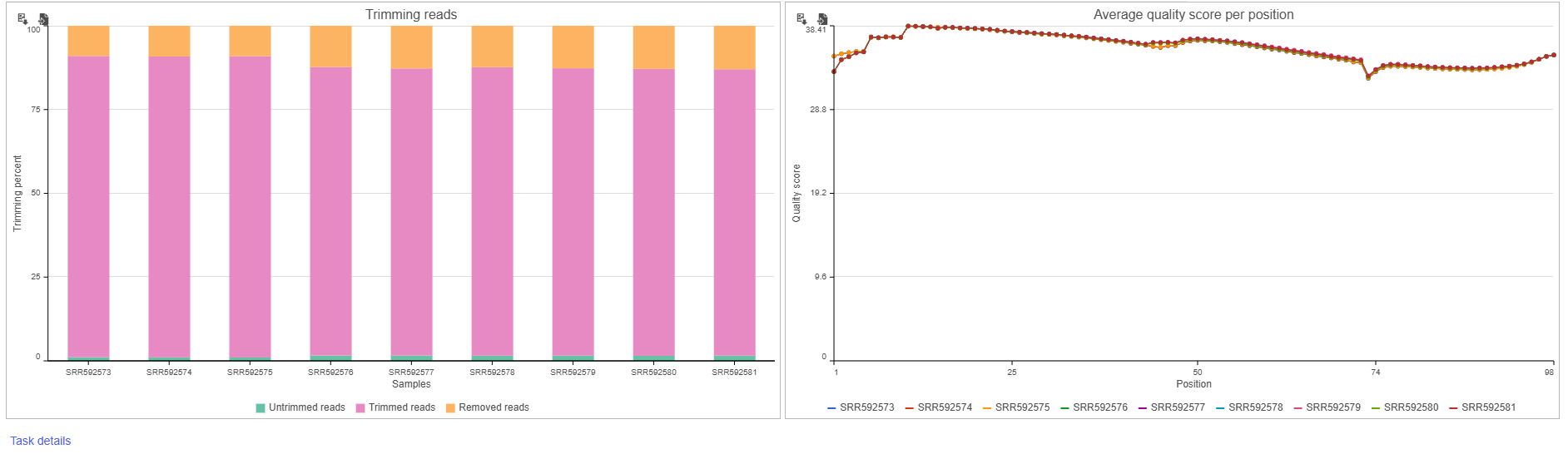
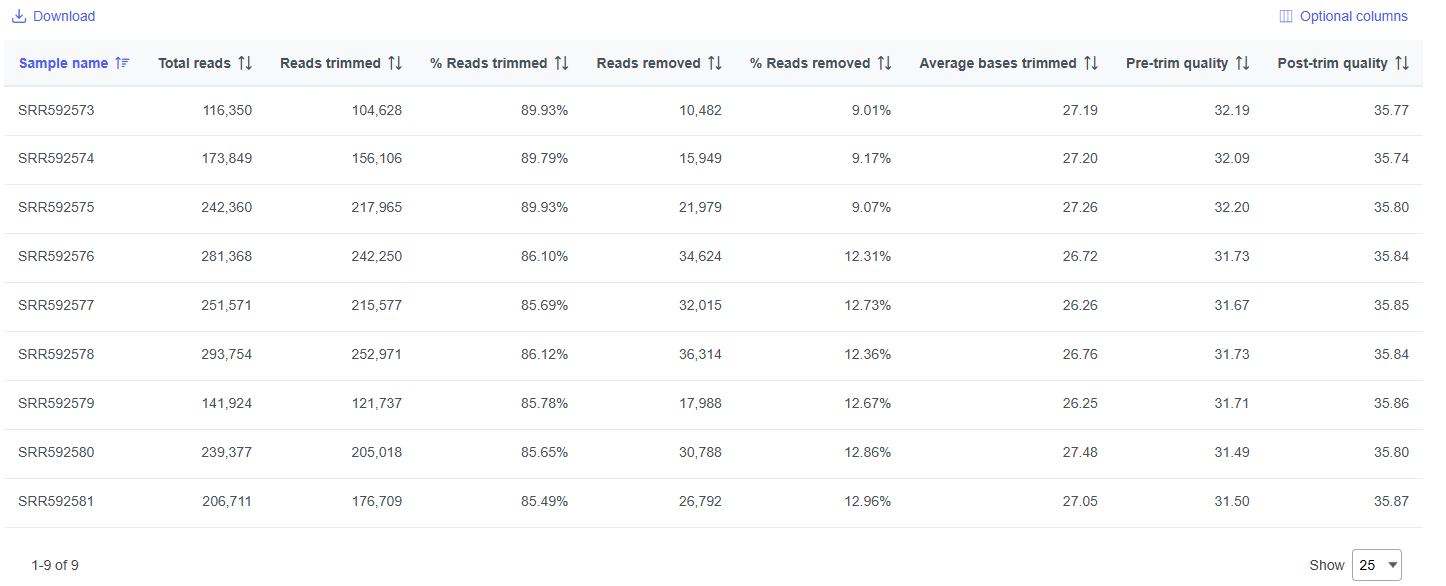
The report shows the percentage of trimmed reads and reads removed in a table and two graphs (Figure 4).
Figure 4. Results of the Trim bases task
The results are fairly consistent across samples with \~2% of reads untrimmed, \~86% trimmed, and \~12% removed for each. The average quality score for each sample is increased with higher average quality scores at the 3' ends.
* Click **RNA-Seq 5-AZA** to return to the Analyses tab
## Additional Assistance
If you need additional assistance, please visit [our support page](http://www.partek.com/support) to submit a help ticket or find phone numbers for regional support.
---
# Agent Instructions
This documentation is published with GitBook. GitBook is the documentation platform designed so that both humans and AI agents can read, navigate, and reason over technical content effectively. Learn more at gitbook.com.
## Querying This Documentation
If you need additional information that is not directly available in this page, you can query the documentation dynamically by asking a question.
Perform an HTTP GET request on the current page URL with the `ask` query parameter, and the optional `goal` query parameter:
```
GET https://help.connected.illumina.com/partek/partek-flow/tutorials/bulk-rna-seq/trimming-bases-and-filtering-reads.md?ask=&goal=
```
`ask` is the immediate question: it should be specific, self-contained, and written in natural language.
`goal` is optional and describes the broader end goal you are ultimately trying to accomplish on behalf of the user. GitBook uses it to tailor the answer towards what is most useful for that goal.
The response will contain a direct answer to the question and relevant excerpts and sources from the documentation.
Use this mechanism when the answer is not explicitly present in the current page, you need clarification or additional context, or you want to retrieve related documentation sections.