Classification
The goal of this task is to identify the most informative features for classifying samples into two categories. This process uses stepwise selection with logistic regression [1]
Configuring the dialogue
Click on a data node contains normalized count at bulk level, choose the Classification task in the task menu under Statistics.

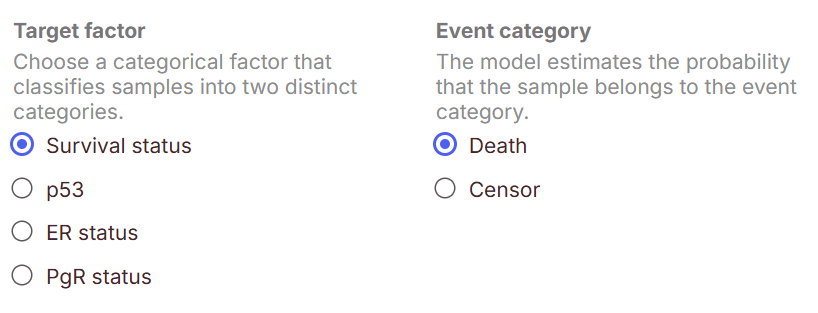
Choose the Target factor which can only be a categorical attribute with two subgroups.
Select the Event category of the subgroup name to predict based on the probability.
Click Next to proceed with the task.

Check Apply lowest average coverage filter if you want to filter out low expression. If there is filter feature task performed before this task, the low value filter is unchecked by default.
Click Configure for Advanced options
The task will perform forward stepwise variable selection. A feature is added to the model if its p-value is below the specified value. The same value is used to determine whether a feature is to stay in the model as the model is being built. The higher value, the more features are likely to be included in the model.
Model validation criterion: a 5-fold cross validation is used during variable selection if the input data has more than 5 samples. For each iteration in cross validation, run forward stepwise on training set, and predict on the test set, choose one of the model validation criterion to select the best model to deploy on the entire data
AUC: Area under the curve, range is between 0.5 to 1. Higher value means better model to distinguish between the groups.
F1 score: is used to evaluate a model on imbalanced data. Range from 0 to 1. High F1 score means good balance between correctly identifying true positive cases and avoiding false positive cases
Accuracy: this correct rate is the ratio of correctly predicted case (true positive and true negative) divided by the total number of samples. It can be misleading on imbalanced data. Range is from 0 to 1. Higher values means better performance of the model.
Click Finish button to run the task on the dialog
Report
The task report contains two tabs: Sample classification and Model report
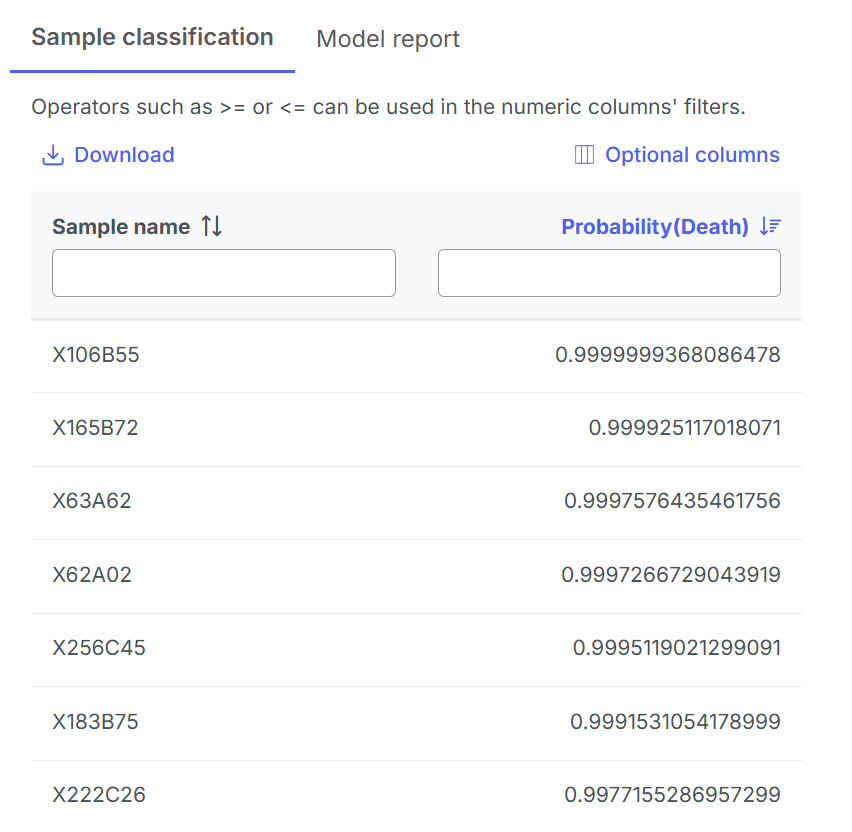
Sample classification contains a table where each row represents a sample with the probability of the event prediction:

If the probability is the same or greater than 0.5, the sample will be classified as the user specified event group; if it is less than 0.5, the sample will be classified in the other group. Click on the Optional columns on the upper right of the table, more sample annotation can be added to the table. Click on the Download button on the upper left of the table to export to a text file.
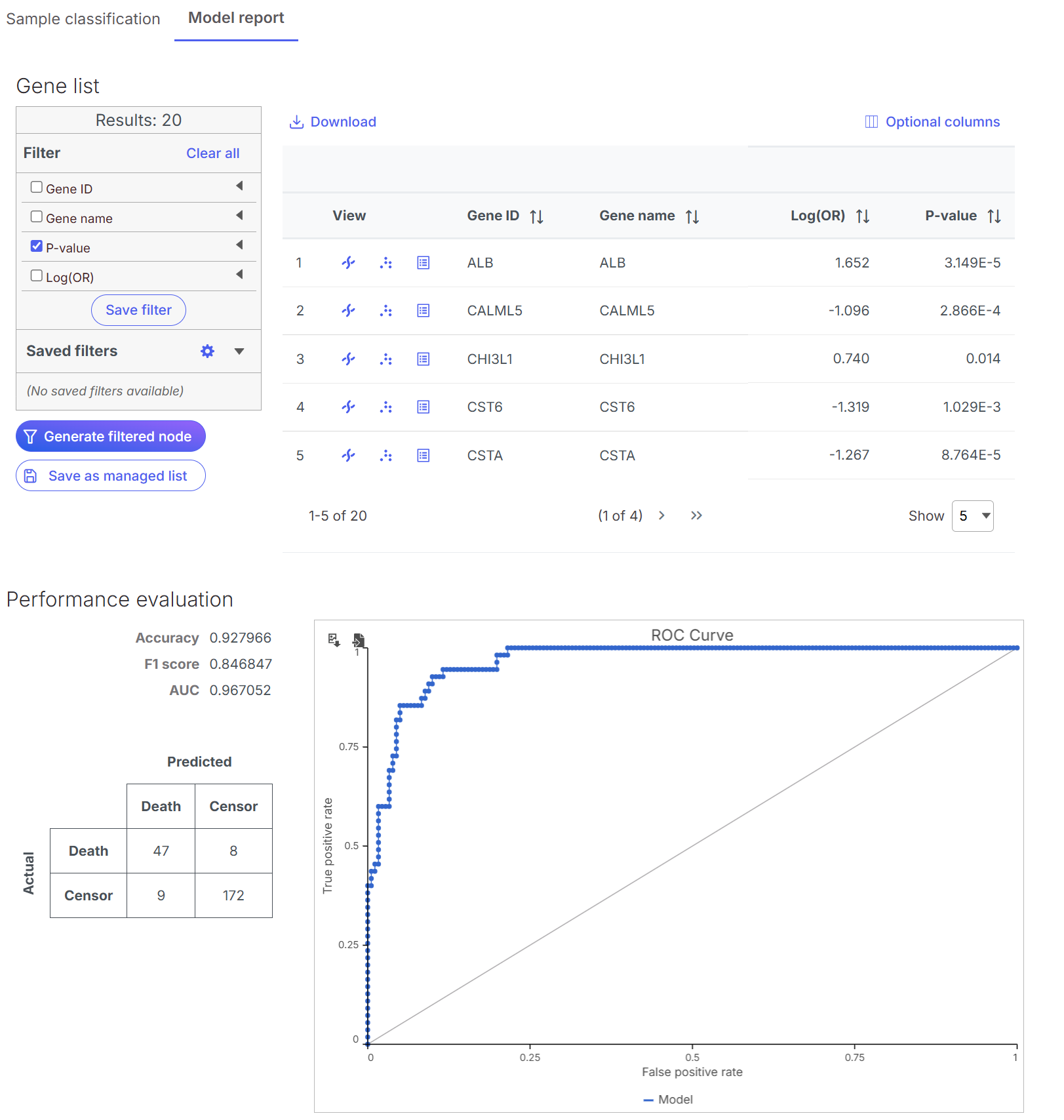
Model report contains the following items:
Feature list table: the table includes all the features used in the model from variable selection, logOR and p-value are reported for each feature from logistic regression result, logOR represents the coefficient for the feature in the model.
Performance evaluation: presents the three model evaluation metric: Accuracy, F1 score and AUC for the model deployed on the whole data.
Confusion matrix: a 2X2 table comparing actual vs predicted classes to show correct and incorrect predictions when the model is run on the data.
ROC curve is displayed on the model generated. It is a graphic presentation of the model performance. X-axis is false positive rate (FPR), Y-axis is true positive rate (TPR), diagonal line represents a random classifier (AUC is 0.5). Area under the curve indicates overall correct rate. The model generates probabilities for the event. When changing the decision threshold, the number in the confusion matrix will be changed, a false positive rate and true positive rate pair will be generated, which is represented by a dot on the plot. Connecting the dots to create the ROC curve to show the trade off between FPR and TPR.

References
[1] https://documentation.sas.com/doc/en/pgmsascdc/9.4_3.4/statug/statug_logistic_examples01.htm
Last updated
Was this helpful?